1.Terms and Abbreviations
| Abbreviations | Meaning |
|---|---|
| GTT | Global Tuning Tool |
| xAF | Extendable Audio Framework |
| VST | Virtual Studio Technology |
| SFD | Signal Flow Designer |
2.Overview of Control Mixer
The control mixer panel is responsible for sum of subset or all control input signals and pushing the sum to control output. Each output control signal value can be a sum of different subset of input control signals. Inputs that takes part in sum are configurable. Numbers of inputs and outputs are configurable via SFD. If there isn’t any input signal associated with output, the output wouldn’t be changed.
3.Build time parameters
Control Mixer can be launch in Weighted or Non Weighted mode, configurable from SFD.
In additional parameters section, there is a “Configure…” button responsible for setting number of Inputs and Outputs of Control Mixer:
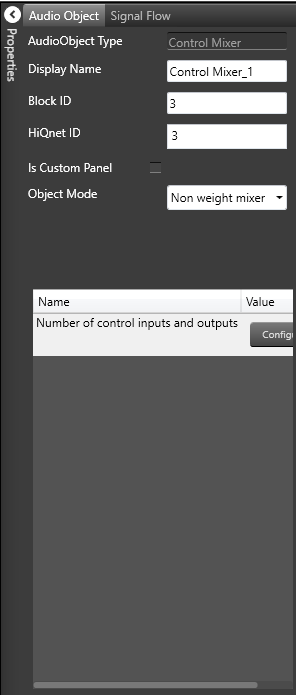

| Configuration parameter | Values |
| Object Mode |
“Non weight mixer” or “Weight mixer” |
| Number of Control Inputs | 1 – 100 |
| Number of Control Outputs | 1 – 100 |
4.Control Mixer Panel
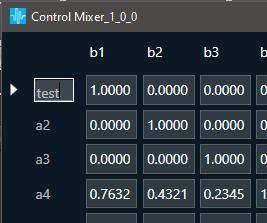
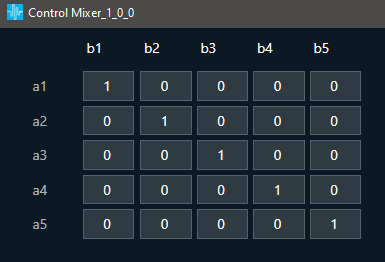
The Control Mixer object supports native panel. The native panel window consists of rows and column. The number of row and column depends on “number of control inputs and outputs” configured.
In Non Weight Mode, table cells can have only two values 0 or 1.
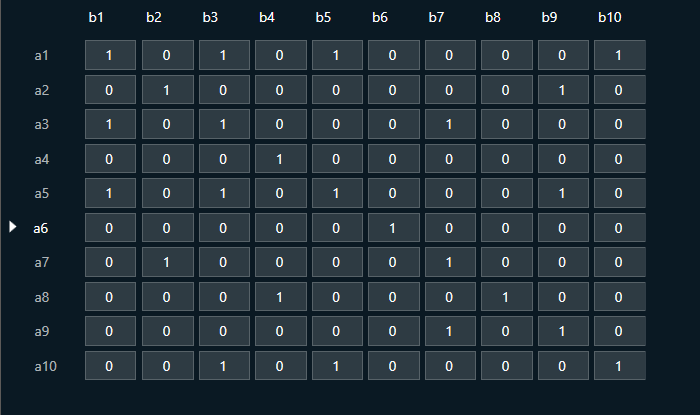
In Weight Mode, table cells can have values from 0 to 1.

Control Mixer supports copy-pasting values from and into Excel sheets.
You can store the specific configuration and recalled via Store Preset option available on the panel. Configure the tuning parameters and select the free preset slot numbers, enter the name of the slot, and click Store preset. This saves and stores the current tuning data to the selected slot.
If you do not enter a name of the slot, then it will take the default named “New Preset”.
You can switch between presets slots and apply their values by simply clicking on them. Additionally, after clicking to override the preset, you can modify the tuning values in that tab or change the preset name.
To reset the selected preset or all the preset values.
- Click Reset Selected to clear the preset that is currently selected.
- Click Reset All to clear every preset in the corresponding native panel.

5.Label editing
By clicking right mouse button on Control Mixer audio object, there is option to “Add Control Pin Labels“:
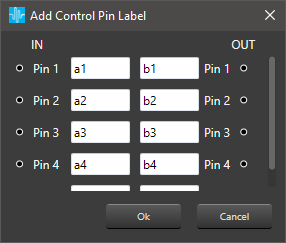
Each control input and output can have own label name, set by user.
From the level of panel, there is also possibility to edit selected row or colum label by double clicking it and entering new name.