LUT column naming
Launching panel
This feature allow to select state variable which value will be displayed as a column header on LUT panel.
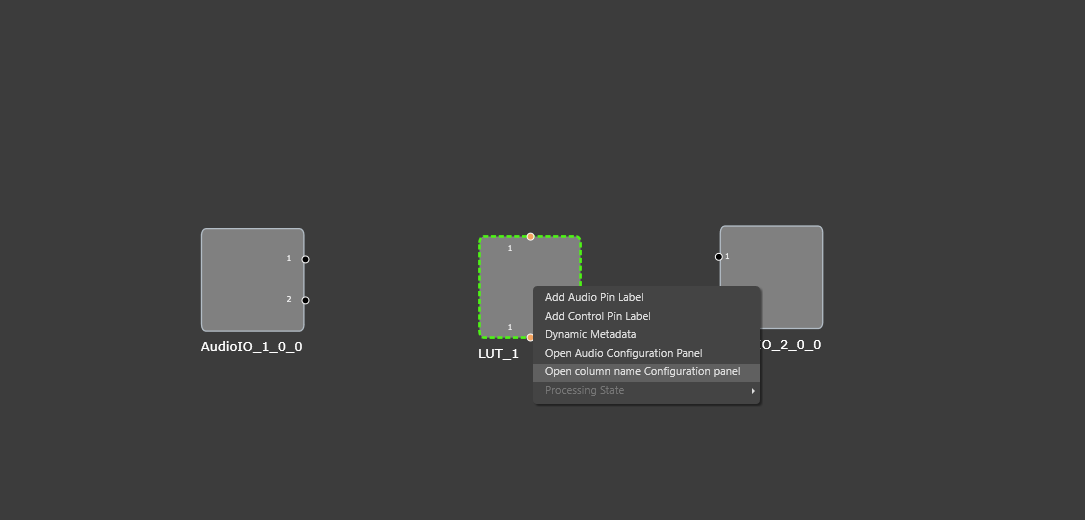
Opening panel which allow to assign state variables into columns can be done though context menu on LUT object in SFD.
Important: SFD must be saved before opening. Only for that case all state variables will be available.
Panel description
Panel contains three main elements:
- Table with columns
- Tree with all objects
- Available state variables
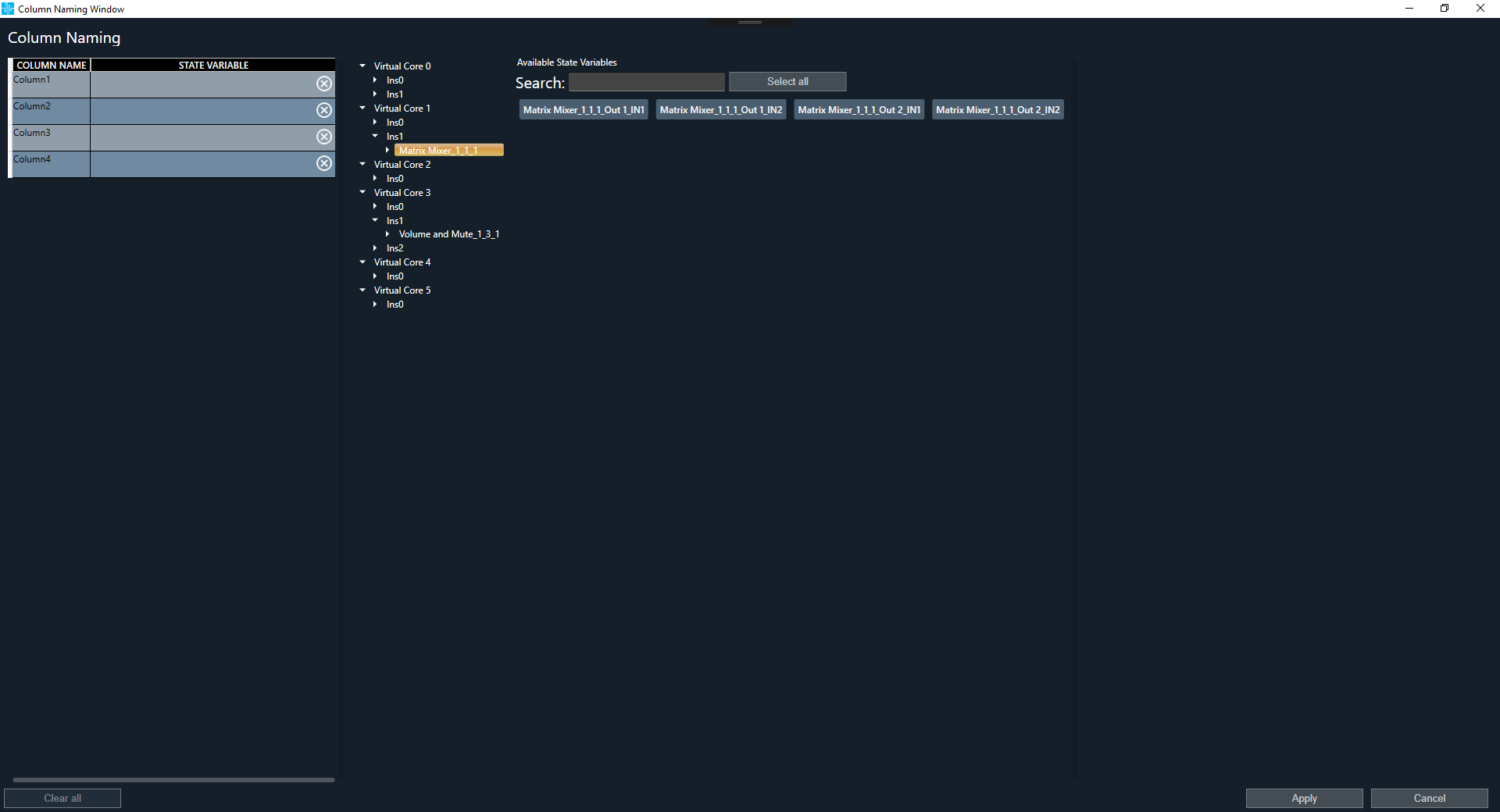
Available state variables can be filtered in two ways:
- While changing selection on tree, available state variables are dynamically chaning – visible are only those which are below tree selected level
- Search via text (case invartiant)
Selecting state variable
To assign state variable into column user must grab state variable and move it to proper column.
This can be done not only for single state variable. Many can be selected by holding CTRL key or by clicking ‘Select all’ button above.
To move all selected, grabbing operation must be performed with SHIFT key hold.
Each state variable can be assign to only one column. After assigning to column it will disappear from available state variables.
When all columns are filled ‘Apply’ button on right bottom corner will be enabled. It will be also enabled when all columns are without value.
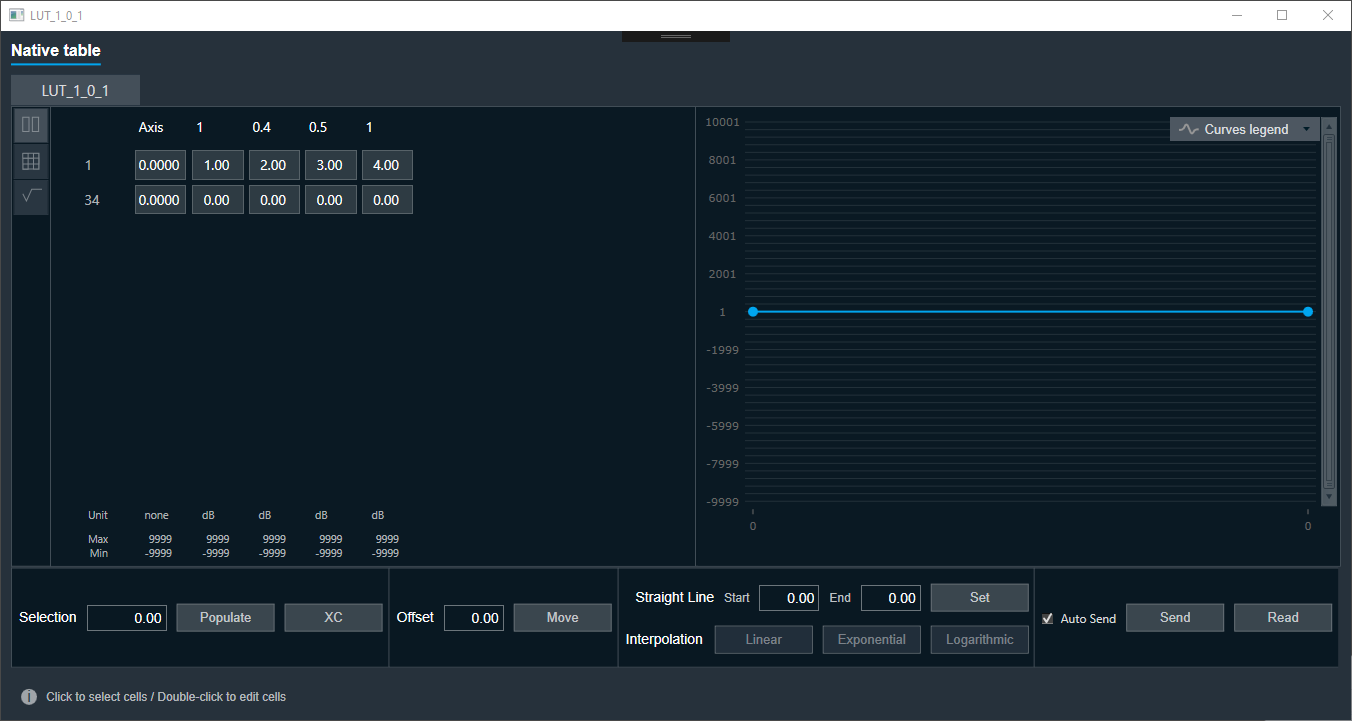
To stop using state variables for naming it is necessary to open Naming panel, clear all variables (left bottom corner button) and apply.