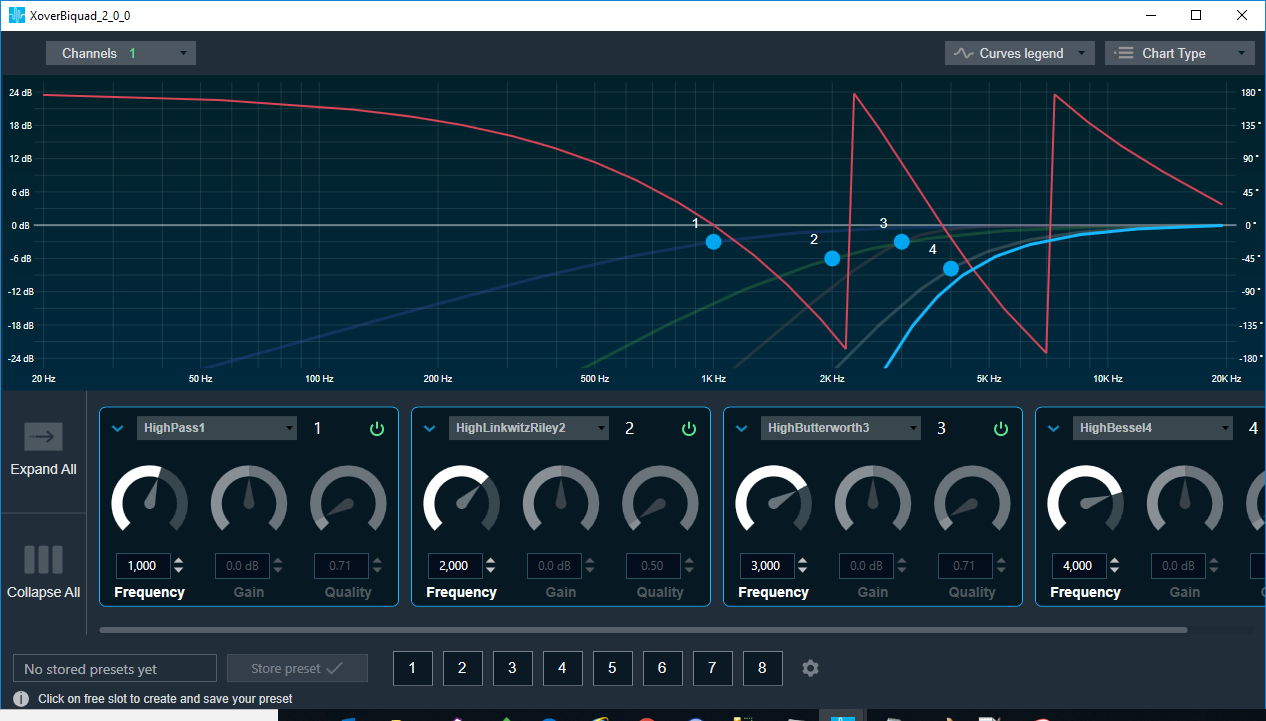
Xover Biquad panel
Channel List
You can select a channel for the current core from a list on the top left of the Xover Biquad panel
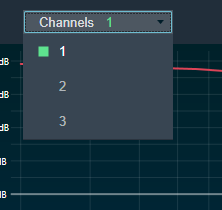
Xover Biquad panel: Channel List
The current channel is marked with a green square and its number is displayed in the header of the channel list.
Xover Biquad Chart
This chart represents the influence of all Biquads on the frequency and phase response. The left axis shows the amplitude in dB, and the right axis shows the phase in degrees and the X- axis shows the gain
The number of Biquads are defined with the Signal Flow Designer. The Biquads get dynamically managed inside the GTT. Most of the Biquads are represented by appropriate markers.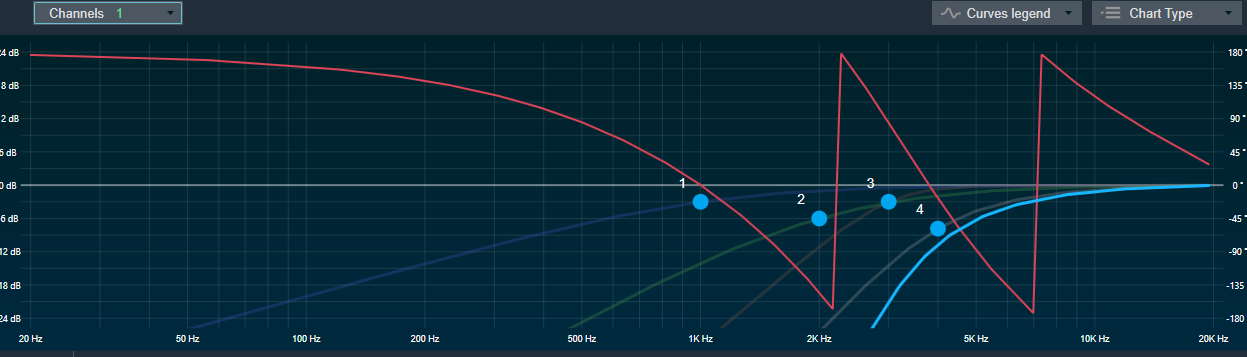
Markers
Markers are movable. Moving them allows you to modify frequency parameter
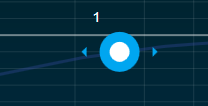
Xover Panel: Marker
Biquad Settings
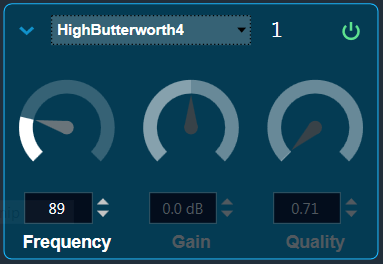
In Xover biquad, even the higher order filter uses only one biquad, hence the no. of bands set to the object will be equal to the no. of biquads in the panel. So the panel contains all the biquads during the launch of the panel
In the Biquad settings you can change only the Frequency. Gain and Quality are not editable
Frequency is used to set the center frequency of each filter.
Gain is set to zero db for all the filter types
Quality is used to set the width of each band pass or notch type band of the filter. It is set to 0.58 for Bessel type filters, 0.50 for the LinkwitzRelay type filters and 0.71 for other type of filters
Change Filter Type
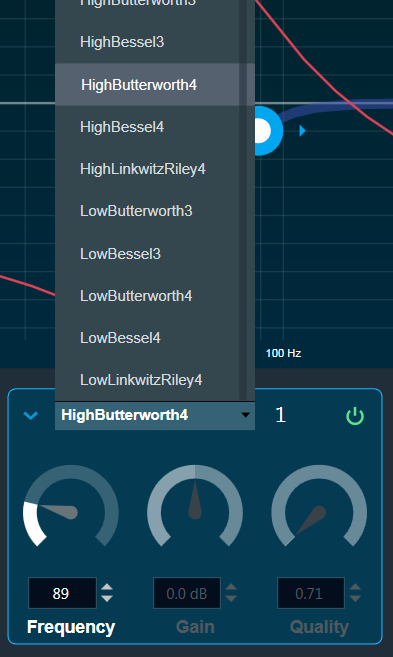
The Biquad Filter Menu shows a list of all Biquads that are set up in the amplifier for the current channel. You can change the Biquad type in the combo box
You cannot add new filters to the Xover Panel. All available filters are added and bypassed at panel startup.
Xover Biquad supports Higher order filters, hence they is no necessity of merge nor split of biquads.
Biquad Curve Legend & Chart Type Bar
Click on Curve Legend
This will display information of all the legends in the graph
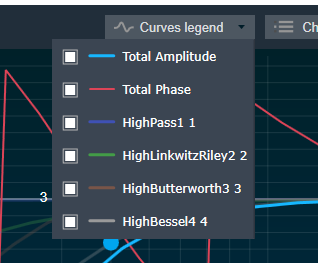
Click on Chart Type.
The Chart Type bar will be opened.
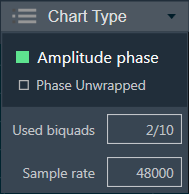
The Amplitude phase is used to turn on and off appropriate charts.
Phase unwrapped is displayed in absolute values. If the phase is wrapped, the display is limited to +-180 °. If it exceeds 180 ° or -180 ° it is continued on the other side of the vertical scale.
Used Biquads informs you about the available Biquads.
Sample rate shows the sample rate at which the filters are operated.
This panel is supported from audio library version 13.0.0.2016 (M-release) onwards. After loading the library import the project again in order to launch the Xover panel