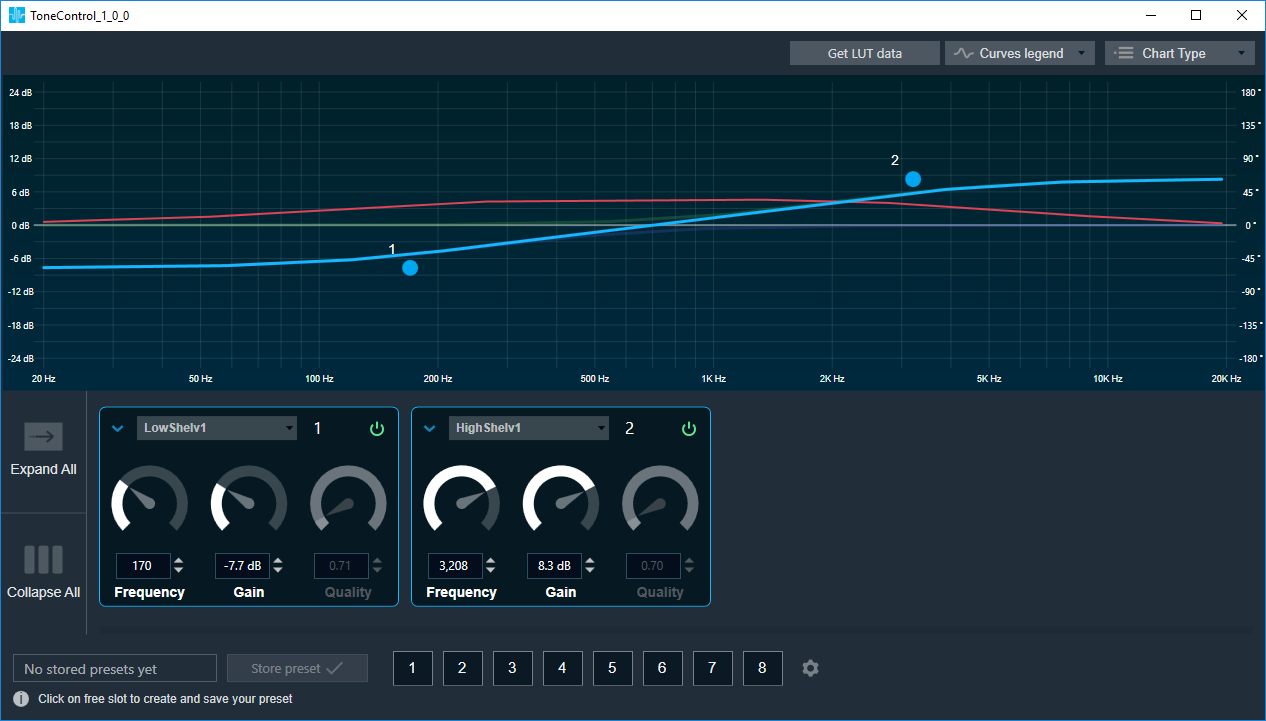
Tone Control Chart
This chart represents the influence of all bands on the frequency and phase response. The left axis shows the amplitude in dB, and the right axis shows the phase in degrees and the X- axis shows the gain
The number of Biquads are defined with the Signal Flow Designer. The Biquads get dynamically managed inside the GTT. Most of the Biquads are represented by appropriate markers.
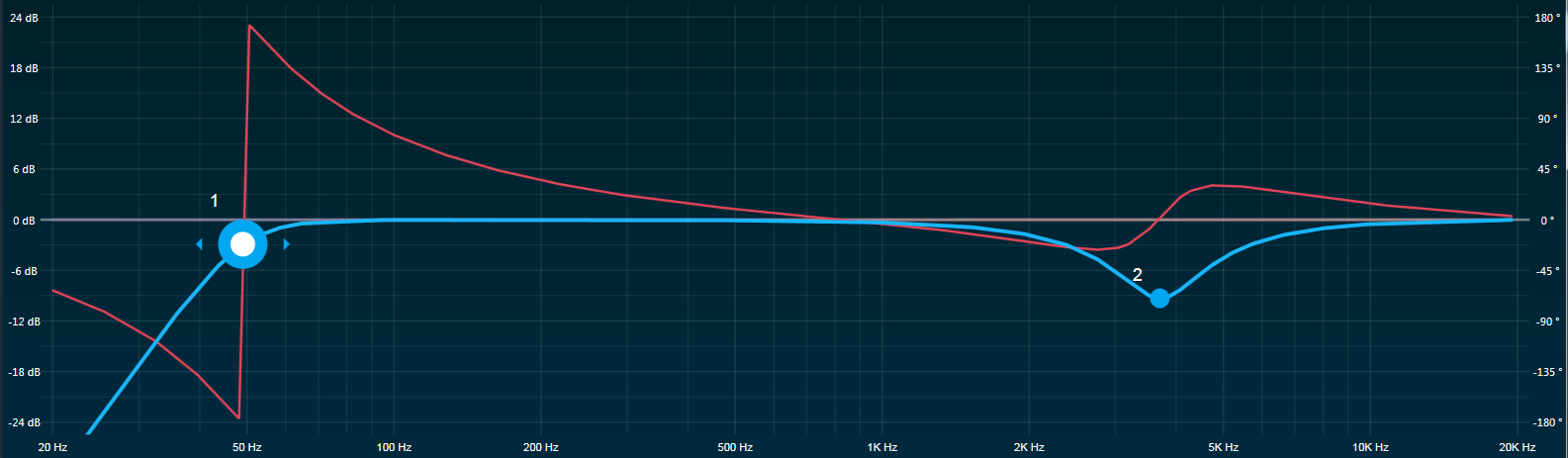
Markers
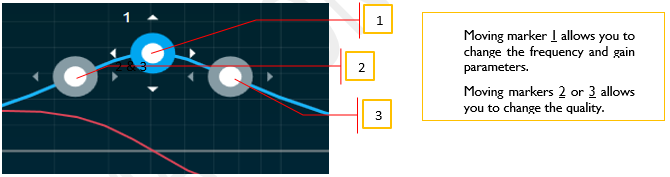
Markers are movable. Moving them allows you to amend the current Biquad parameters. Each marker corresponds to one or two Biquad parameters. For example, the equalizer shown below has three markers.
Biquad Settings
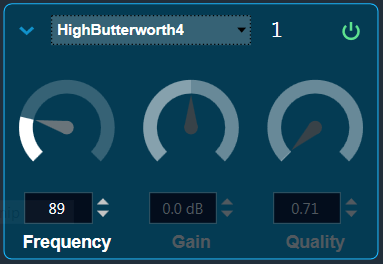
In the Biquad settings you can:
change the Frequency, Gain and Quality
Frequency is used to set the center frequency of each filter.
Gain is used to set the center frequency gain of each band of the filter. Not all filter types offer a variable gain.
Quality is used to set the width of each band pass or notch type band of the filter. Not all filter types offer a variable quality factor.
All available filters are added and default selection is set as All Pass at panel startup.
Biquad Curve Legend
Click on Curve Legend
This will display information of all the legends in the graph
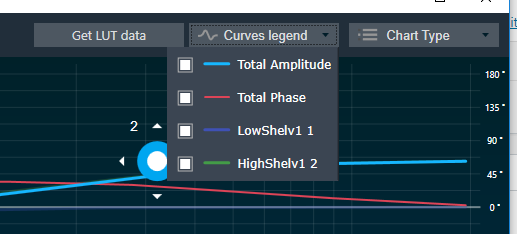
In Tone Control Panel, there is no channel selector since the band values are same across all the channels
Get LUT data
When a Tone Control is connected to the LUT objects, the Tone Control Panel can displays the graph for the LUT data. These graph are just for visualization, you cannot alter the graph values from the panel
Connect the LUT objects to Control pins of Tone Control objects
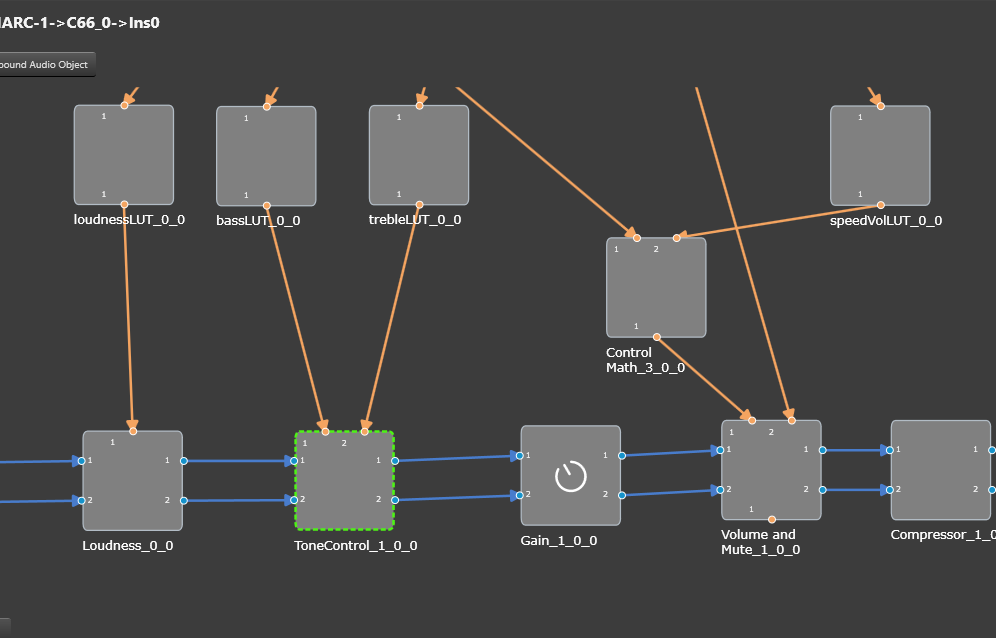
Open LUT panel and set row, column name and values
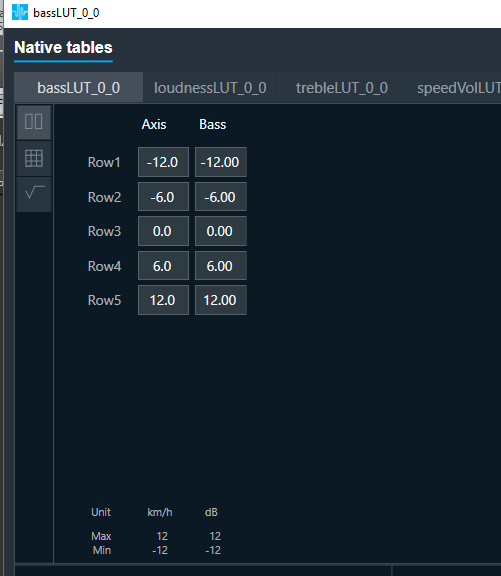
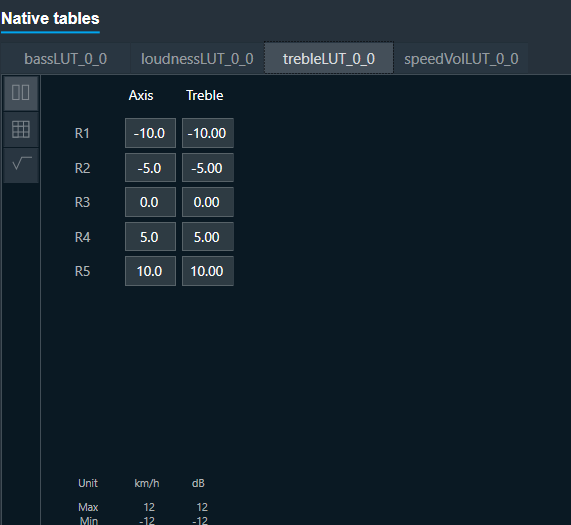
Open Tone Control panel and click “Get LUT data”
This will plot the graph for the LUT data
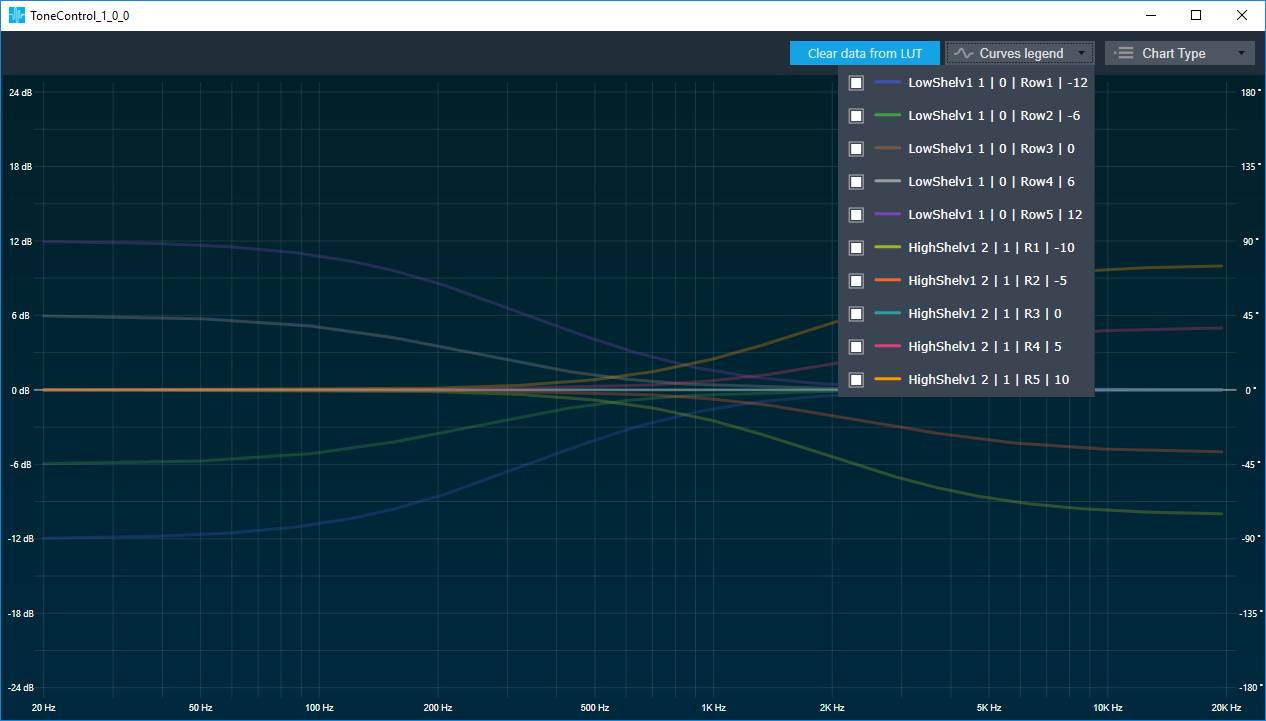 Fig: Displays the graph based on LUT data
Curve Legend has the following information
Filter Name|Control Pin Name|Row Name|Gain Value
Ex: Low Shelv 1| 0| Row1| -12
If there is no Control Pin Name given, then the default pin no will be assigned
“Clear LUT data” will switch back to the previous mode
“Get LUT data” is supported only when it is directly connected to LUT object