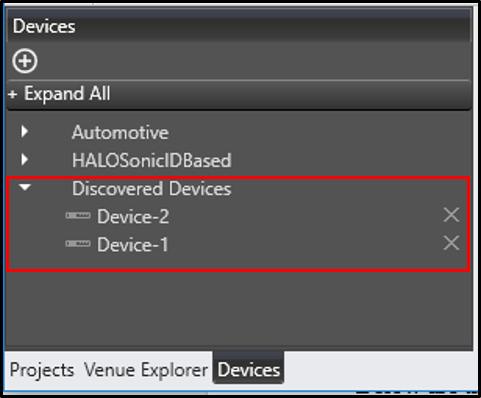
- Drag any of the Discovered Device from the Device templates into the Room.
- On double click of the device in the room, user will see the newly constructed device view.
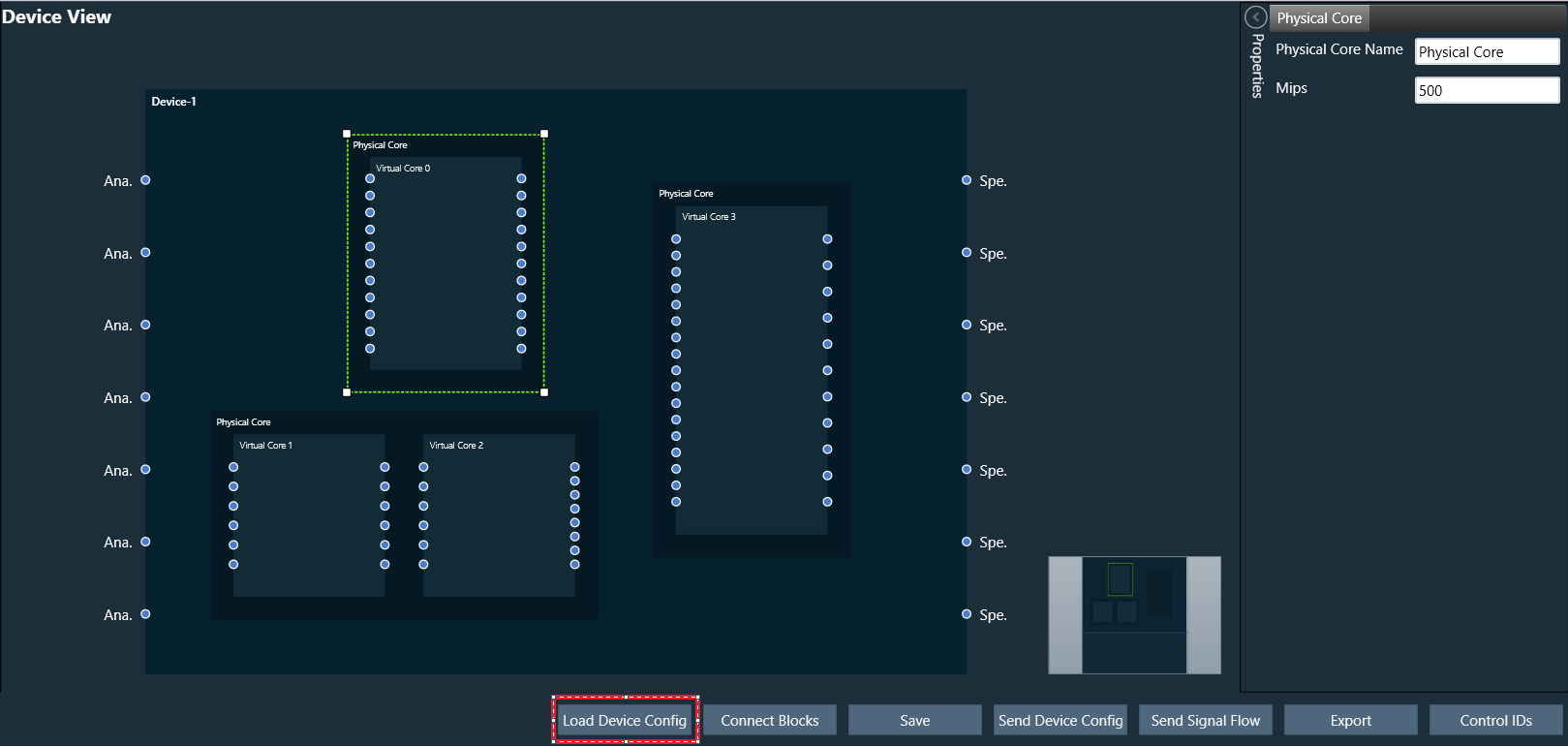
- “Load Device Config” button will be enabled when there are no core objects present in the cores.
- The above view will display the Physical Cores and Virtual Cores (available within a Physical Core) along with their connection points which was fetched from the target during discover device.
- Number of virtual cores and connection points of virtual cores cannot be modified as it is read from the device.
- User can drag core objects onto the virtual cores and make connections between them. Or the user could click on the “Load Device Config” button which would read the core objects information (layout and routing between objects) and also device routing information from the target and display on the GUI.
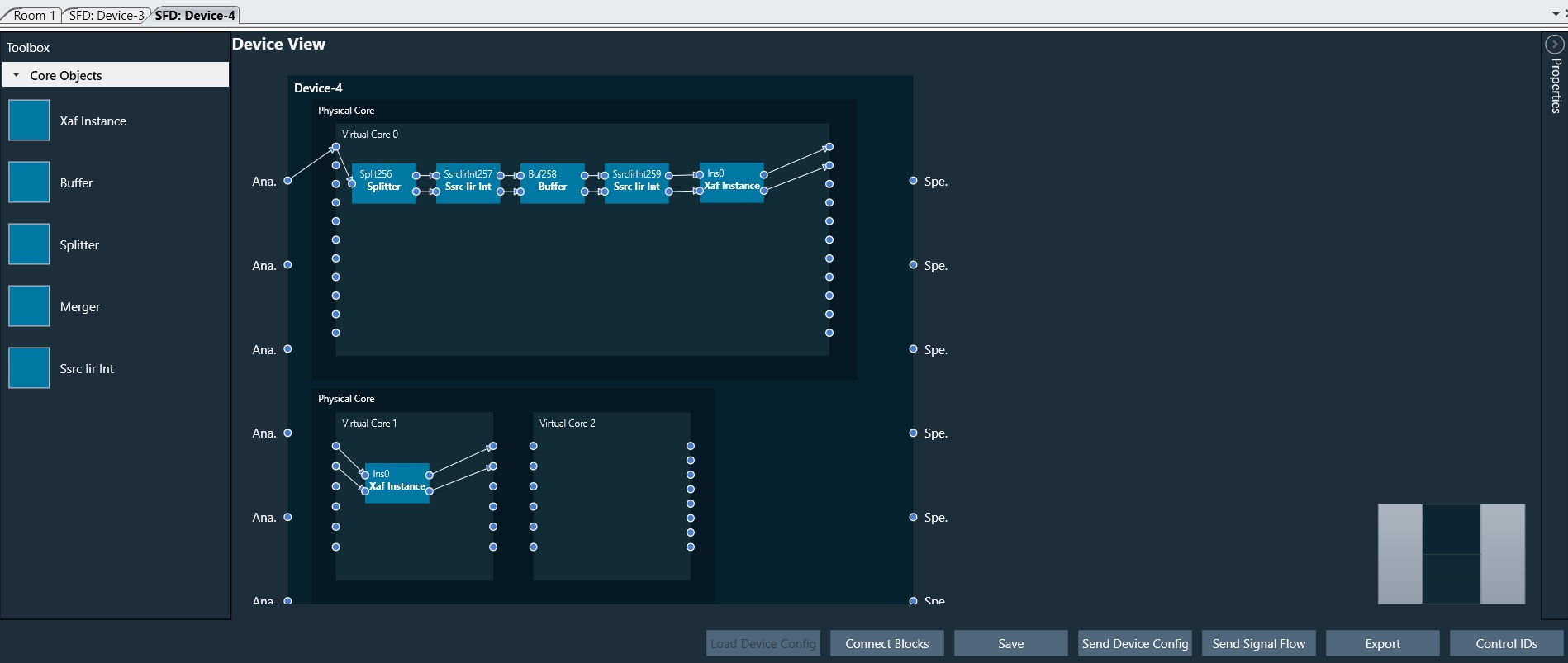
- There is a property section added in device view to display and modify the properties of selected Core or Core Objects. If virtual core is selected its properties will be displayed and if core object is selected its properties are displayed.
Device identification feature is enabled for audio libraries version 13 and greater.