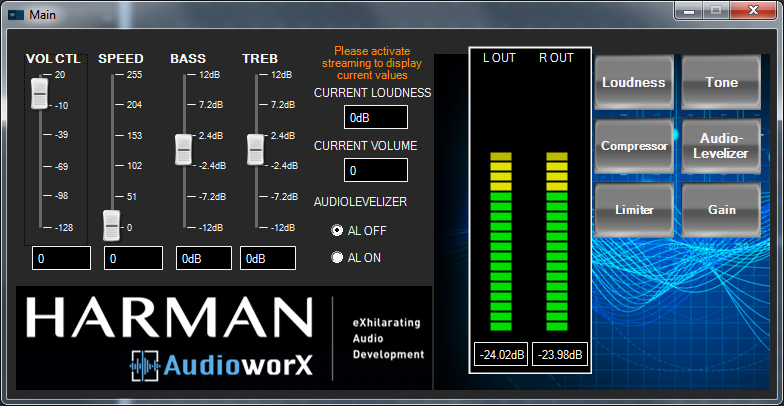
Slider Controls
On the left side of the Main custom panel, vertical slider controls (volume, speed, bass, treble) are used to simulate the system user controls which would arrive from a bus (e.g. SPI, CAN, MOST, etc) via a headunit, GUI or other user interface.
The controls in the panel are linked to the corresponding signals in the Control Interface object.
Changing the controls in the Main panel will not affect the values shown in the Loudness and Tone custom panels
Changing the controls in the Main panel will override design values in the Loudness and Tone panels
Changing the filter gain values in the Loudness and Tone panels will cause the control values in the Main panel to update
To observe the actual values of loudness filter gain and volume being used in the Loudness and Volume objects, a streaming window must be started which includes these variables.
Monitoring
In the center of the Main panel is the monitoring section. The Current Loudness and Current Volume text boxes will display the Loudness EQ gain and actual volume respectively. These must be streamed with the streaming window in order to display the current values.
The L Out and R Out meters will display current output levels. These must also be set up in the streaming window.
Presets
At the bottom center of the panel are two presets for the AudioLevelizer object – one which puts the object in the signal path, and one preset which removes it from the signal path using a mixer object. The presets have been realized using the Parameter Set feature of GTT.
Toggling between the two presets will allow the user to observe the effect of AudioLevelizer, which is a kind of automatic gain control (AGC) processor.
Panel Launch Buttons
At the right side of the Main panel are buttons to launch additional tuning panels.