Create the audio object and corresponding cmake to build the audio object
Go to extendable-audio-framework\build\externalObjConfig.cmake
Type add_subdirectory() to the folder where cmake file for the audio object is present.
Example: ISZ audio object cmake files are present under $(AAT_PATH)

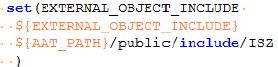
Set EXTERNAL_OBJECT_INCLUDE to audio object include directory
Example for ISZ audio object:
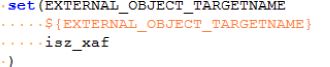
Set EXTERNAL_OBJECT_TARGETNAME with audio object target name specified in the audio object Cmake file
Example : ISZ target name specified in the cmake is isz_xaf
Go to extendable-audio-framework\build\ExternalObjAudioIds.h and audio object Id
Exmaple: ID for ISZ is 1201

Once the above steps are completed, go to extendable-audio-framework and execute below command to generate the libraries:
build.py –platform=WinPc –target=Win32 –profile=Debug for Win32 debug build
build.py –platform=WinPc –target=Win64 –profile=Debug for Win64 debug build
build.py –platform=WinPc –target=Win32 –profile=Release for Win32 release build and
build.py –platform=WinPc –target=Win64 –profile=Release for Win64 release build
This will produce the following xAF libraries under public/lib/win32/Debug folder if built for Debug mode
and public/lib/win32/Release folder if built for Release mode:
- xaf.lib
- xAFBasicOps.lib
- xAFInterface.lib
- xAFMasterModule.lib
- xAFUtil.lib
Each of the newly created external audio object(s) will have their own libraries
Visual studio solution file containing the audio object will be under extendable-audio-framework\output\build_dir_Win32\xAFLibraries.sln which can be used for debugging purpose