The Delay audio object is used in the audio pipeline within the xAF framework. The purpose of the Delay audio object is to time shift between the input and output audio samples.
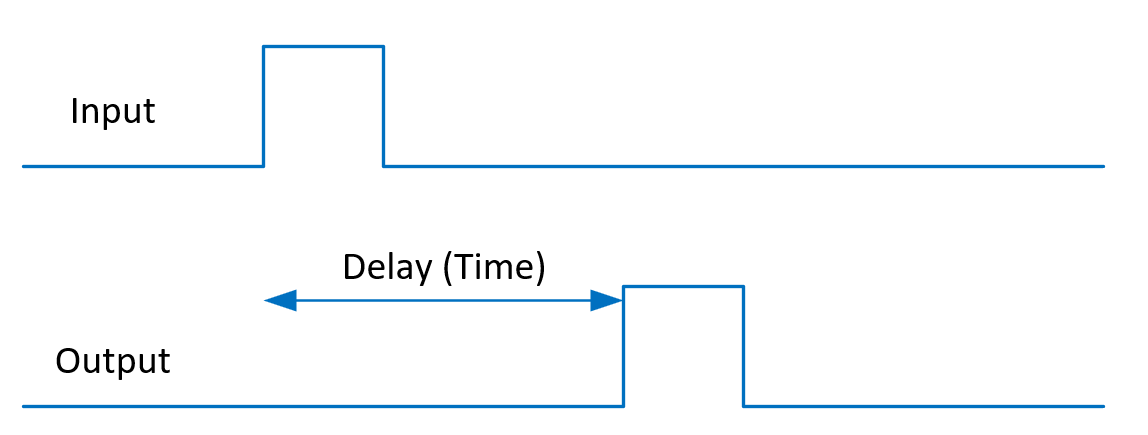
The audio object has the ability to add delays to several channels, each with a different delay setting. However, each channel will support the maximum allowed delay set in SFD. As a result, each channel will have a buffer that is the appropriate size to handle the maximum delay. The Delay audio object can be used when a time delay is required in an audio pipeline.
The AO supports in-place computation based on the core type.
Delay Object Properties
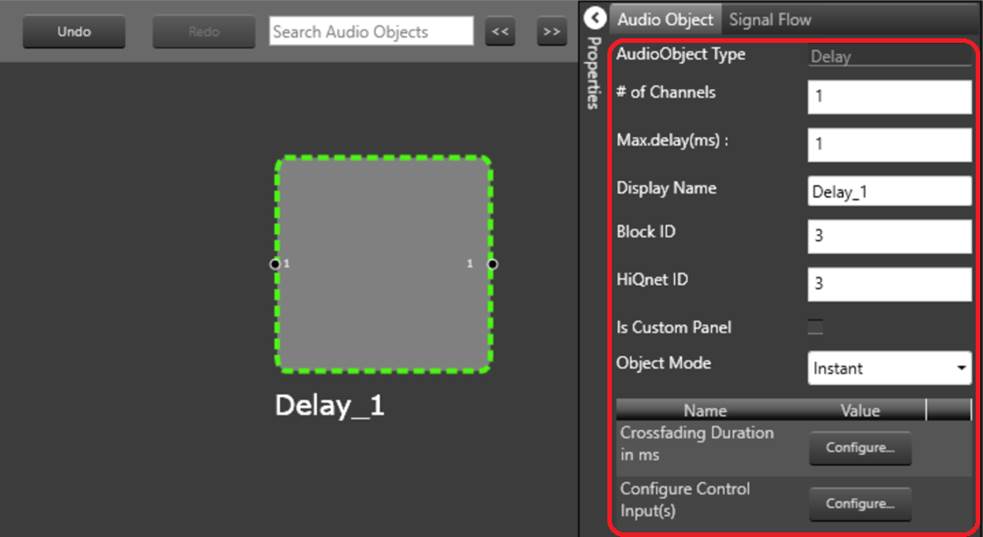
In the Signal Flow Designer (SFD), users can specify the maximum possible delay for the audio object. The number of channels is configurable in the SFD and is always equal to both, the number of Input and Output channels.
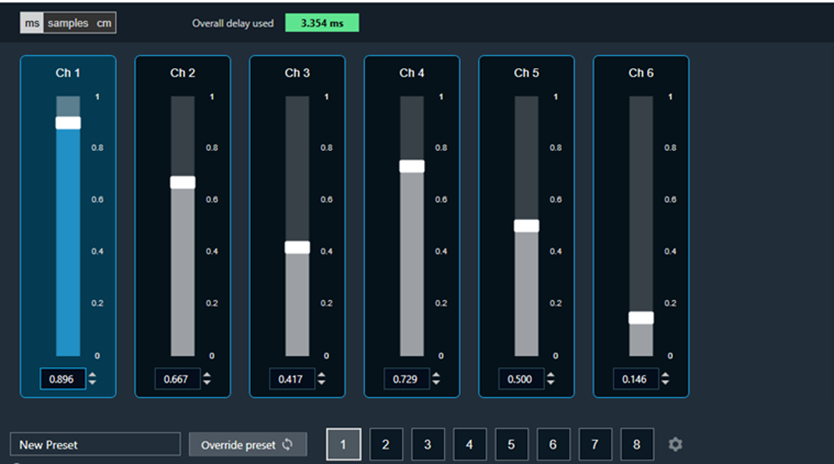
The maximum delay specified during design is applicable to all the audio channels. Individual delay settings for each channel are configurable, for more details refer to Native Panel.
Max delay value specified in milliseconds (ms).
| Properties | Description | ||||||||||
|---|---|---|---|---|---|---|---|---|---|---|---|
| # of Channels | Enter the number of channels.
|
||||||||||
| Max.delay(ms) | Specify the maximum possible delay for the audio object. It is applicable to all the audio channels.
|
||||||||||
| Display Name |
Name of the delay. It can be changed based on the intended usage of the object. |
||||||||||
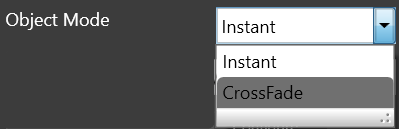
| Object Mode |
Delay object operates in one of the following two modes. m_Mode is used to specify whether the change in the delay is Instant or uses a Crossfade.
|
||||||||||
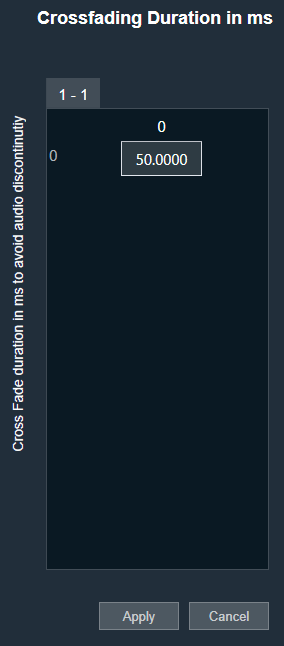
| Crossfading Duration in ms |
Fade time, only effective when the delay is operating in Crossfade mode.
|
||||||||||
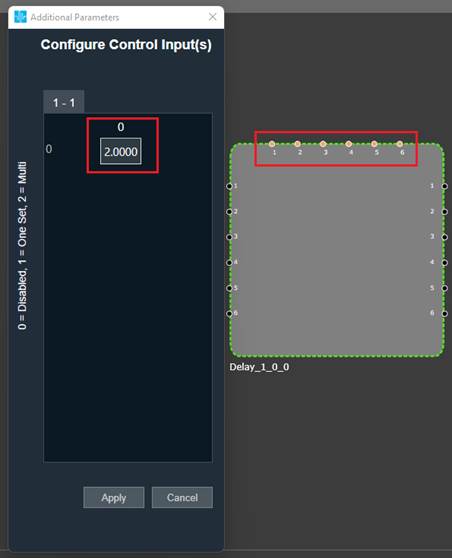
| Configuration Control Input(s) |
Configuration control inputs (Enable/Disable).
|
Native Panel
Delay object supports native panel. The native panel window consists of channel slider bars. The number of slider bars depends on the # of Channels property values.
To open the native panel, double-click on the delay object in the SFD. Move the slider bars to configure the delay. The delay can be configured in ms, samples, or cm.
For more information about the Delay native panel check the link.