In order to access Generic Set File, go to the “Room” view, and click on the device to activate the “Device tab”
Click on “Generic Sets” icon
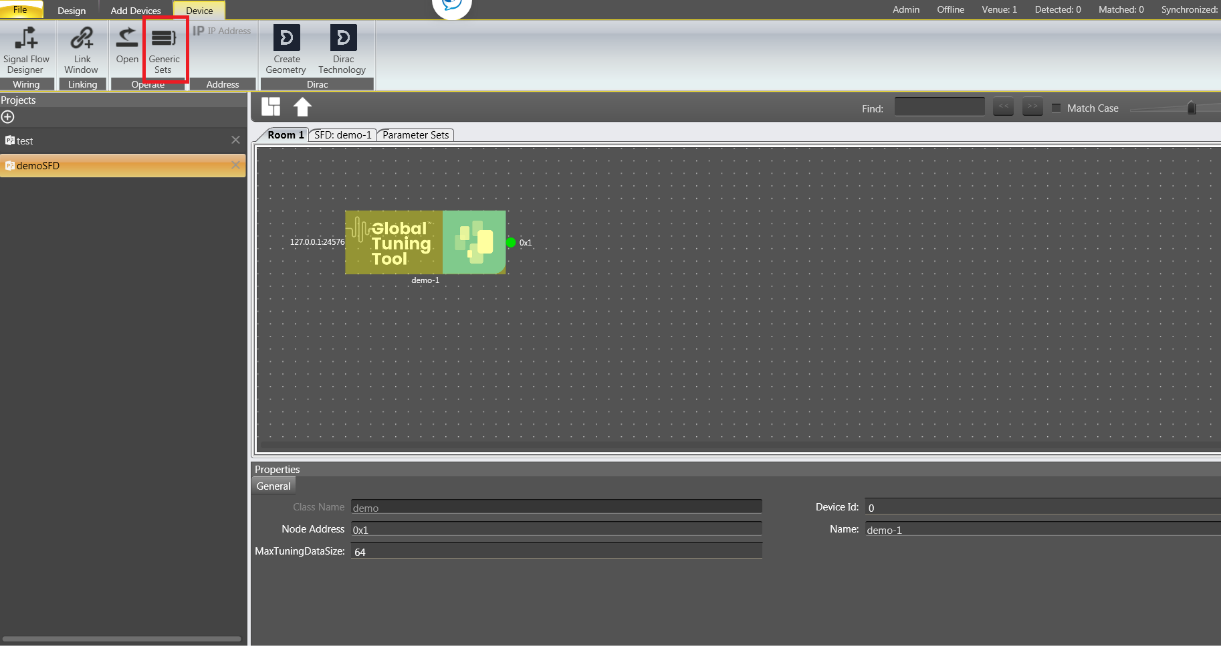
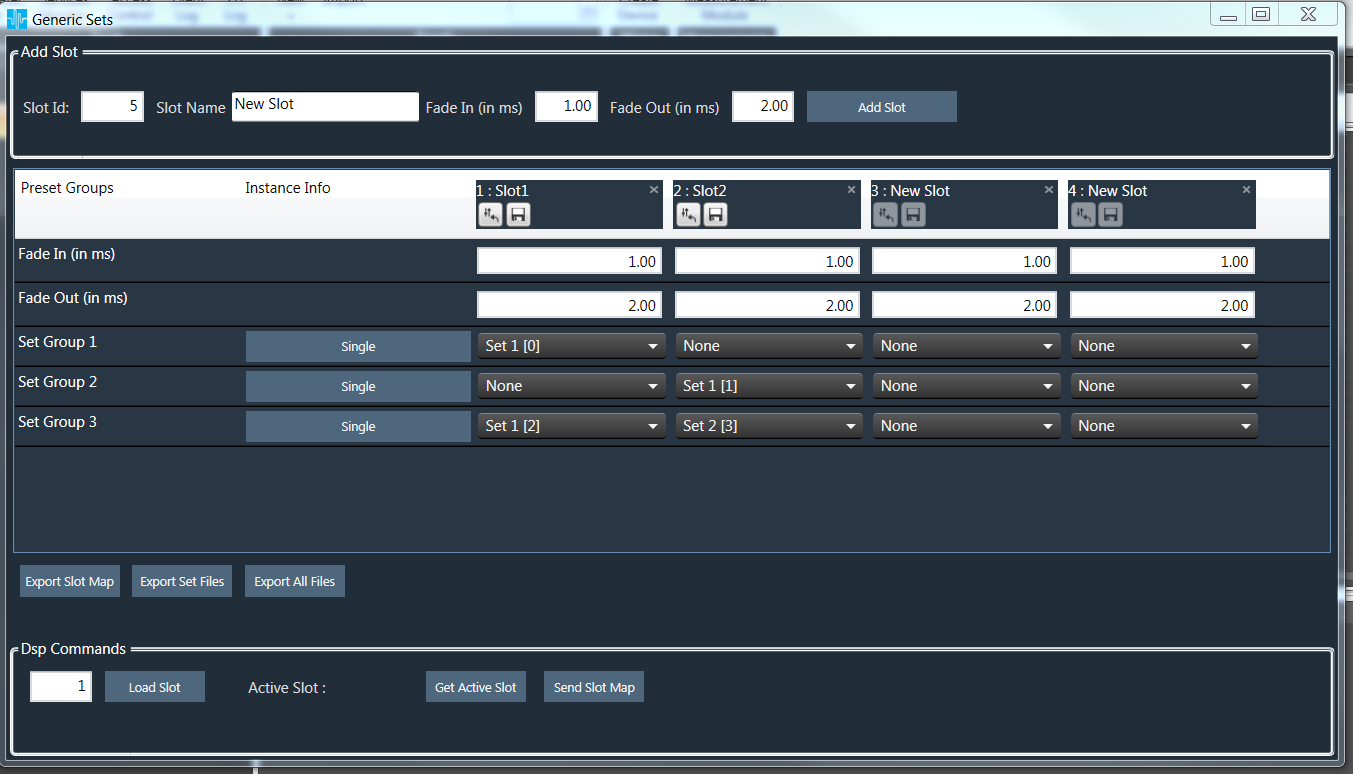
This opens Generic Sets screen with following details:
- All the Set groups created in parameter sets screen containing the parameters of the device are displayed as rows in set map table.
- Fade in and Fade out rows will be added by default.
- Slot Id – serial number starting from 1(or next available slot) will be displayed.
- Slot Name, Fade in and fade out will be filled with default values.
Slot Addition
Enter slot id, slot name, fade in, fade out and click on Add Slot.
A new slot column will be added with entered details and default value (None) for set groups available in the table.
Slot Configuration
Click on drop down to select and set of the set group created in parameter sets screen.
If “None” value is selected for any set group this group is bypassed (previously loaded tuning parameters will be retained for that group) on the device when that particular slot is loaded.
To edit the Slot name double click on the table column header.
Slot Removal
Click on “x” icon available on any column to delete the slot.
Instance Info Display
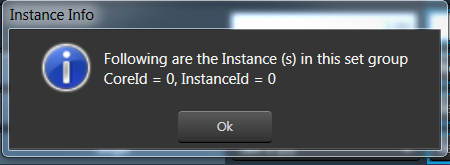
The instances associated with the set group are displayed next to set group. If the group contains parameters of only one instance, instance info is “Single” otherwise it is “Multiple”.
On clicking the instance info button, details of the core and instance are displayed as below: