Click on “Open Streaming Window” in order to open the streaming window
The streaming window will be displayed.
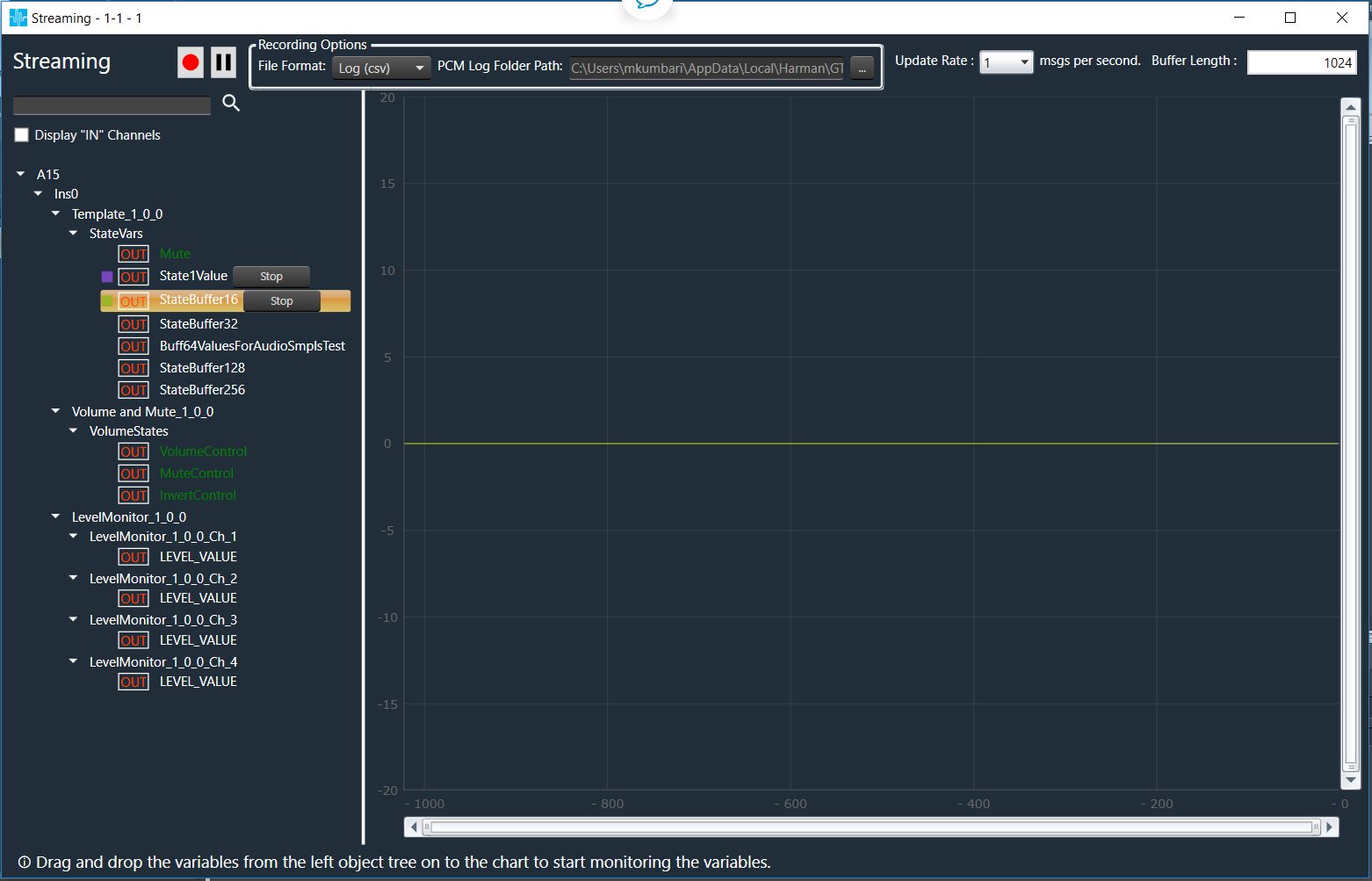
The state variables, which support streaming and polling, are filtered and displayed on the left side in the object tree. The polling state variables are highlighted in Green color. Any state variable can be dragged and dropped on to the graph to start live streaming. A “Stop” option will be displayed next to the stream, which is already started. Active streams can be matched with the curve on graph by the colors of the curve and the rectangular block next to the state variable.
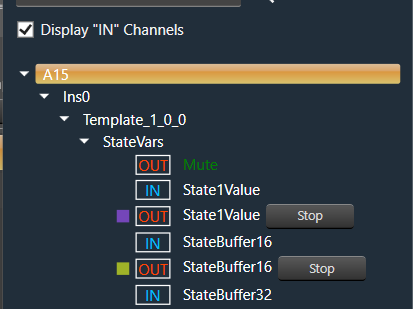
By default, state variables displayed are to stream out “After Calculation” data. There is an option provided at the top of the object tree to select “Before Calculation” state variables. If this option is selected IN state variables are displayed in addition to OUT state variables.Out and In variables are specified with keywords OUT(red color) IN(blue color) before state variables names.
There is a possibility to zoom x and y axes.
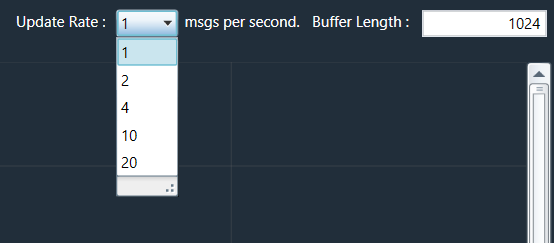
The update rate can be chosen before starting live streaming of any state variable. This rate will be applied to all live streams. Buffer length (The maximum streaming data that can be stored) can be changed any time during the live streaming.
The user is allowed to open multiple streaming windows for a device and streaming on multiple devices.
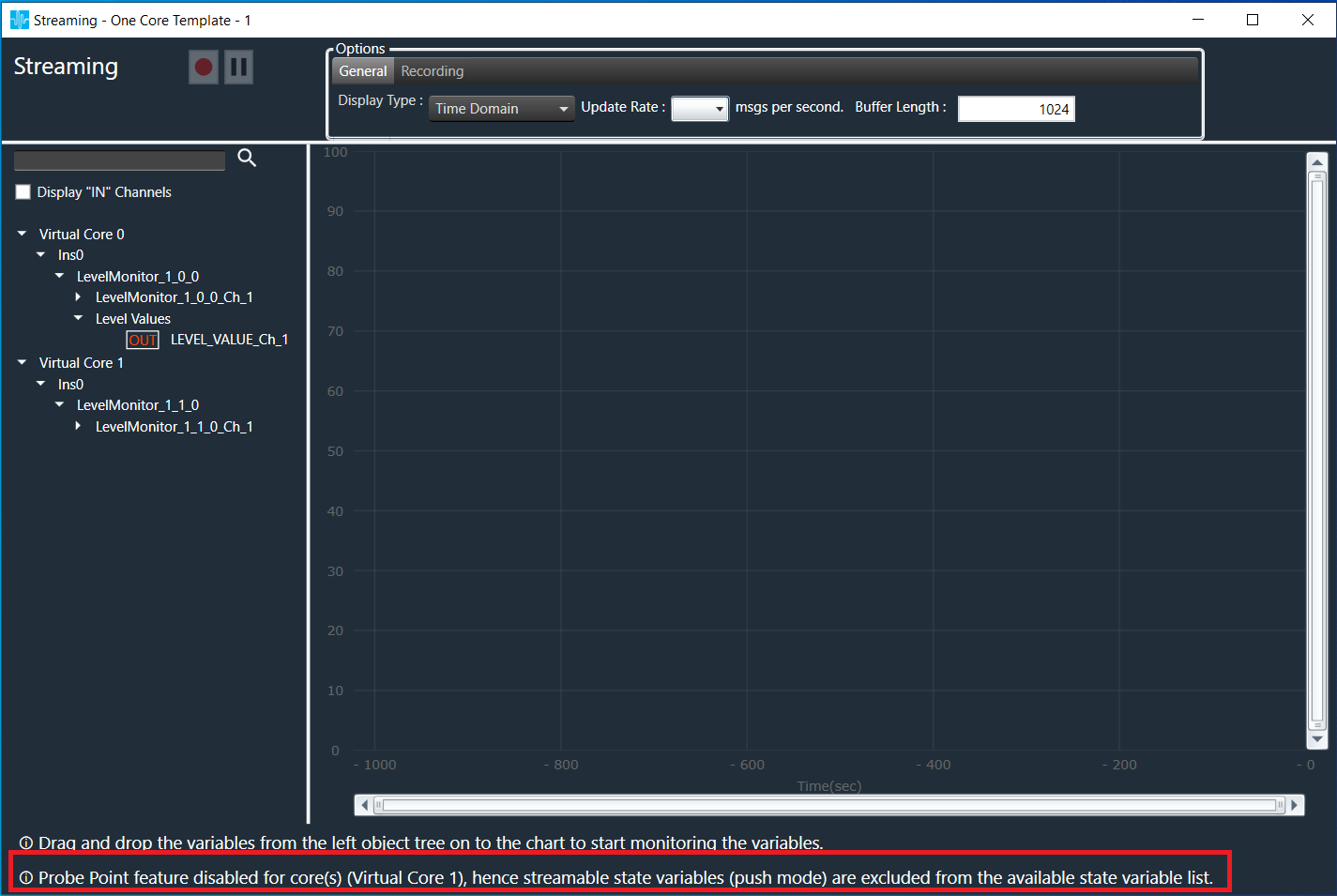
If “Probe Point” feature is disabled for any core, streamable state variables (push mode) are excluded from the available state variable list for that core.