Creating a New Group
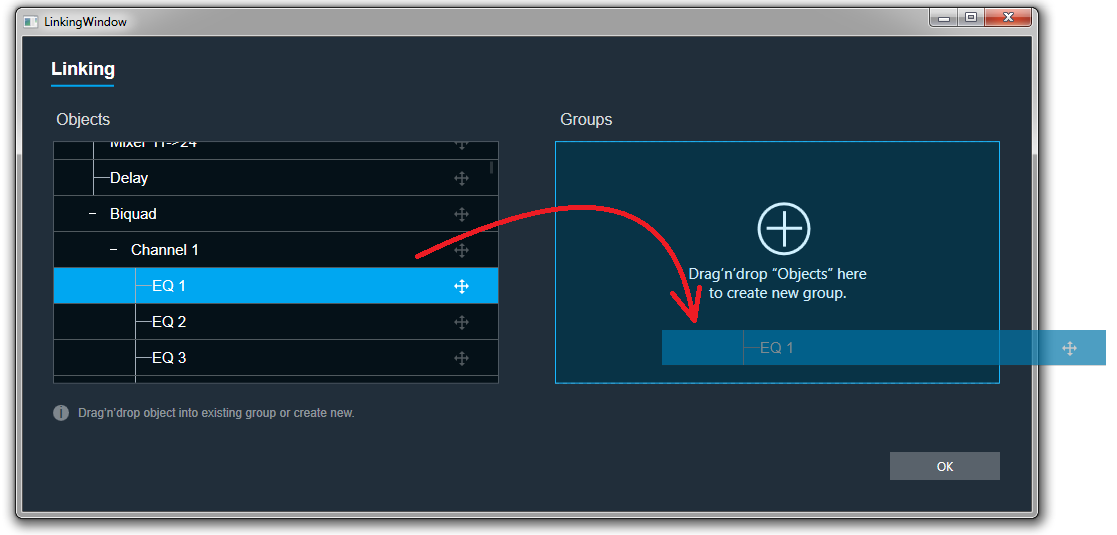
If there are no groups created:
Just drag the object you want to add to the group over to the right panel as shown in the graphic below.
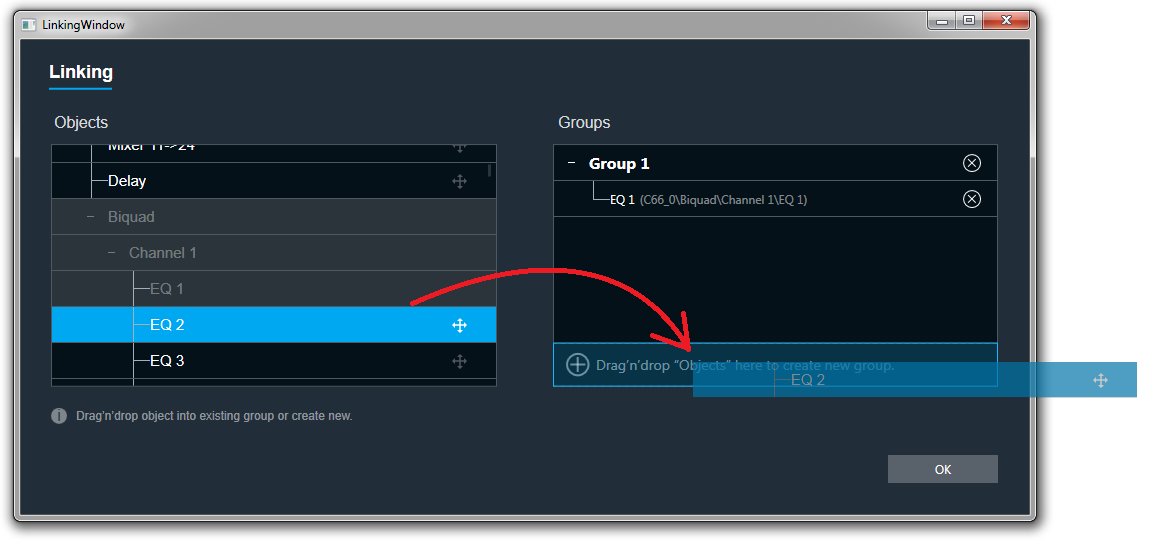
If a group has already been created:
Drag the object you want to place in the new group into the special placeholder at the bottom of the group panel as shown in the graphic below.
Adding an Object to an Existing Group
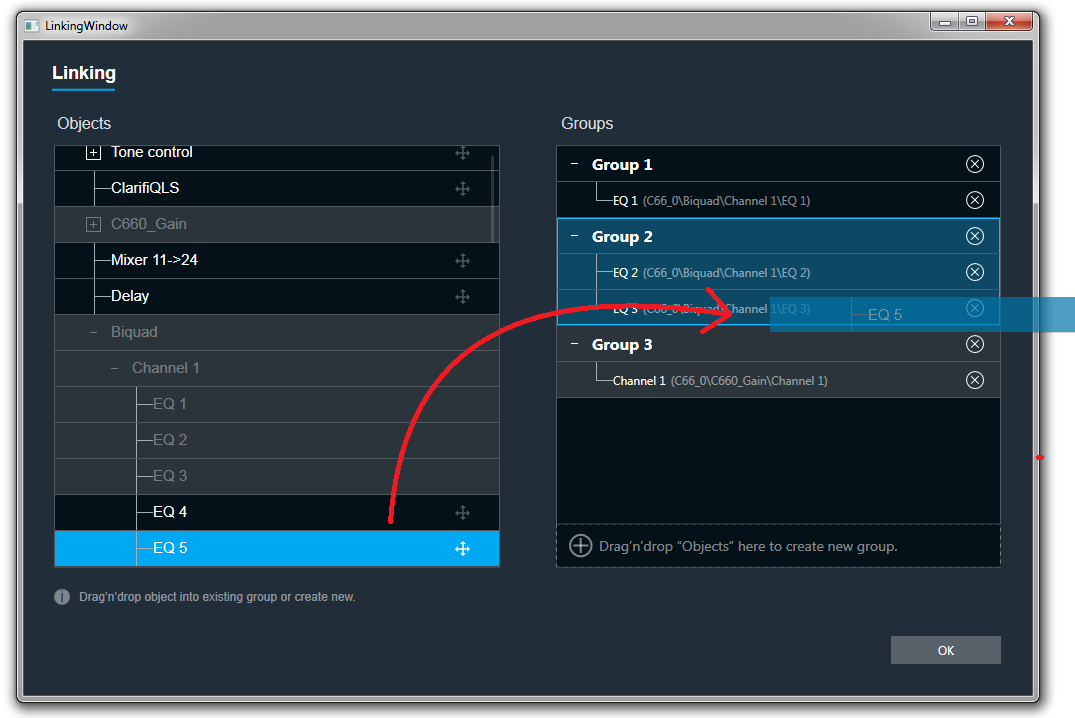
Drag the object on to the target group as shown above.
If the object cannot be added to a specific group, that group’s color will change to gray.
If the object can be added to the group, the group’s color will change to blue.
Renaming Groups
Double-click on a group name and type in a new name.
You can only rename groups, you cannot rename AOs.
Removing Objects
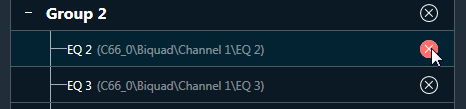
Click on the remove button to right of the object as shown in the graphic below.
This will also delete all child objects.
Removing Groups
To remove a group, click the remove button to the right of the group.
This will also delete all child objects.
Rules
- Each AO can be part of only one group.
- If a child AO is part of a group, the parent element cannot be part of that group.
- Groups can contain only one type of AO. For example, you cannot link a Biquad with a Delay.
- Each group can contain more than one AO.
- Objects in groups are linked according to their order. For example, if you link two EQ channels, the first Biquad from the first channel will be linked with the first Biquad from the second channel.
- Changing links is done live. You do not need to close the window for the changes to be working.
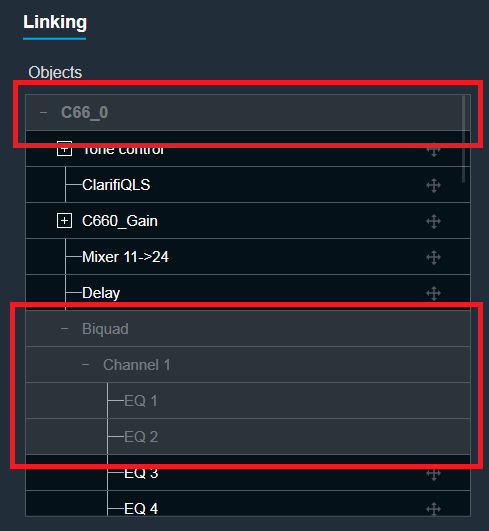
If for any reason an AO cannot be dragged to any group, its background color will change to gray as shown in the graphic below.