To launch a native panel from the Signal Flow Designer it is assumed that a signal flow exists. For more information on how to create a signal flow, refer to chapter Create a Signal Flow.
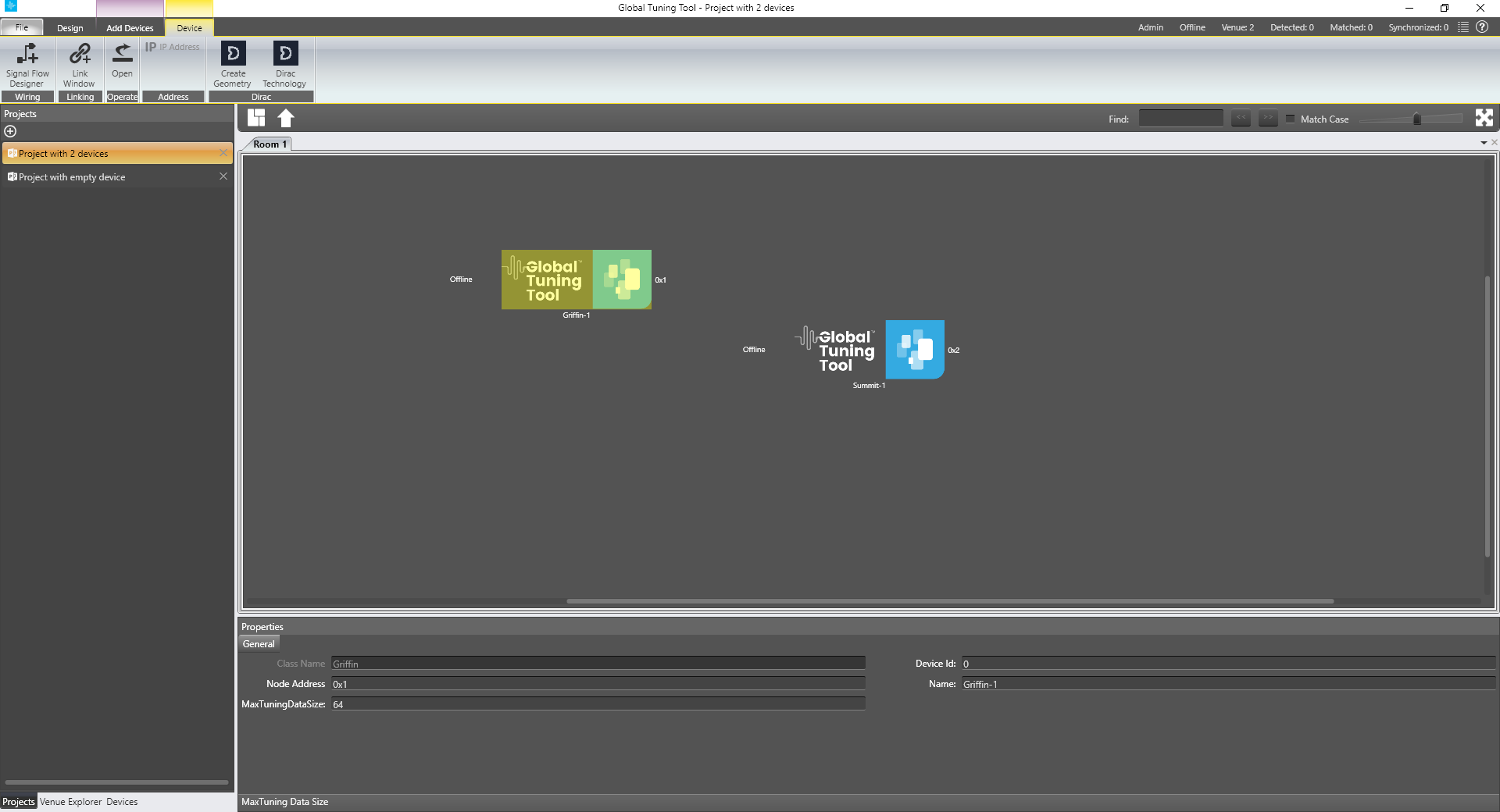
Open a project with at least one device, select the Device tab from the main ribbon and click on Signal Flow Designer.
The Signal Flow Designer will be displayed showing your device.
Your xAF instance will be displayed.
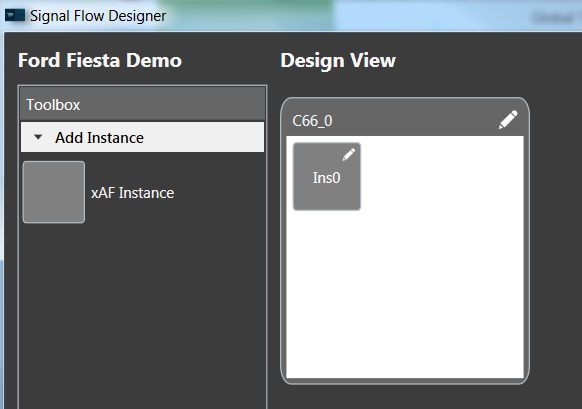
Double-click on your instance.
The Signal Flow will be displayed.
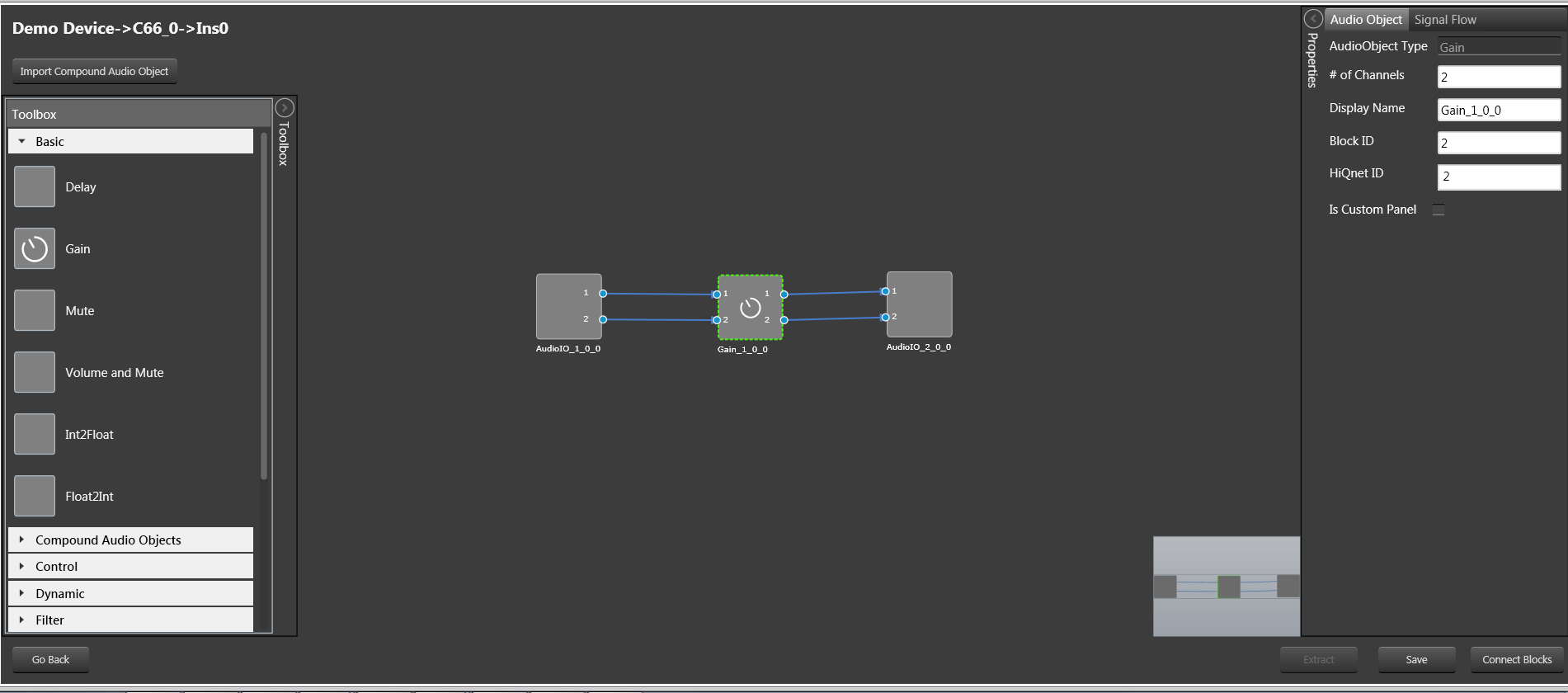
To Launch Tuning panel refer to User Guide GTT – Signal Flow Designer, chapter Tune a Signal Flow, section Launch Native Panel.
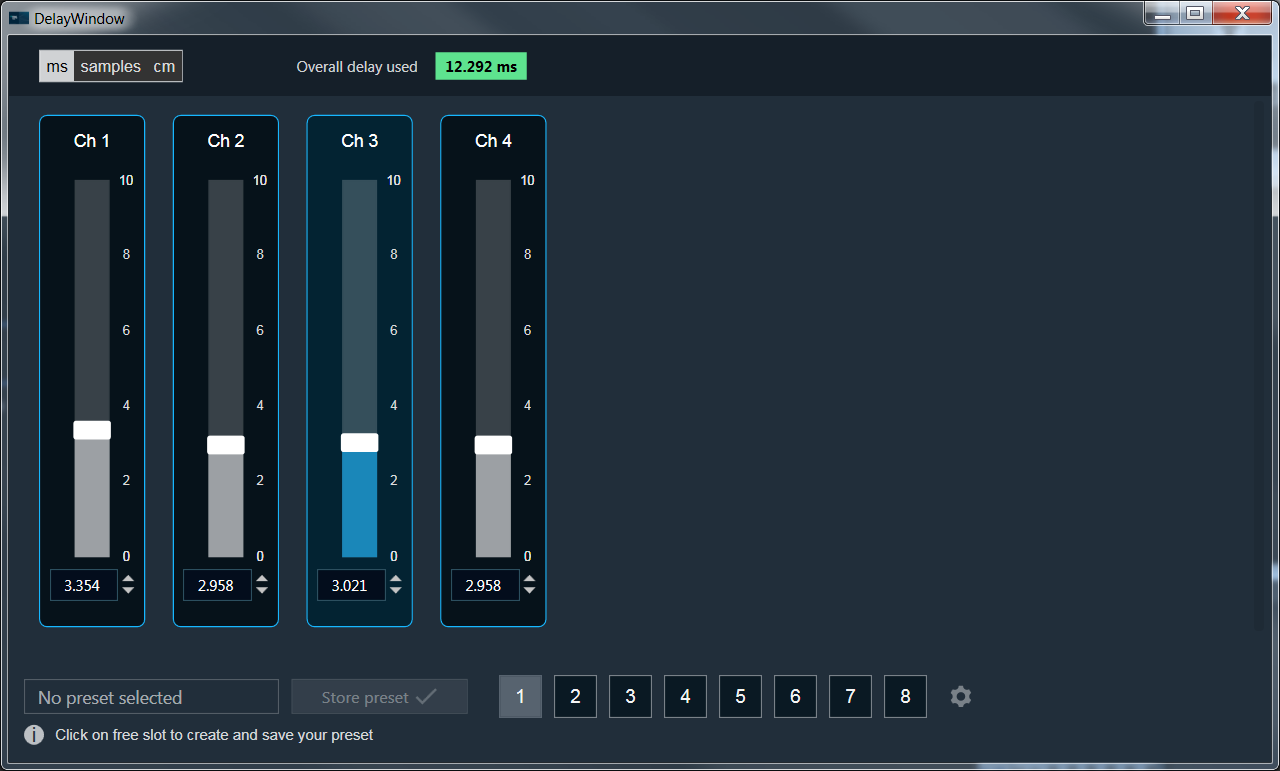
The Delay Panel will be displayed.