1.Description
AmpSrv2 is a software to connect the tuning tool to either to a physical target device or a virtual amplifier. It will be integrated in GTT for future versions.
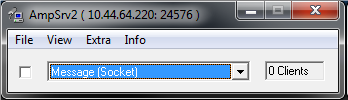
To access these options, first select Message (Socket) from the combo box, and then select File > Options.
2.Licensing
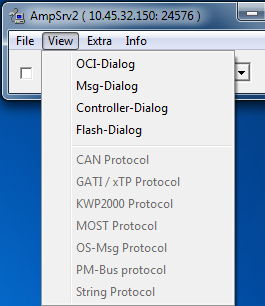
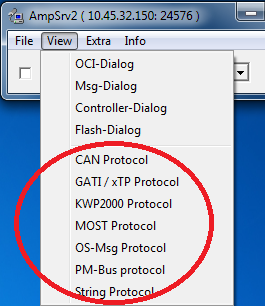
No all functions of AmpSrv2 are available for every user. If a functionality is grayed out / not available this is probably due to limited license. AmpSrv2 is shipped with a limited license: Customer.lic
Example
| Customer.lic (limited access) | Full licensed |
 |
 |
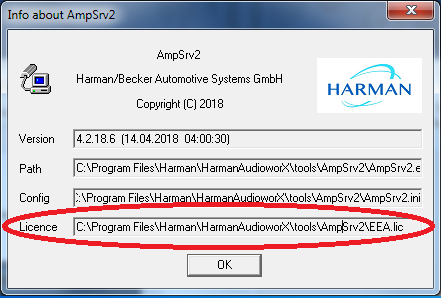
The license file is located in AmpSrv2 directory. To activate a new license file: Copy new license file (Xxx.lic) to AmpSrv2 directory and delete existing *. lic file.
In About dialog (Menu: Info – About) it can be checked, which license file is used by AmpSrv2.
3.Options to change
For the purposes of this document, there are only a couple options to set up.
Starting AmpSrv2 via \yourInstallationPath\Harman\HarmanAudioworX\tools\AmpSrv2\AmpSrv2.exe gets the following Window. If not yet selected it is necessary to select ‘Message [Socket]’ from the combo box.
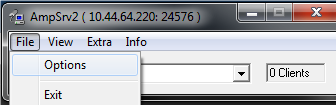
Select File > Options.
There are two pages requiring attention, Socket and ‘Tuning GATI’.
In Socket:
Be sure to change Protocol to GATI.
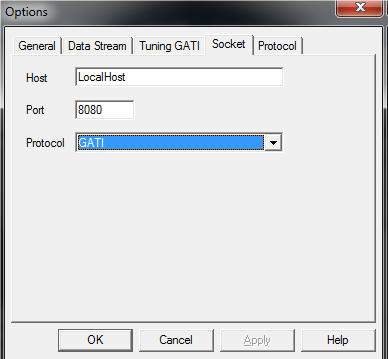
Port 8080 is very popular so if you get network conflicts choose a different one above 50000. Your choice has to be reflected in the VST client (probably AudioMulch).
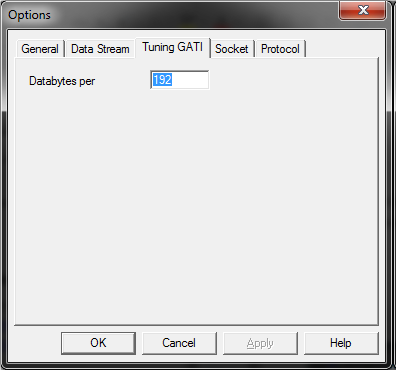
In Tuning GATI:
Set Databytes per to 192.
After closing the options dialogue in the main window check the checkbox.
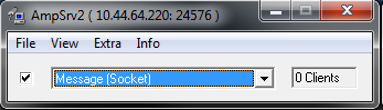
After the GTT is started it will connect to AmpSrv2 and in the above window will show 1 clients.
4.Configure and Save AmpSrv2 Settings
Save device specific AmpSrv2 settings
Click on the Configure option through the context menu over specific device
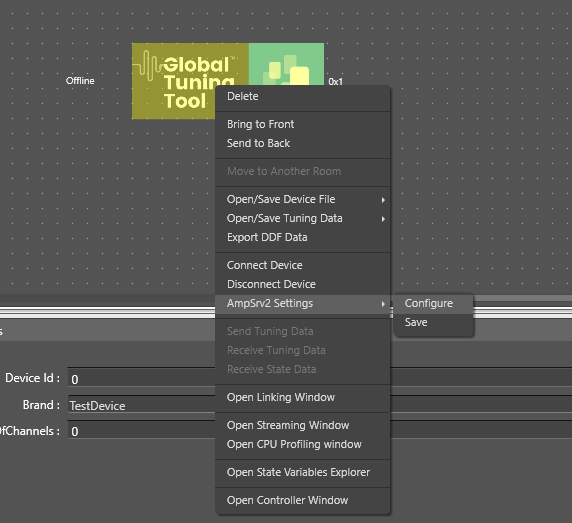
AmpSrv2 settings window will open
Once necessary Ampsrv2 settings are modified, click on Save option to save the ampsrv2 settings
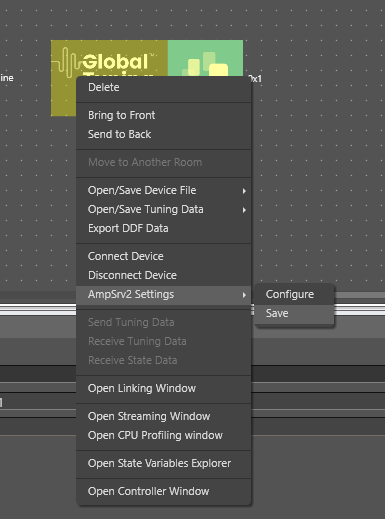
Henceforth, this saved configuration will be used for this particular device on Connect Device
The saved configuration will also be exported/imported on GTT project Export/Import
If a device is not associated with any AmpSrv2 settings, then default settings will be used
Modify the default AmpSrv2 settings of GTT
Click on Settings menu in the ribbon bar

AmpSrv2 window will appear and user can modify the settings and this newly modified settings will be considered as Default Settings for GTT
The settings will be automatically saved on modification, no separate save required
In case of Discover device, user should open AmpSrv2 Settings through ribbon bar (modify settings, if necessary), then click on Discover Device
This modified settings will be used to discover device
Note:
- In AmpSrv2 window, the server port number under General tab will not be saved
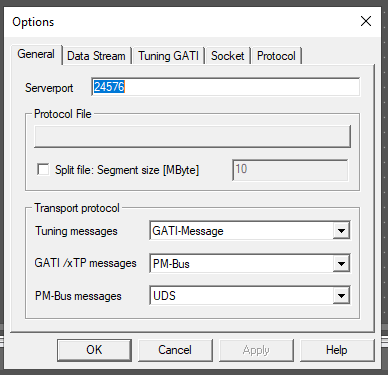
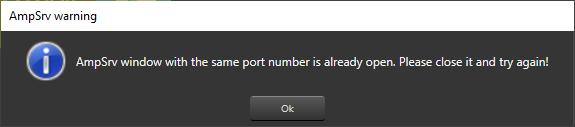
Two AmpSrv2 window with same port number cannot be opened, else an error message pops up