A signal flow designer user can assign labels to audio and control pins of audio objects to make a flowchart design more informative. There are two new items available in the context menu of each audio object: Add Audio Pin Label and Add Control Pin Label.
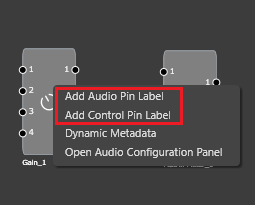
Click on one of the items to bring the pin labeling widget into view.
It presents existing pin labels and lets a user modify or remove them or add new ones.
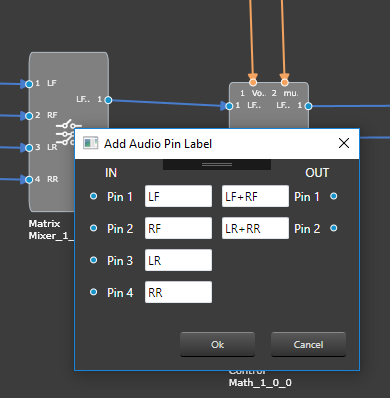
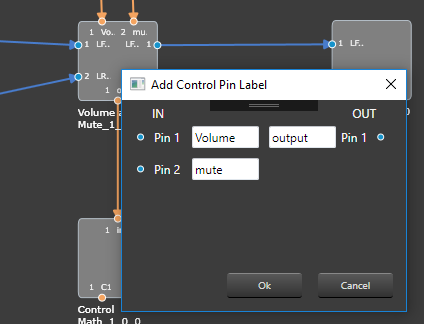
By default, pin labels do not propagate downstream, but for certain objects (e.g. Gain, Biquad or Delay) they do. So, if there are four blocks in a design – AudioIn, Gain, Delay and AudioOut, it’s sufficient to label the output channels of the AudioIn block, select all the blocks and press the Connect Blocks button to propagate the labels.