In the following the tuning of a signal flow will be illustrated by showing the tuning effects on virtual device in IVP.
Double click on an Audio object
If SFD is modified, then a pop up will appear to save the changes
Save the changes
A Native Panel will appear, provided it is available for the selected audio object
The Signal Flow Designer will not allow the user to edit the Signal Flow as long as Native Panels are open
The property of any audio object can be viewed in the background while native panel are opened, but it is not possible to modify the data
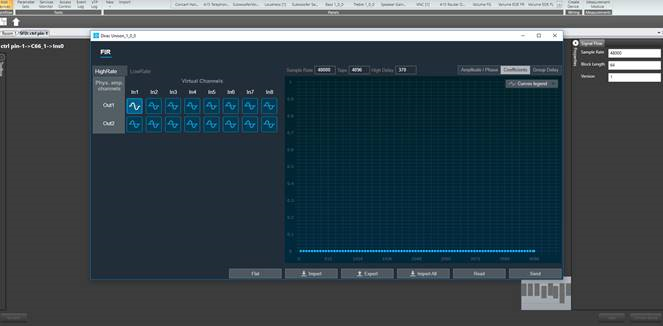
If the Signal Flow Designer is open:
Close the Signal Flow Designer.
Your device will be shown in Room 1.
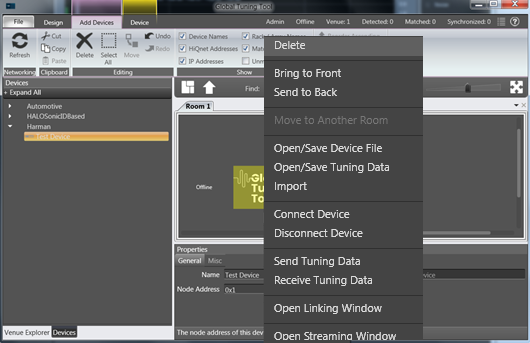
Delete your test device shown in the Room 1 section
Drag and drop your test device back in Room 1.
This action ensures that tuning of your signal flow will be matched in IVP.
Open the Signal Flow Designer as instructed in Create a Signal Flow.
Your previously created signal flow will be displayed.
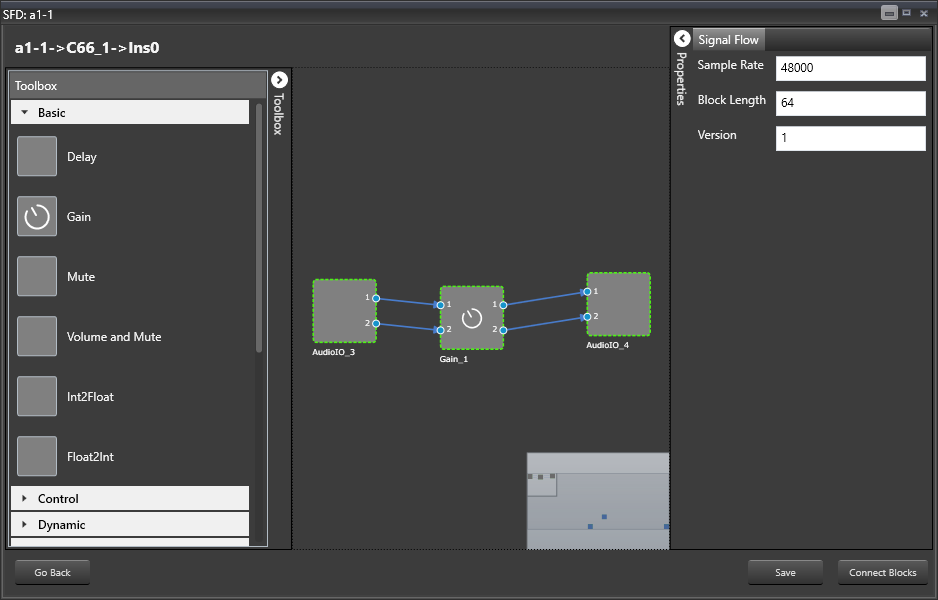
Follow the instructions in Launch Native Panel above and launch the native panel for the Gain AO
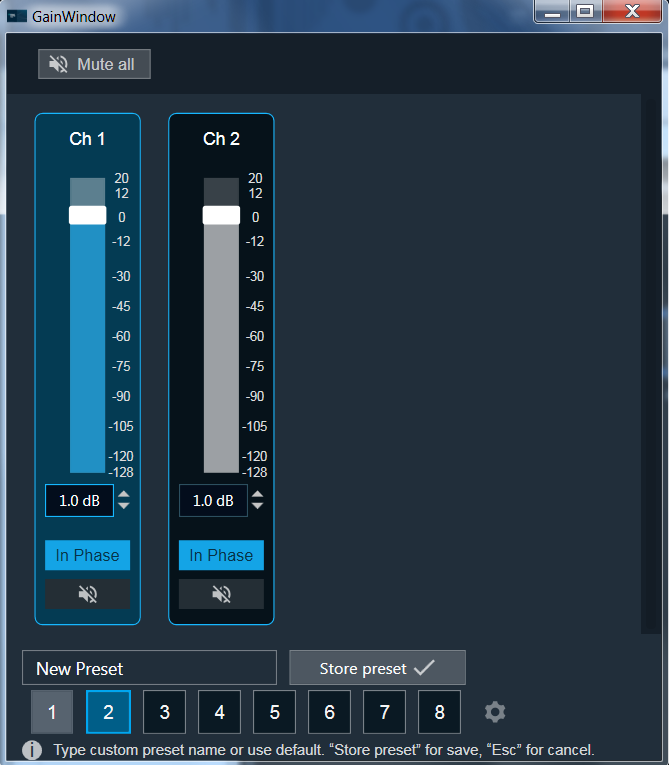
The Gain Window will be displayed. Here you can tune your signal flow once you have it visualized.
When a tuning is in progress, changes on signal flow is not allowed, including changes to connections. A toast message “signal flow cannot be modified when tuning is in progress” shows up
To visualize a signal flow you need settup the Analzer advanced settings in IVP.
Refer to those links for more information for Analyzer [link] and Generator [link]
All the audio blocks which don’t have a dedicated native panel yet should be associated with proper custom panels.
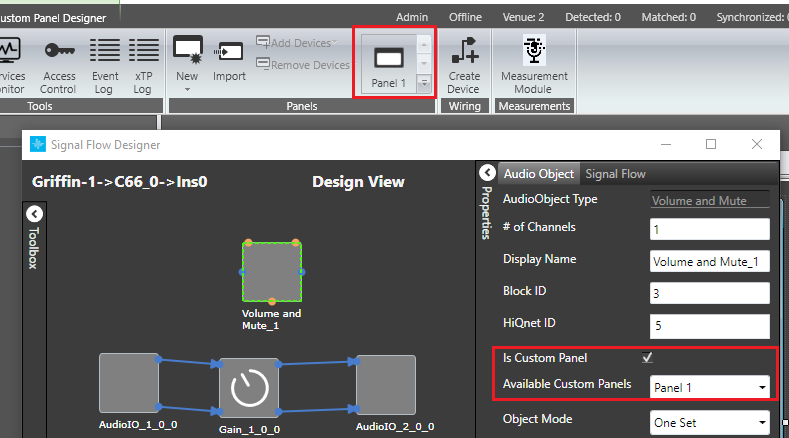
Follow the instructions in Launch Native Panel above to reopen the Gain Native Panel, if needed
To see how tuning in GTT affects your signal flow, proceed as follows:
Go to IVP, start Generator, start Analyzer, start PluginHost
Go to room and connect your Device, and send tuning data
Open Gain Panel
Go back to IVP
Adjust the panels in the Gain Window to tune your signal flow.
Your signal flow in IVP will change according to your tuning.