Important! For any release, upgrade is supported only from n-2, where n is the major release. For ex: If you want to upgrade to INXS, it can be only upgraded from Genesis (n-2).
To upgrade from any previous release (before Genesis), you must first upgrade to Genesis and then to INXS.
Launch installation
Double-Click setup file.
The installation wizard and a confirmation dialog for upgrade will be displayed.
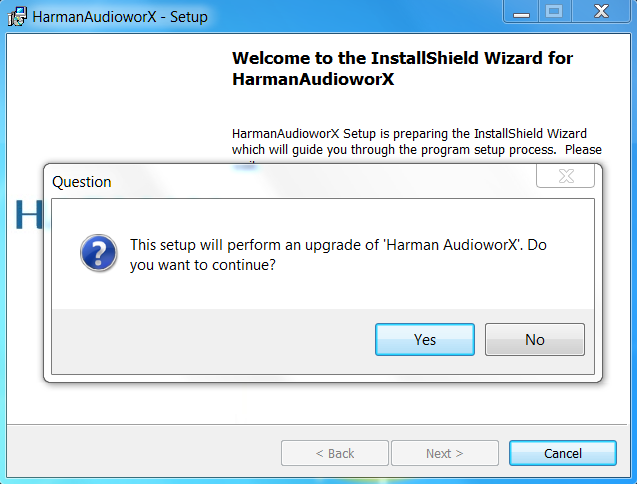
Click Yes to upgrade the application.
Click Next>.
The License Agreement dialog will be displayed.
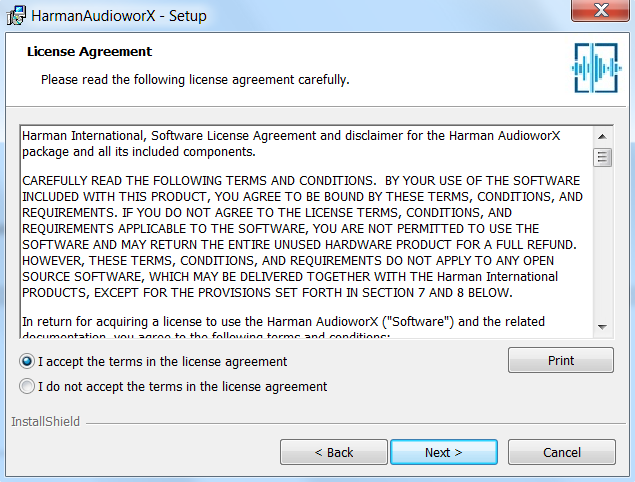
Read the license agreement carefully.
Accept the license agreement and click Next >.
The Choose Install Location dialog will be displayed. It will provide the path of the installation directory. You can change the default installation directory and install the application to any custom location.
Click Next >.
The Database Options dialog will be displayed. Here you can select either an existing database (B) or create a new database (C).
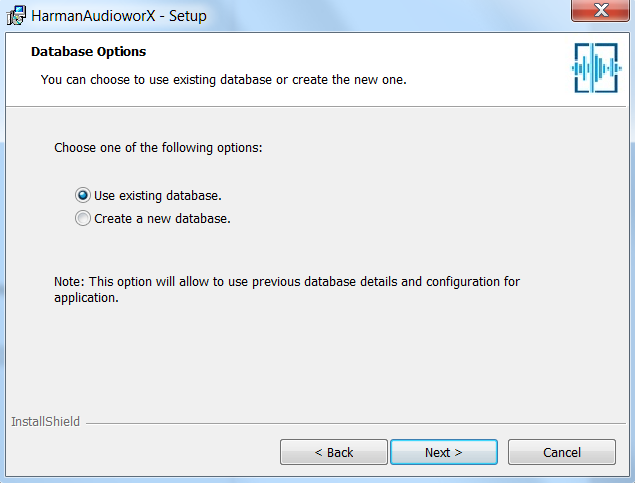
Select Use existing database.
Click Next>.
Select Create a new database.
Click Next>.
For option C) the Database Server dialog will be displayed.
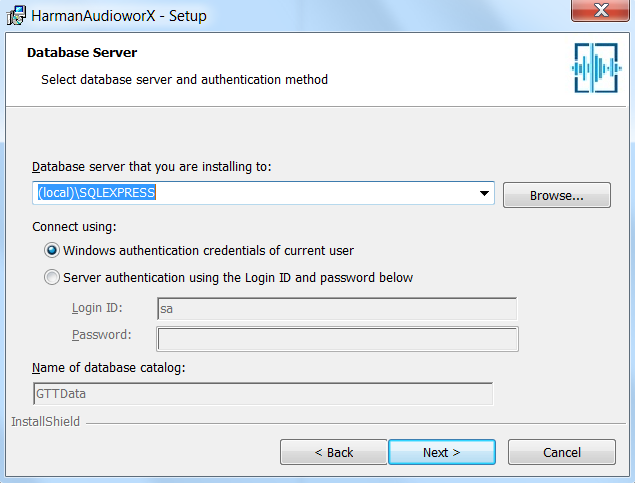
If a server is already available on the computer and you have login ID and password:
Select “Server authentication […]” and fill in the text fields “Login ID” and “Password”.
If login ID and password for server are not available:
Select “Windows authentication […]”.
Click Next >.
The Ready to Install the Program dialog will be displayed for both A) and B).
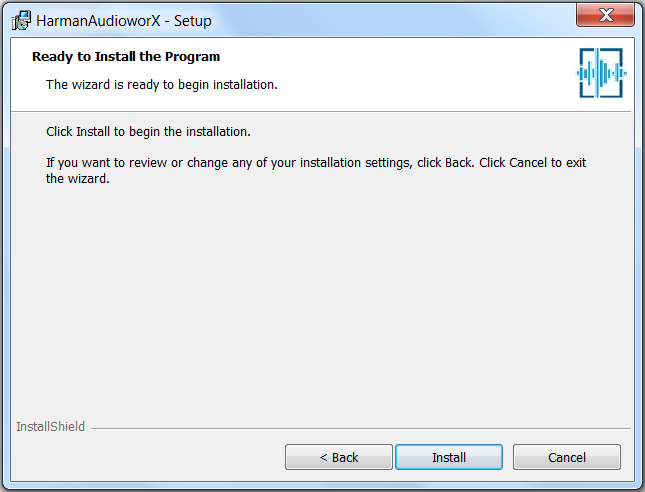
Click Install.
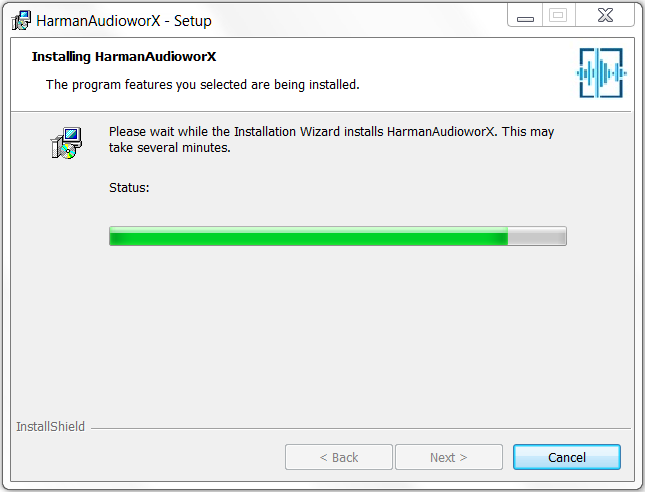
The Installing HarmanAudioworX dialog will be displayed.
Upon completion of the installation the dialog below will be displayed.
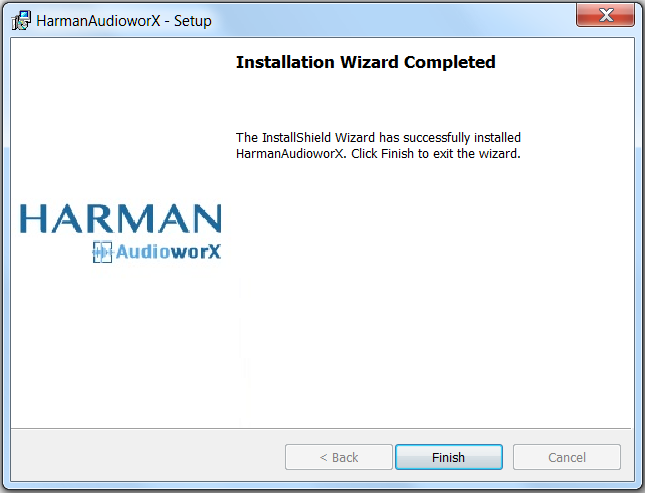
Click Finish.