The Compressor panel is associated with Compressor audio object and can be used for tuning compression on an input signal. When you update parameters in either the SV Explorer or the native panel, the controls in the Compressor native panel should be in sync.
The Compressor panel works currently only for One Set Mode.
The Compressor panel has two tabs “Tuning” and “Advance Settings”. Tuning tab is the default tab.
Tuning Tab
You can configure following state variables via Tuning Tab.
- Compression Ratio
- Compressor Threshold
- Soft Knee
- Attack Time
- Release Time
- Noise Gate Threshold
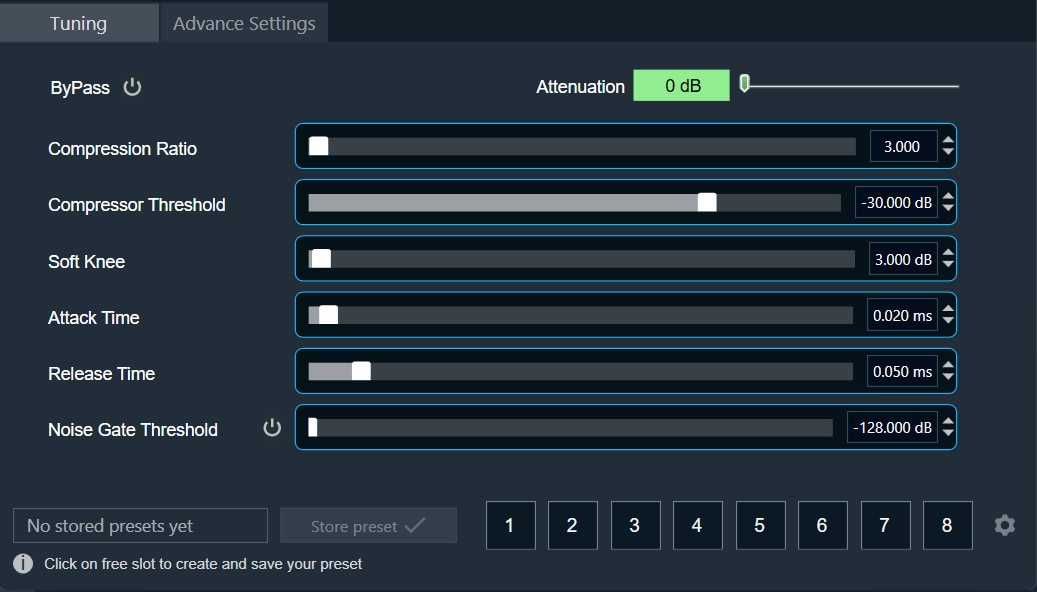
To disable the compressor, use the ByPass option. This will leave all controls in the Tuning and Advance Settings disabled and prevent any SV modifications.

The Attenuation option shown on the top right corner is read only value along with a scale indicator which shows level of attenuation and does not have any user interaction.
| Range | Color |
| 0 dB – 10 dB |  |
| 10 dB – 20 dB |  |
| 20 dB – Max |  |
You can explicitly turn off Noise Gate Threshold by using Noise Gate Bypass option.

Advance Settings Tab
You can configure following state variables via Advance Settings.
- RMS Smoothing
- Make-up Gain
- Look Ahead Buffer Size
- Lp coefficient b0
- Lp coefficient b1
- Lp coefficient a1

Tuned parameters can be stored and recalled via Store Preset option available on the panel and is accessible in both the tabs.
Steps to store tuning parameters configuration.
- Configure the tuning parameters and select the free preset slot numbers, enter the name of the slot, and click Store preset. This saves and stores the current tuning data to the selected slot.
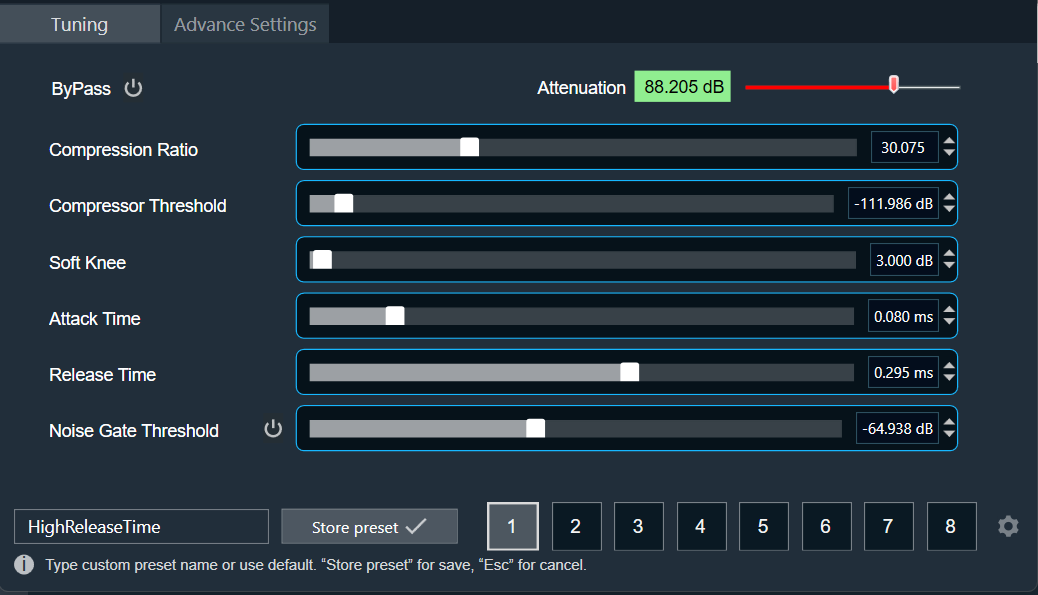
If you do not enter a name of the slot, then it will take the default named “New Preset”.
You can switch between presets slots and apply their values by simply clicking on them. Additionally, after clicking to override the preset, you can modify the tuning values in that tab or change the preset name.
To reset the selected preset or all the preset values.
- Click Reset Selected to clear the preset that is currently selected.
- Click Reset All to clear every preset in the corresponding native panel.
