AI module is GTT component. AI module can be used to configure and train ML algorithms. AI module consists of two components, front end and back end. Front end is graphical user interface (GUI) representation of AI Toolbox project. GUI guides users to design or configure machine learning based algorithms. AI module back end consists of executables which will be running in background when AI module is selected. Back end performs these tasks
- Responsible for running the training sessions based on the input from front end
- Provides the status of training sessions to front end
- Provides the necessary files and information to use the training session
The following five tabs provide user configurable functionalities that enables application design and trigger a training session in background.

As you might have noticed, each tab has a circle colored indicator and a run button. This means that each step can be run individually whenever ready (green indicator). You can decide to run them one by one, or configure all first and use Learning Tab run to run them all (when you run a tab, it will run all previously modified tabs). However, all tabs prior to Learning do not trigger any specific action in the backend, but rather send configuration data and relevant information for validation purposes, and receive a confirmation or error response from backend. Hence do not be confused if you run a tab and “nothing” happens. It is a sign of correct validation.
Training Audio Database
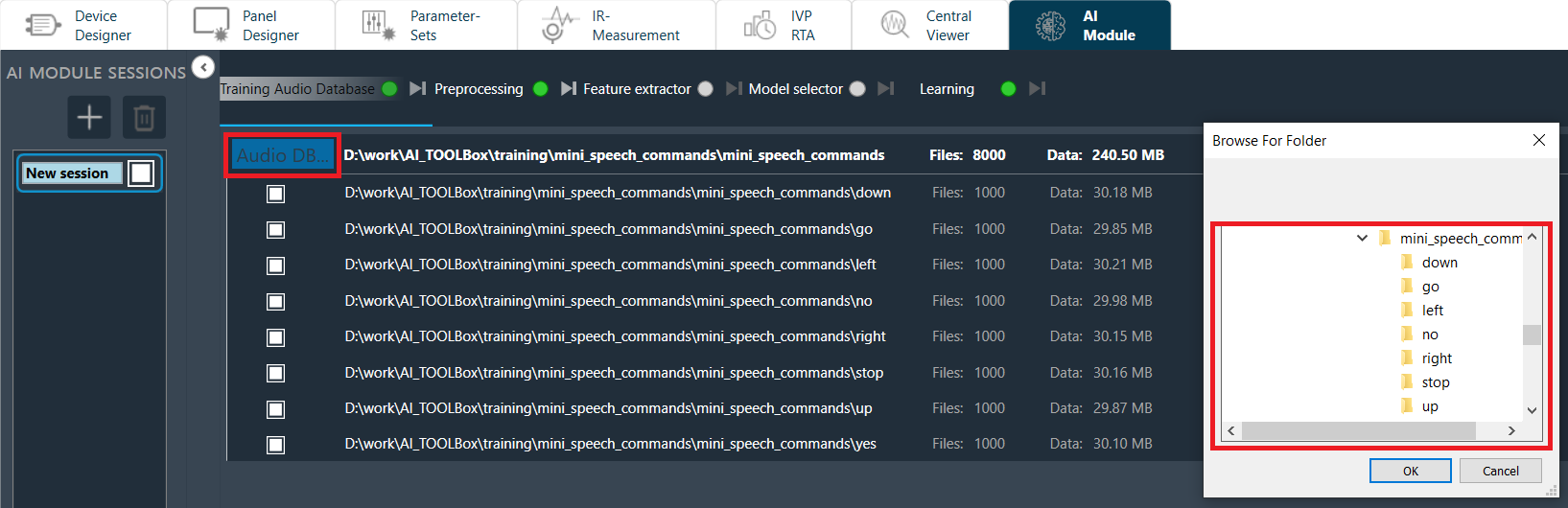
Provides functionality to select an audio database to be used for training, via a standard windows explorer directory selection interface.
Operation
- Click Audio DB … to select the root directory of your audio files database
- Browse to your desired directory and confirm
- By default, all subdirectories are selected. User can select/unselect individual ones by clicking on the adjacent box.
Requirements and limitations
- Only locally present directories in your machine are supported.
- User should select the root directory level of its database which should be structured in a such a way that it contains multiple subdirectories.
- Each subdirectory is considered a separate class (from the perspective of a classification algorithm) and its name will be used for class labeling.
- Each subdirectory must contain only mono (1 channel) wave files.
Preprocessing
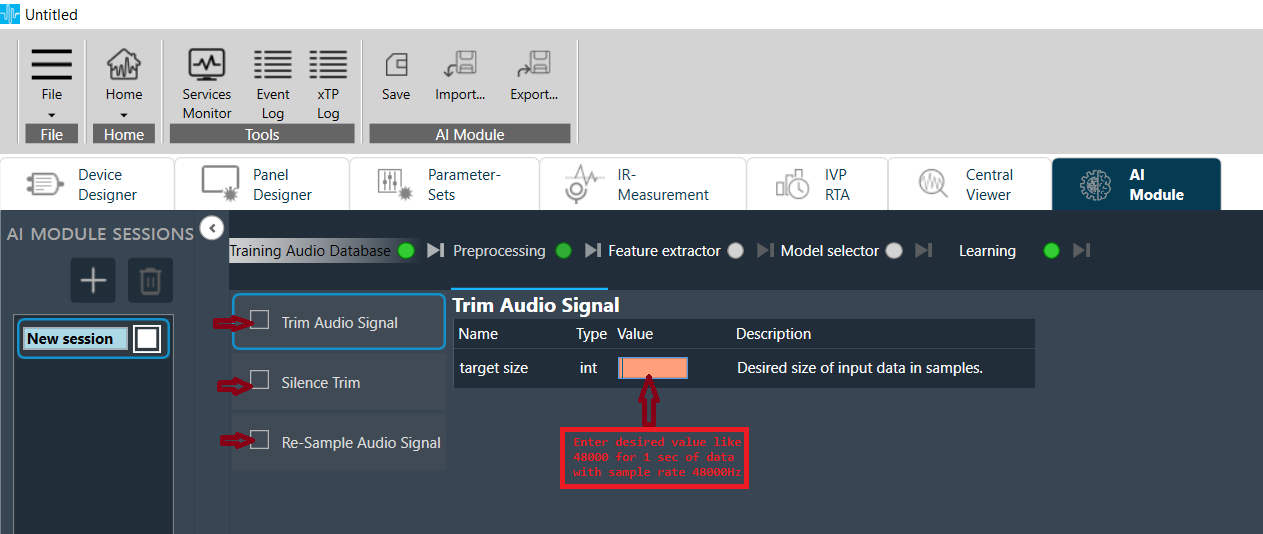
Provides signal processing functionalities to be applied to all audio files in database. Pre-processing is an important step in designing machine learning applications and typical examples of such processing includes data trimming, data augmentation (noise mixing, silence removal) etc. Please note this is not mandatory step in training
Operation:
- Click any Function on left side to open its configuration panel.
- Specify all parameter values based on user design.
- Select desired functions to be applied.
Requirements and Limitations:
- User can select multiple functions and they will applied sequentially (one after the other).
- Each functions provides user configurable parameters alongside a description and supported type. Some parameters contain default values which can be changed, other parameters require a user input.
Feature Extractor
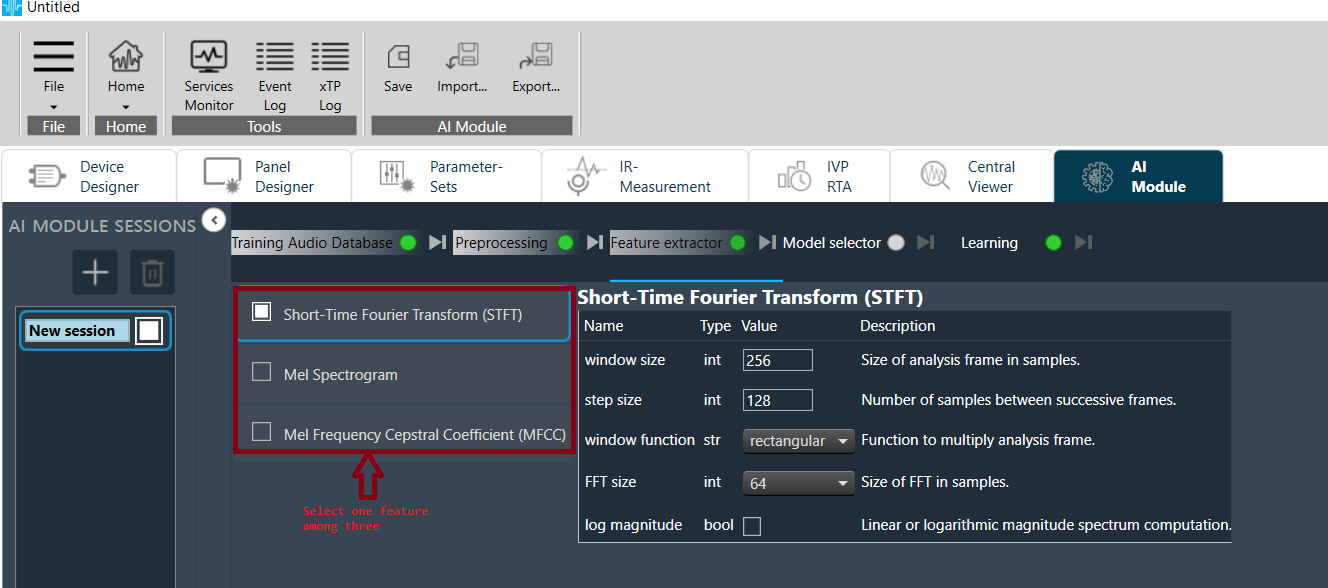
Provides signal processing functionalities to be applied to preprocessed (if any) audio files in database. Feature Extraction is an important step in designing machine learning applications and aims at transforming “raw” audio data into other data representations by extracting audio features that contain relevant information for a certain task. These new data representations have much lower dimensions (in most cases) that original data, yet preserving enough information, hence enabling design of faster and smaller models. Typical examples of such data transformations include frequency domain representations, spectrograms of different types etc.
Operation
- Click any Function on left side to open its configuration panel.
- Specify all parameter values based on user design.
- Select desired functions to be applied.
Requirements and Limitations
- At this point, only three feature extraction functions are available (typical functions used in classification tasks).
- User can select only one function.
- Each functions provides user configurable parameters alongside a description and supported type. Some parameters contain default values which can be changed, other parameters require a user input.
Model Selector
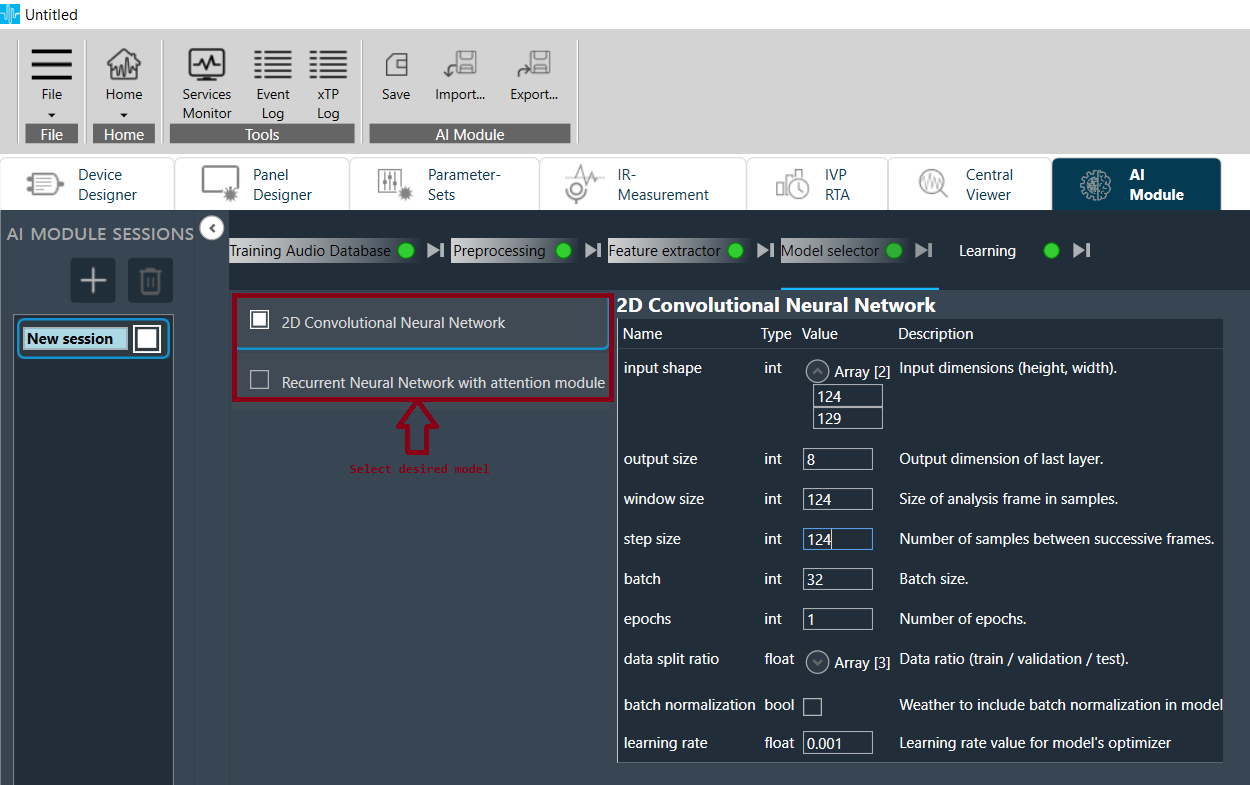
Provides Machine/Deep Learning model typologies to be applied to feature representation of audio files in database. Such models are pre-defined/pre-configured with regards to internal and intermediate layers, and provide to the user the possibility to define input and output dimensions/shapes of their data representations, alongside some other parameters which define training behavior.
Operation
- Click any Model on left side to open its configuration panel.
- Specify all parameter values based on user design.
- Select desired model to be applied.
Requirements and Limitations
- User can select only one model.
- Each model provides user configurable parameters alongside a description and supported type. Some parameters contain default values which can be changed, other parameters require a user input.
Learning
Final step in user application design journey. By running this tab, user can start a training session and upon completion, performance metrics will be displayed.
Operation
- Hit start button to start training.
- Wait until completion, while monitoring the training progress.
- Select save or export model to store the results (this stores the trained model as well, for use in AI Audio Object).
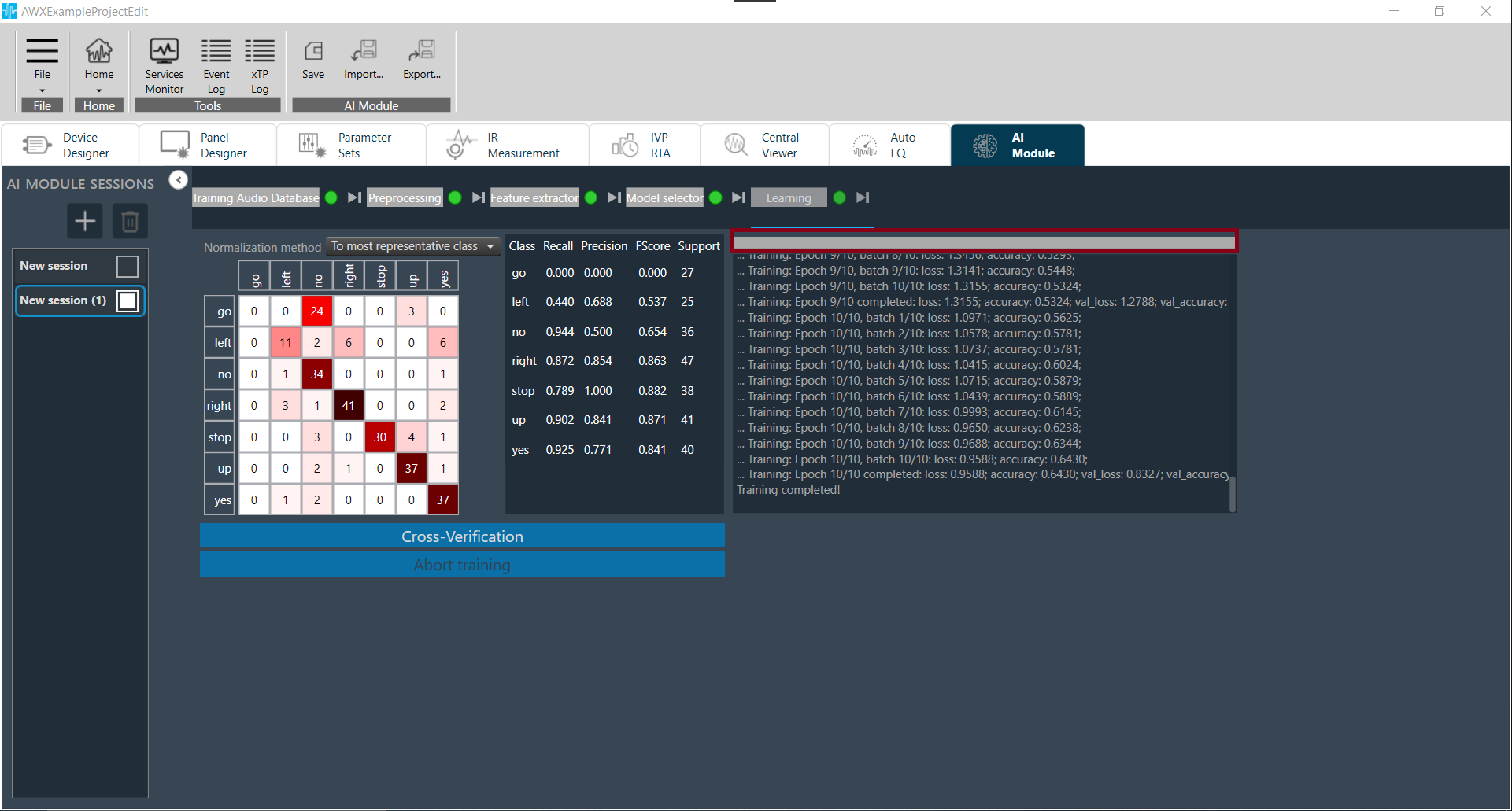
Aborting a Training Session
when a training routine is in progress, an “Abort” button in the training tab is enabled.
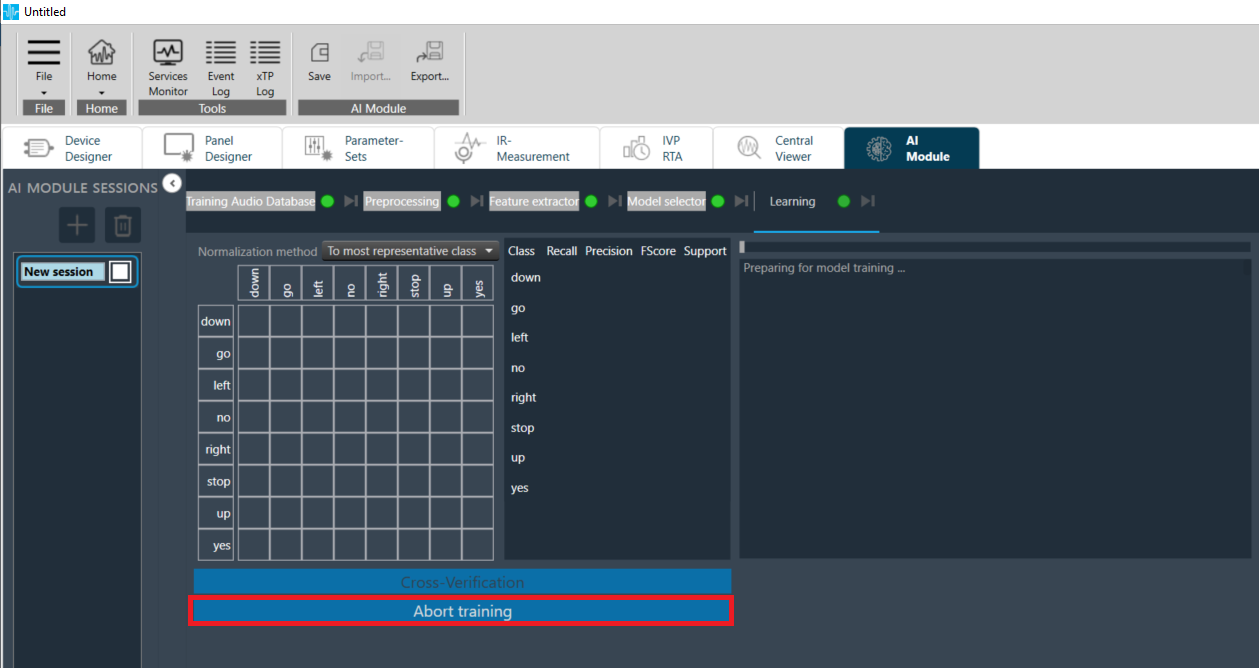
Upon pressing this button, the current training process is aborted.
Display and Cross-Verification of Training Results
As soon as the training process is completed, the training results are displayed in the Learning tab.
At the same time, a “Cross-Verification” button is enabled.
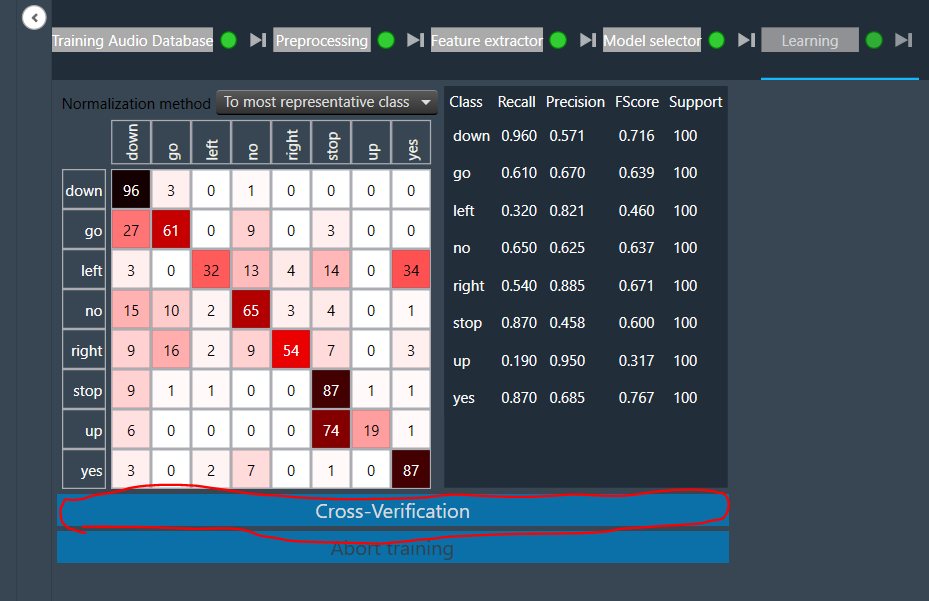
Upon clicking this button, two new tabs appear:
- Verification Audio Data
- Verification
The former tab works very much like the “Training Audio Data” tab and serves, as its name suggests, for specifying the verification audio data set.
The latter tab displays the cross verification results. Cross-verification can be started by pressing the Run button on the Verification tab if the Verification Audio Data was specified with at least one class.