Saving Set File from Device
- Navigate to the Device Designer tab and choose the desired device for storing the set file.
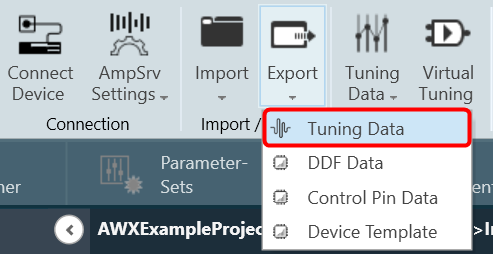
- Click on Export > Tuning Data.
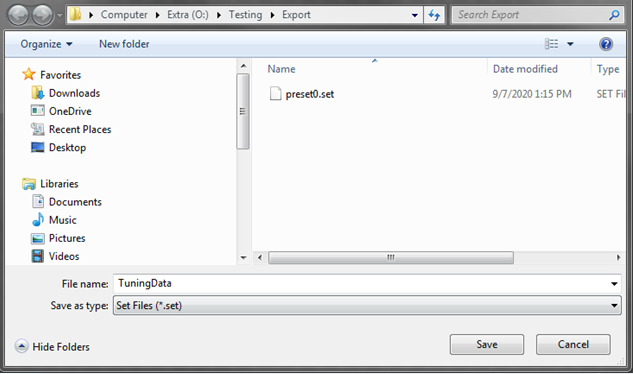
- A dialog box will be displayed, select the folder where the files (.set/.setr) will be stored, type a file name, and click on Save.
Saving Set File from Presets
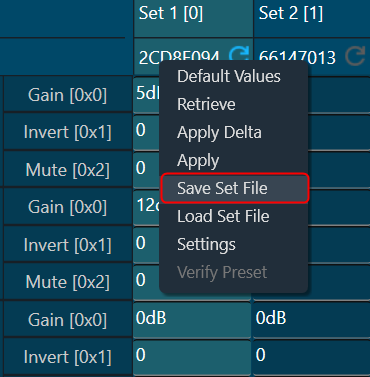
- Navigate to the Parameter Sets tab and choose the desired Set column.
- Right-click on the chosen Set column to open the context menu and select Save Set File.
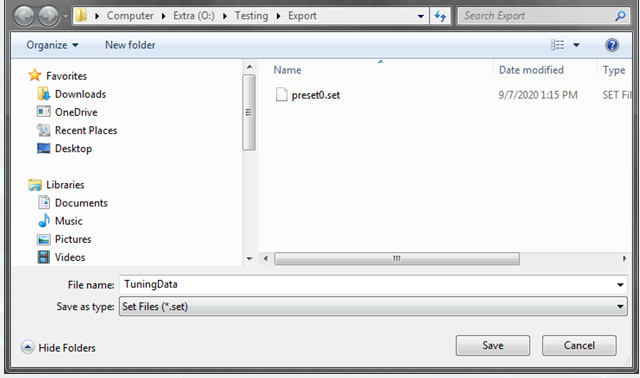
A dialog box will appear, where you can choose the folder to store the files (.set/.setr). Enter a file name and click on the Save button.
Saving Set File from Preset Controller
- Navigate to the Device Designer tab and click on Preset Controller. This opens Preset Controller window will be opened.
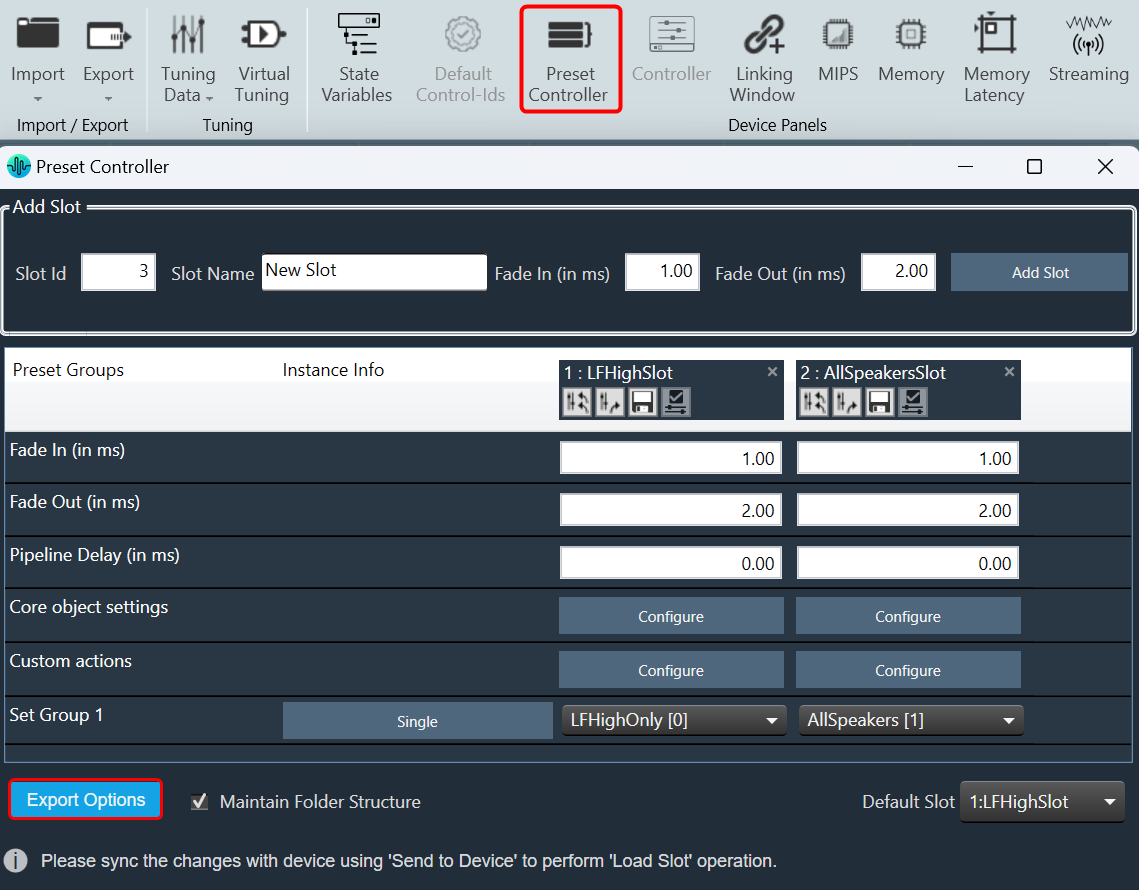
- In the Preset Controller window, right-click on Export Options and click on Export Set Files.
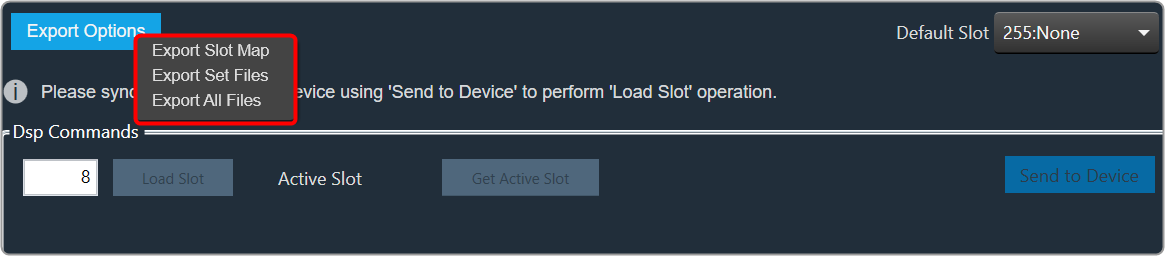
A dialog box will appear, where you can choose the folder to store the files (.set/.setr). Enter a file name and click on the Save button.

Saving Set File from State Variables Explorer
- Navigate to the Device Designer tab and select the device from which you would like to select and store the set file.
- Click on State Variables. This opens the State Variables window.
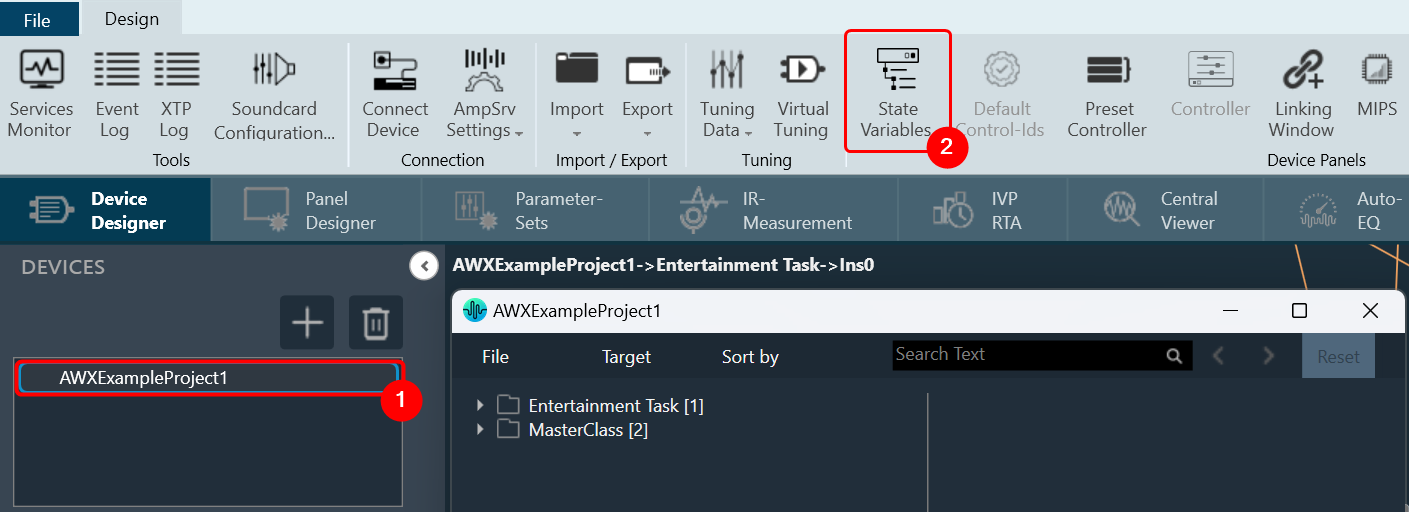
- On the State Variable window, select from File and click Save Set As.
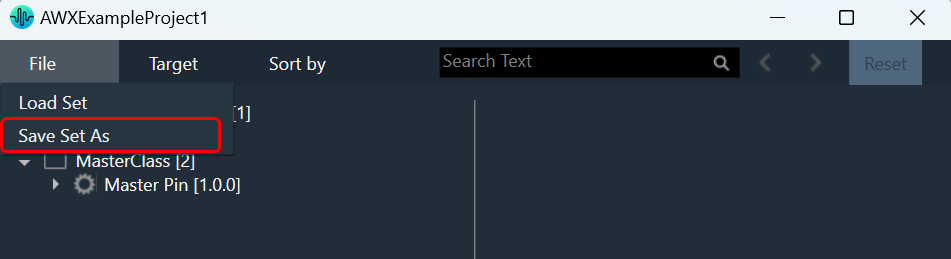
A dialog box will appear, where you can choose the folder to store the files (.set/.setr). Enter a file name and click on the Save button.
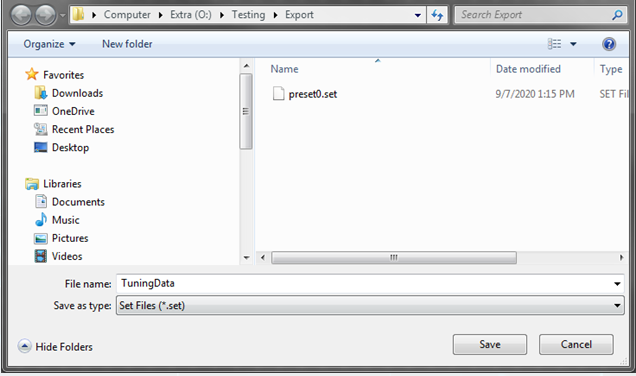
Once you have saved the set file, both the .set and .setr files will be accessible in the folder you selected.

If the set file is generated using a different panel, such as the IESS panel, the .setr file will not be generated by default. However, you can utilize any of the methods mentioned earlier to generate the .setr file if needed.