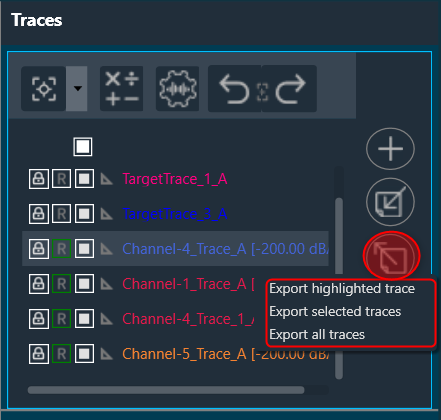
The Trace Toolbar consists of several functions.
| Function | Icon | Details |
| Capture Traces |  |
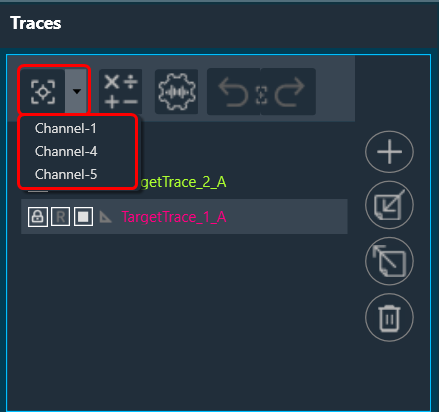
The Capture Traces function provides two options:
|
| Add Math Operation |  |
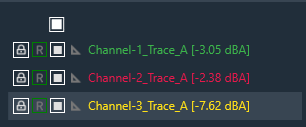
The Add Math Operation allows you to generate an unweighted average, a difference, or a sum trace from the selected traces using a drop-down menu, you can identify the new traces with the green square.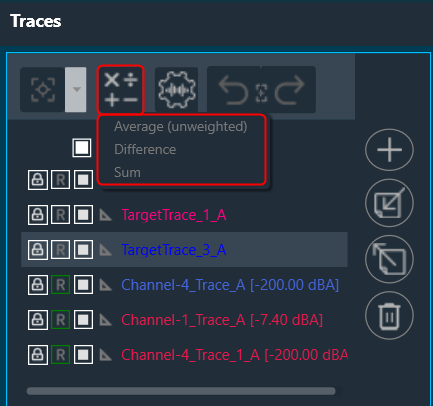 |
| Trace Settings |  |
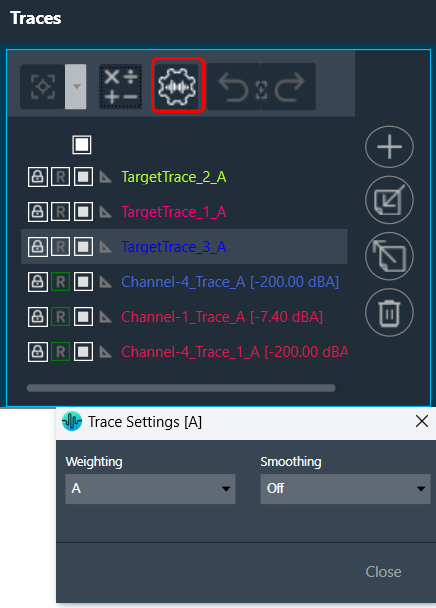
The Trace Settings allows you to configure Weighting and Smoothing functionality.
|
| Undo Capture Traces |  |
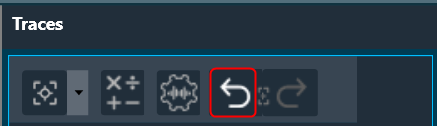
Click on the Undo Capture Traces, to reverse the last captured traces upto 3 traces.
|
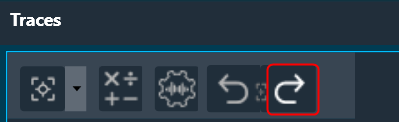
| Redo Capture Traces |  |
Click on the Redo Capture Traces, to redo the last captured traces upto 3 traces.
|
| Add Target Curve |  |
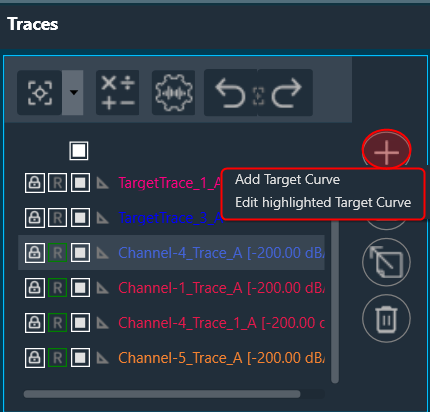
The Add Target Curve function allows you to add target curve and edit highlighted target curve using a drop-down menu.
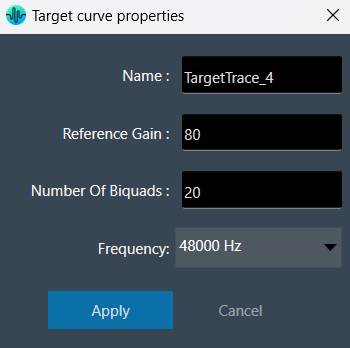
To add a target curve, click on the “Add Target Curve” option. In the target curve properties window, enter the desired curve properties, such as its name, reference gain, number of biquads and select the frequency for the target curve from drop-down. Then, click “Apply” to add the target curve.
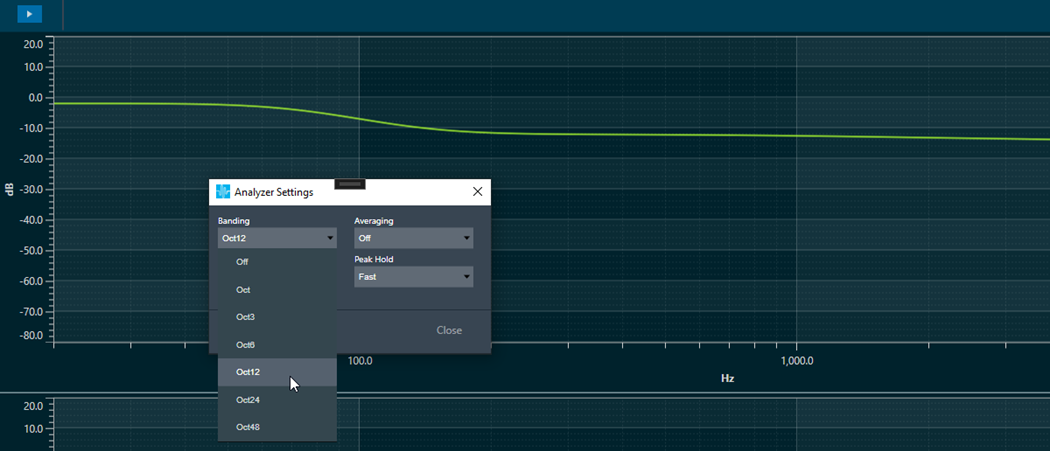
Once target curve is active, its offset will change by 3 dB for every jump on octave banding configuration, to follow the behavior of the energetic sum of the octave banding.
To edit the target curve, click on the “Edit Highlighted Target Curve”. In the target curve properties window, change target curve properties and click “Apply”. This opens Design Target Cure window, open the Biquads on Apply to update the filters ,import and export the filters. |
| Import Traces |  |
The Import function allows you to import single traces (*.trace) or multiple traces (*.trclist) using a drop-down menu.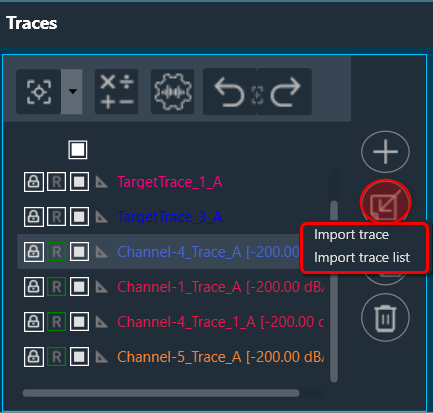 |
| Export Traces |  |
The Export function allows you to export the highlighted trace (*.trace, *.txt), selected traces or all traces (*.trclist, *.trcTxtlist) using a drop-down menu. The TraceList file can be exported as a .zip file with a (*.trace, *.txt, *.trclist, *.trcTxtlist) file extension. You can unzip the .zip file and access the individual traces from it. The exported file contains the settings details in the text file (sample rate, FFT size, Unit in column title etc) used during the capture, along with the data captured. Checked status is not retained for the tracelist exported in .txt format. |
| Delete Traces |  |
The Delete function allows you to delete the highlighted trace, selected traces, all traces, and unprotected traces using drop-down menu.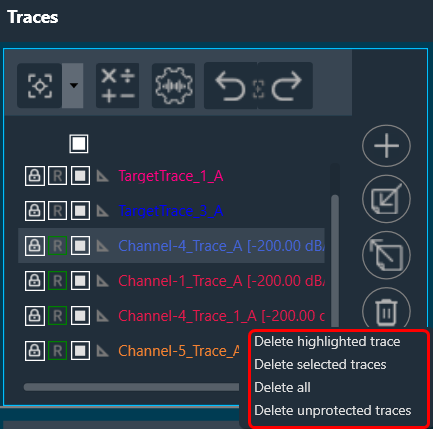 |