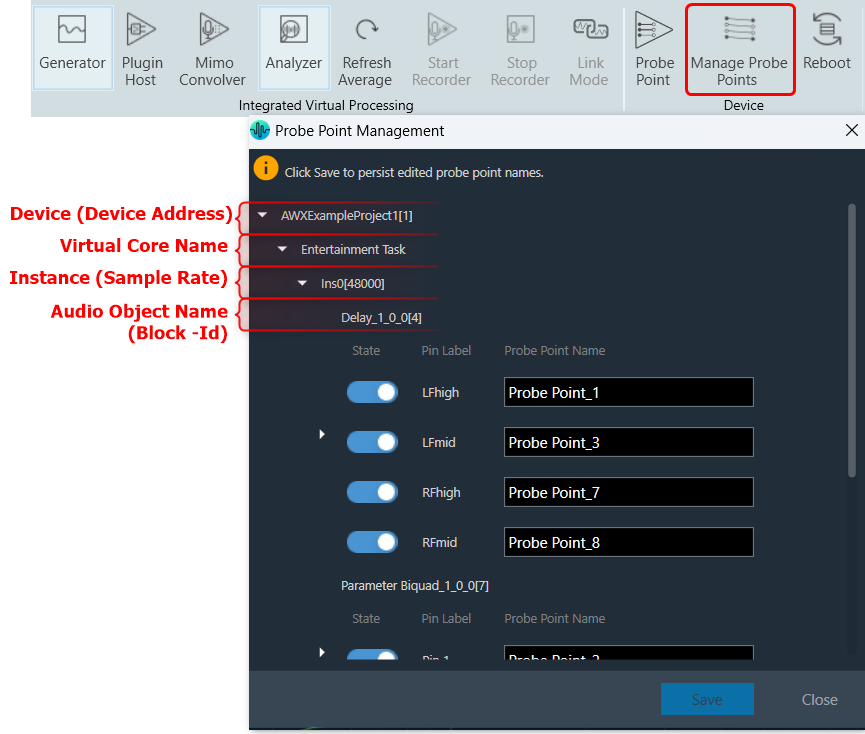
Open Probe point management window through ‘Manage probe Points’ ribbon button.

The Manage Probe Points allows you to enable or disable probe point and edit probe point name in the Probe Point Management window.
In the Probe Point Management window, the probe points are organized in the following order.
- Device [Device address]
- Virtual Core name
- Instance [Sample Rate]
- Audio Object Name [Block- Id]
Additionally, State, Pin Label and Probe point name is displayed for each probe point.
This window will consistently stay synchronized with the probe point states in the Signal Flow Designer.
After making all the necessary modifications, click Save to persist edited probe point names.
Configure probe points in RTA/IVP
- Open Advanced Settings window
- Select Probe Points as Analyzer / Recorder / Sound out sources.
- Click Done.

To record the probe point signal.

Start Probe Point Streaming
Pre-requisites:
- Make sure to enable the Probe Point feature for the core.
- Ensure that the number of active probe points is set correctly.
- Ensure that the Probe Points used in the IVP configuration are correctly configured as a source (Analyzer, Recorder, etc).
- Start Plugin Host and establish connection with device.
Use IVP Block Length <= 512 for probing to avoid frame dropping.
Once you have configured as per the above pre-requisites, click on the Probe Point to start.

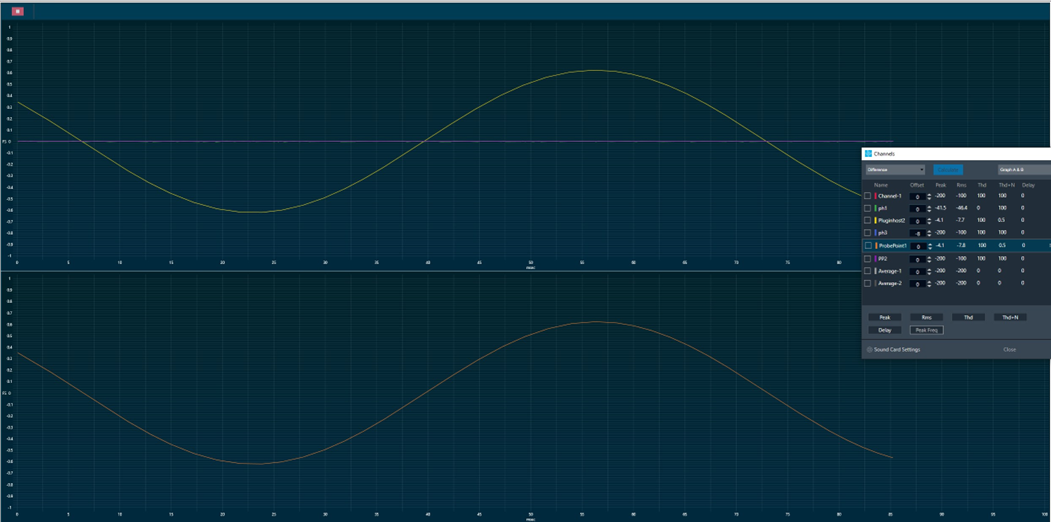
Example of Streamed data.