The Probe Point functionality facilitates the streaming of data from any stage of the signal flow to GTT, enabling the analysis, recording, or reuse of the data within IVP. The primary purpose of this feature is to provide the capability to receive data from an audio object and perform real-time analysis of audio input using the Real-time Analyzer view.

Configure Probe Point
To enable probe points per core:
- Open the Device View and select the Virtual core layer of the device.
- Go the Virtual core properties, select the Streaming checkbox, and set a number of probe points per core.
Only the configured number of probe points can be enabled in signal flow per core.
The configured probe points will be sent to the device using the “Send Device Config” feature. This configuration can be fetched from the device using the “Load Device Config” feature.
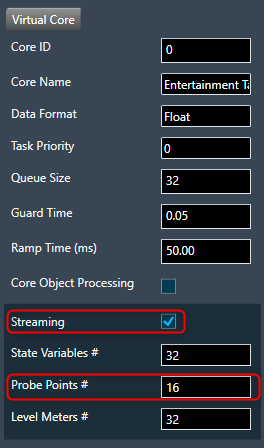
In order to utilize streaming for state variables, it is necessary to enable this feature. However, considering its resource-intensive nature, this high configuration feature can be skipped to ensure optimal utilization of MIPS and memory. The count of probe points specifically pertains to audio streams and maximum 16 probe points are supported for a core.
If Streaming is disabled for the core, the number of probe points input field will be disabled and streamable state variables will be excluded for that core in the streaming window.
Add Probe Point
Probe Point context menu for selected connection has the below options:
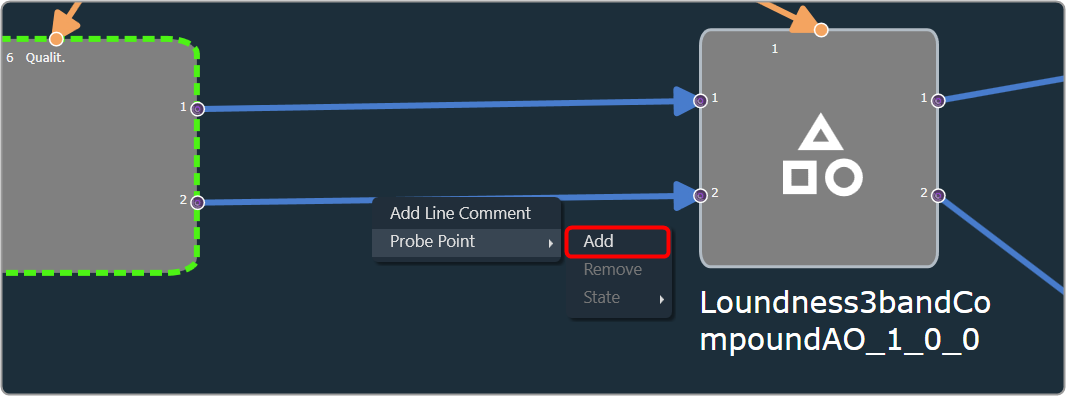
- Add: The feature allows you to add a probe point on a selected connection source point. Additionally, the default state of the probe point is set to the enabled state.
To add probe point on the virtual connection:
- Right-click on the virtual connection > Probe Point > select Add.
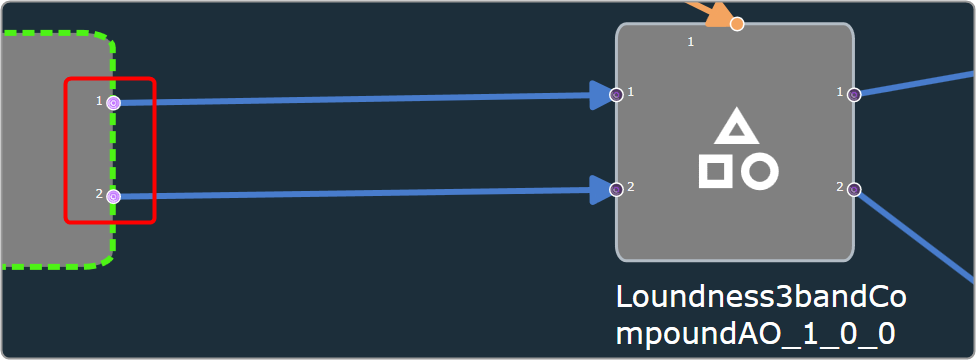
After adding probe points, the source point pin connection will be visually highlighted with a bright purple-colored icon.
Remove Probe Point
- Remove: You can remove a probe point from the selected connection.
To remove probe point from the virtual connection:
- Right-click on the virtual connection > Probe Point > select Remove.

- State: You can alter the state of probe point on a selected connection.

| Enable | Change probe pin state to enable and pin will be highlighted with bright purple colour icon.  |
| Disable | Change probe pin state to disable and pin will be highlighted with grey dark purple colour icon.  |
