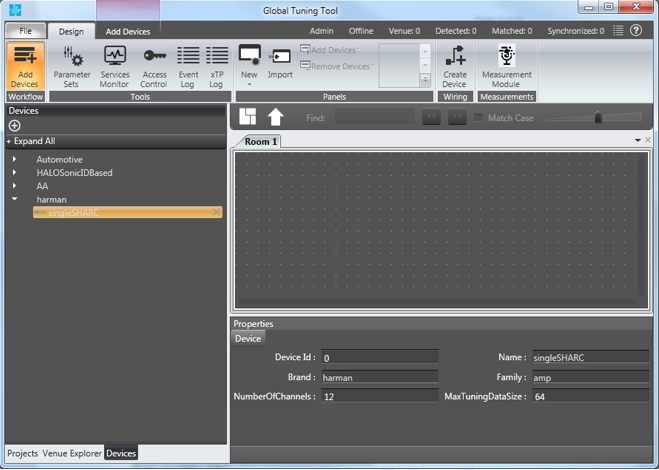
To begin a new tuning session with a device in GTT, there are three options:
- Import an existing project file
- Create a new project and define a new device
- Create a new project and select from a list of known devices
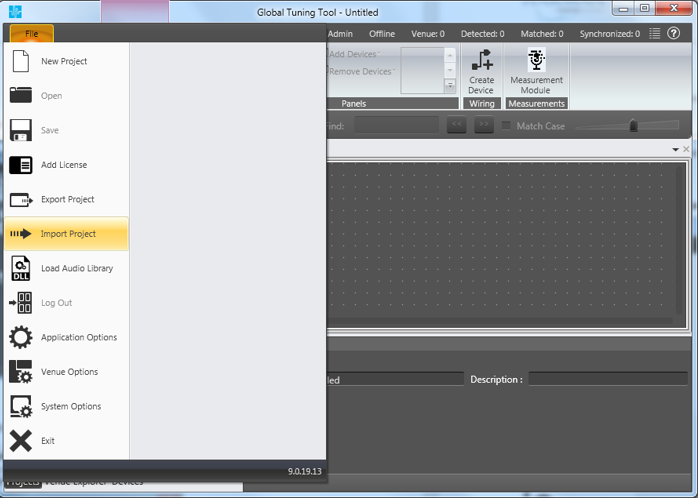
Import an Existing Project File
Select File and click on Import Project.
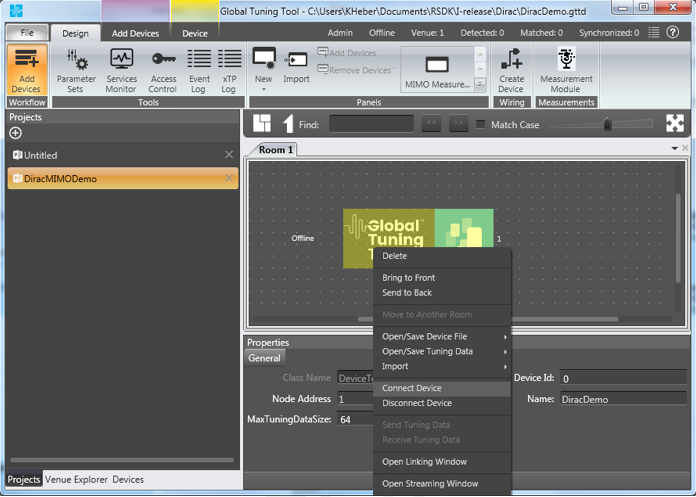
Assuming the existing project already has a signal flow defined within it, right-click on the device you want to tune and select Connect Device.
Create a New Project and Define a New Device
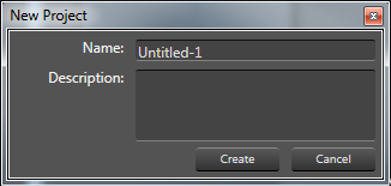
Click the ‘+’ at the top of the Projects tab panel to start a new project.
Give the project a name and description in the subsequent dialog.
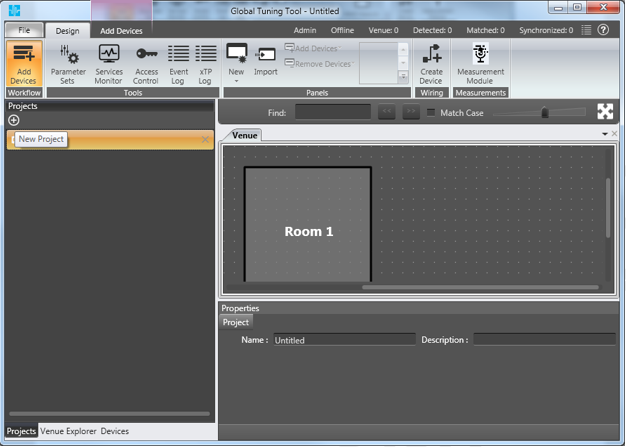
Click on Create Device in the ribbon
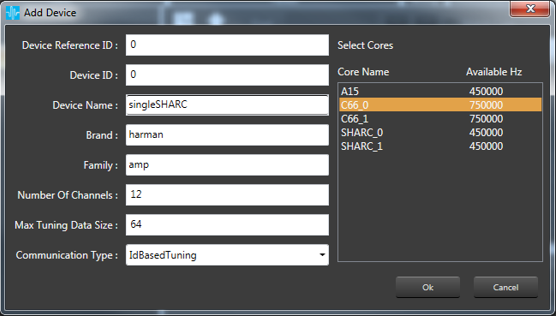
The Add Device Dialog will be displayed with the following parameters:
- Device Reference ID
- Device ID
- Device Name
- Brand – derived from Device Name, required for legacy AA infrastructure
- Family – required for legacy AA infrastructure
- Number of Channels – number of channels supported by the device
- Max Tuning Data Size – Maximum count of bytes included in a single tuning data message
- Communication Type
Select the cores used in the device
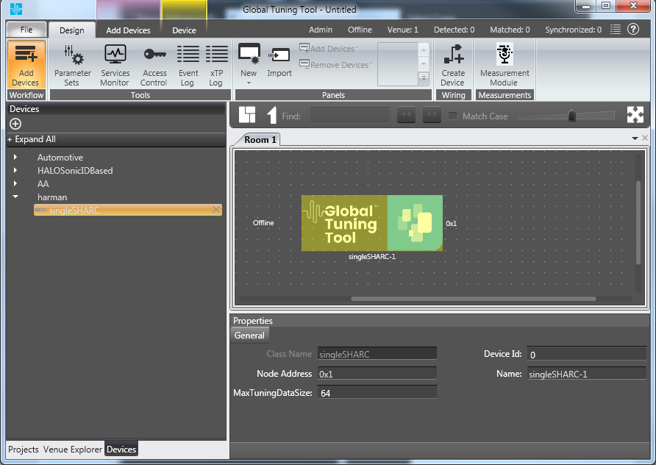
Drag and drop the device into the room.
Create a New Project and Define an Existing Device
Click the ‘+’ at the top of the Projects tab panel to start a new project.
Give the project a name and description in the subsequent dialog.
Select the Devices tab in the Project
Drag and drop the desired device into the room.