To configure parameter set data:
- Select any parameter set column, right-click and select Settings. This displays the settings dialog box.

- Except tuning tool version all the other fields are editable.
- By default, the product name will be the name of the device.
- There is no limitation on the number of characters entered.
- The user data values are persistent.
- You can either enter string values or hex values.
- The copy set data function performs a data merge operation. This means that the user data is combined with the meta data into a single output.
- User data will be stored and loaded in hex format.

Create Set File
To create set file:
- Select any parameter set column, right-click and select Save Set File. This opens the windows directory.
Store the parameter data in the directory with file extension *.set.

Load Set File
To load set file:
- Select any parameter set column, right-click and select Load Set File. This opens the windows directory.
Locate the set file and open the file. Tuning data will be loaded onto the chosen set after selecting the .set file. When you click Undo, the load action is reversed, and the screen displays the previous preset values.
Only matching (CoreId, InstanceId, BlockId, and SublockId) objects tuning data will be loaded.

Following are the notifications you will get during the load:
- If there are additional objects in the .set file than the set group, a notification message will be displayed.
- If there are additional objects in the set group, then in the .set file a notification message will be displayed.
- If there is a mismatch in the size of the AO a notification message will be displayed.
- If there are mismatching objects in both .set file and set group, a notification message will be displayed.
All the mismatched object details will be displayed in the event log.
Tuning data will be loaded only to the set in the parameter set column. Not on to the state variables.
Similarly, you can also load a human-readable set file (.setr file).
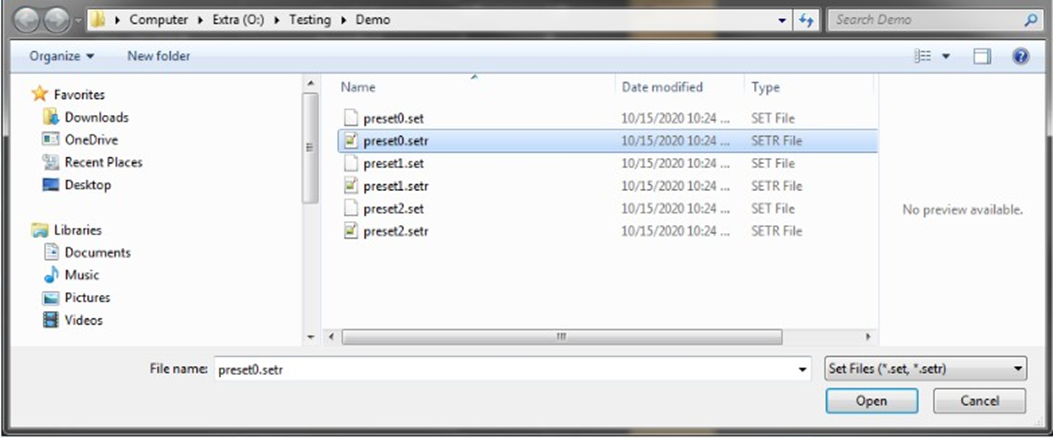
Tuning data is loaded onto the chosen set upon selection of the .setr file. When you click Undo, the load action is reversed, and the screen displays the previous preset values.
Only tuning data for objects with matching (CoreId, InstanceId, BlockId, and SublockId) identifiers will be loaded. The following message appears following the loading of the tuning data from Setr.
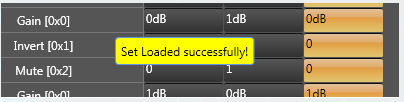
The following notifications are displayed in the cases mentioned below:
- If there are additional objects in .setr file than set group a notification message will be displayed.
- If there are additional objects in the set group, then in.setr file a notification message will be displayed.

- If there is a mismatch in the size of the AO a notification message will be displayed.
- If there are mismatching objects in both .setr file and set group, a notification message will be displayed.
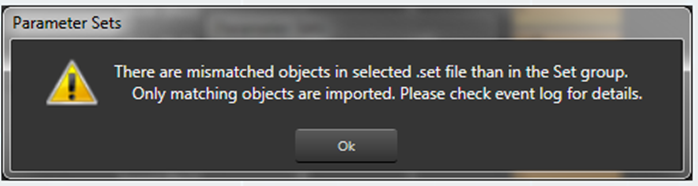
All the mismatched object details will be displayed in the event log.
