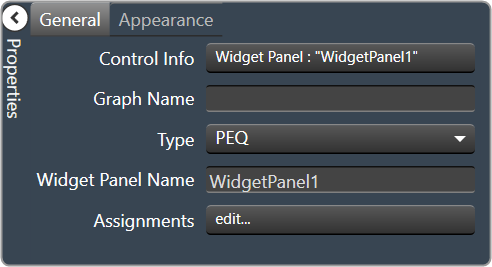
A widget panel is a control on a Custom Panel that links all controls inside its borders to one or more curves of a graph.
The entire widget panel is linked to the graph, so individual controls do not (and cannot) link to individual parameters; individual control assignments are made in the “assignments” property of the widget panel.
Controls on a widget panel are similar to other Custom Panel controls except that they are tied to elements of a graph. The widget panel controls the band or channel that is specified on the selector panel of an activated panel.
The entire widget panel is linked to the graph, so individual controls do not (and cannot) link to individual parameters; individual control assignments are made in the “Assignments” property of the widget panel.
For example, a fader can control one parameter of one band on one channel.
Even if multiple parameters are added to the fader, all of the parameters change to the same value:
If, however, a fader is added to a widget panel that is linked to a graph (and a selector panel), the fader can control ALL bands individually with one control of the graph:
Once a new band is selected on the selector panel, the fader controls the same parameter on that band as well.
To set up a widget panel
- Add a widget panel to the Custom Panel.
- Link the widget panel to the desired graph using graph collaboration.
- Add controls to the widget panel.
- Assign those graph parameters to the controls.
Graphs can be managed in the Custom Panel designer and, once the Custom Panel is activated, utilized by the end user.
Overlapping controls, especially graphs, can result in unexpected behavior and/or appearance of controls. Use caution if you choose to overlap controls.
| Property Type | Options |
|
General
|
Control Info: Shows control type. Read only |
| Graph Name: Allows graph to be named. | |
| Type: Select which type of EQ to be used for collaboration. | |
Widget Panel Name: The name of the widget panel.
|
|
| Assignments: Allows editing of assignments on Widget Panel. | |
|
Appearance
|
Back Color: Background color of the panel. Brings up the Select Color window. |
|
Location: Control location (in pixels) of the control on the Custom Panel. Change X (horizontal) and Y (vertical) values in relation to upper left corner. You can also drag the control to a different location |
|
| Size: Control size (in pixels). Change width and height values. You can also re-size the control manually. | |
Paint Style: The type of background fill.
|
|
Gradient Mode: The direction that a color gradient fill will flow.
|
|
|
Gradient Color Start: The starting color of a gradient fill or the color of a solid fill. Brings up the Select Color window. |
|
|
Gradient Color End: The ending color of a gradient fill. Not used for a solid fill. Brings up the Select Color window. |
|
| Background Image: Background image of the control. | |
Background Image Layout: The way the background image is drawn.
|
|
Border Style: Click to select border style.
|
|
| Draw Border: When checked, a border is drawn around the Panel. | |
| Rounded Corners: When checked the corners of the box will be rounded by the Corner Radius amount. | |
| Corner Radius: The radius of the corners. | |
| Tab Index: If tab stop is set to true, determines the position of the control in the tab order. | |
Tab Stop: Specifies whether the control appears in the tab order.
|