The system indicator is an LED-style control that allows you to define and show the state of specified devices.
For example, on an activated panel, a system indicator will turn red and beep when a device is offline, then return to green when the connection is restored. A right mouse click on the system indicator on an activated panel also shows what state attached devices are in.
Controls can be managed in the Custom Panel designer and, once the Custom Panel is activated, utilized by the end user. This control must be linked to a parameter or system function to function properly. You can also easily add a pre-defined label.
| Property Type | Options |
|
General
|
Control Info: Shows control type.
|
Locked: Specifies if the control is locked out so that it cannot be moved or re-sized.
|
|
|
State Indication
|
Addresses: Enables panel designer to edit addressing information with the added benefit that the values can be validated as a group before being applied to the device. This editor also allows the user to assign multiple parameters to the control. Click to select Parameter Address Editor.
|
Information: Shows information about the Parameter Address.
|
|
|
Image Values: Allows editing of the value range of the control. Brings up the LED Values Editor. |
|
Value Equation: When specified, this equation combines the attached parameter’s values and returns the value that the control will display.
|
|
|
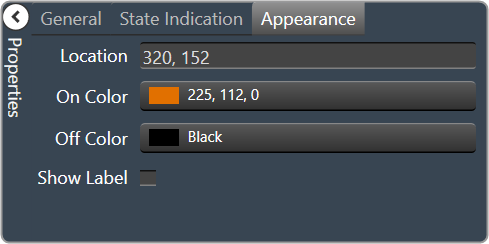
Appearance
|
Location: Control location (in pixels) of the control on the Custom Panel. Change X (horizontal) and Y (vertical) values in relation to upper left corner. You can also drag the control to a different location. |
|
On Color: The color of the LED in the On state Brings up the Select Color window. |
|
|
Off Color: The color of the LED in the Off state Brings up the Select Color window. |
|
|
Show Label: Determines if the label will be drawn with the indicator. Checked = show the label |