A text display is a dynamic text control on a Custom Panel that can be linked to the value of a specific device parameter. It shows the control value as it changes, much like a text box, but cannot be changed by the user.
Use either the Text Label or Note control to add static text to a Custom Panel.
A Text Display control can be managed in the Custom Panel designer and, once the Custom Panel is activated, viewed (but not changed) by the end user.
- Unlinked (Static) Text: If a label is not linked to a control, the text does not change on the control but is merely the default text as defined in the text attributes. Once another control is linked, the value is overridden by the parameter value.
- Linked (Updating) Text: If a label is linked to a control, on the activated Custom Panel it will reflect the value of the control as it changes, much like a text box. However, the value cannot be changed by the user.
Once a label is linked to a control, you can add a label showing the parameter address of the label.
| Properties Type | Options |
|
General
|
Control Info: Shows control type.
|
Locked: Specifies if the control is locked out so that it cannot be moved or re-sized.
|
|
|
Parameters
|
Address: Enables panel designer to edit addressing information with the added benefit that the values can be validated as a group before being applied to the device. This editor also allows the user to assign multiple parameters to the control.
|
Information: Shows information about the Parameter Address.
|
|
|
Appearance
|
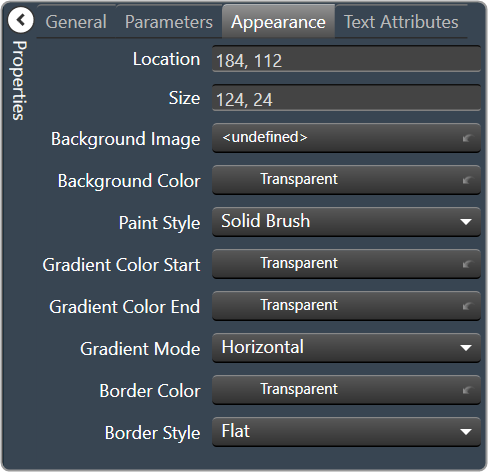
Location: Control location (in pixels) of the control on the Custom Panel. Change X (horizontal) and Y (vertical) values in relation to upper left corner. You can also drag the control to a different location |
| Size: Control size (in pixels). Change width and height values. You can also re-size the control manually. | |
| Background Image: Background image of the control. | |
| Background Color: Background color of the control. | |
Paint Style: Background paint style of the control.
|
|
| Gradient Color Start: Beginning gradient color if gradient is selected in Paint Style. | |
| Gradient Color End: Ending gradient color if gradient is selected in Paint Style. | |
Gradient Mode: Type of gradient fill if gradient is selected in Paint Style.
|
|
|
Border Color: Border color of the control. Brings up the Select Color window.
|
|
Border Style: Click to select border style.
|
|
|
Text Attributes
|
Text: Enter the text for the Text Display.
|
Text Font: Click on “…” to select desired font. Brings up a Font Select window.
|
|
Text Color: Text color of the control.
|
|
Text Alignment: Alignment of the label text.
|