The Device View is used to view and modify detailed information and settings for a specific device. Double-click on the desired device from the list to open a device template in the Device View.

Device Object Properties
A device is a combination of four layers: Device Layer, Physical Layer, Virtual Core Layer, and Core Object Layer. When you select any of the layer, you will see the properties of the selected layer on the right side.
Device Layer: Device layer properties include Device Name, Hardware, and Software version.
Device layer properties are not editable.

Physical Core Layer: Physical Core layer properties include Physical Core Name, Physical Core Type and MIPS.
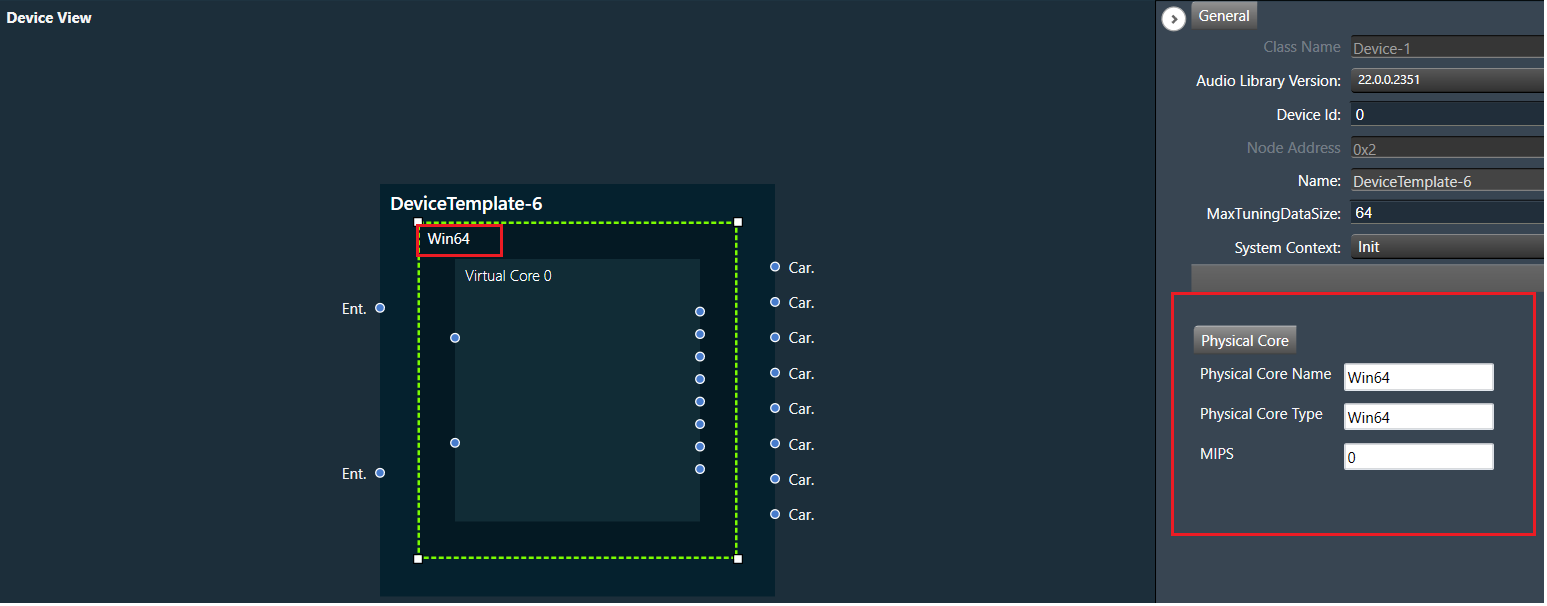
The “Physical Core Name” property in the Physical Core layer properties can be changed, but the “Physical Core Type” and “MIPS” properties are non editable.
By default, the “Physical Core Name” property value is same as the “Physical Core Type”. If you want to change the physical core name, enter the value for “Physical Core Name”, the updated in the Physical Core layer value will be reflected in the device view, then click on save button to save the changes.
Only from the Device File editor window, you can update Physical Core Type.
If you keep the Physical Core Name field empty, GTT will ask you enter the valid name for “Physical Core Name”.

Virtual Core Layer: Virtual Core layer includes the following properties:
- Core Id: Display the core id.
- Core Name: Display the core name.
- Data Format: Display the date format type.
- Task Priority: Display the date priority value.
- Queue Size: Size of message queue
- Guard Time: Time to avoid message processing as percent of interrupt time.
- Ramp Time (ms): Duration between two processing state (in ms), when Core Object processing state is enabled.
- Core Object Processing State: Enable or disable processing state for Core objects in core.
- Streaming: Enable or disable streaming. Enabling steraming option allows you to set “Set Variables”, “Probe Points “, and “Level Meters”.

Queue Size and Guard Time will be supported only for Devices with audio library version “O” release and above or “M+2” release and above.
Enable Core Object Processing State and Ramp Time will be supported only for Devices with audio library version “O” release and above.
Processing state for Core objects will be applied only if Enable Core Object Processing State was enabled before Send Device Configuration.
Enable Probe Points and the Number of Probe Points will be supported only for Devices with audio library version S release and above.
Core Object Layer: Each core object has different properties. For more details refer to the ToolBox.

Magnifier options

- Fit to Window: Click on this button will change the current view to the size of your device view window.
- Zoom to 100%: Click on this button will return the view to 100% zoom.
- Zoom In: Click on this button (+) to zoom in for gradual increments.
- Zoom Slider: Slide to the desired percentage zoom setting.
- Zoom Out: Click on this button (-) to zoom out for gradual decrement.