The GTT allows you to create a device flash file using Device File Editor (DFE) in a project. The device file is a combination of Physical Cores, Input Groups, and Output Groups.
Follow the below steps to create a device file:
- On Add Device window, click Create Device File.

This opens the Device File Editor window. The editor interface uses a tree-like structure to display items at each level and this structure is defined in the xTP specification. Furthermore, a Virtual Core will have Input and Output Groups as defined by the xTP specification. Each Input Group and Output Group have one group added by default.
By right-clicking on each item, a context menu will appear that will allow you to add or remove subtree items.

- Select Physical Cores and enter the hardware and software version.
There could be one or more Physical cores under a Device and each Physical core can have more than one virtual core inside it.

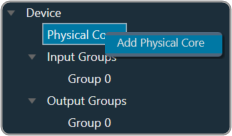
- Right-click Physical Cores and select Add Physical Core.
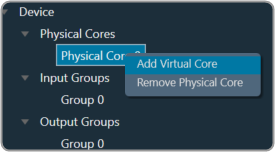
- Select Physical Cores 0You must specify the Core Type of Physical Core. When the default xAF library is set to O release or above, the supported xAF core-types will be listed or set the default value to ‘0’.

- Right-click on Physical Cores 0 and select Add Virtual Core.
- Select Virtual Core 0, enter the Task Priority, and select the Date Format.
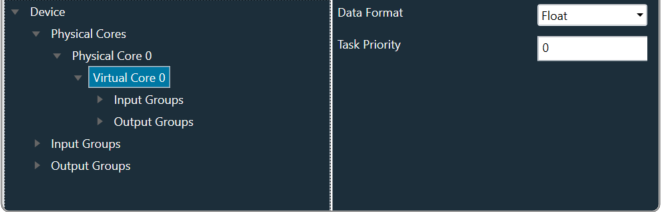
A Virtual Core is made up of Input and Output Groups. You can add one or more Physical Cores, and each Physical Core can have many Virtual Cores.It is important that you should specify the Core-type of the Physical Core, Data Format of Virtual Core, Device Input, or Output Group.
When the selected default xAF library is “O” release or above, the xAF supported data formats will be listed or the default value set to ‘2’.
- Expand Input Groups, select Group 0, and configure the respective properties. Similarly, expand Output Groups, and configure the Group 0. In order to allow routing from Device Input/Virtual Core to other Virtual Cores or Device Output Groups, select Connectable Cores and Connectable Device Output groups.
You can add multiple Group inside an Input Group.

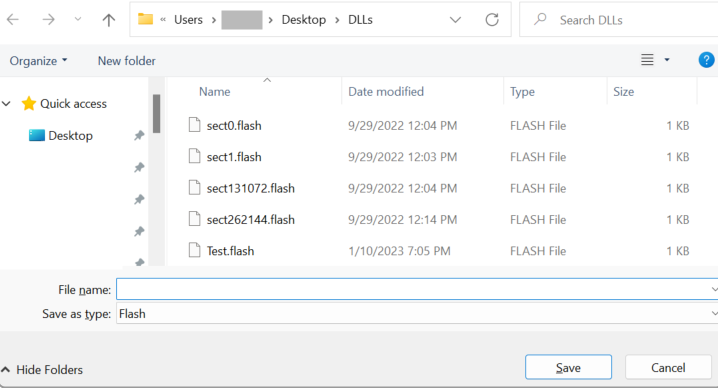
- Once all the configuration is done, click Save Device File. A save file dialog box appears, enabling you to save the flash file.
The flash file contain the information related to structure of the device like Device Id, hardware version, software version, input groups count (No. of input pins), output groups count (No. of output pins), physical cores count,
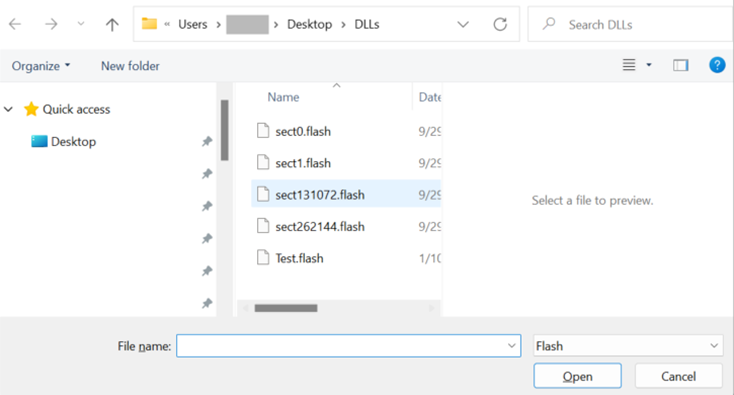
To view or modify an existing flash file, click Load Device File. The Device File Editor displays an Open file dialog box, selects the flash file, and clicks Open.