To be able to send tuning data to a physical device, you need to connect the device instance that contains the tuning data in question to the physical device.
Connect Device
Click the Connect Device button in the context menu of a device instance.
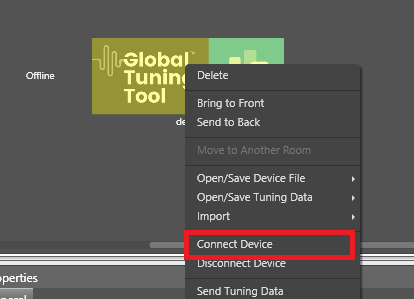
If no instance of AmpSrv2 with the required port is running, then a new instance of AmpSrv2 is started. Otherwise the running instance of AmpSrv2 is used.
The communication port between GTT and AmpSrv2 is calculated automatically on GTT side: 24575 + HiQnet node address of the device instance.
If AmpSrv2 is started by GTT, AmpSrv2 settings are not stored! If AmpSrv2 settings should be changed permanently, a manual start of AmpSrv2 is required.
Automatic start of AmpSrv2 only works for single device instances. If connection to several device instances in parallel should be established, a manual start of several AmpSrv2 instances (that are running on requested port addresses) is required.
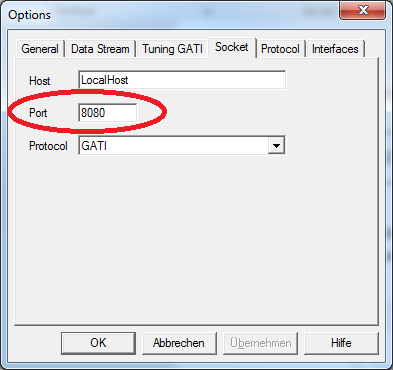
IMPORTANT: From Herbie Hancock release onwards, the default port of the virtual device has changed. Default port is now 25001 (before it was 8080). If an old audio library is used, the settings have to be adapted manually in AmpSrv2: Menu: File -> Options.
While attempting to connect device, Audio Framework version of Target device and GTT device is verified.
If versions are not matched, then user will get prompted with confirmation dialogue to continue to connect as target device is incompatible.
Device compatibility will be verified only if Target Device has Audio Framework Version greater than or equal to R Release.
Disconnect Device
Click the Disconnect Device button in the context menu of a device instance.
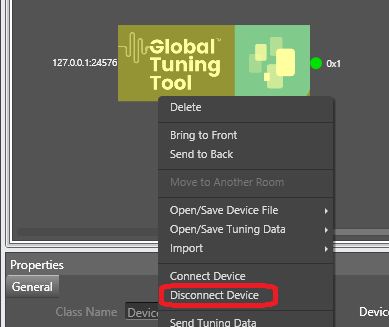
If AmpSrv2 was launched by GTT, AmpSrv2 will be closed. Otherwise AmpSrv2 will keep on running.