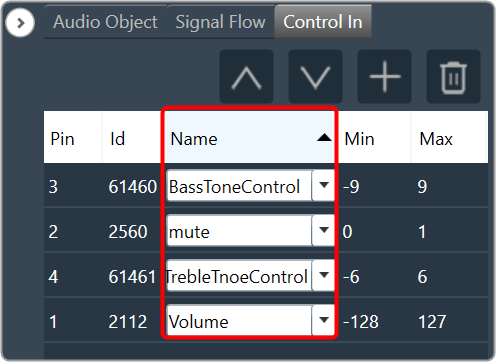
The Configure Default Controls option allows the user to specify which default control ids should appear in the “Control In” control list.
To Configure the Configure Default Controls:
- Click on Configure Default Controls. This action opens the Configure Default Controls window.

In the Configure Default Controls panel, all control IDs are selected when no configuration is defined.
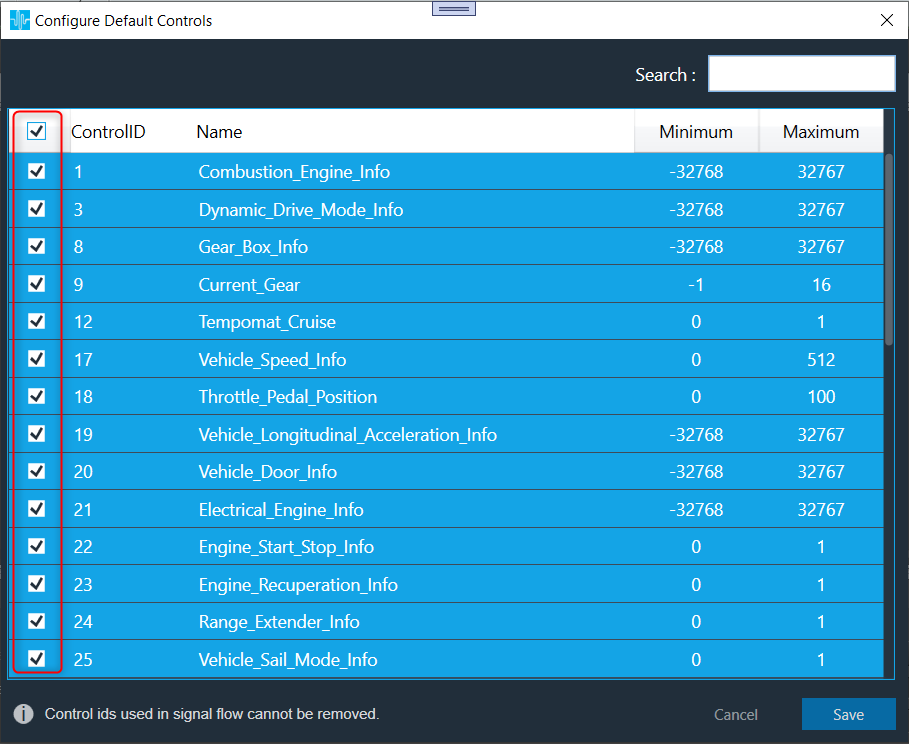
In the Configure Default Controls window, users can select or unselect control IDs.
The control ID used in the signal flow designer cannot be unselected.
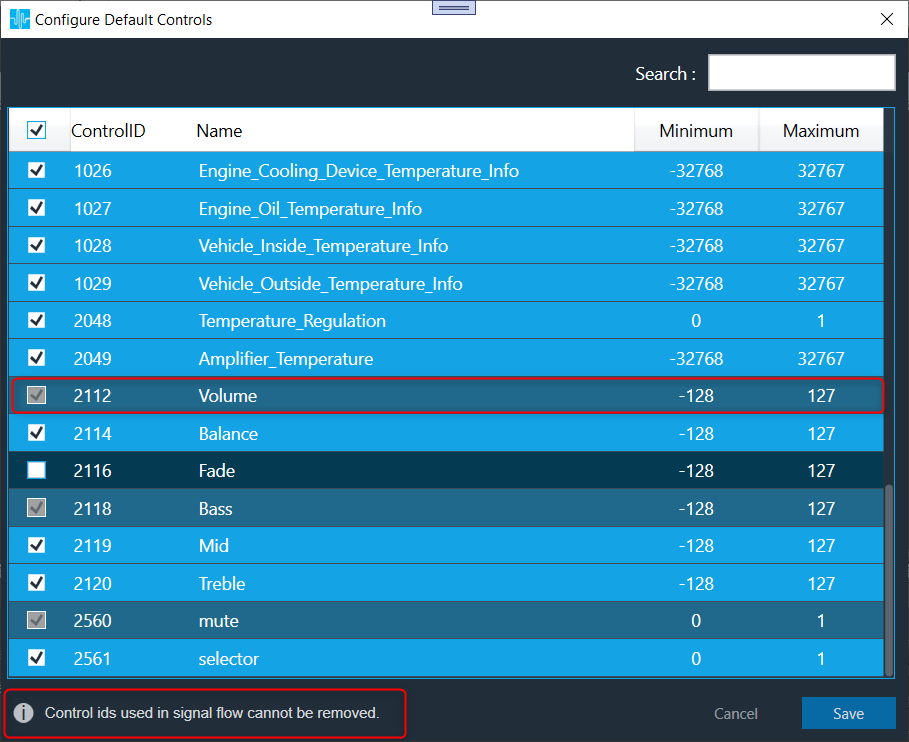
- Select or unselect the required control IDs and click Save to update the Configure Default Controls configuration.
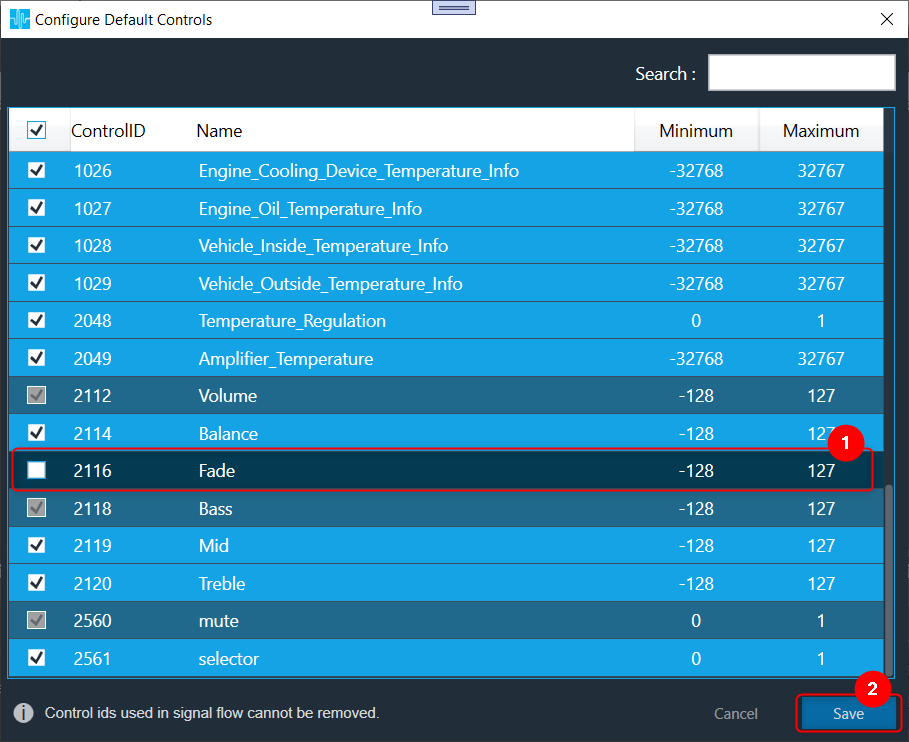
Use the Search text field to search and filter default control ID.
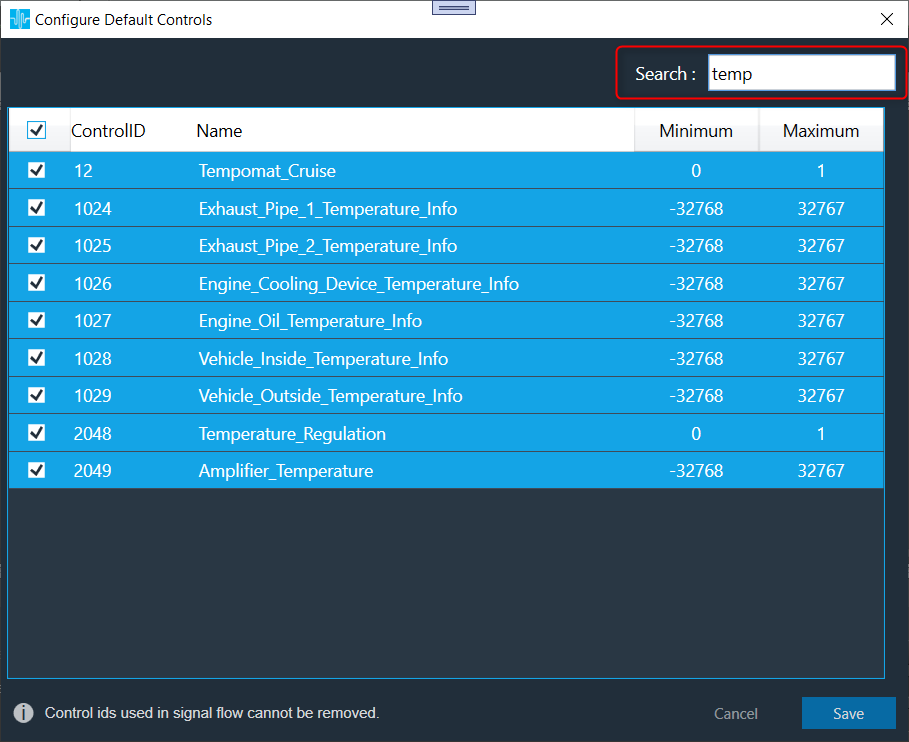
After modifying the Configure Default Controls data you can verify the changes or modifications.
Go to the Signal flow designer window, and open the Control In property window to verify the configured default control IDs along with custom control IDs.

Sort Control In Pin Data
The Control In panel shows all user-configured control pins data.
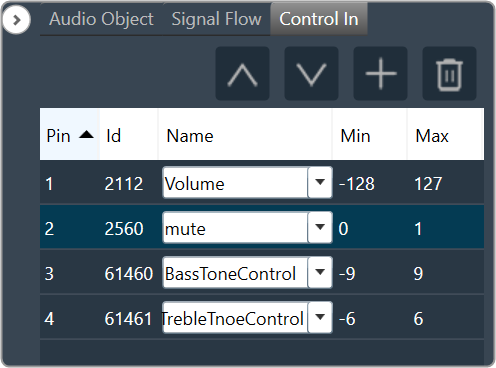
Click on the any of column headers to sort the data. On alternate clicks on the column header, the sort direction will change from ascending to descending or vice-versa.

The ascending order of the Pin column is the default sort order for the Control In panel.
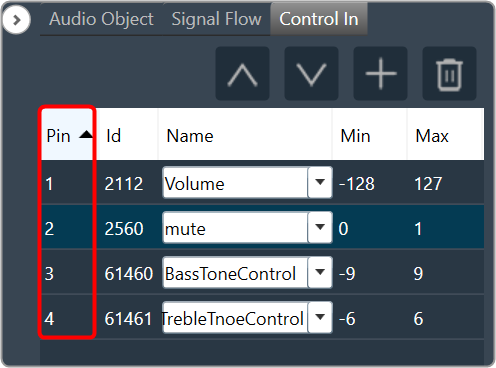
Click on any column header to sort the respective data on Control In panel.