To create a device instance and add it to a project, a user needs to create a device template first. There are two options to do this:
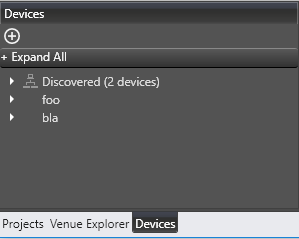
- Go to the Devices tab and click the “+” button.
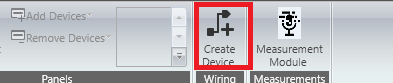
- Click the Create Device button in the GTT ribbon.
In the window that shows up, a user needs to fill in the following fields:
- Reference ID of the device template
- Device ID – initial value of the Device ID field for the first device instance created out of that template
- Device template name
- Brand – required for legacy AA infrastructure
- Family – required for legacy AA infrastructure
- Number of Channels – number of channels supported by the device
- Max Tuning Data Size – Maximum count of bytes included in a single tuning data message
- Communication Type – could be ID based tuning or address based tuning
- Core(s) – each device template exposes one or more physical cores to choose from. Two modes of core selections is available , based on default xAF library selected.
-
- For xAF library before O release : multiple cores from given list can be selected
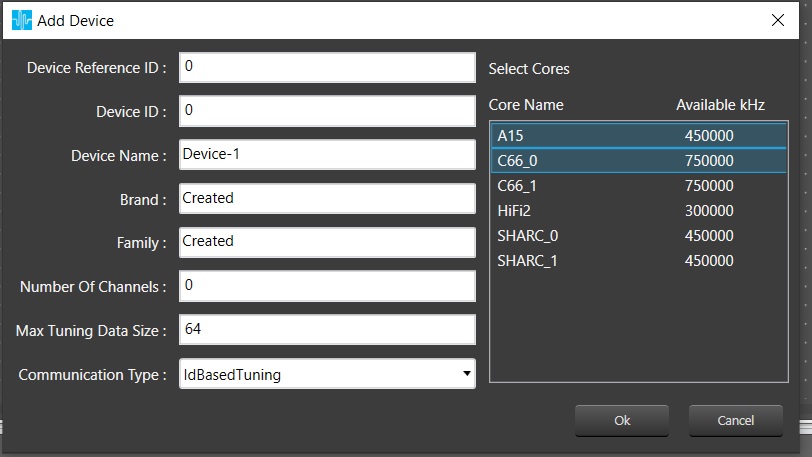
- For xAF library before O release : multiple cores from given list can be selected
-
- For xAF library from O release : Cores can be added/removed. Core-types and Data-formats supported by xAF will be listed for configuring core.
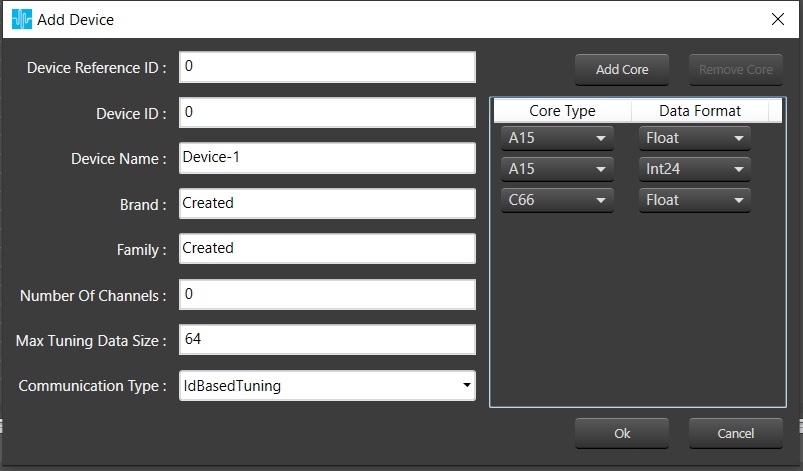
- For xAF library from O release : Cores can be added/removed. Core-types and Data-formats supported by xAF will be listed for configuring core.
A new device template gets created once a user has filled in all the fields and clicked the OK button.
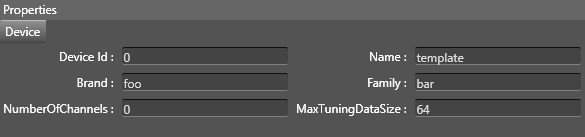
Properties of an existing device template can be modified in the device template properties grid at the bottom of the window.
If you want to get rid of a device template, you need to press the “x” key next to the device template’s name in the templates list. This will remove the device template. It is not possible to remove a template which is used by any device instance in any of the projects. If a user tries to do so, s/he will be presented with the following warning message:
