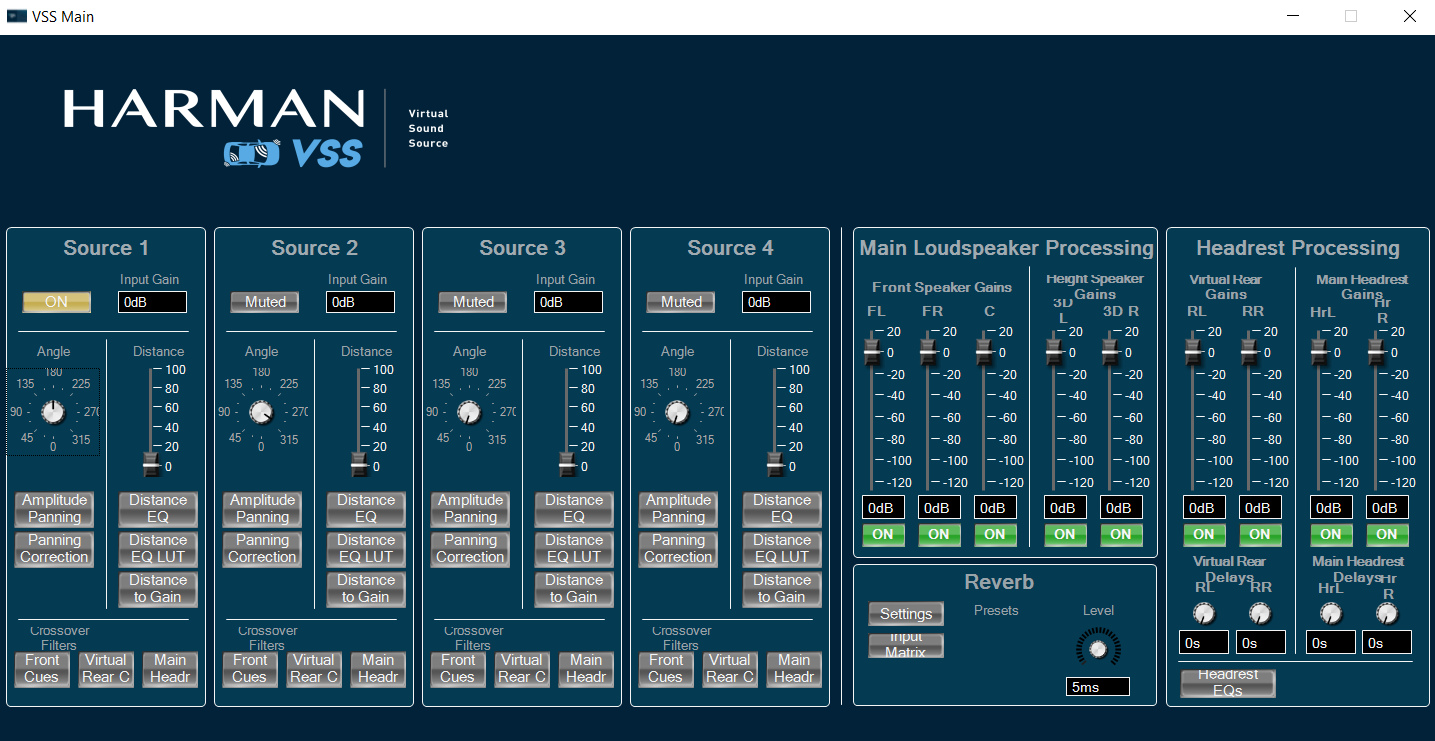
From S+2 release, CAOs are released in .cao file format. Below are the instructions for panel linking for the external control inputs to the CAO:
- Import the CAO and add it to the SFD. Double click on the CAO in the SFD pane to open the panel. Some of the panel elements may have a warning symbol near them (shown below), indicating that the parameters are not correctly linked to the external control inputs.

- As an example, to link the angle control input pin for source 1, go to the panel designer and navigate to Venue -> Room 1 -> 0x01 : virtual venues-1 -> MasterClass -> Master Pin. Now, drag and drop Angle1 on to the Angle element of Source 1 to link the control input. Once the linking is done correctly, the warning symbol will disappear. Do the same for the other elements as well.
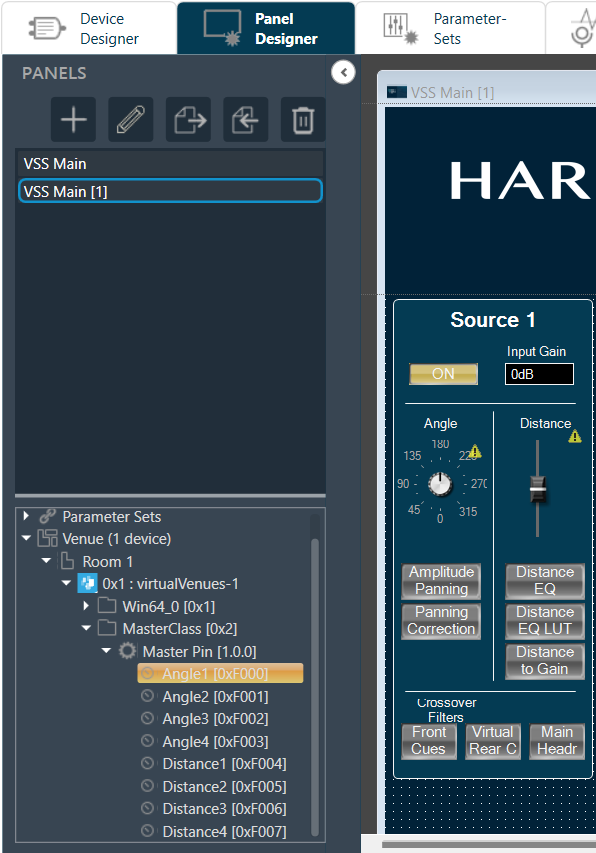
- Once all the control inputs pins are correctly linked, the warning symbols on the panel elements should no longer appear.