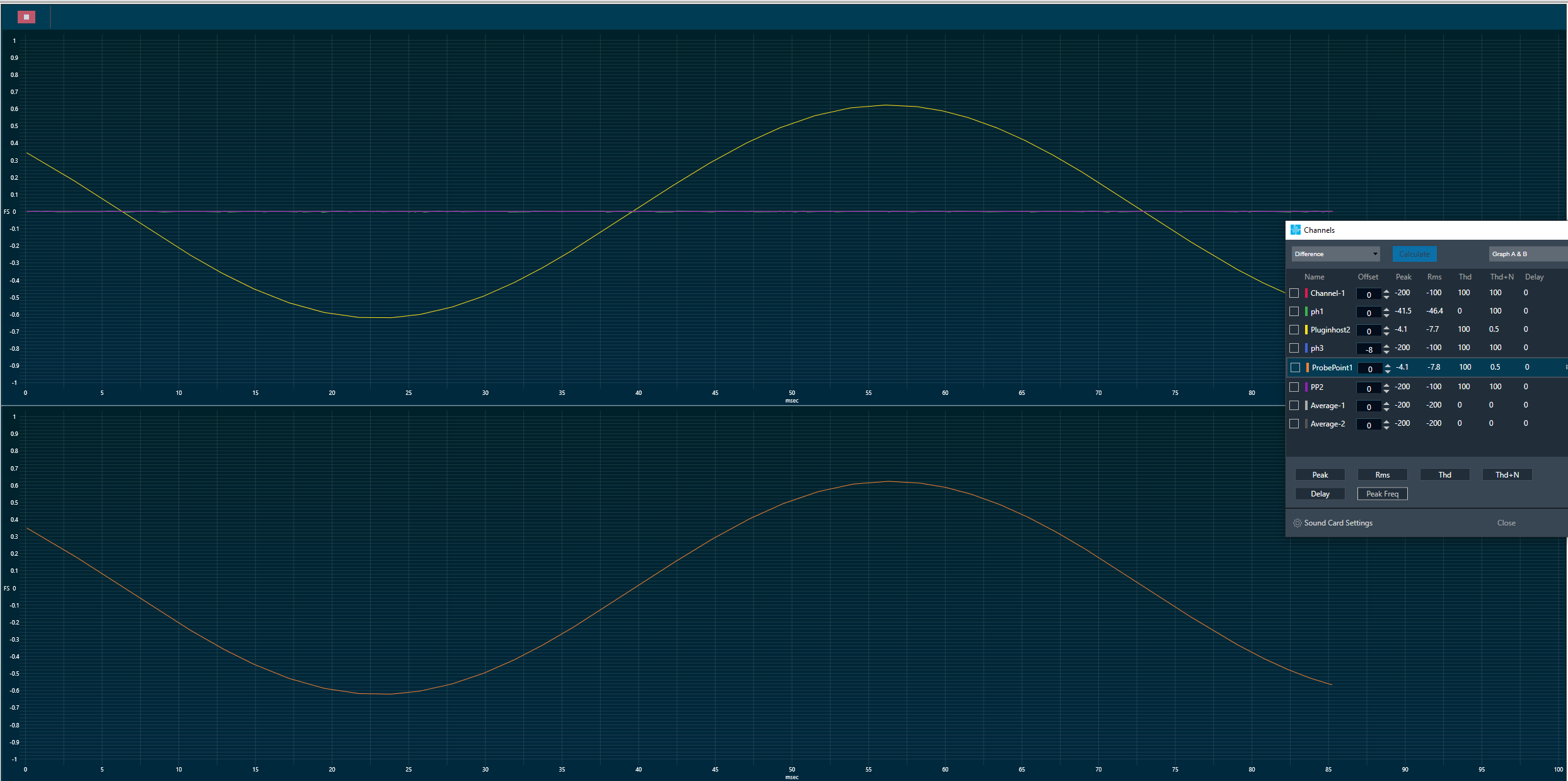
The Probe Point feature has been added to support streaming data from any point of the signal flow back to GTT to be able to analyze, record or re-use the data inside of IVP. The main idea behind this feature is to give the user and/or developer a way to receive data from an Audio object and analyze audio input in Real time analyzer view.
Configure and Use probe point for analysis
Enable probe points per core – Use Virtual core property ‘Probe Points: Enable/#” in device view to enable and set number of probe points per core. Only the configured number of probe points can be enabled in signal flow per core.
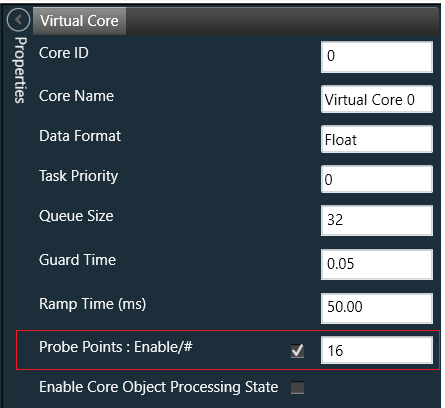
The probe points configurations will send to the device using “Send Device Config” feature. This configuration can be fetched from device using “Load Device Config” feature.
To run streaming of state variables this feature has to be enabled, hence this is a high configuration feature and will be skipped to safe MIPS and memory. The number of probe points refers to audio streams only. Setting this value to zero (checkbox enabled) will automatically allocate memory for the state variable streaming and support up to 16 state variables.
If Probe Point is disabled for the core, number of probe points input field will be disabled and streamable state variables will be excluded for that core in streaming window.
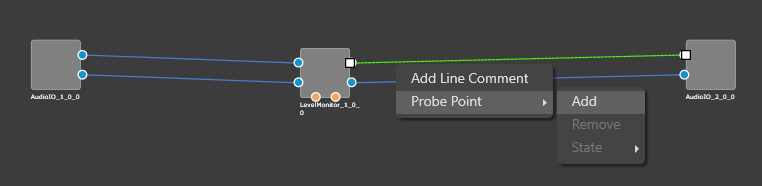
Add Probe points on Audio Object connection point–
Probe Point context menu for selected connection has below options:
- Add– Add probe point on selected connection source point and default probe point state set to enabled state.
- Remove – Probe point will be removed from selected connection.
- State – Can alter the state of probe point on selected connection.
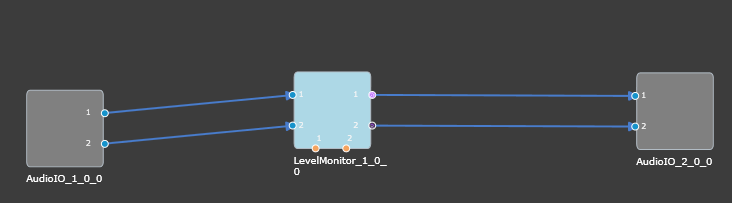
- Enable -State change to Enabled and Pin will highlight with icon with bright purple Color

- Disable- State changed to Disabled and Pin will highlight with grey dark Purple Color

- Enable -State change to Enabled and Pin will highlight with icon with bright purple Color
Manage Probe points
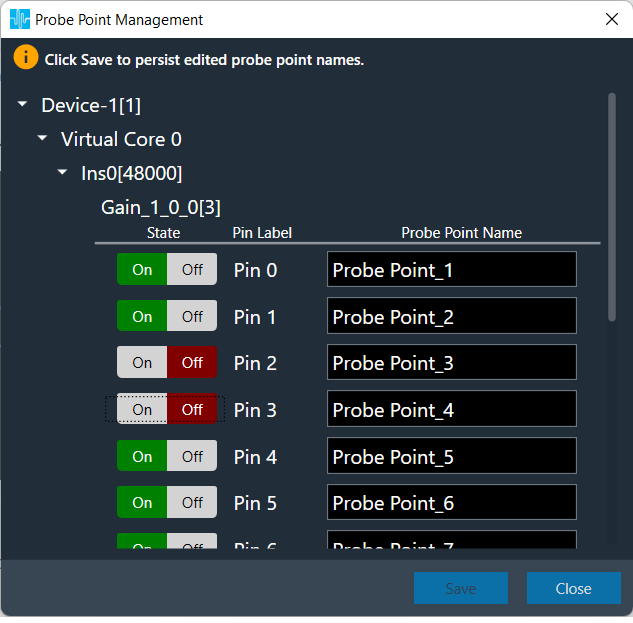
Open Probe point management window through ‘Manage probe Points’ ribbon button.

In this window, you can enable/disable probe point and edit probe point name in probe point management window.
Probe points are organized in Device[Device address]->Core->Instance[Sample Rate]->Audio Object Name[Block-Id] order.
State, Pin Label and Probe point name will displayed for each probe point. This window will always be in sync with Signal Flow designer probe point states.
Click Save to persist edited probe point names
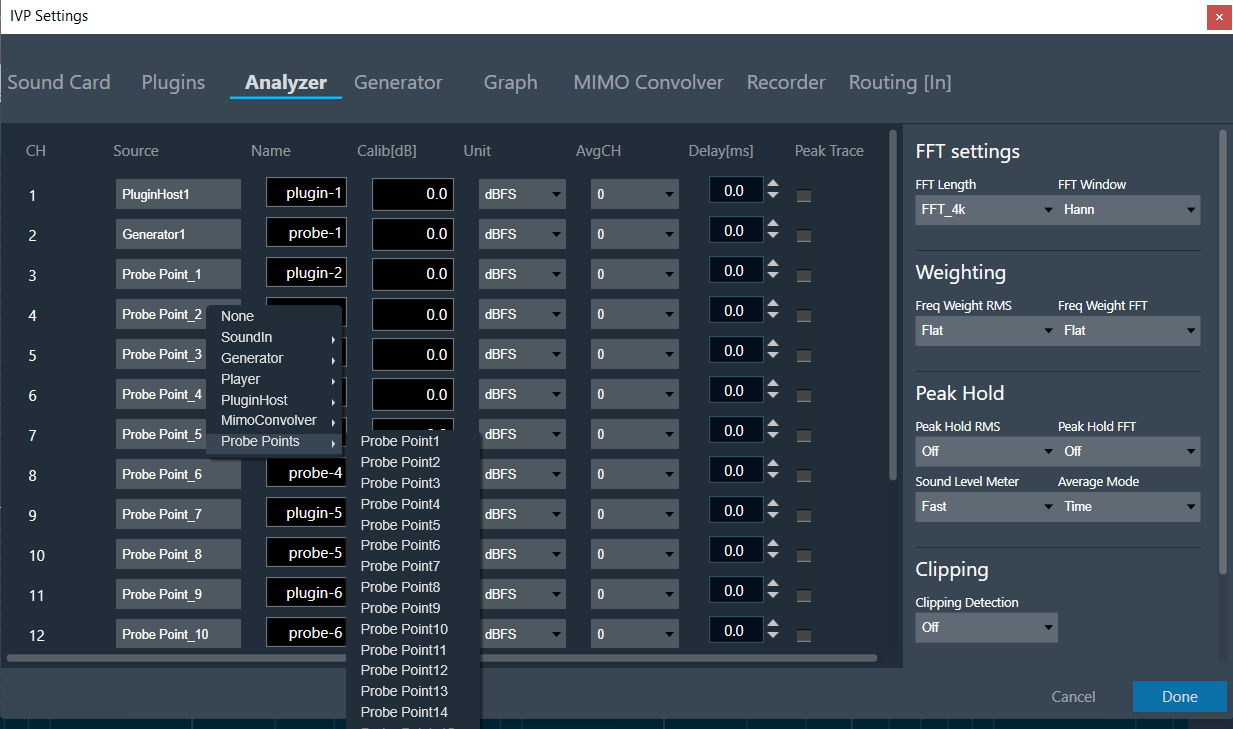
Configure probe points in RTA/IVP
- Open Advanced settings window
- Select Probe Point as Analyzer / Recorder / Sound out sources as shown in below image.
- Click Done
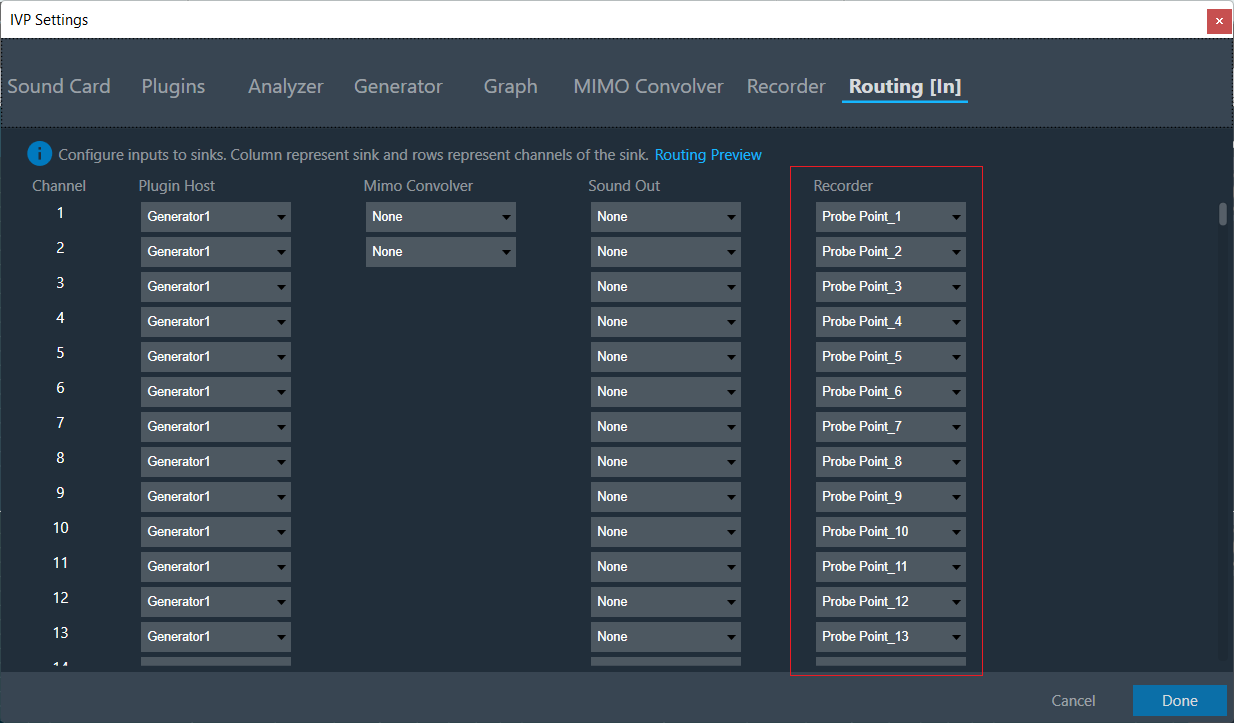
To record the probe point signal
Start Probe-Point streaming
Pre-requisites:
- Probe Point feature is enabled for the core and number for active probe points has been set correctly.
- Probe Points are used in the IVP config as a source (Analyzer, Recorder, etc.)
- Plugin Host is started.
- Connection to device is established.
Use IVP Block Length <= 512 for probing to avoid frame dropping
Once above pre-requisites are done, start probe point using Probe Point Ribbon button.

Example of Streamed data