Set file can be imported into GTT a human readable set file can be loaded.
Multiple ways to import the setR file:
Using device Import > Tuning Data :
Importing of .set or .setR can be done from device Import > Tuning Data ribbon item.

On clicking Import > Tuning Data, opens a dialog to select the .setr file (human readable set file) to be loaded. By selecting a set/.setR file , device processing blocks will be updated with tuning read from the imported file.

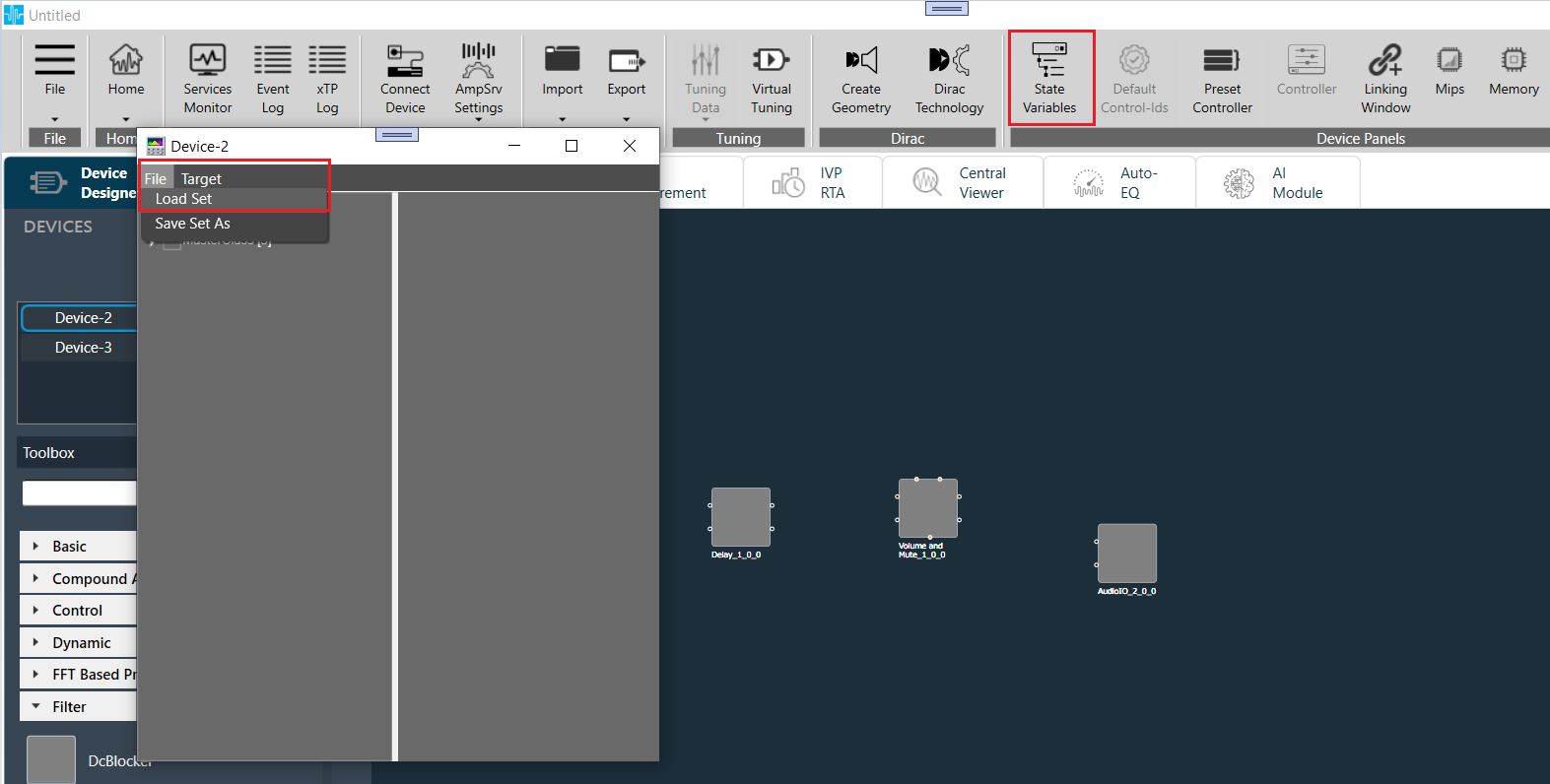
From State Variables > Load set :
Set files can be loaded to device from State Variables explorer Load Set option. This opens a dialog to select the .setr file (human readable set file) to be loaded.
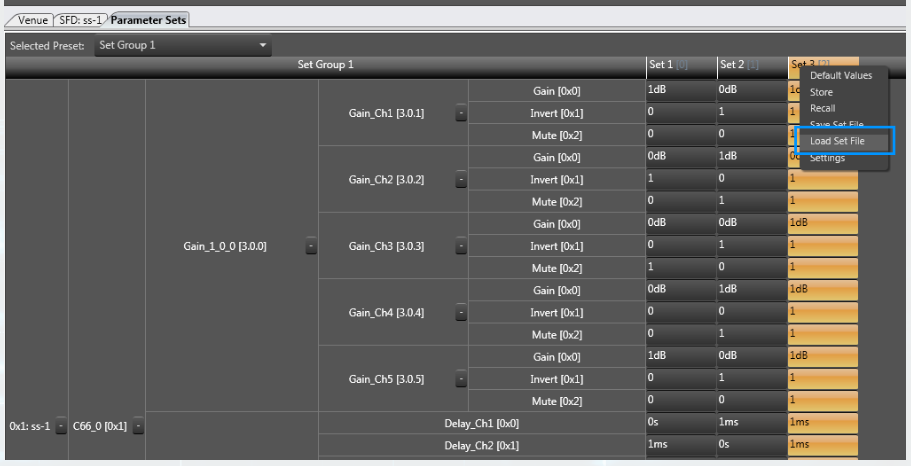
From the context menu of any preset Click on “Load Set file”:
This opens a dialog to select the .setr file (human readable set file) to be loaded.
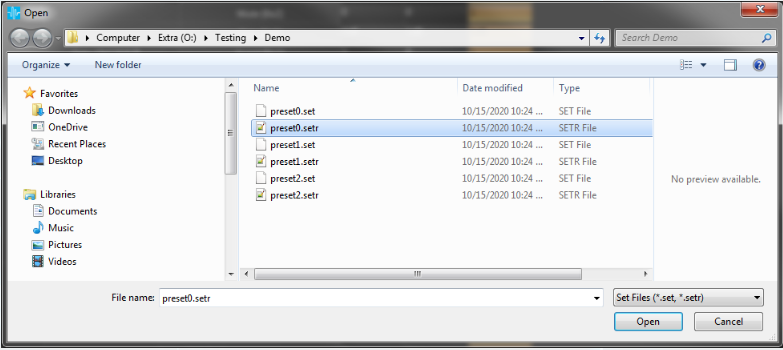
On selecting the .setr file, tuning data will be loaded on to the selected set. On clicking Undo, load action will be undone and old preset values will be displayed in the screen.
Only matching (CoreId, InstanceId, BlockId and SublockId) object’s tuning data will be loaded.
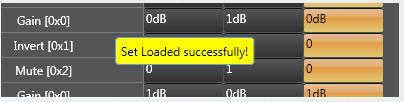
After loading the tuning data from setr the following message is displayed
Notifications to the user during load process
Notifications will be displayed in below cases :
- If there are additional objects in .setr file than set group a notification message will be displayed.
- If there are additional objects in set group than in .setr file a notification message will be displayed.
- If there is a mismatch in the size of the AO a notification message will be displayed.
- If there is mismatch in state variable names, a notification message will be displayed.
- If there are mismatching objects in both .setr file and set group or mismatched object details, a notification message will be displayed.
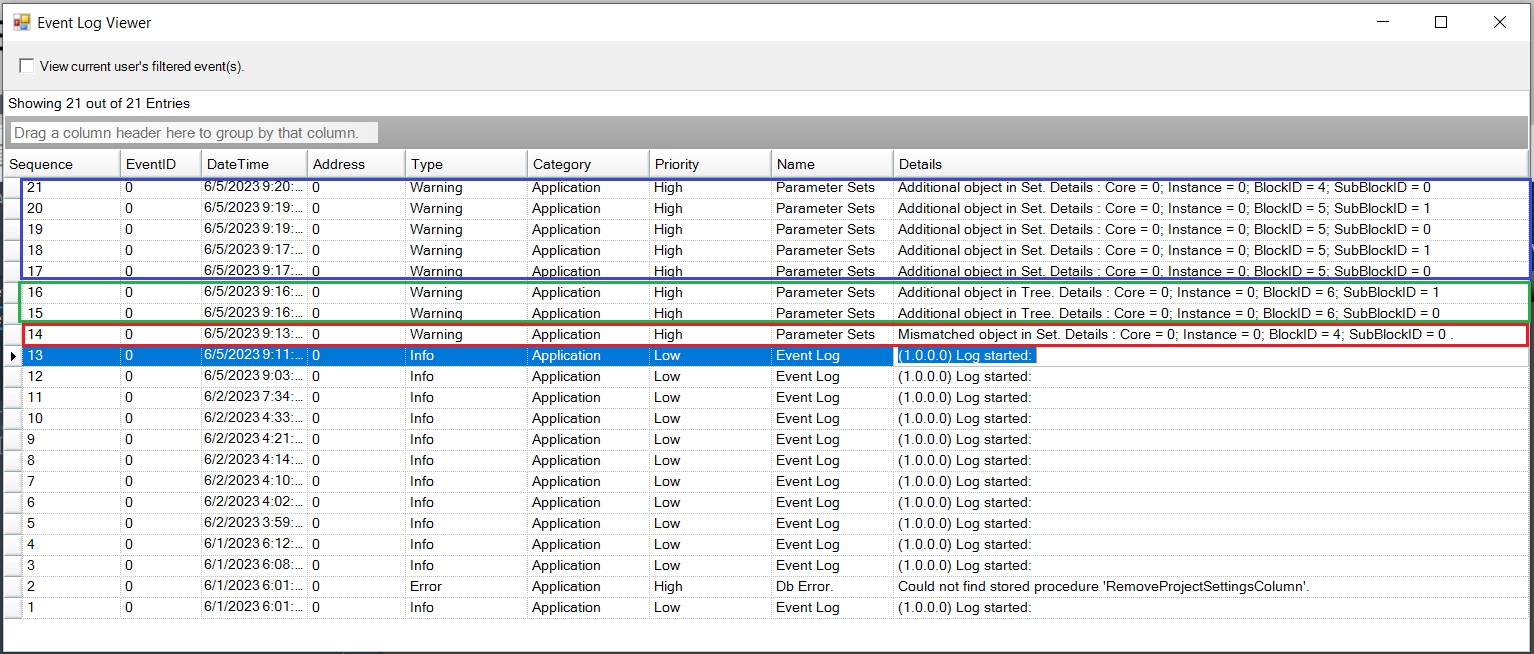
The following notifications are displayed when loaded in Parameter Set:
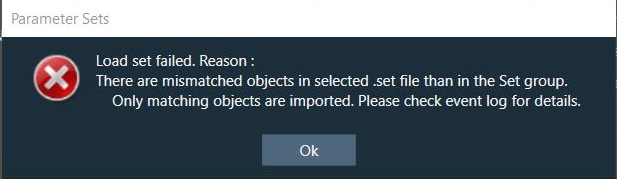
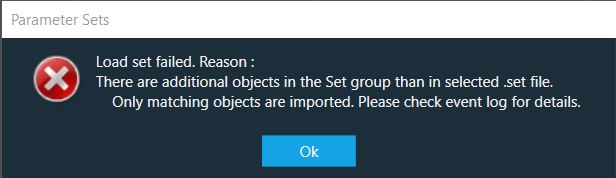

When error(s) occurs while loading to Device from Import > Tuning Data or State Variables > Load Set , below message will be displayed :
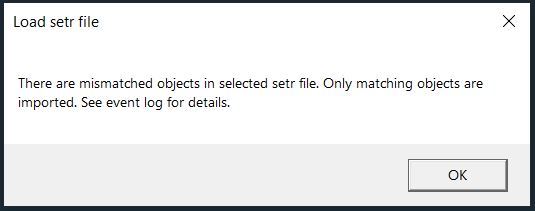
All the mismatched object details will be displayed in event log.