To edit a Compound Audio Object,
Select the Compound Audio Object under Compound Audio Object category in the toolbox and click on Edit through context menu, which will navigate to Compound Audio Object edit view
Here, user can alter the configuration, tuning of the inner objects
Save the signal flow once the modifications are done
Compound Audio Object Version or Tuning Version auto increments on click of Go Back
Compound Audio Object Version auto increment happens for the below scenarios
-
-
- An Audio object is added or deleted.
- The inner connection changes.
- The Object mode/ Additional parameters changes.
-
Tuning Major Version auto increment happens for the below scenarios
-
-
- An Audio object is added or deleted.
- The inner connection changes.
- There is change in the audio object configurations inside Compound Audio Object.
- The Object mode/ Additional parameters changes.
- An Audio object channel numbers are modified.
- Audio object is upgraded
-
Tuning Minor Version auto increment happens for the below scenarios
-
-
- Inner Audio object tuning data is modified
-
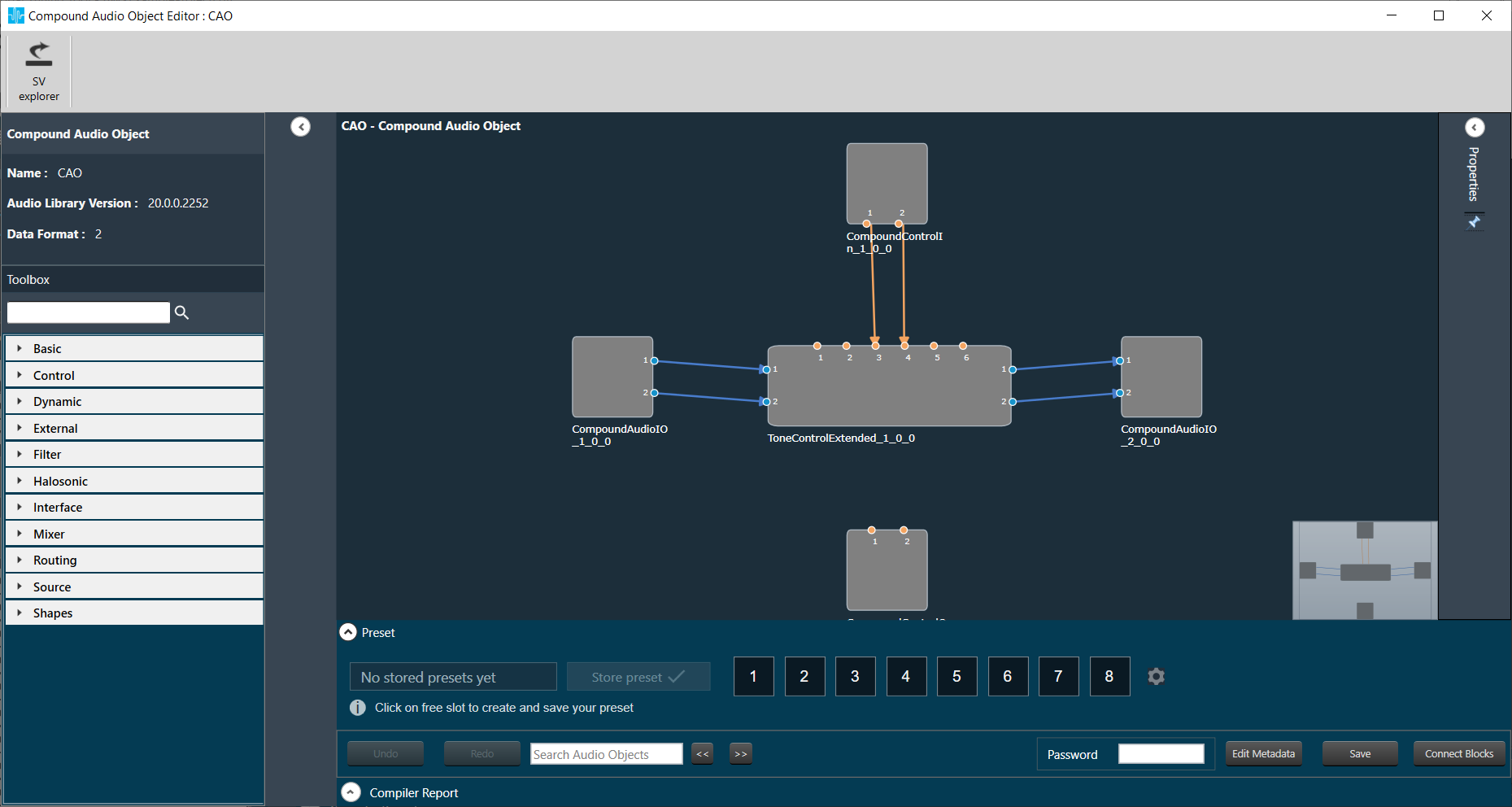
Click Go Back to redirect to Device Signal Flow
If the version of the Compound Audio Object is modified, already used Compound Audio Object in the Device Signal Flow will be highlighted with different color and it should be upgraded , in order to Save Signal Flow
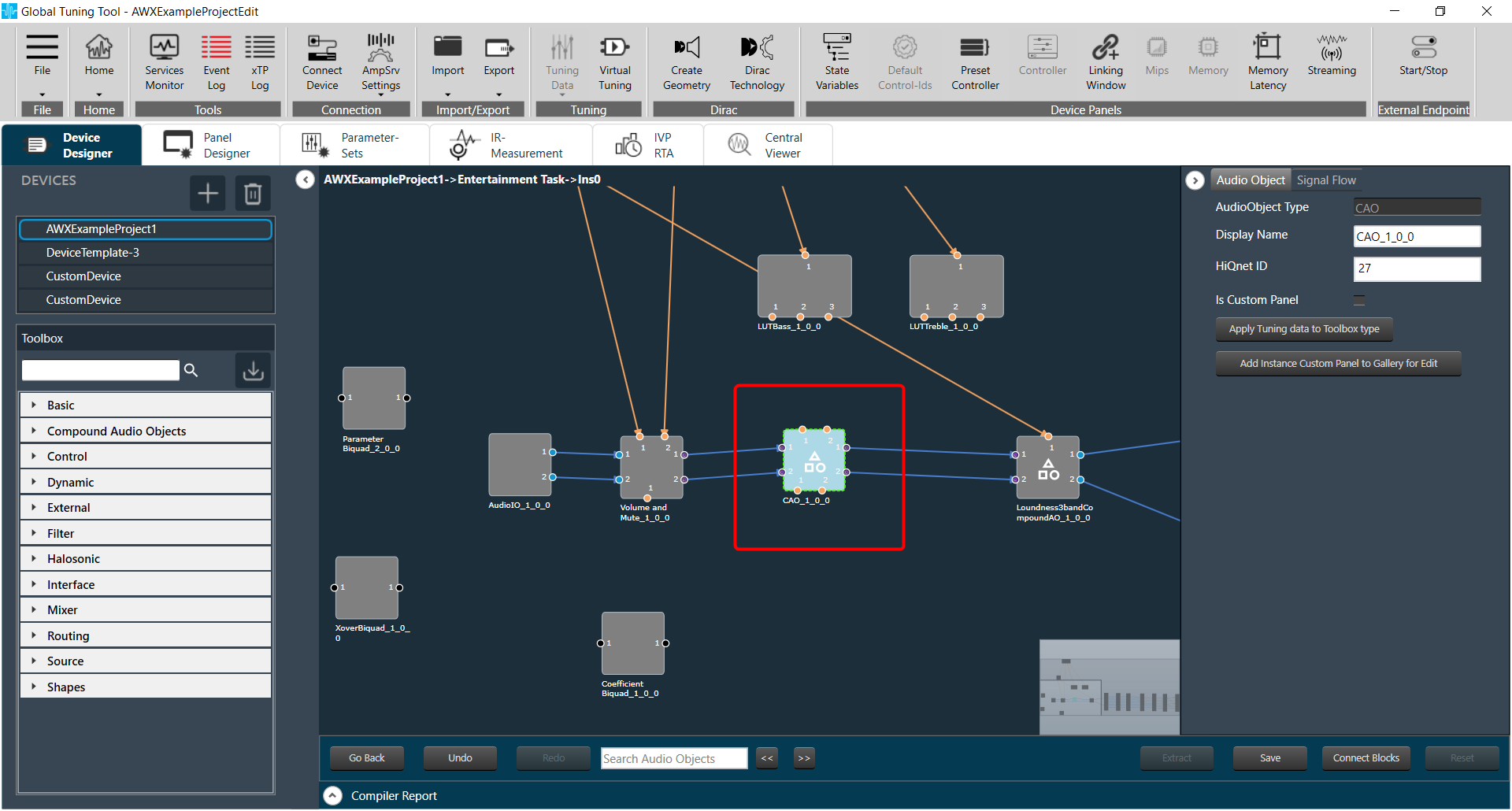
Note : On Major version upgrade of CAO , tuning data will be set to default tuning data of CAO template in toolbox .
User can edit Compound Audio Object without affecting current working Device Signalflow. Means if user is connected to device at the same he can edit Compound Audio Object. It will not disturb current working device setup.
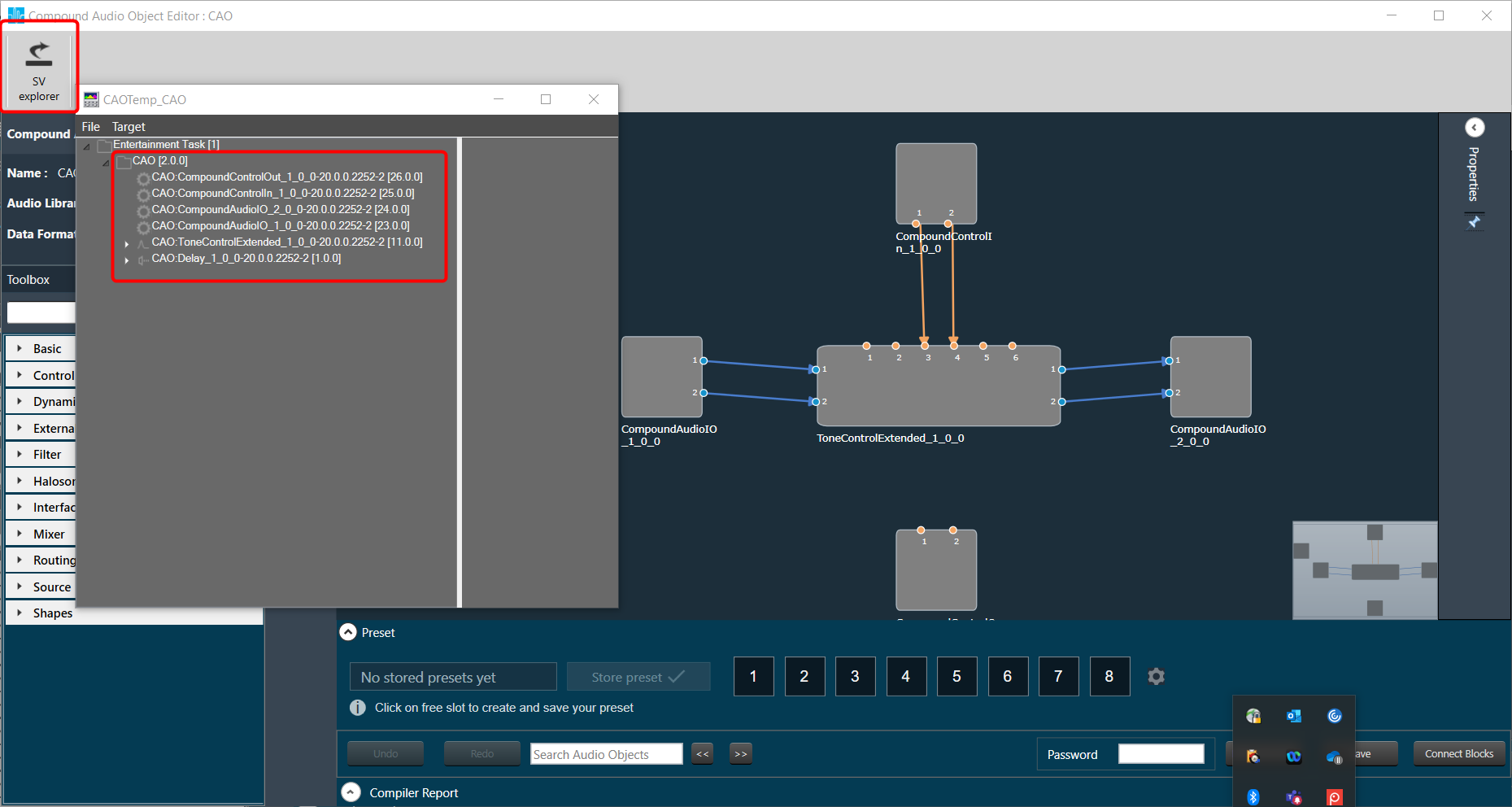
User can view State Variable explorer specific to currently designing signalflow by using Ribbon Button under Signal Flow Designer tab. State Variable explorer window will have title of format “CAOTemp_{CAOName}”. In the below pic CAO name is “CAO1”. “CAOTemp_” suffix indicates temporary explorer for CAO edit.