The EqPanel can be used to apply Biquad filters to the signal. This panel is launched for Normal biquad object and Parameter biquad audio object with different modes. In the case of Parameter one modes, there will be no channel selections as the same biquad parameters is applied to all the other channels inside the device.
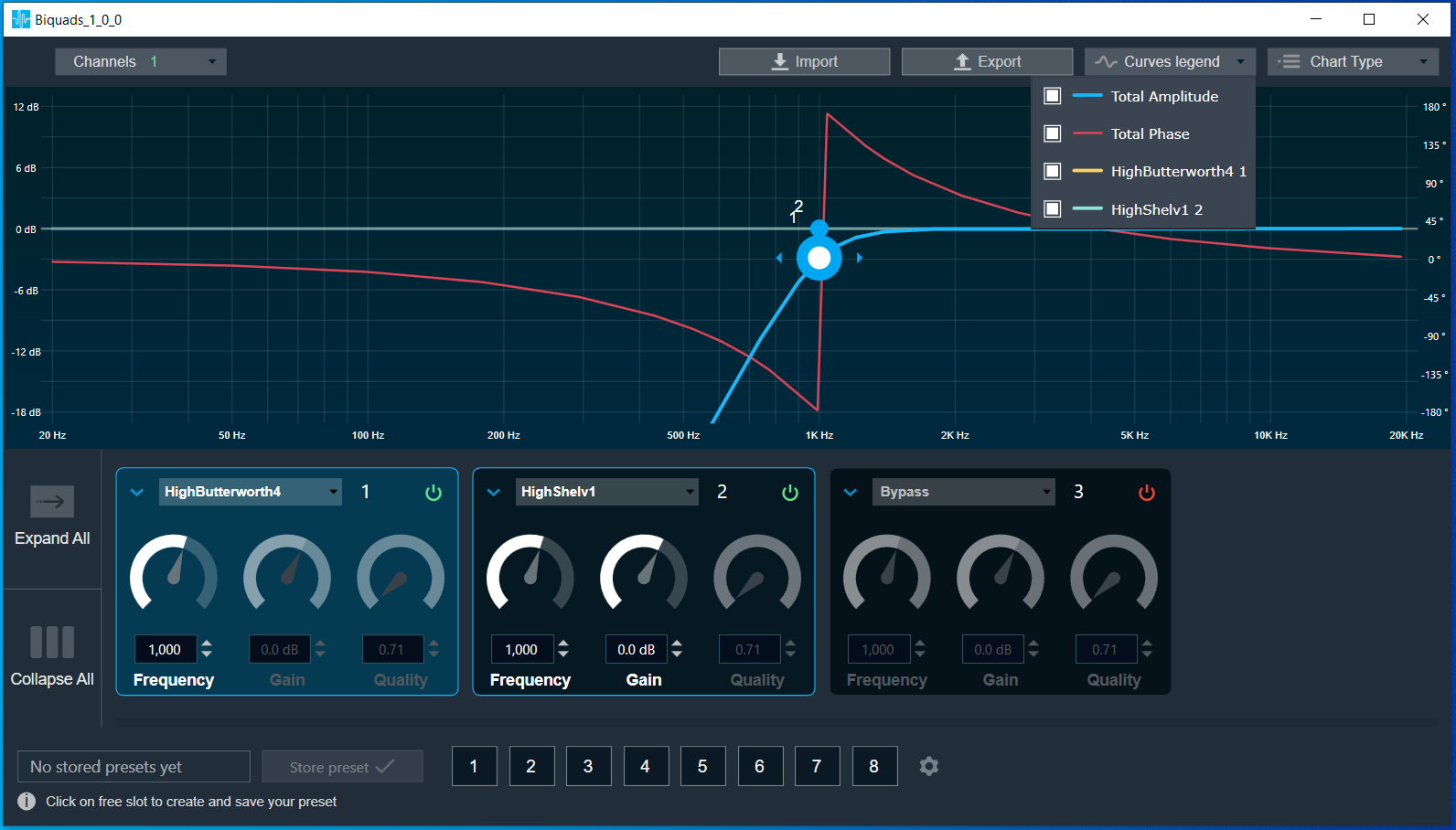
EQ Panel
Channel List
You can select a channel for the current core from a list on the top left of the EqPanel.
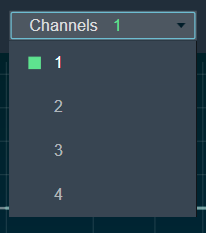 EQ Panel : Channel list
The current channel is marked with a green square and its number is displayed in the header of the channel list.
EQ Chart
This chart represents the influence of all Biquads on the frequency and phase response. The left axis shows the amplitude in dB, and the right axis shows the phase in degrees.
The number of Biquads are defined with the Signal Flow Designer. The Biquads get dynamically managed inside the GTT. Most of the Biquads are represented by appropriate markers.
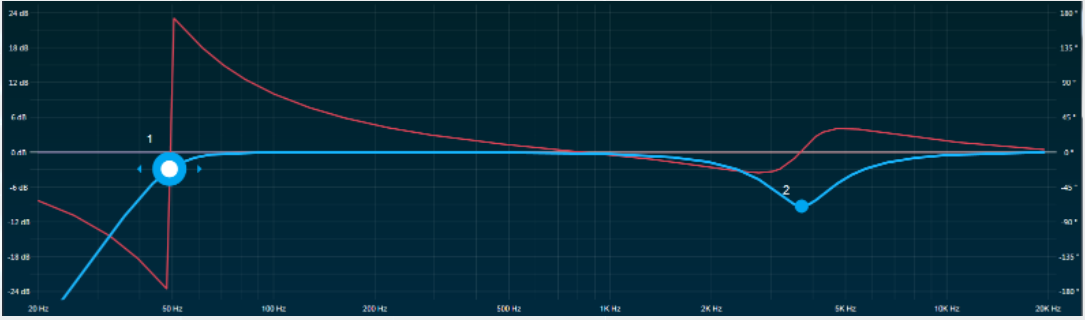 EQ Chart
Markers
Markers are movable. Moving them allows you to amend the current Biquad parameters. Each marker corresponds to one or two Biquad parameters. For example, the equalizer shown below has three markers.
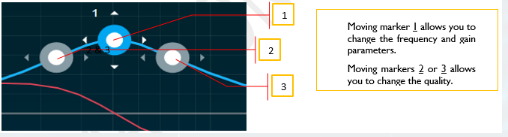 EQ Panels: Marker
Biquad Settings
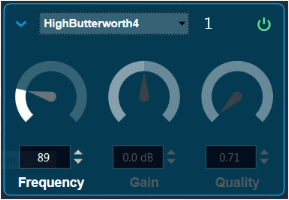
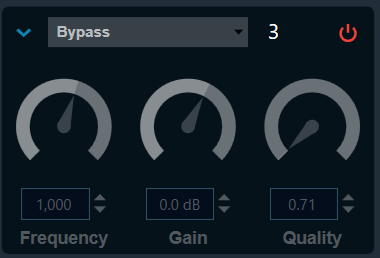 Biquad Settings
In the Biquad settings you can:
Bypass
Bypassed state can be changed by clicking the button 
In bypassed state, the button is red colored and green colored when biquad is in non-bypassed state.
Biquad is in bypassed state by default.
Change the Frequency, Gain and Quality
Frequency is used to set the center frequency of each filter.
Gain is used to set the center frequency gain of each band of the filter. Not all filter types offer a variable gain.
Quality is used to set the width of each band pass or notch type band of the filter. Not all filter types offer a variable quality factor.
Change/Remove Biquad
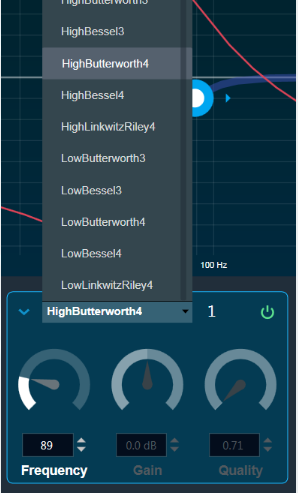 Biquad Filer Menu
The Biquad Filter Menu shows a list of all Biquads that are set up in the amplifier for the current channel.
You can change the Biquad type or remove the Biquad by setting it to Bypass (at top of the list).
Biquad Chart Type Bar
EQ Channel : Chat Type Bar
Click on Chart Type.
The Chart Type bar will be opened.
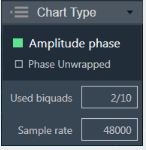 Chart Type Bar
The Amplitude phase is used to turn on and off appropriate charts.
Phase unwrapped is displayed in absolute values. If the phase is wrapped, the display is limited to +-180 °. If it exceeds 180 ° or -180 ° it is continued on the other side of the vertical scale.
Used Biquads informs you about the available Biquads. The first number is the number of Biquads that have not been bypassed. The second number is the number of available Biquads.
Sample rate shows the sample rate at which the filters are operated.
The sample rate is not connected yet to the virtual amplifier, so this value will not change when you update the signal flow with the Signal Flow Designer.
High order filters
The biquad object does not support natively high order filters. To allow users work with high order filters, biquad panel can merge two low order filters into one high order filter automatically. Table below describes the rules of combining the filters.
| First biquad type | Second biquad type | Comparision | Result |
| HighPass2 | HighPass1 | B1Freq = B2Freq and B1Q = 1 | HighButterworth3 |
| HighPass2 | HighPass1 | 1.03*B1Freq = 0.93*B2Freq and B1Q = 0.69 | HighBessel3 |
| HighPass2 | HighPass2 | B1Freq = B2Freq and B1Q = 1.31 and B2Q = 0.54 | HighButterworth4 |
| HighPass2 | HighPass2 | B1Freq = B2Freq and B1Q = 0.71 and B2Q = 0.71 | HighLinkwitzRiley4 |
| HighPass2 | HighPass2 | 1.04*B1Freq = 0.93*B2Freq and B1Q = 0.81 and B2Q = 0.52 | HighBessel4 |
| LowPass2 | LowPass1 | B1Freq = B2Freq and B1Q = 1 | LowButterworth3 |
| LowPass2 | LowPass1 | B1Freq/1.03 = B2Freq/0.93 and B1Q = 0.69 | LowBessel3 |
| LowPass2 | LowPass2 | B1Freq = B2Freq and B1Q = 1.31 and B2Q = 0.54 | LowButterworth4 |
| LowPass2 | LowPass2 | B1Freq = B2Freq and B1Q = 0.71 and B2Q = 0.71 | LowLinkwitzRiley4 |
| LowPass2 | LowPass2 | B1Freq/1.04 = B2Freq/0.93 and B1Q = 0.81 and B2Q = 0.52 | LowBessel4 |
- B1Freq – first biquad frequency
- B2Freq – second biquad frequency
- B1Q – first biquad quality
- B2Q – second biquad quality
Export & Import
Biquad parameters can be exported by clicking export button as csv in below format,
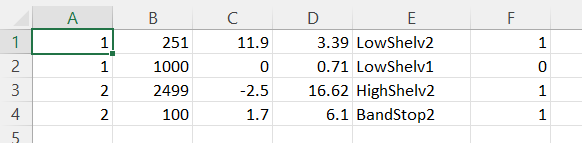

The exported file can be imported back to the panel using import button.