To launch a native panel, a device must be added to the device list.
Create a New Panel
For information on how to create a panel, see the chapter Create New Panel.
Add a Button to your Panel
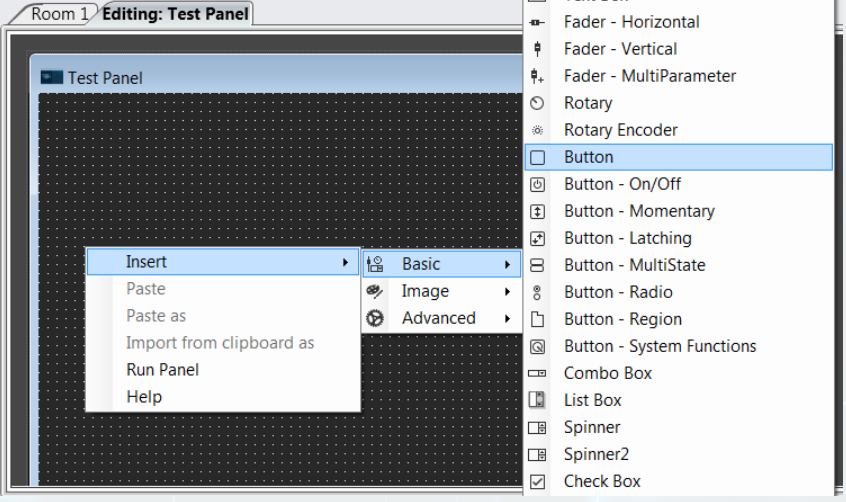 Context Menu : Add Menu
The added button will be displayed in the Test Panel area.
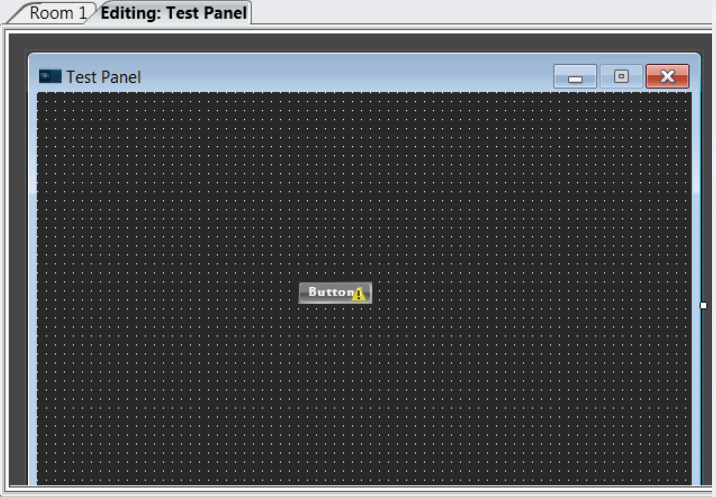 Added Button in Test Panel Area
Click on the button
The Properties area below the Test Panel area will change
Button Properties : Appearance
Click on the Systems Functions tab
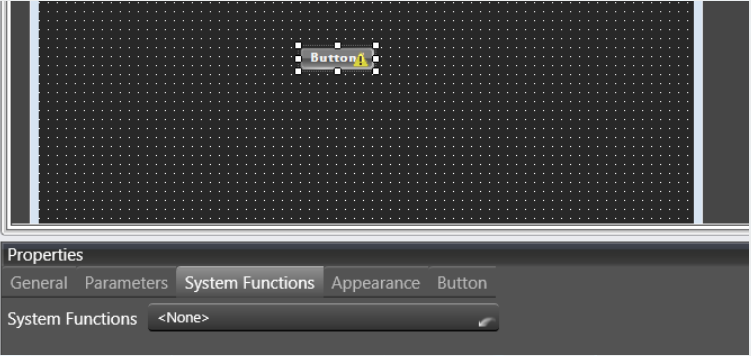 Button Properties System : Functions
Click on
The System Functions Editor will be displayed.
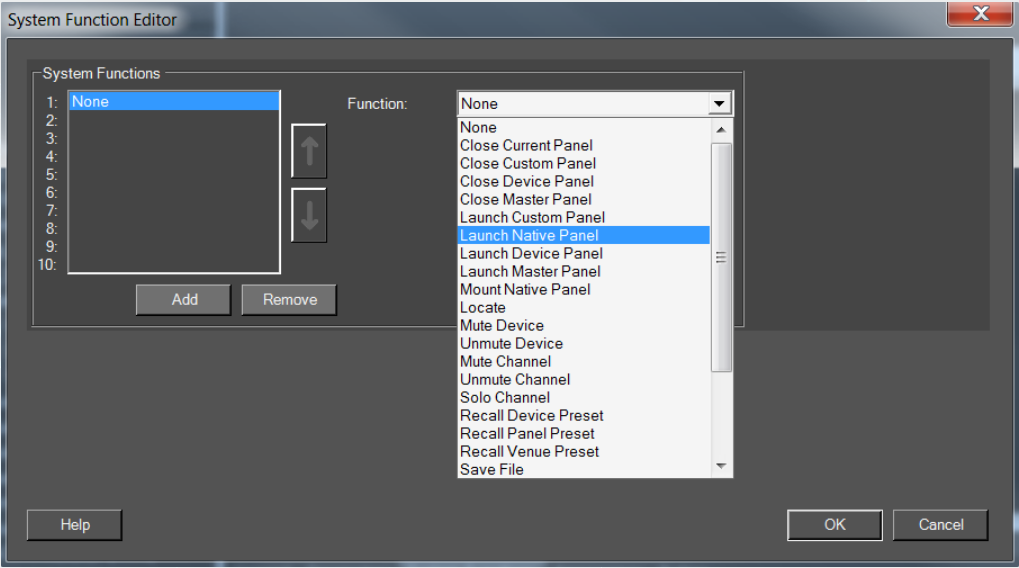 System Functions Error
Select Launch Native Panel from the Function dropdown menu.
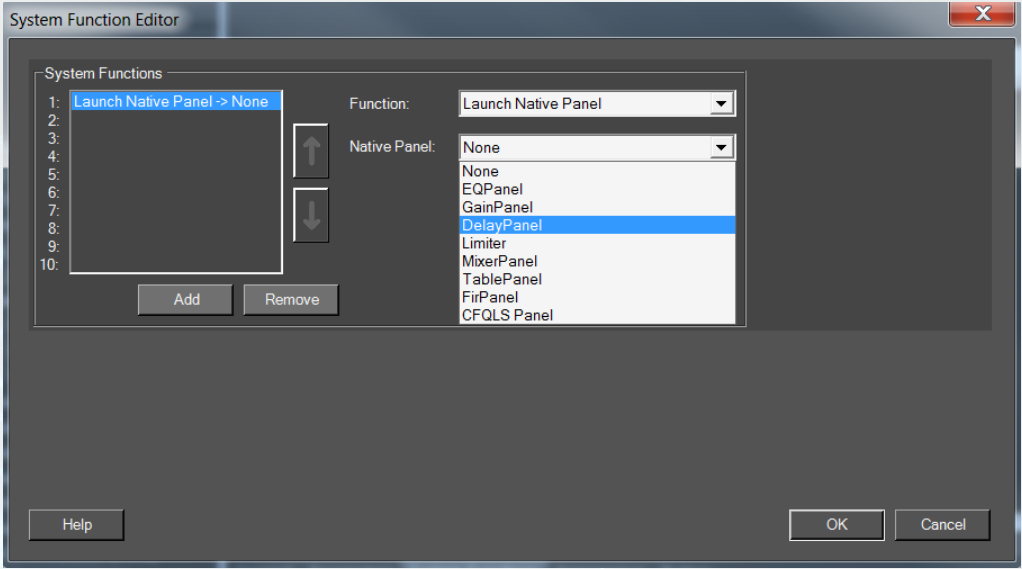 System Functions Editor : Custom Panel
Select the type of the native panel you want from the Native Panel dropdown menu.
You can select any type of native panel. In this example, DelayPanel was selected to illustrate the further process.
The Delay Panel Configuration dialog will be displayed.
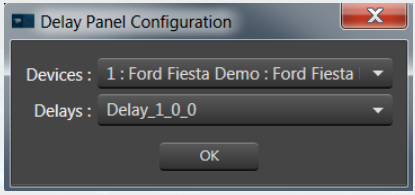 Delay Panel Configuration
Click OK
In the Run mode, the DelayPanel will look like the one shown below.
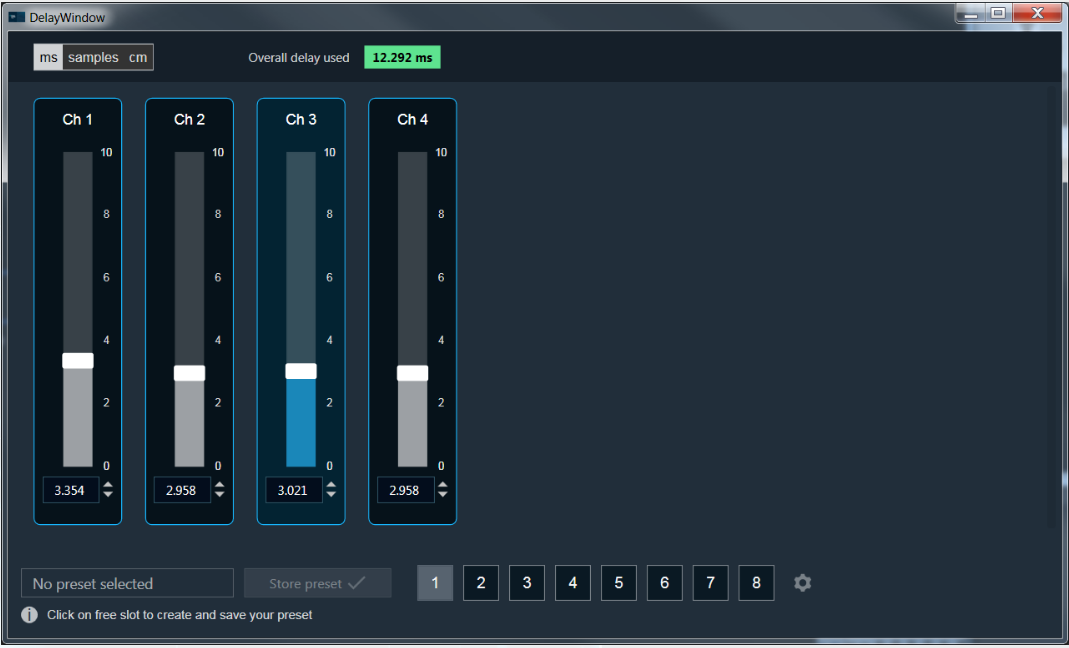 Native Panel : Delay Winod