You need to have a device added to GTT in order to add StateVariables. For information on how to add a
device, refer to SignalFlowDesigner_StartupGuide.pdf.
There are two ways to add StateVariables to a custom control panel: Drag a StateVariable and choose a control (A) or
add a control and assign a state variable (B).
- Drag StateVariable and choose control:
Open the StateVariable tree on the left side under your device and drag a StateVariable to a free space in the custom control panel.
A dialog to choose a control will be opened.
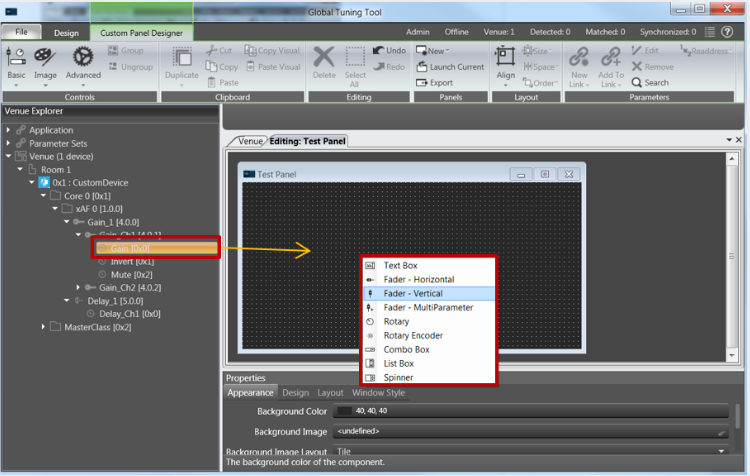 Add State Variable to Control Panel
Choose a control that should be used to adjust the value.
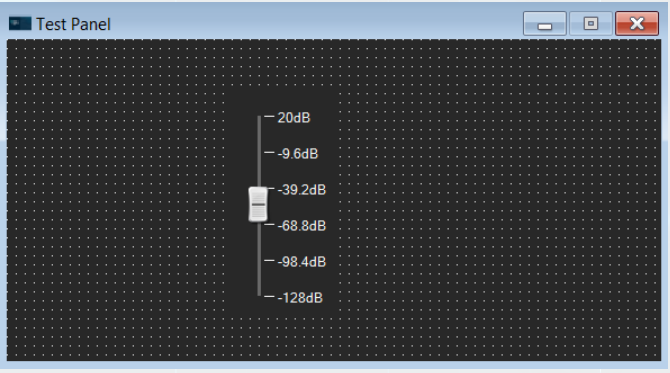 Added Control with State Variable Assigned
The choice of controls depends on the StateVariable type.
- Add control and assign StateVariable:
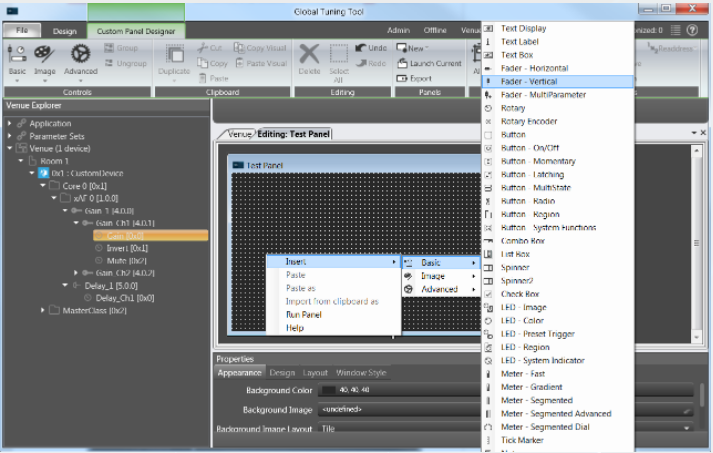 Add control to control panel
Right-click on the control panel and add a control.
The control will be displayed in the panel. The warning symbol indicates that no StateVariable is assigned.
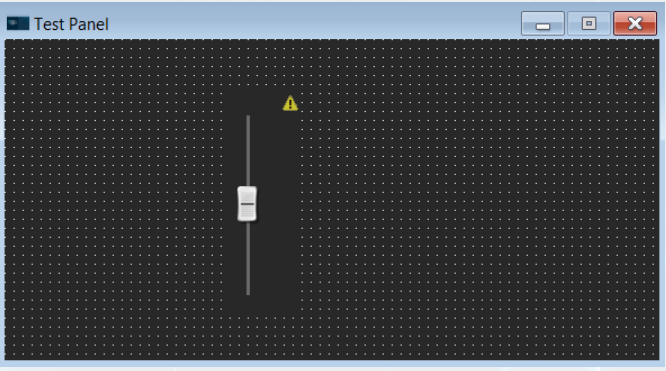 Control without State Variable Assigned
Drag one or several StateVariables to the control.
The StateVariable(s) will be assigned.
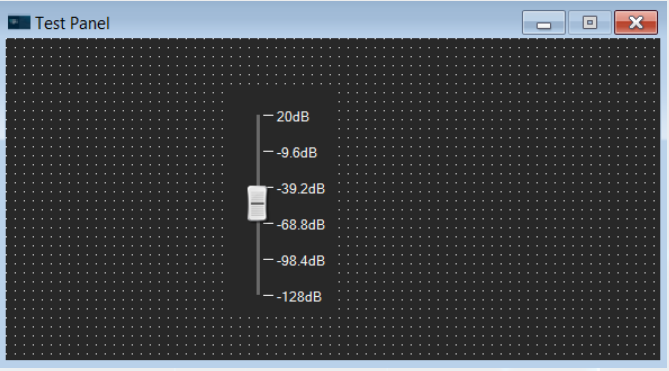 Added control with State Variable Assigned