The Delay panel is used for changing the delay of the signal for each channel.
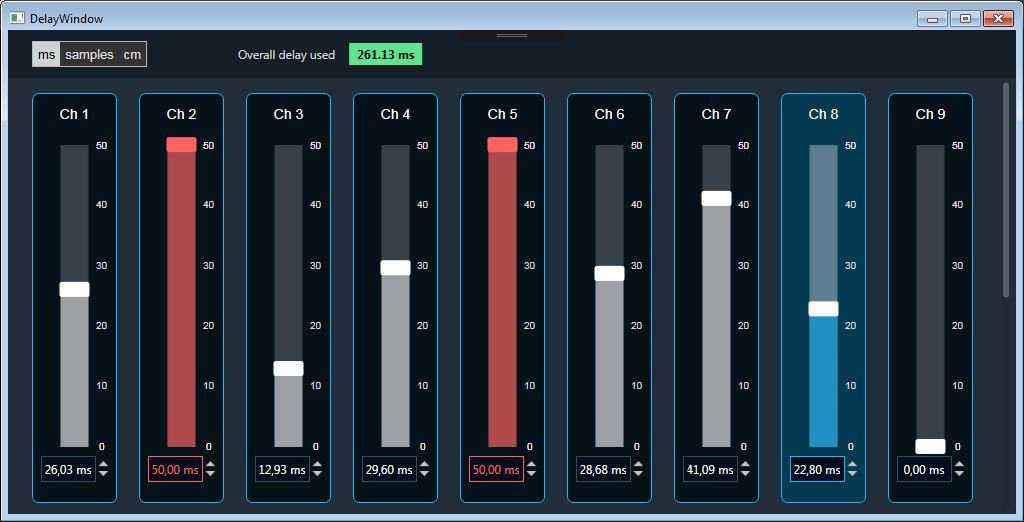
Changing the Delay Value
You can change the delay value in four ways:
- Moving the slider button.
- Using the mouse scroll button.
- Changing the dB value in the text box – value and visual representation will be updated after clicking enter or when text box will lose selection.
- Increase/decrease delay by calculated step value(based on max delay(ms)) using increase and decrease buttons
 .
. - Mouse tap on Slider or KeyBoard up/down arrow buttons will help to increase/decrease delay by one step instead by calculated value(based on max delay(ms)).
Maximum / Minimum Delay Value
Maximum and minimum delay values are derived from the GTT in the SymbolDescriptor.
Threshold Values
Maximum and minimum threshold values are derived from the GTT in the ParameterStore.
Maximum threshold value: 95 %
Minimum threshold value: Not set
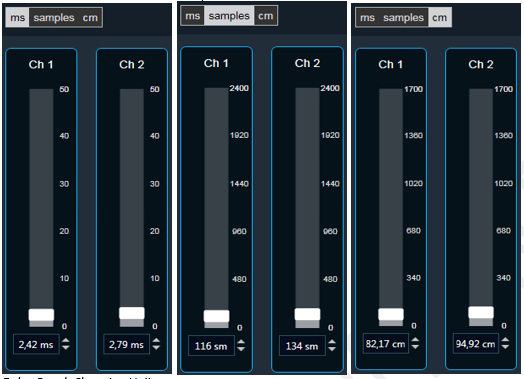
Changing Units
You can switch between the following units:
- Milliseconds
- Samples
- Centimetres
After switching units, all the delay values on each channel will be displayed in the newly selected unit.
Total Delay Pool
The overall delay pool is derived from the GTT in the ParameterStore. The default overall delay pool value is set to the sum of all maximum delay values.
You can find the overall delay value on the top of the Delay panel. The value text area changes its color depending on the percentage of the maximum overall delay value as shown below:
 Up to 80% of the delay pool
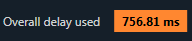 From 80% – 100%of the delay pool
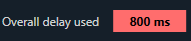 100% of the delay pool