You need to have a device added to GTT in order to open existing tuning data. For information on how to
create or import a device, refer to SignalFlowDesigner_StartupGuide.pdf > chapter Add Device.
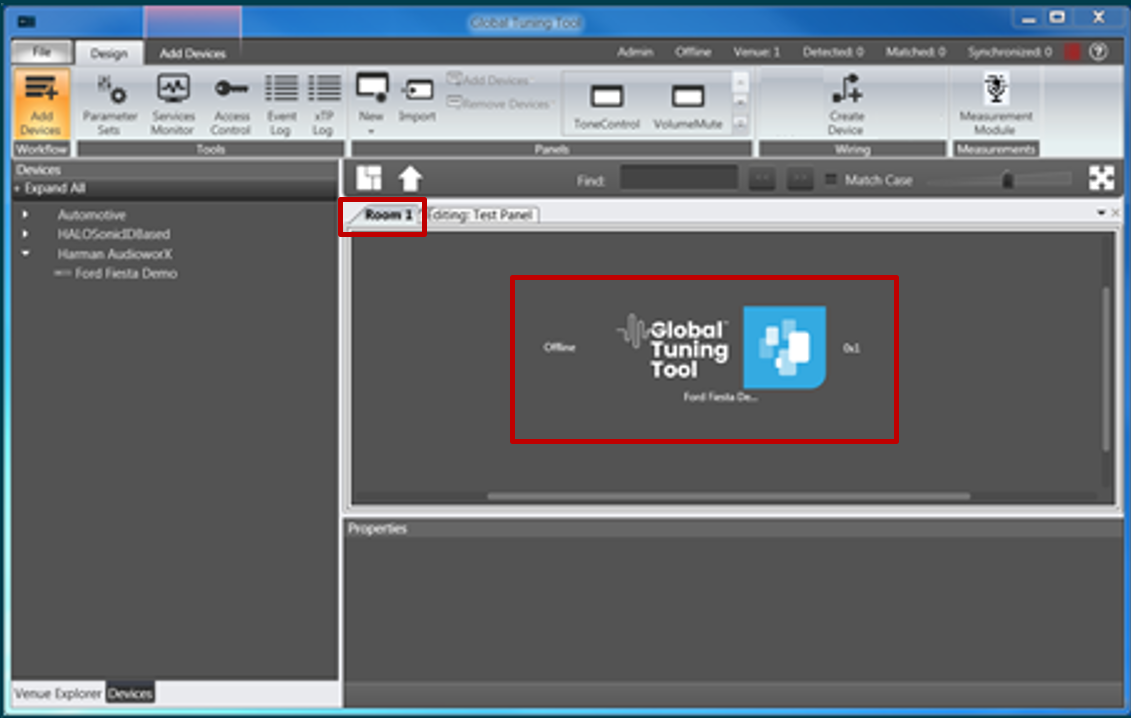
Change into the Room area.
Your device will be displayed in the Room.
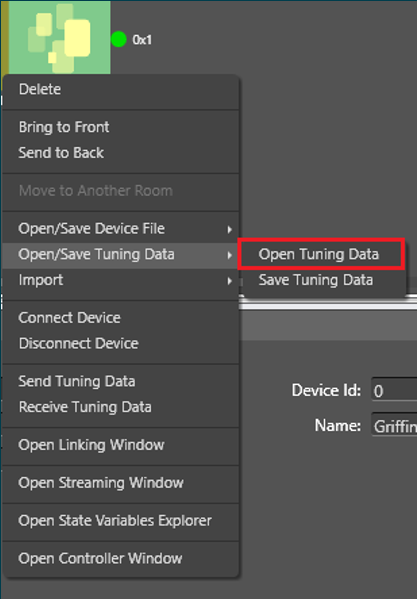
Right-click on the device and select Open/Save Tuning Data > Open Tuning Data.
Your Windows directory will be displayed.
Choose the tuning data set file to be opened.
Hints to help users check if “open tuning file” has changed anything in the device:
- Check the State Variable Explorer and see if the respective state variables values have changed
- If device is in sync with GTT, then “Send Tuning Data” should change the frequency response
- After opening tuning data file on the device, user can manually create a set column which will get the current state of the state variables
- After opening tuning data file on the device, user can use already existing set column and press “store” button. User can see the changes if the set column has state variables in the set file