You need to have a device added to GTT in order to add StateVariables. For information on how to add a
device, refer to SignalFlowDesigner_StartupGuide.pdf.
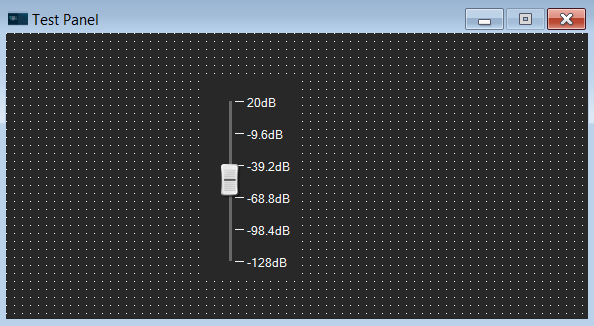
There are two ways to add StateVariables to a custom control panel: Drag a StateVariable and choose a control (A) or
add a control and assign a state variable (B).
- Drag StateVariable and choose control:
Open the StateVariable tree on the left side under your device and drag a StateVariable to a free space in the custom control panel.
A dialog to choose a control will be opened.
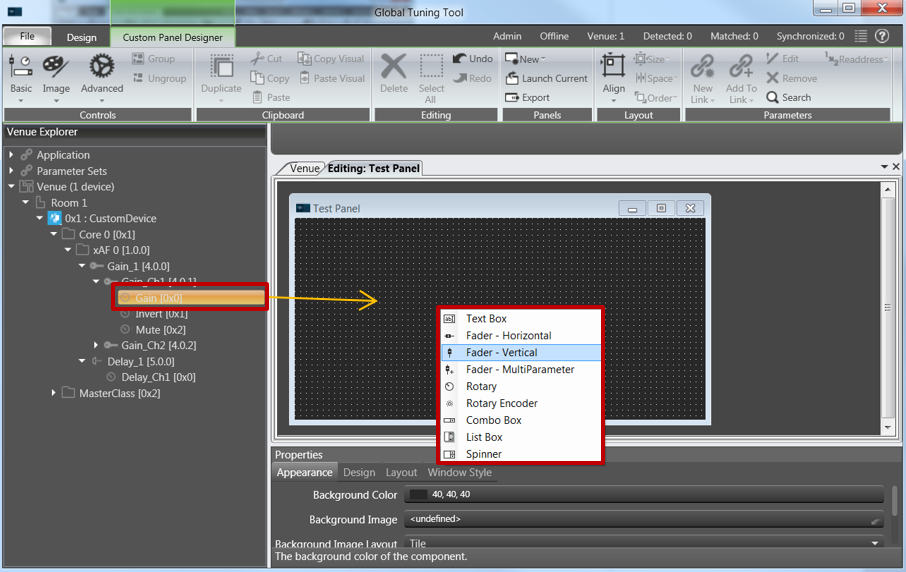
Choose a control that should be used to adjust the value.
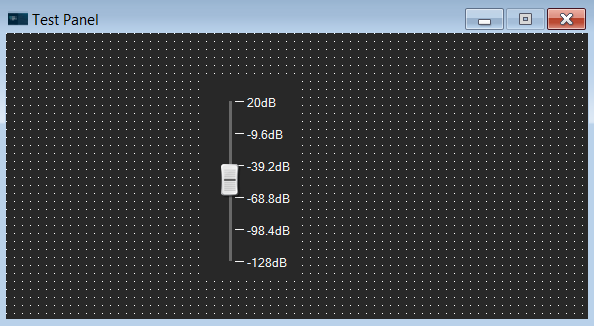
The choice of controls depends on the StateVariable type.
- Add control and assign StateVariable:

Right-click on the control panel and add a control.
The control will be displayed in the panel. The warning symbol indicates that no StateVariable is assigned.
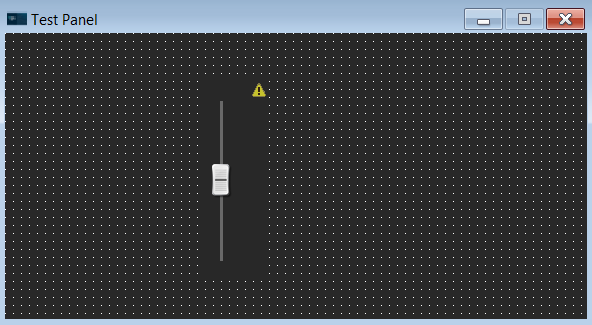
Drag one or several StateVariables to the control.
The StateVariable(s) will be assigned.