After opening a new or an existing project in GTT, IVP is started by clicking the “Integrated Virtual Processing – IVP” button in the ribbon bar.

The IVP tab is being activated and the ribbon bar shows the IVP buttons:
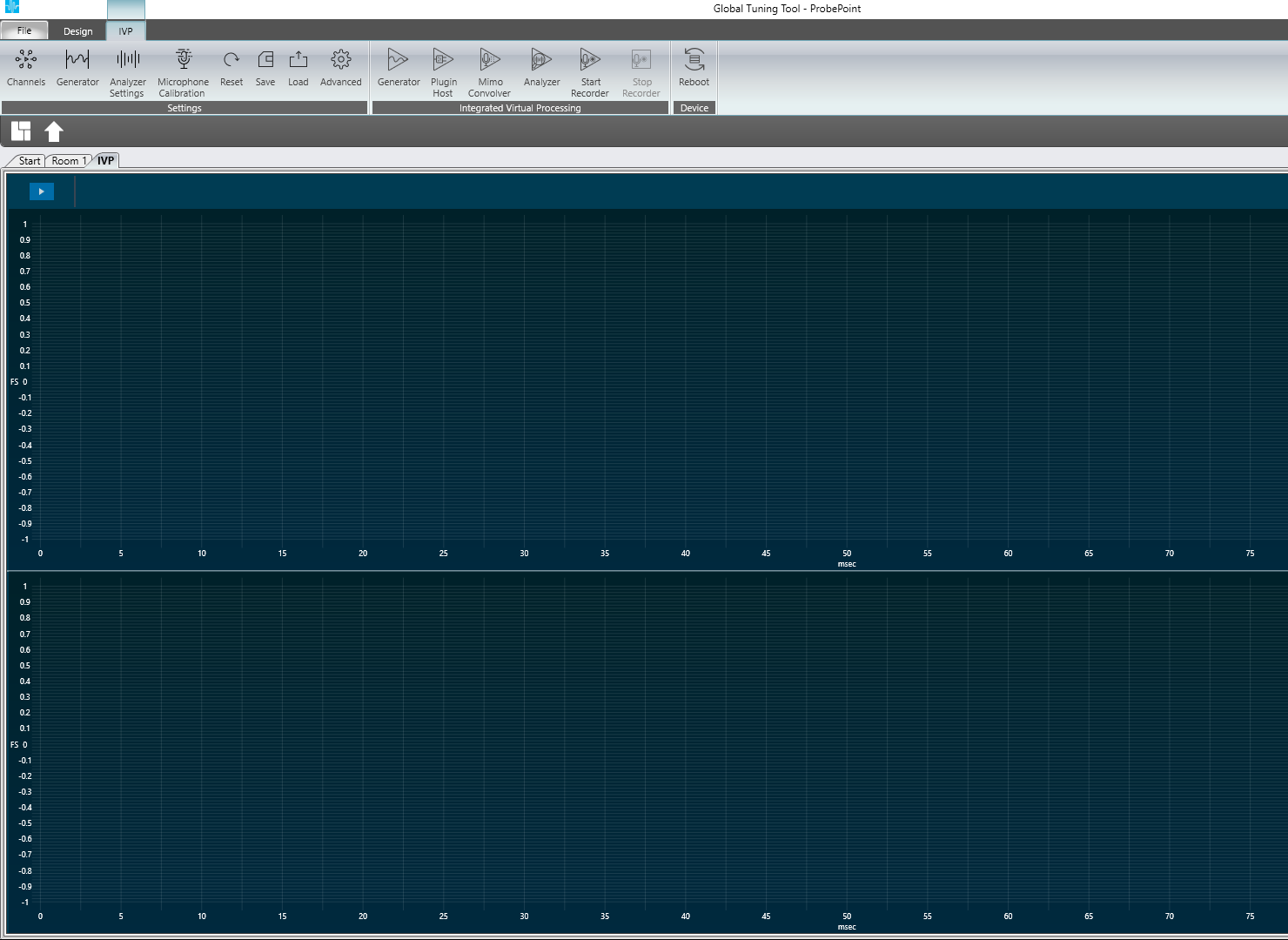
Following buttons are shown:
Settings
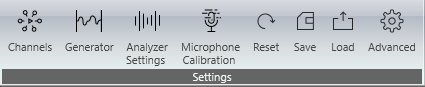
- Channels: Opens the channel window which displays measured values for each channel
- Generator: Opens the generator control window with the basic settings
- Analyzer Settings: Opens the analyzer basic settings
- Reset: Resets averaging states and peak hold values of a running measurement
- Save: Exports IVP settings
- Load: Imports IVP settings
- Advanced: Opens a dialog window with all detailed settings for sound card, generator, analyzer, plugin host and signal routing
Integrated Virtual Processing
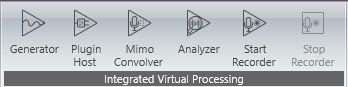
- Generator: Start/Stop for the Generator module in IVP
- PluginHost: Start/Stop for plugin host. If PluginHost is stopped, the data gets bypassed 1:1
- MimoConvoler: Start/Stop for the MimoConvolver. If stopped, data gets bypassed for all channels
- Analyzer: Start/Stop Analyzer.
- StartRecorder: Start Recorder. This Button is only enabled if “Sync with Generator” is not selected. In that case starting the recorder will be triggered automatically by the generator start button.
- StopRecorder: Stop Recorder. Disabled at startup and only available if not in “Sync with Generator” mode.
Device

- Reboot: Reboots the virtual Device. This button is required to be clicked in case signal flow changes are applied which are changing the number of inputs/outputs of the device.