Overview
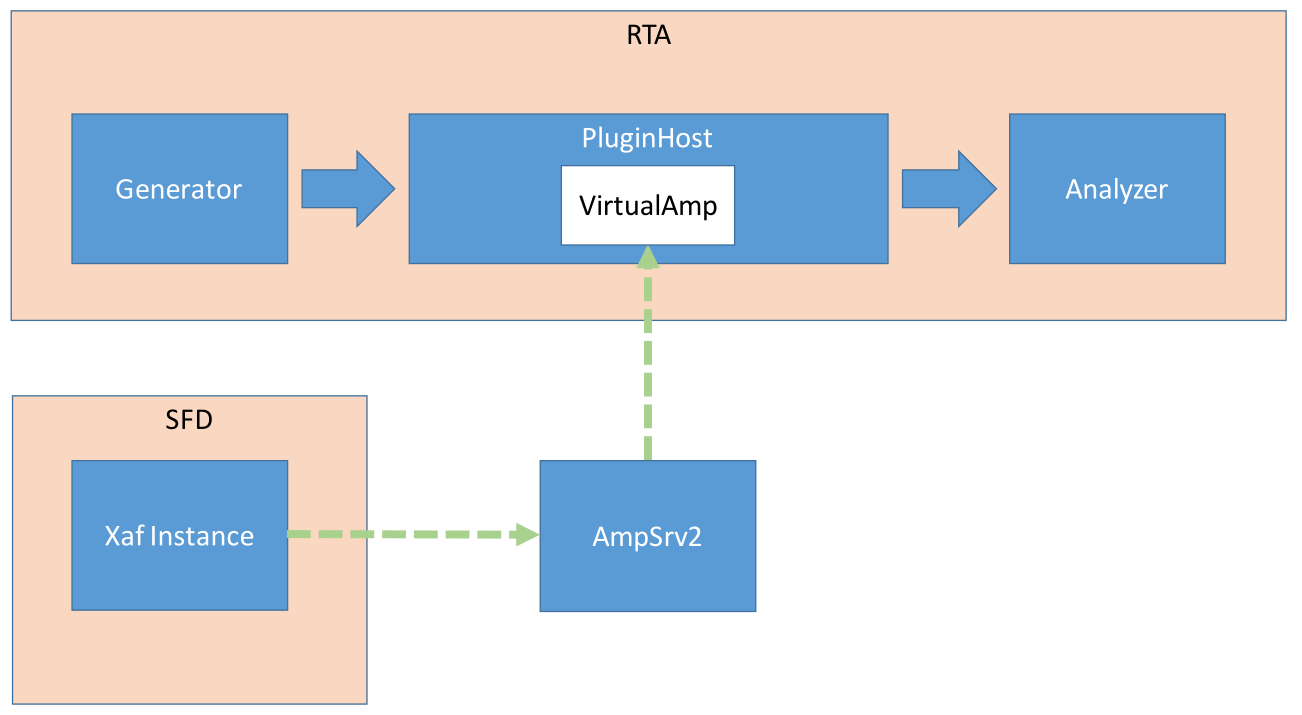
The Plugin Host is a host for virtual amp dll. The Plugin Host supports up to 3 instances of plugins (virtualAmp.dll in 64 bit), which are executed in series. The block sizes and sample rate will be defined by the sound card settings and used for all plugins. The plugin needs to handle the block size conversion internally in case it is not matching the block size of the device/instance. A sample rate conversion is currently not supported by the virtual Amp and will cause a error message and stop the processing.
Configure plugin host
Open RTA-> Settings-> Plugins
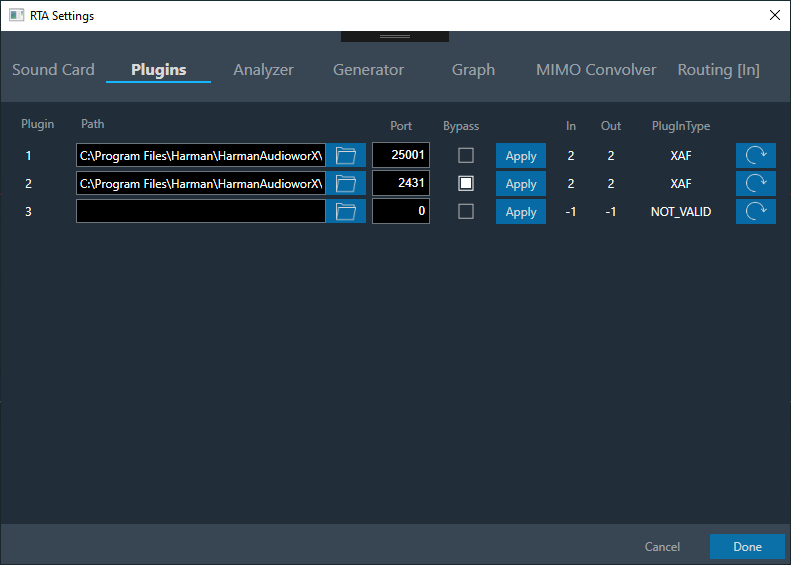
Click Browse to select the xAF library
Set Port number in the port number textbox
If Bypass is selected, then input is fed to the next plugin/output without processing
On click of Apply, updated no. of inputs, no. of outputs and plugin type appears based on the sent signal flow.
On click of Reset all the values of particular row will be set to default values
Similar settings can be applied to all 3 plugins
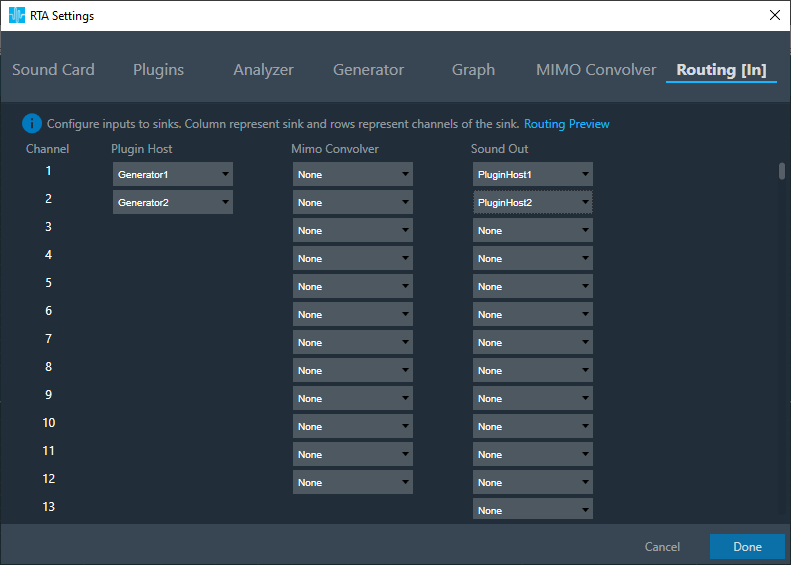
Switch to Routing tab
Set inputs to Plugin Host (Eg:Generator1 and Generator2)
Set inputs to SoundOut in order to route the PluginHost output channels to the sound card outputs
Optional: Switch to Analyzer tab, to select plugin host output as channel source if output of PluginHost shall be displayed in RTA.
Set Channel source (Eg:Generator1, Generator2, PluginHost1, PluginHost2) to display in chart
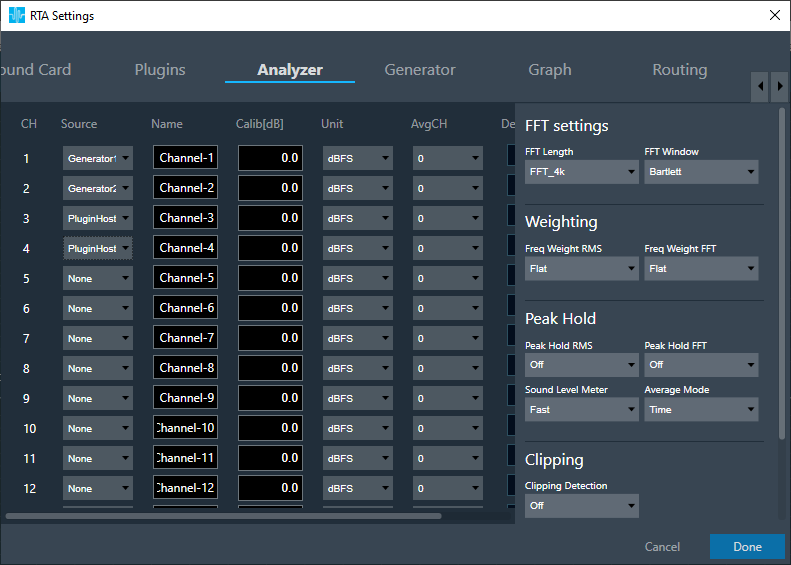
Click Done, once settings are updated
By default (no flash file available next to the virtualAmp.dll), number of in-/outputs in plugin host is 2
Default Port Number starts from 25001
Connect to device through Plugin Host
Click Plugin Host

Switch to SFD window, configure signal flow. Click on Send Signal Flow
A pop-up appear which asks to reboot device
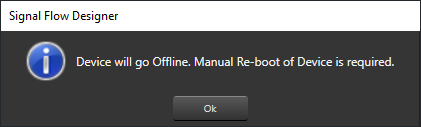
Click Reboot

Go Device Designer tab.
Click Connect Device to connect to device.
If AmpSrv cannot establish a connection, close AmpSrv and retry
User can now do Tuning and see the graph in RTA.
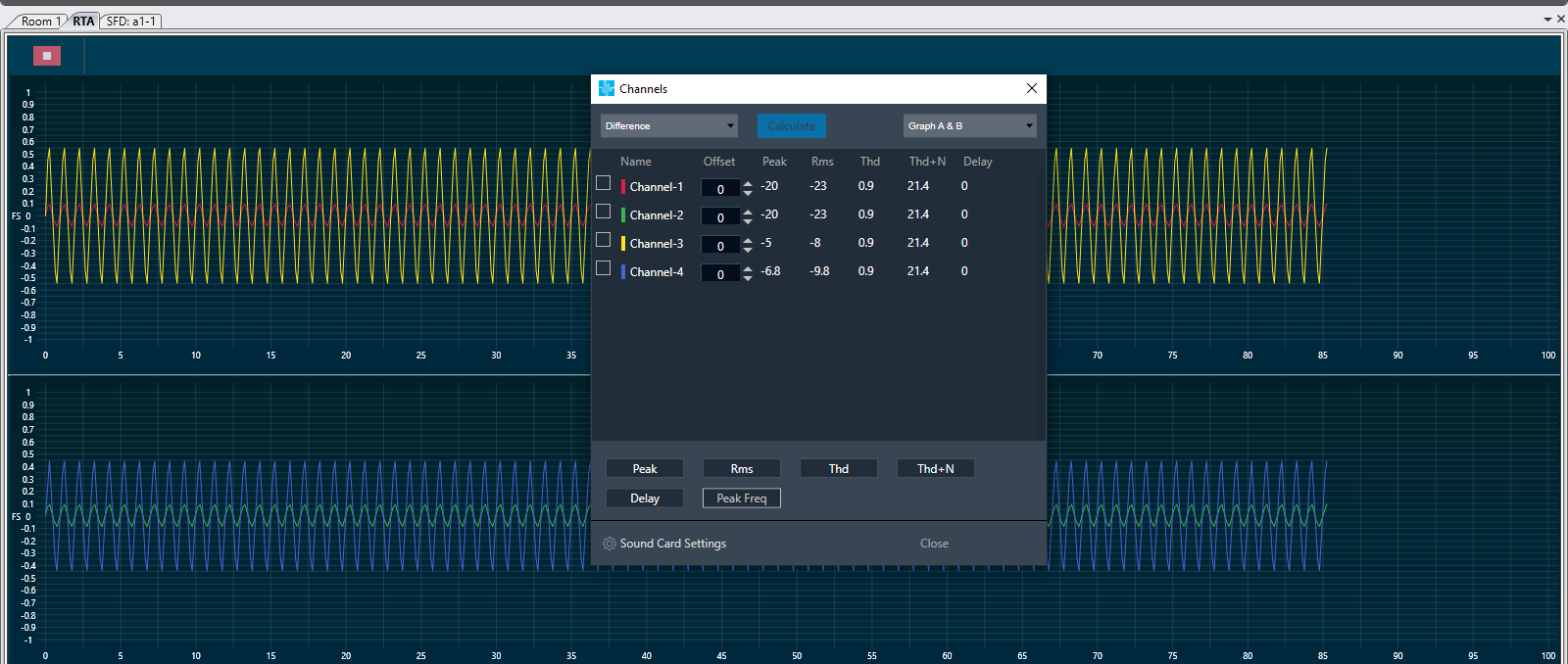
Set the graph using Channels window in RTA