1.Build time parameters
Shepard Tone can be launched from native panel from SFD and from systemFunction.
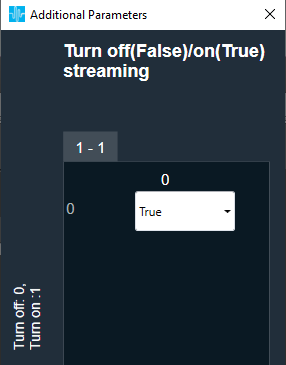
In additional parameters section, there is a “Turn off(False)/on(True) streaming” parameter responsible for setting off/on streaming function.
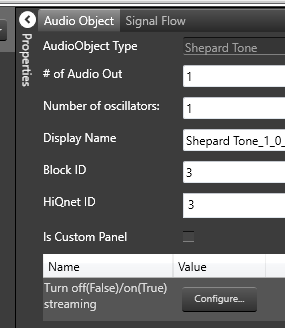
| Configuration parameter | Values |
| #of Audio Out | 1-64 |
| Number of oscillators | 1-32 |
| Turn off(False or 0)/on(True or 1) streaming | 0/1 |
2.Shepard Tone panel
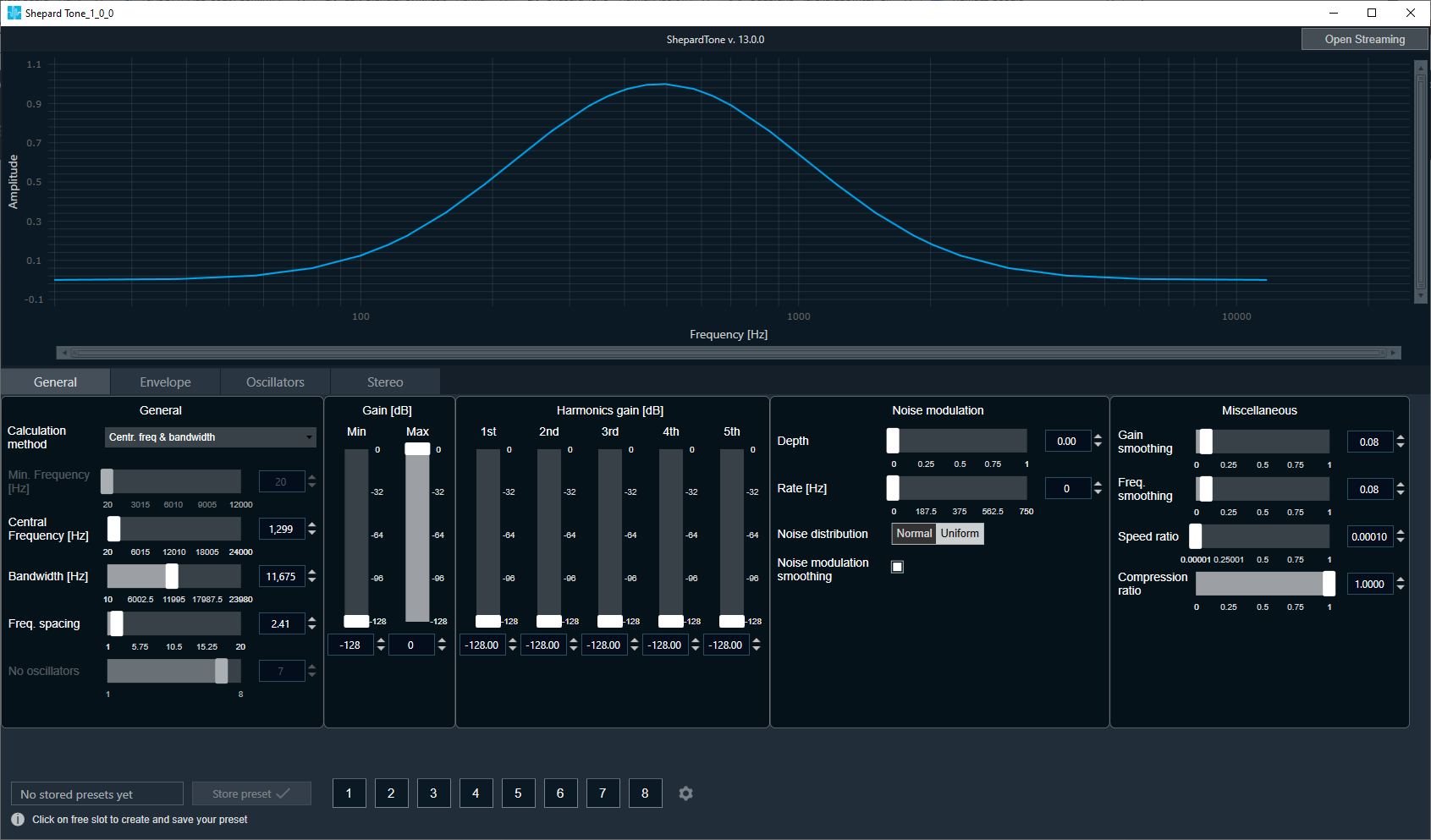
At the very top part of panel actual version of Shepard Tone is displayed.
The Shepard Tone panel contains chart (visualizing generated Shepard Tone) and 4 tabs:
– General tab – where all Shepard Tone settings are placed.
– Envelope tab – where envelope shape can be customized.
– Oscillators tab -where it is possible to turn on and off particular oscillators
– Stereo tab (it is only avaliable when number of outputs is greater than 1.) – where stereo Shepard settings are placed.
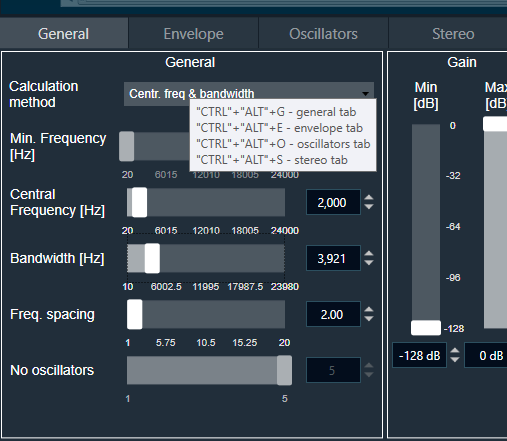
The Shepard Tone is controllable by keyboard shortcuts, which are displayed in tooltips:
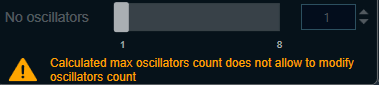
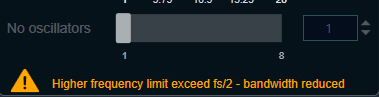
When configuration won’t be correct it will display one of two warnings:
2.1.General tab
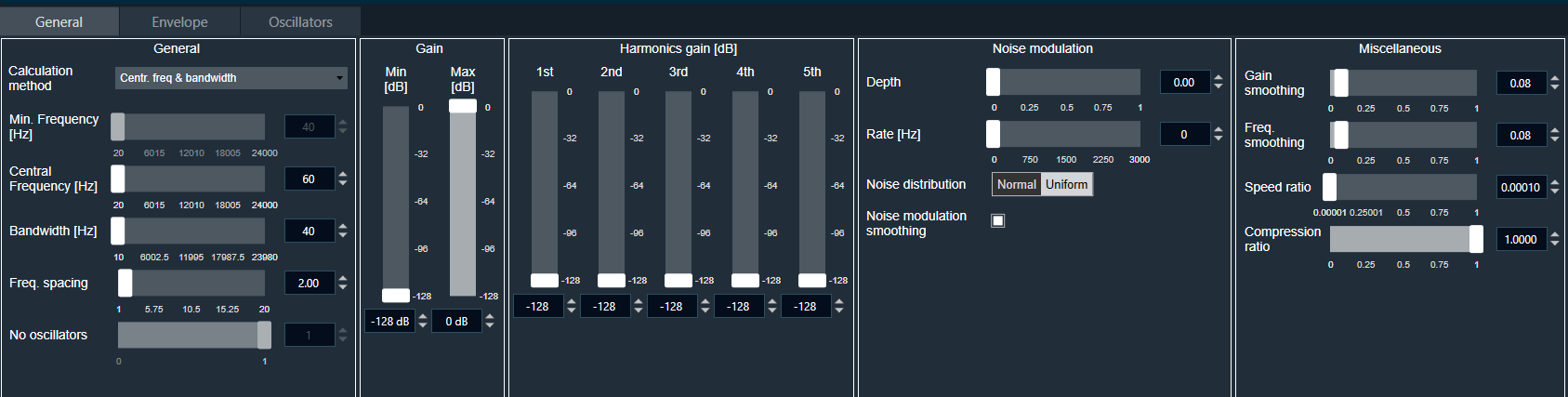 On general tab it is possible to select Calculation method. Depending on selected method chosen parameters are available to modify.
- Central frequency & bandwidth (Central freq., Bandwidth, Freq.spacing are editable)
-
- when user modify the Central Frequency it impacts the Min.Frequency and No.oscilators.
- when user modify Bandwidth it impacts Min.frequency and No. oscillators
-
- Min.frequency & No. oscillators (Min. frequency, Freq. spacing are editable)
- when user modify the Min Frequency it impacts Central Freq. and Bandwidth
- when user modify the Freq.spacing it impacts Central Freq. and Bandwidth
All above modification are reflected on chart (amplitude in linear scale, frequency in logarithmic scale). Chart supports horizontal and vertical axis zoom.
Tab display information about actual bandwidth, minimal frequency, central frequency , frequency spacing and number of used oscillators.
Other parameters which can also be modified:
- Gain (min and max, displayed with dB labels)
- Harmonics gain (for 5 oscillators ,displayed with dB labels)
- For noise modulation:
- Depth
- Rate (Hz label)
- Noise distribution ( to select Normal/Uniform)
- Noise modulation smoothing (toggle button – if applied random frequency changes are interpolated linearly, in not applied frequency changes instantly)
- And miscellaneous:
- Gain smoothing
- Freq. smoothing
- Speed ratio
- Compression ratio
Bottom part of panels enables to store presets for specific configuration set by user

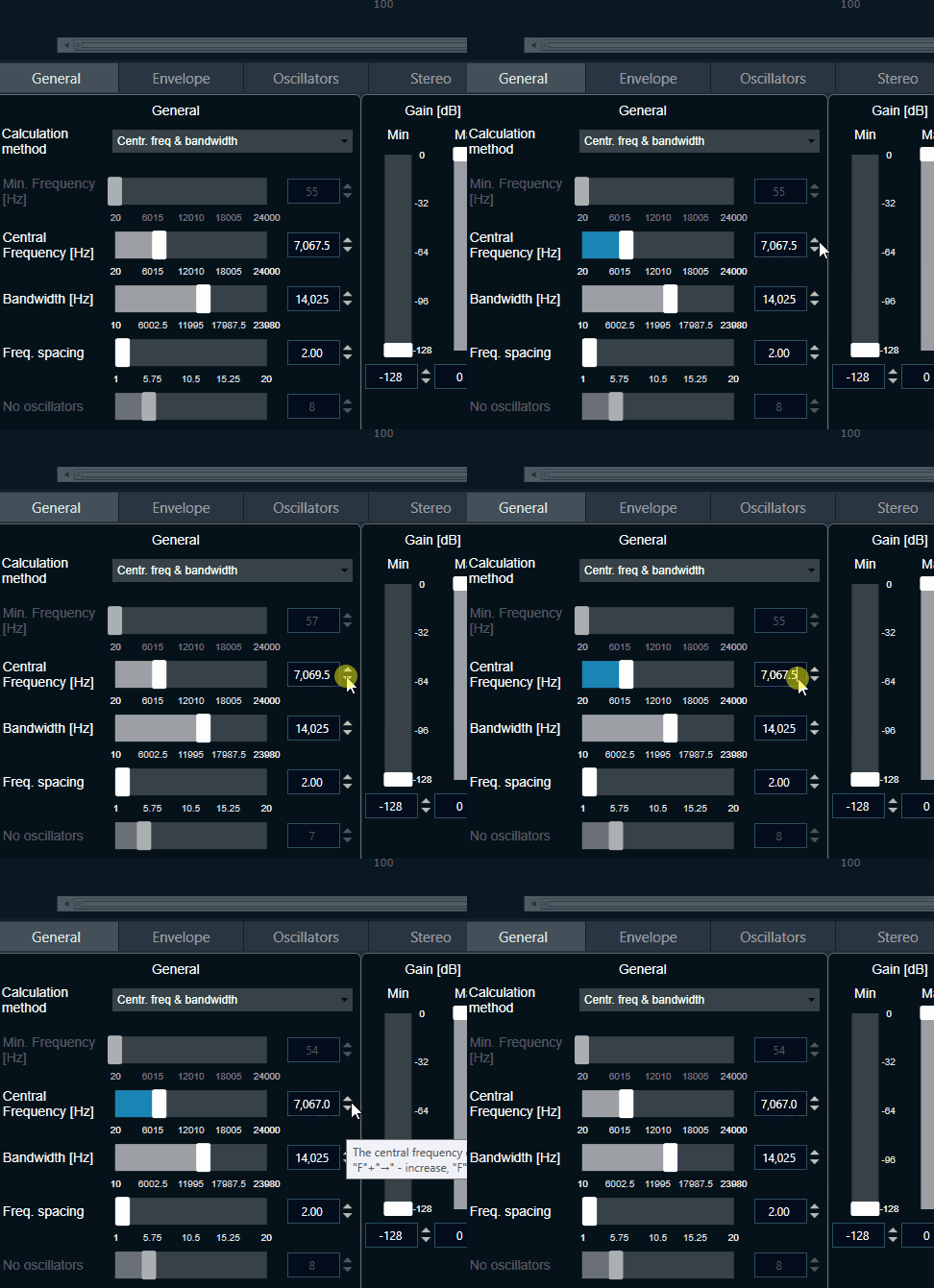
Input behavior for Central Frequency when calculation method is set to Cent. Feq & bandwidth.
Only allowed fractional part is .0 or .5, for all other fractional value it would fall back to the previous set value.
Note: Data would NOT be transmitted for fall back values.
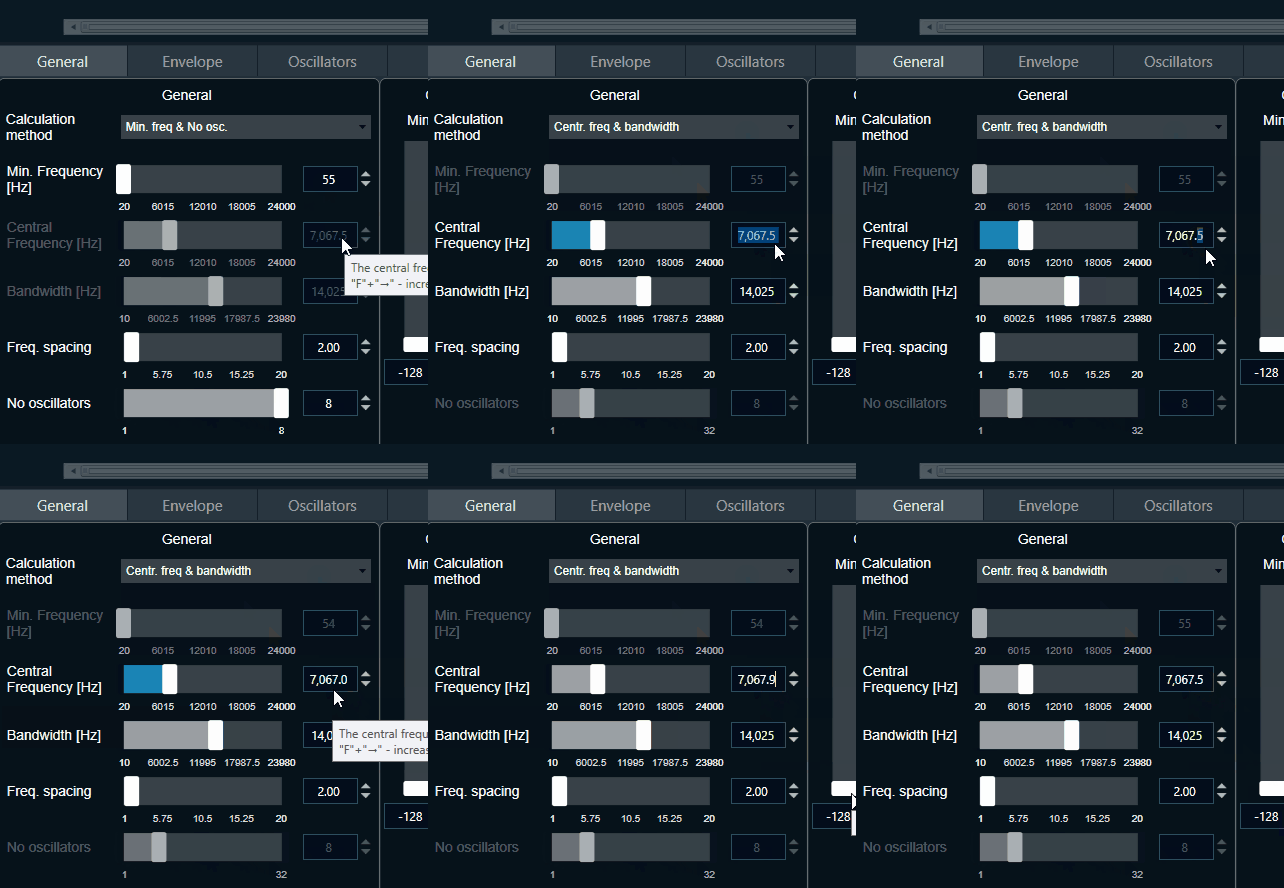
When Central Frequency value is incremented or decremented, the value of fractional part is retained, and increment or decrement would happen only for the integral part. As shown below:
2.2.Envelope tab
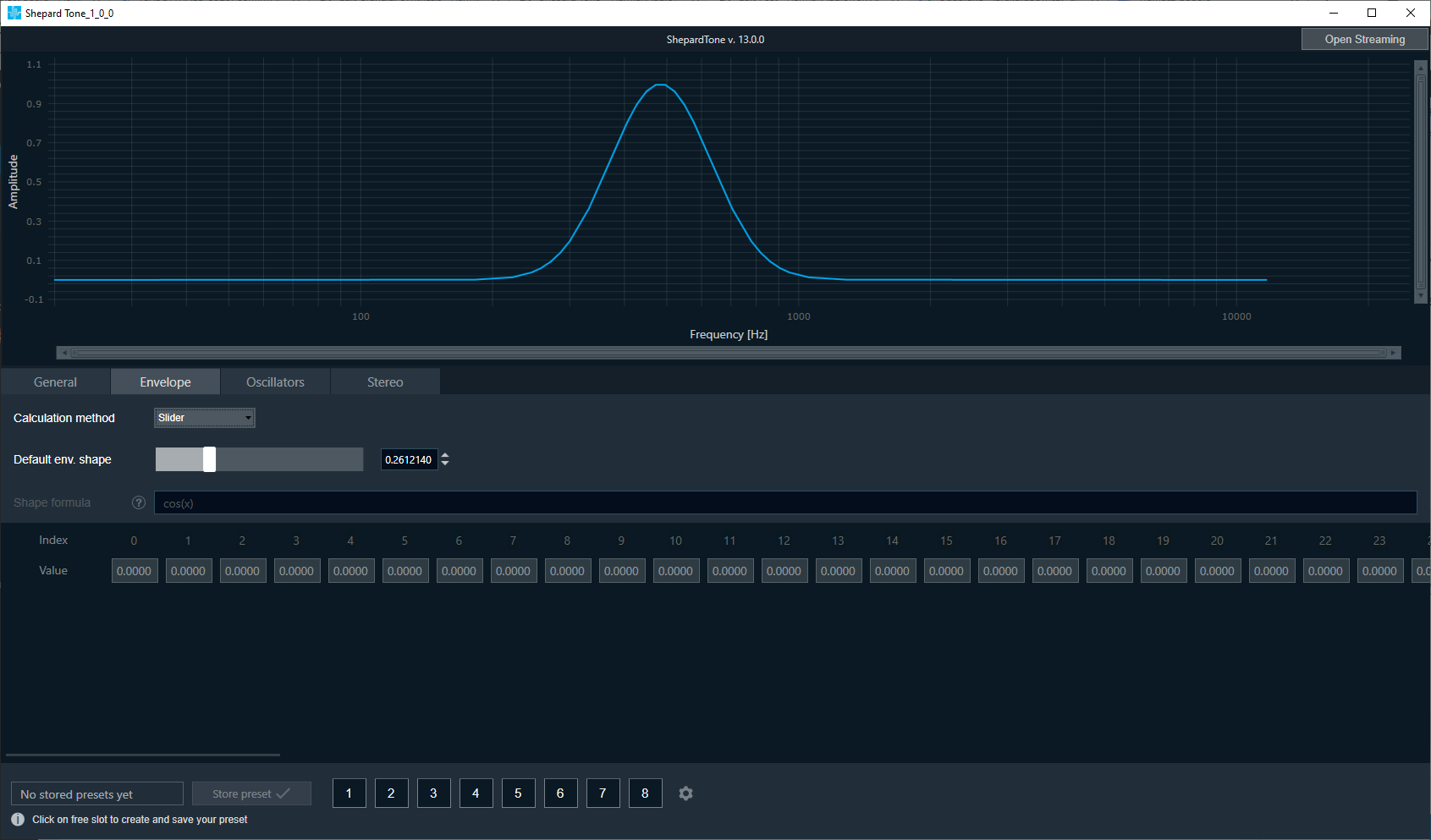
In this tab, the envelope shape can be customized.
The calculation method can be selected from Combobox:
- slider ( setting values with slider in the range from 1E-7 to 1)
- table (based on values typed in the table, table are retained entered values after switching calculation methods and again select to table option)
- envelope shape (based on formula entered by the user which updates values in the table).
- More about the syntax used in env. shape you can find under the help button

- More about the syntax used in env. shape you can find under the help button
The preview chart is updated based on values from the table.
It is possible to copy table values from and to clipboard.
2.3.Oscillators tab
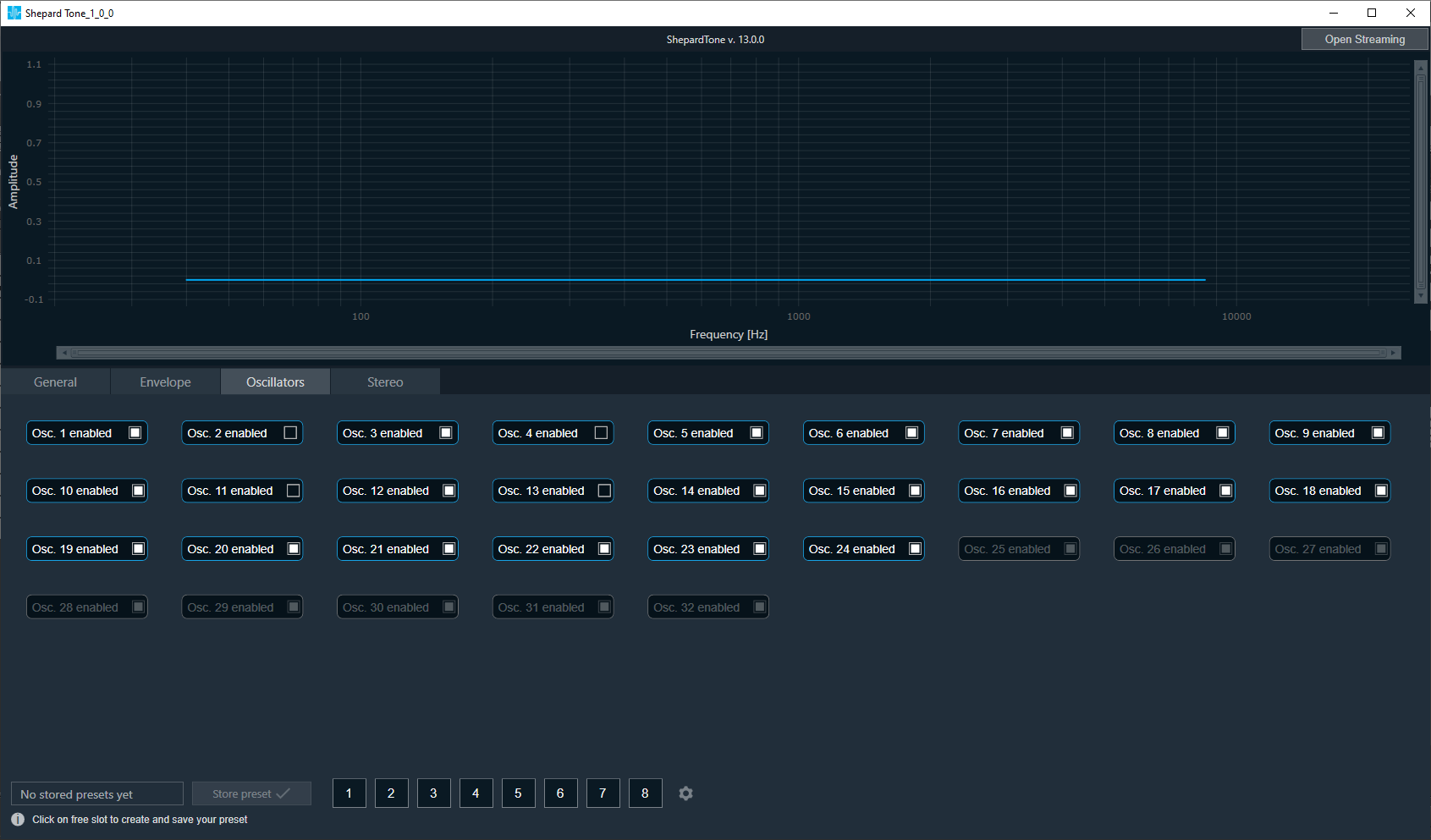
In this tab, it is possible to turn on and off particular oscillators. Oscillators that are not active for current Shepard Tone parameters have a visual indication (are greyed out).
2.4.Stereo tab
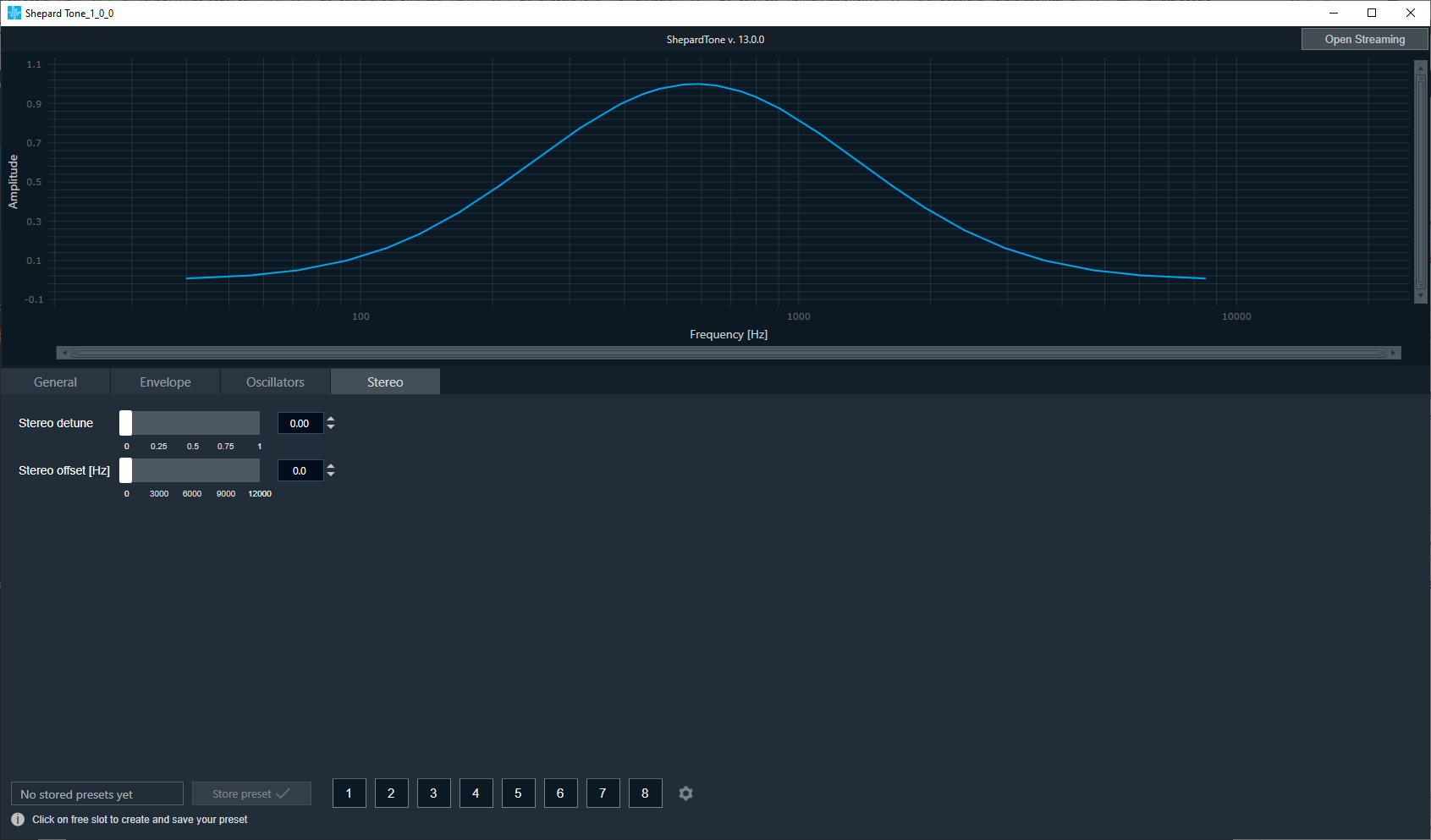
In this tab stereo Shepard settings are placed:
- stereo detune
- stereo offset (range of this slider determined by General settings)
The tab is only available when the number of outputs is greater than 1. (set in Shepard Tone properties)
2.5.Import/export Shepard Tone parameters
Shepard Tone allows to import/export parameters to file/from file. 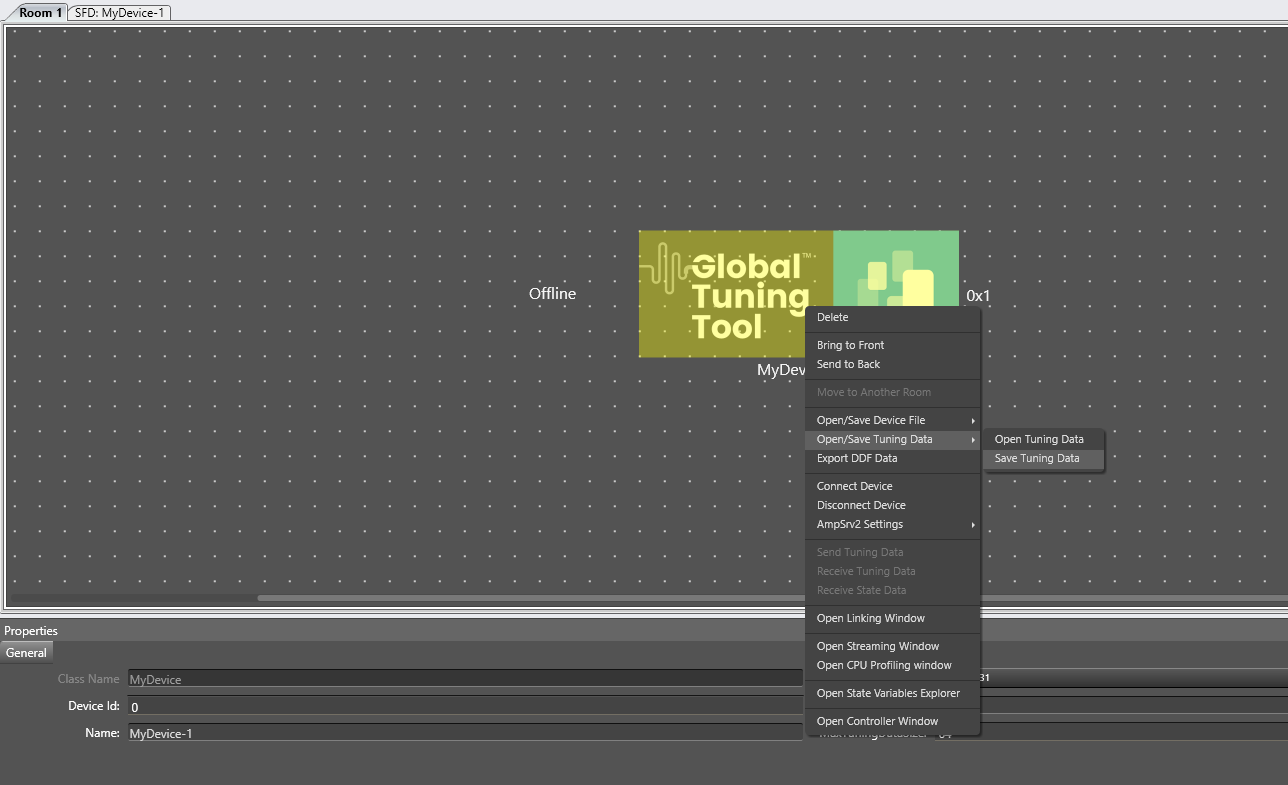
Data is exported in two ways:
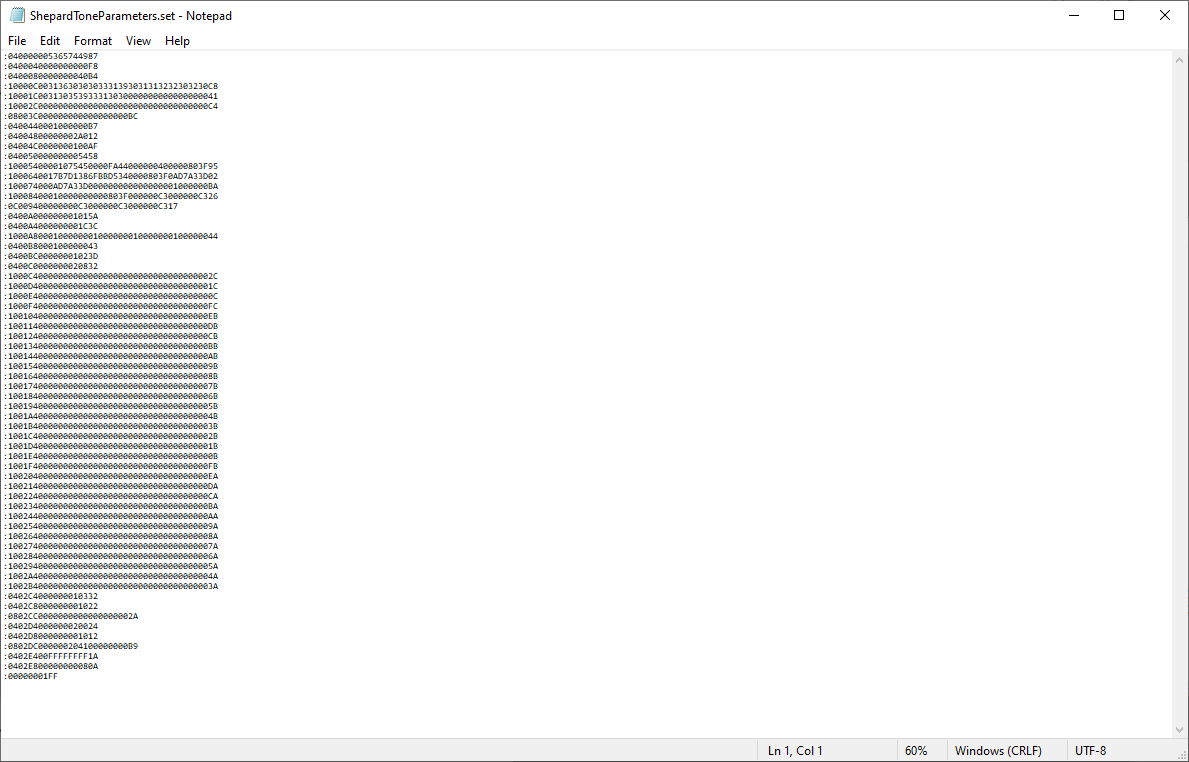
- in format that parameters can be imported again into Shepard Tone (*.set)
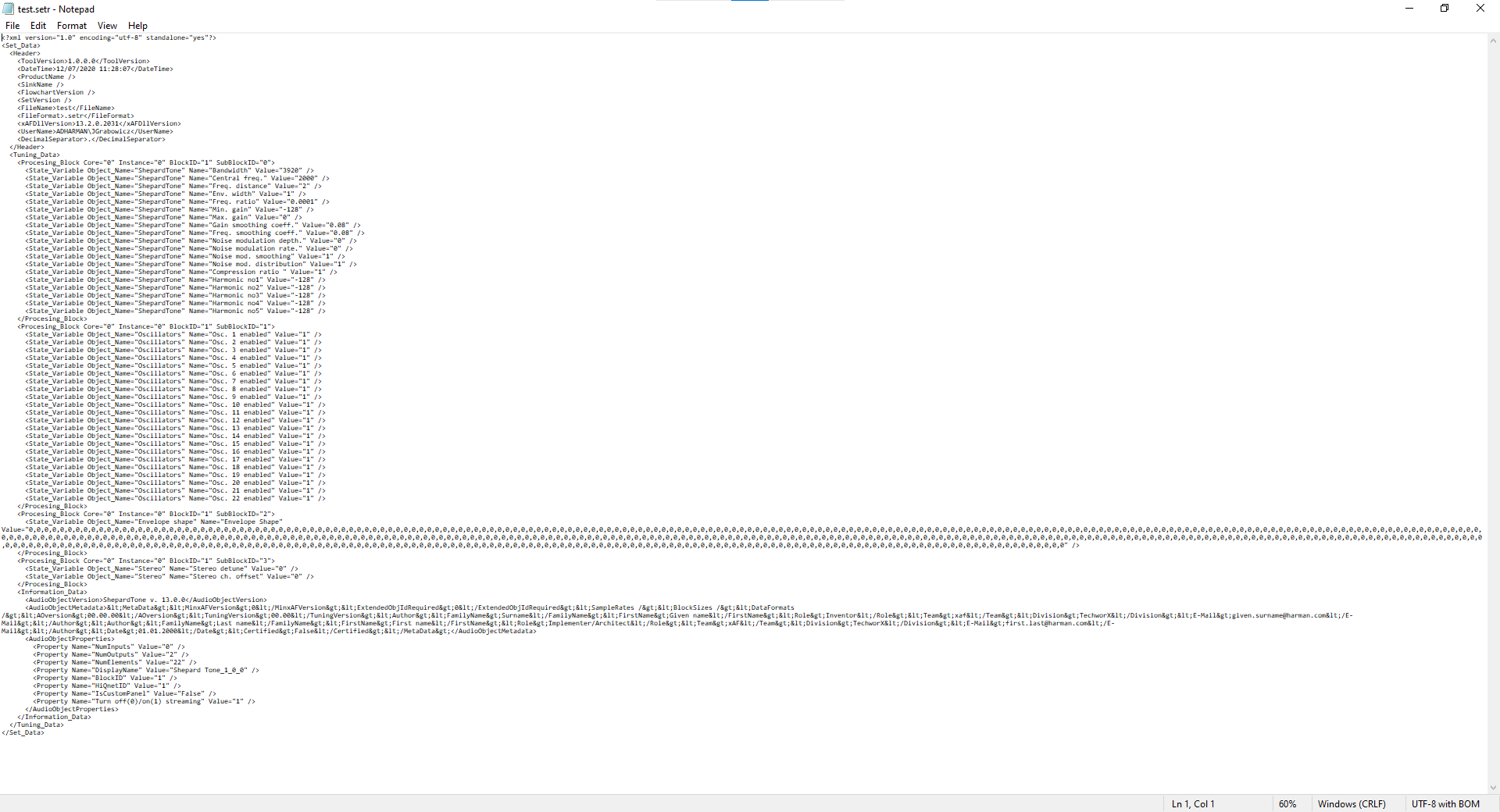
- in human readable format, so user can easily read the parameters (*.setr)
File includes also information about :
-
- dll version.
- audio object version
- file format type and version
- GTT version.
- user name
- file name
- all audio object metadata
- UTC date and time when the file has been created
- all audio object properties set in Signal Flow Designer.
- used decimal separator.
File in format to import:
File in human readable file:
3.Streaming
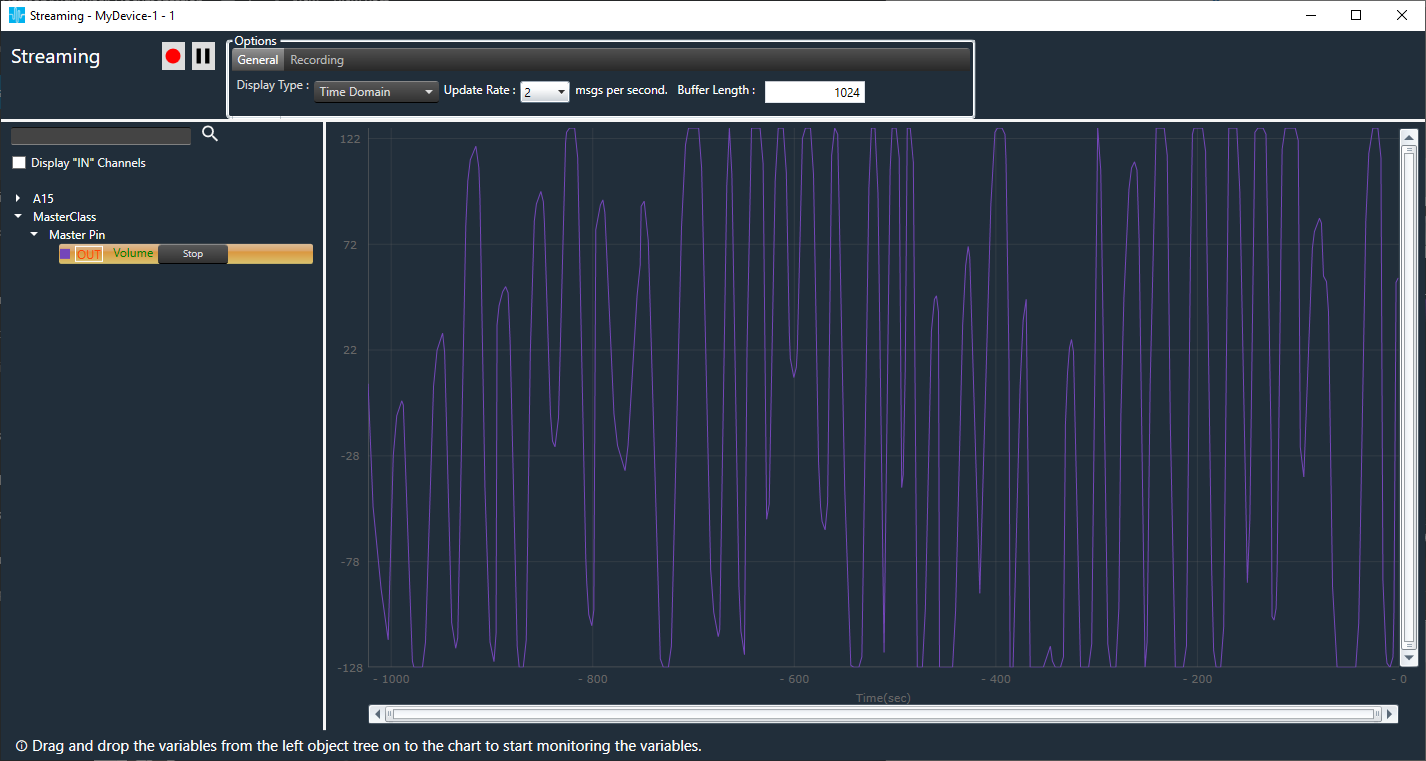
In the top right corner on Shepard Tone panel there is button Open streaming which is navigate directly to monitoring window.
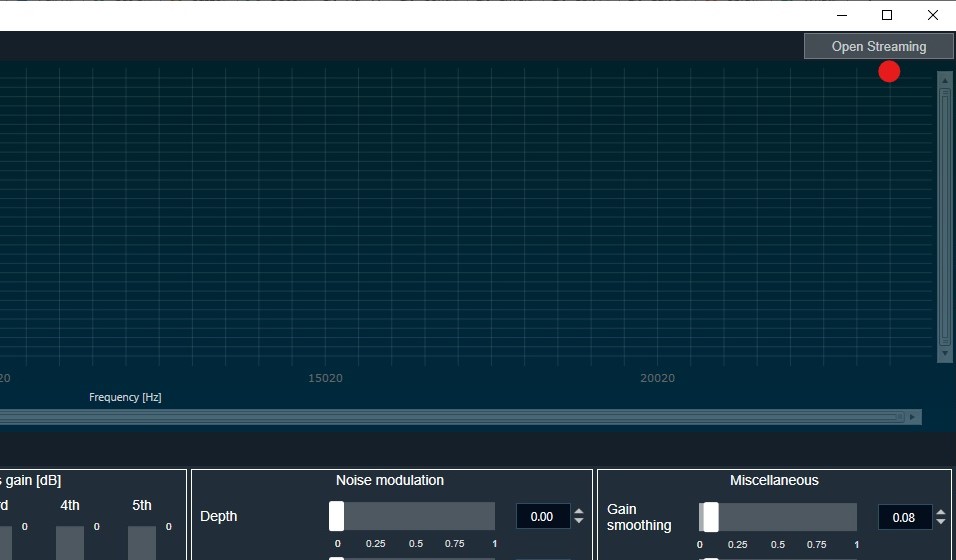
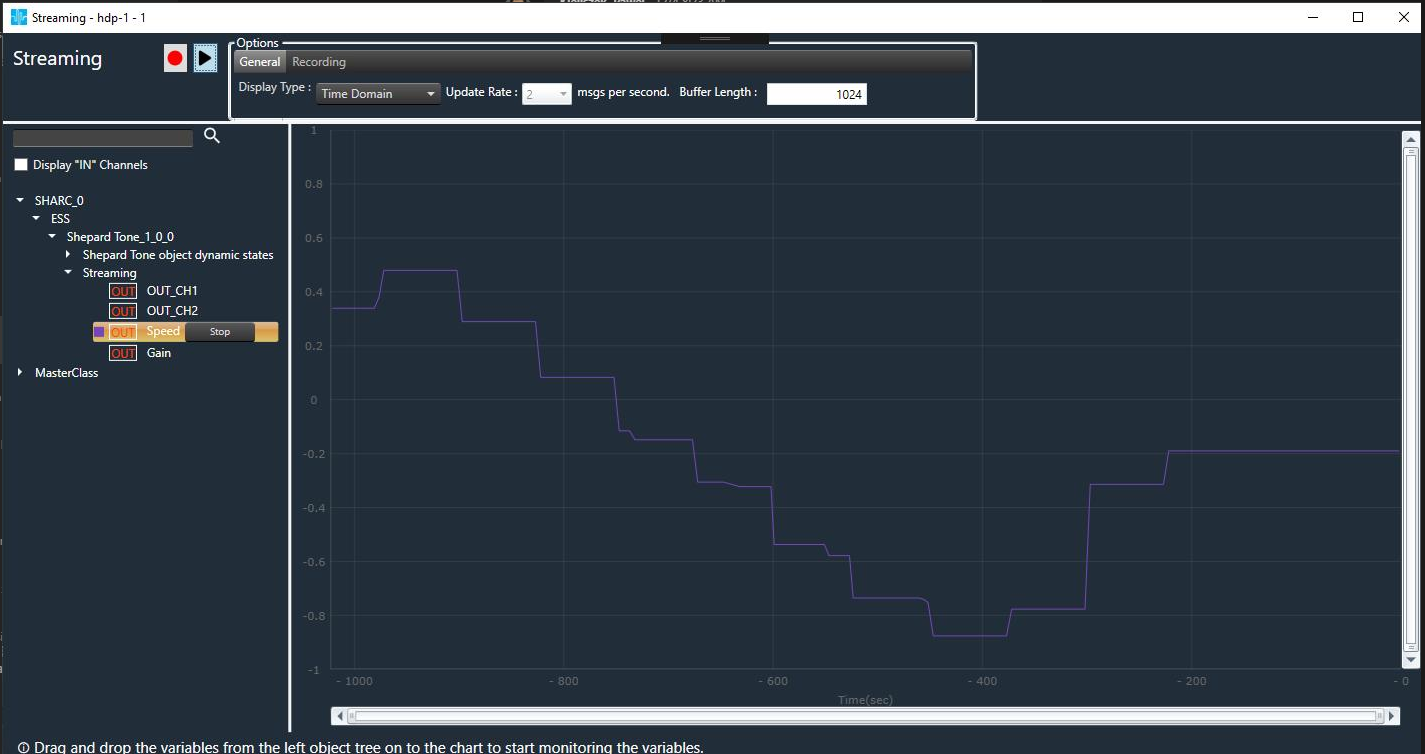
In this window it is possible to monitor Shepard Tone speed and gain control input/output. Monitored parameters are visualized on the chart. It is also possible to record the streaming.
In order to start monitoring user has to drag&drop selected propoerty from list to chart. To stop monitoring – click Stop button.
Streaming window display in two domains:
-time domain
-frequency domain
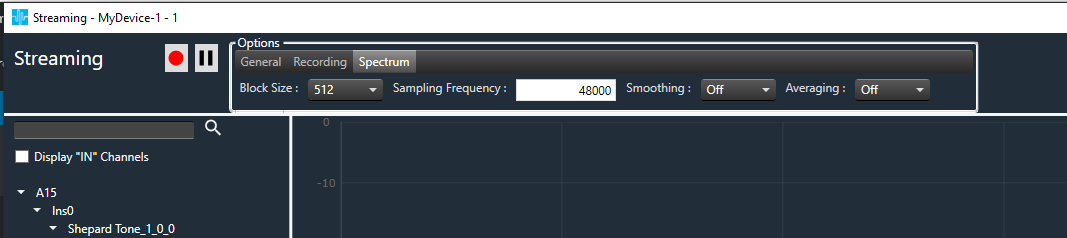
In Spectrum tab user can modify the size of FFT used to compute frequency response of Shepard Tone.
Streaming window allows monitoring of arbitrary control signals connected to master control e.q volume.