GTT stores the tuning data in set files these files are in Intel Hex format.
Due to the complexity to analyze the data stored in set files a human readable set file is generated.
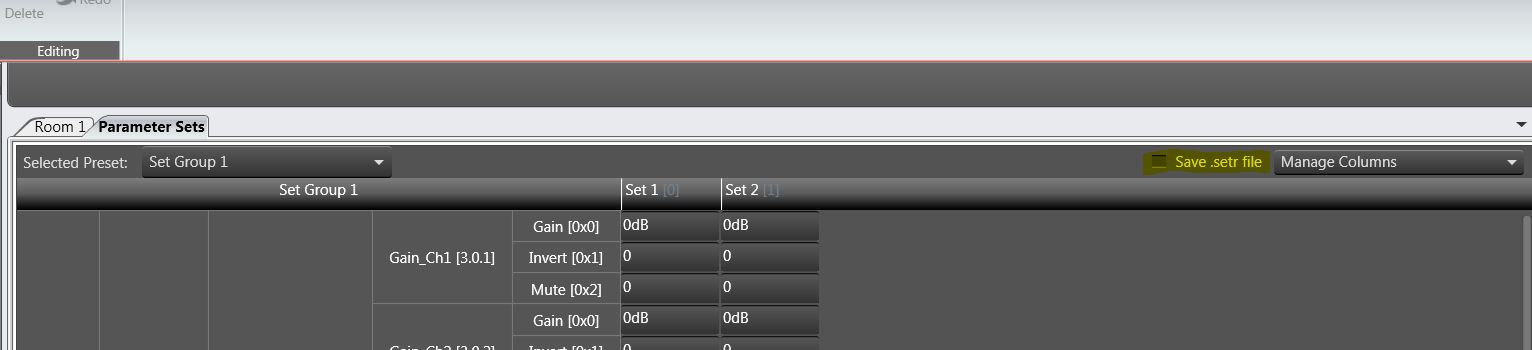
This type of file is generated when the user checks the check box in parameter sets window as shown below.
When the user saves set file through device context menu or in state variable explorer, user will be prompted with a confirmation message as below. On confirmation, .setr file will be generated along with .set file.
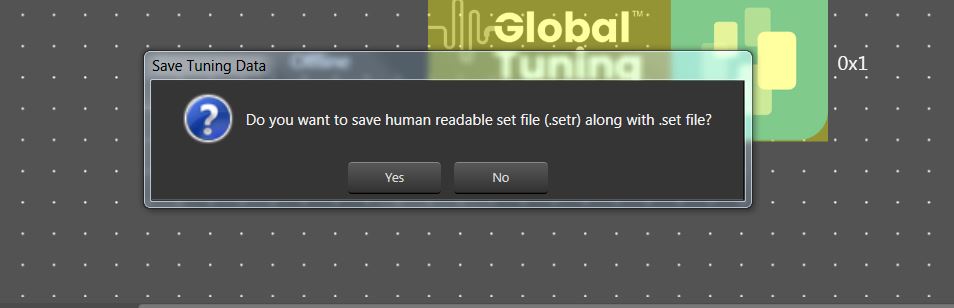
This file will have the same file name that set file but with extension “.setr”
The human readable set file is in XML format, this file contains three main nodes:
Header: Generic file information
| Data in GTT | Data in human readable set file |
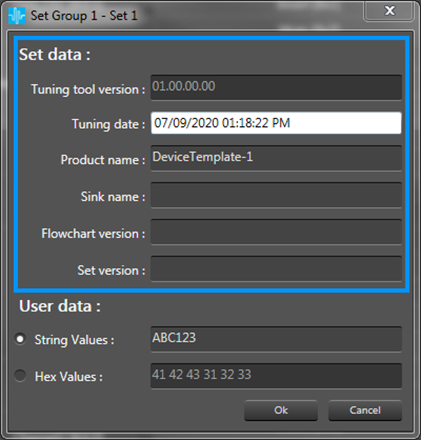 |
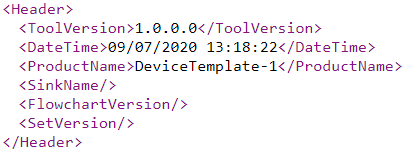 |
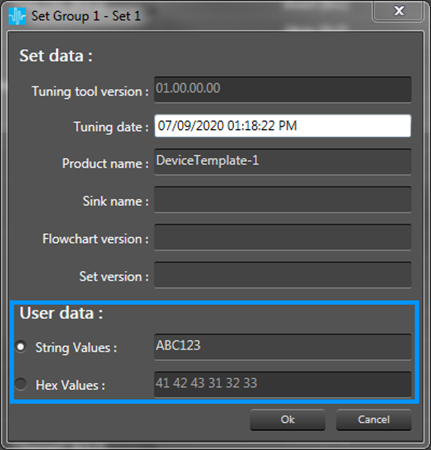
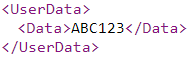
User data: User data defined in presets settings
| Data in GTT | Data in human readable set file |
 |
 |
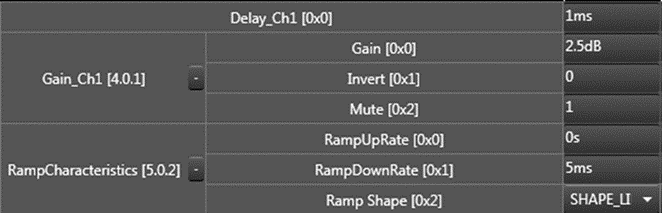
Tuning data: Values associated to each state variable for each audio object.
| Data in GTT | Data in human readable set file |
 |
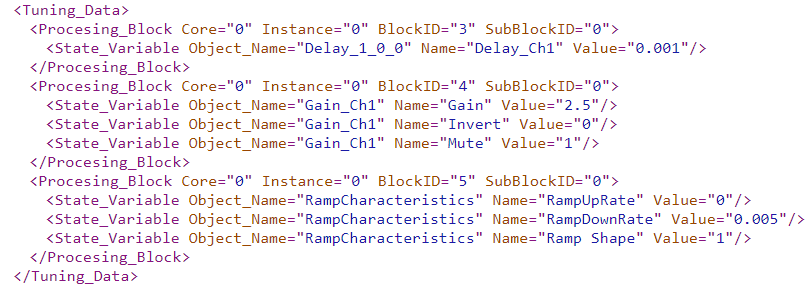 |
Each processing block corresponds to each Audio Object in current configuration
Multiple ways to save the set file:
Saving set file from device:
Go to Room tab
Select the device from where the set file has to be stored
Right click on it
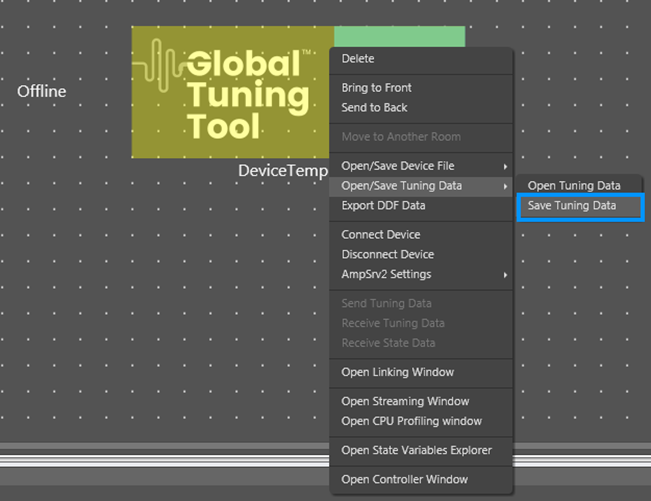
Select from popup menu Open/Save Tuning Data and then click on Save Tuning Data menu item
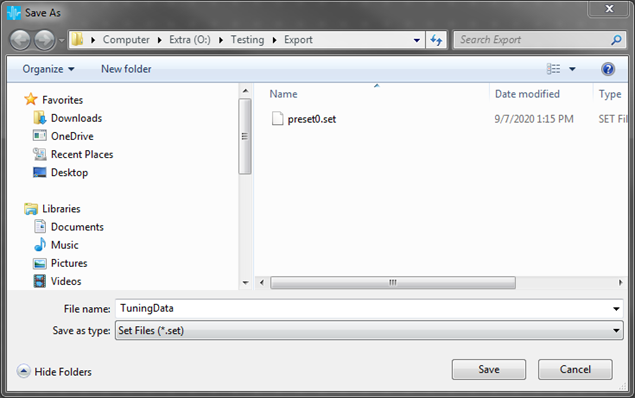
A dialog box will be displayed, select the folder where the files (.set/.setr) will be stored, type a file name and click on Save
Saving set file from presets:
From main menu select Design tab
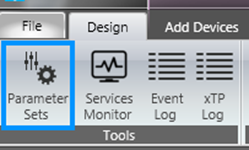
Click on Parameter Sets button
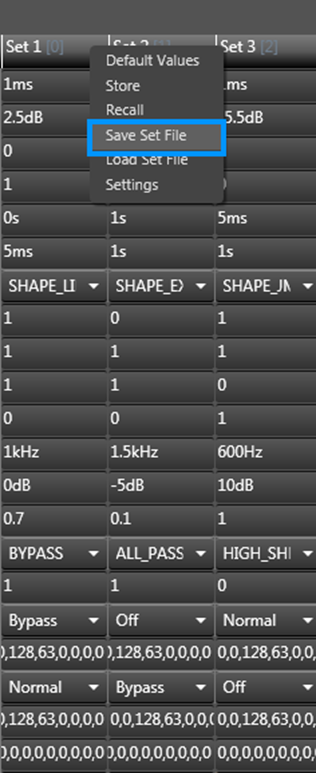
From Parameter Sets tab select the column from the preset to save
Right click on it
Select from popup menu Save Set File
A dialog box will be displayed, select the folder where the files (.set/.setr) will be stored, type a file name and click on Save
Saving set file from generic sets:
From Room tab click on the device to export tuning data
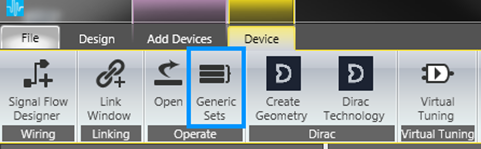
From main menu select Device tab and the click on Generic Sets
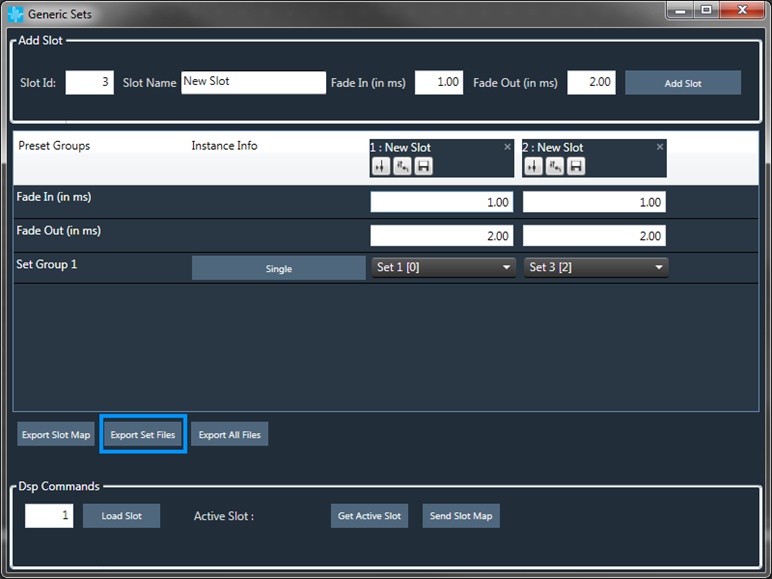
In the Generic Sets window click on Export Set Files
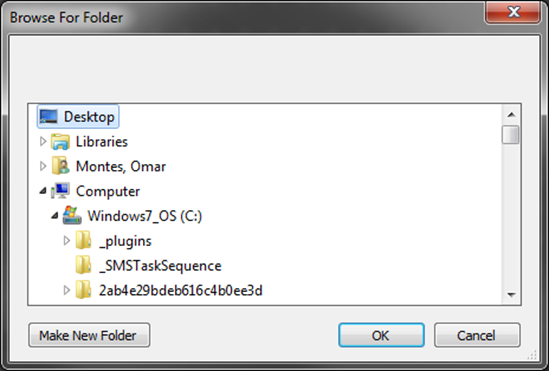
A dialog box will be displayed, select the folder where the files (.set/.setr) will be stored and finally click on OK button
Saving set file from state variables explorer
Go to Room tab
Select the device from where the set file has to be stored
Right click on it
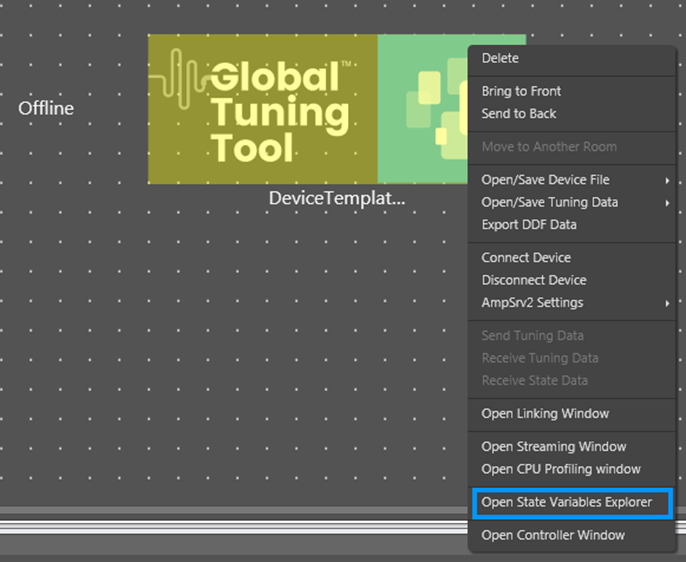
Select from popup menu Open State Variable Explorer and then click on it
A dialog box will be displayed, select from File menu the option Save Set As
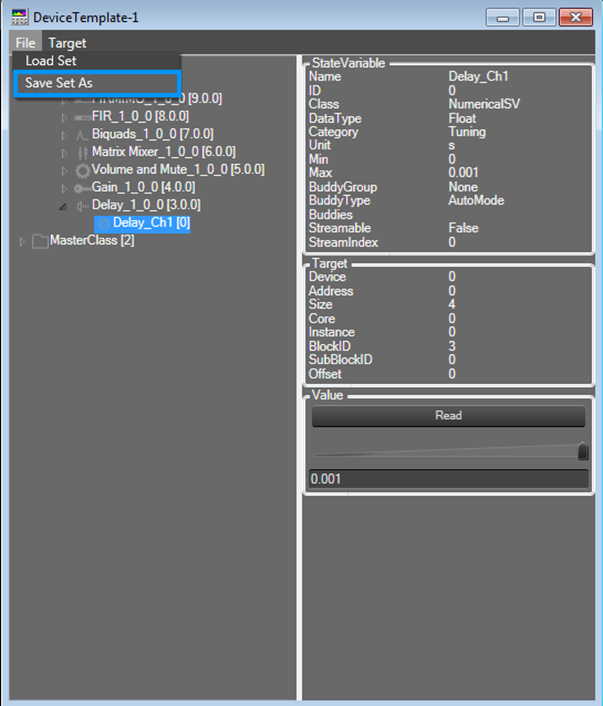
A dialog box will be displayed, select the folder where the files (.set/.setr) will be stored, type a file name and click on Save
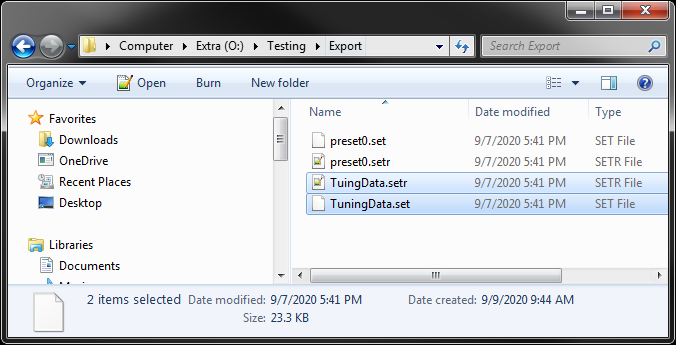
After save the set file, both files (.set|.setr) are available in the folder selected
Note: If the set file is generated through any other panel (ex: IESS panel), by default .setr will not be generated. User shall use any of the above mentioned ways to generate .setr file.