The Fader Balance audio object is used in the audio pipeline within the xAF. The purpose of the Fader Balance audio object is to optimize the sound inside the vehicle cabin.
Basically, this audio object allows to identify the “sweet spot” of the sound by moving in the x and y directions. Using this method, you can optimize the sound loudness on the left or back of the cabin.
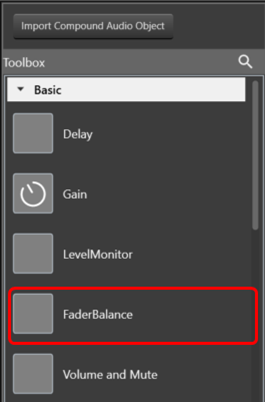
The number of audio channels it can process is configurable in the SFD and ranges from 1 to 255.
The Fader Balance object has only one operating mode and has three additional configuration parameters – Speaker Groups, Number of Steps, and Block Control. Using these additional parameters, you can configure the setup during design time.
Each audio channel may belong to one or two speaker group as set in the additional variable.
Fader speaker group has the following speaker types:
- CENTER
- SIDE
- BASS
- FRONT
- REAR
Balance speaker group has the following speaker types:
- CENTER
- LEFT
- RIGHT
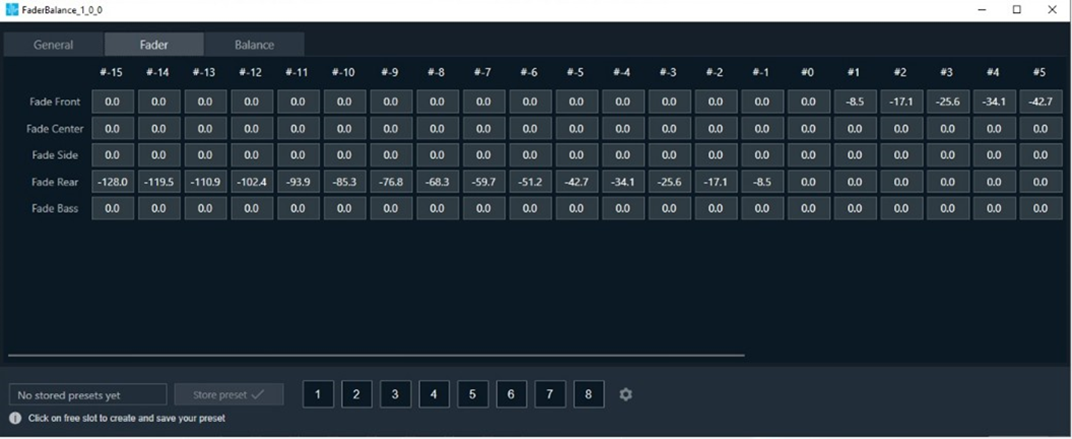
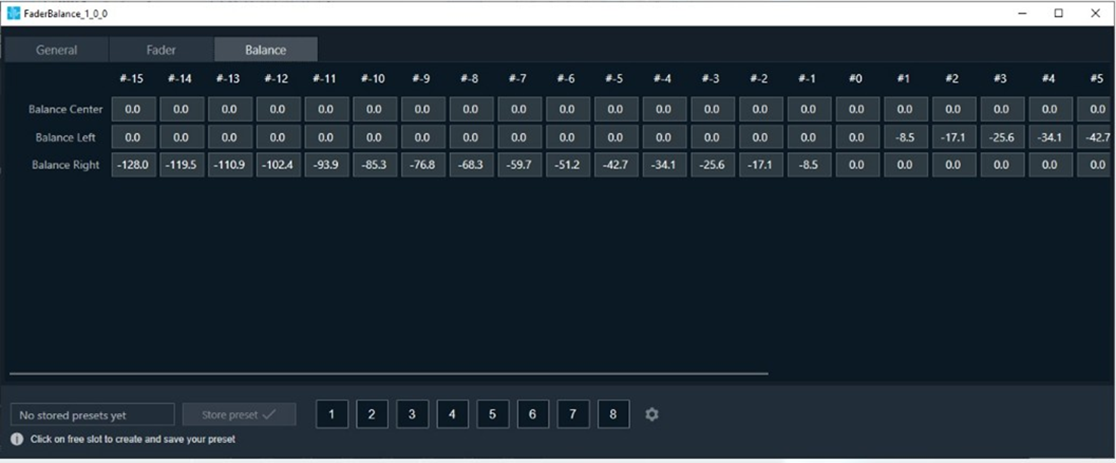
Each speaker type in each speaker group has its own gain table.
The output samples are generated by multiplying the input samples with the composite gain value that is a product of the gain levels of the Balance and Fader gain tables assigned to this channel and as pointed by the control inputs – Control_Balance and Control_Fader. The composite gain value is morphed to avoid pops.
Channel configuration (assignment to speaker types of the selected speaker groups), morphing time, and the gain level of each step are configurable through xTP interface. Basically, we are mixing run-time tuning (add cfg params) and design-time tuning (add cfg params). GTT is used for configuration in general, and xTP is the protocol used to deliver tuning data.
Fader and Balance positions are provided through control inputs.
Fader Balance is ported from the Summit version with the following differences:
- The option for 4 modes is not supported. This shall be handled with the preset files. The number of control inputs is brought down to 2 due to this change.
- Stand-alone Fader AO and Balance AO can be achieved by configuring the additional parameters in the SFD.
- The step count is made as an additional variable instead of using the “Number of Elements” field.
- The channel configuration is done using a drop-down menu to select only one speaker type in each speaker group. This prevents the selection of multiple speaker types by mistake.
Fader Balance Properties and Functionality
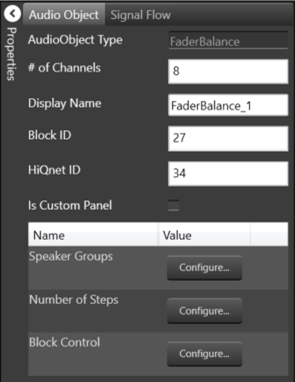
| Properties | Descriptions |
| # of Channels | Enter the number of channels. |
| Display Name | Enter the display name of the audio object. It can be changed based on the intended usage of the object. |
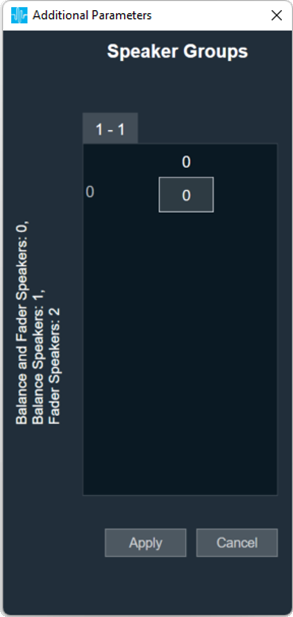
| Speaker Groups | Speaker Groups can be set to one of the following three options:
|
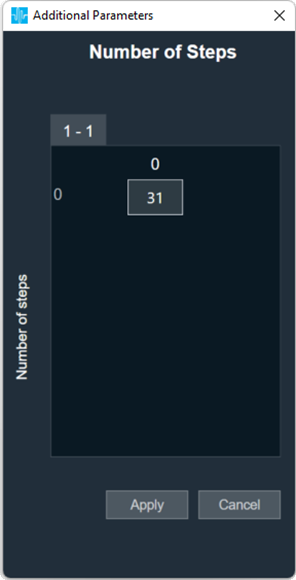
| Number of Steps |
The Number of Steps is a common variable that controls the number of gain levels that the user can operate. To control the gain level of fader and balance speakers the value shall be odd, and this value is common for balance and fader speaker groups. The number of steps need to be an odd number and shall range from 3 to 65 with the default value at 31. The xAF data order is set as “xAF_ODD” to communicate to the GTT through DDF to prevent entering even numbers by the user.
|
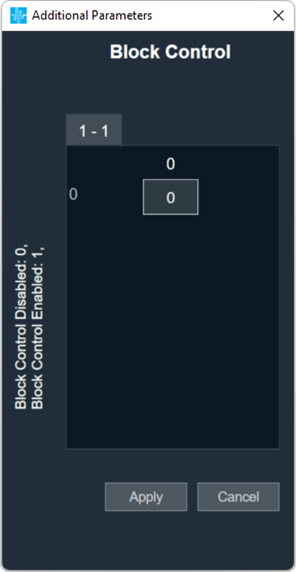
| Block Control |
Block Control Disabled (0) – Default Block Control Enabled (1)
|
Native Panel
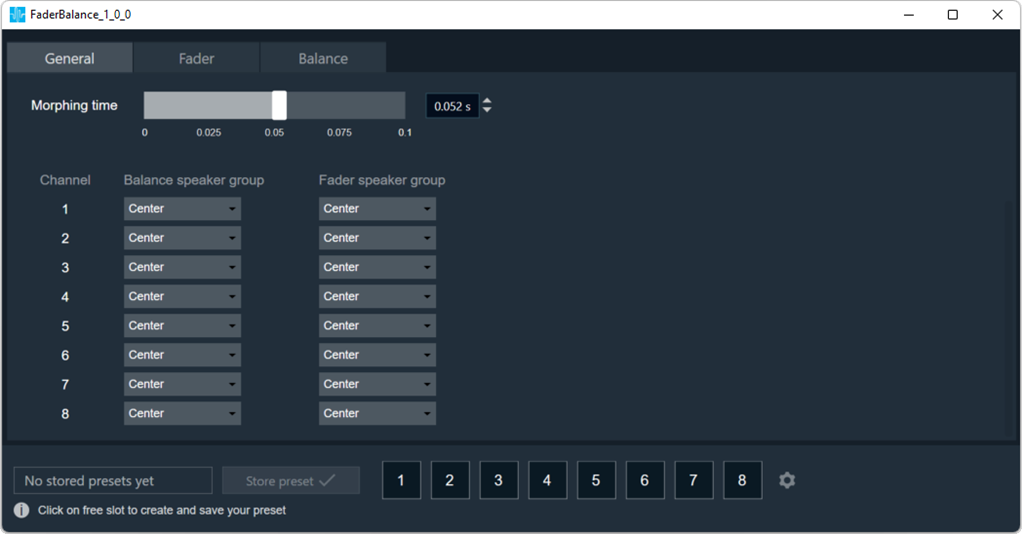
Fader Balance audio object supports the native panel. The native panel window consists of channel slider bars. The number of slider bars depends on the # of Channels property value.
To open the native panel, double-click on the Fader Balance audio object in the SFD. Move the slider bars to configure the morphing time and select the speaker type to configure the balance speaker group/ fader speaker group.
For more information about the FaderBalance native panel check the link.