Save device specific AmpSrv2 settings
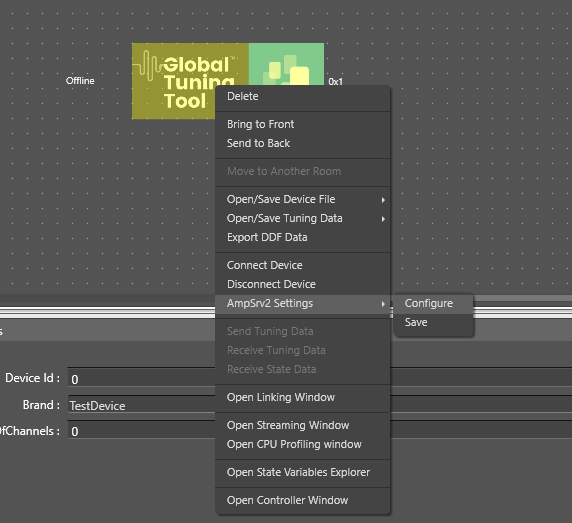
Click on the Configure option through the context menu over specific device
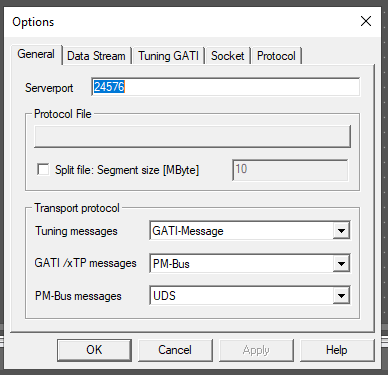
AmpSrv2 settings window will open
Once necessary Ampsrv2 settings are modified, click on Save option to save the ampsrv2 settings
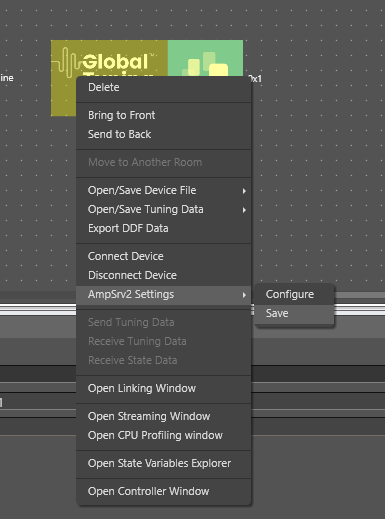
Henceforth, this saved configuration will be used for this particular device on Connect Device
The saved configuration will also be exported/imported on GTT project Export/Import
If a device is not associated with any AmpSrv2 settings, then default settings will be used
Modify the default AmpSrv2 settings of GTT
Click on Settings menu in the ribbon bar

AmpSrv2 window will appear and user can modify the settings and this newly modified settings will be considered as Default Settings for GTT
The settings will be automatically saved on modification, no separate save required
In case of Discover device, user should open AmpSrv2 Settings through ribbon bar (modify settings, if necessary), then click on Discover Device
This modified settings will be used to discover device
Note:
- In AmpSrv2 window, the server port number under General tab will not be saved
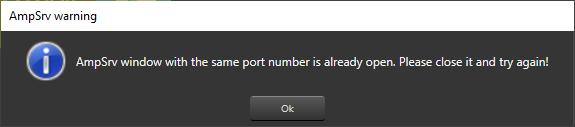
Two AmpSrv2 window with same port number cannot be opened, else an error message pops up