Table of Content

Home Screen
The Global Tuning Tool Home screen allows you to perform various operations like creating, importing projects, opening pre-configured templates, and launching default features.
When you launch GTT, the home screen appears, which includes the following tabs:
- Projects
- Audio Library Manager
- Features
- Sample Project
Also, Global Tuning Tool Home screen contains various options like export/import, renew license, configuring GTT settings, refer to Home Screen Options.

Projects
On the Project tab, you can create new projects, edit existing projects, import and delete projects.

On the Project tab, you can perform the following operations:
| Create Project
|
Use this option to create a new project. Once you click on the Create Project option, a Create Project window will be displayed. You can choose Empty Template or One Core Template option to create a project.
Project name will be automatically filled when selecting any template, you can manually change the project name by editing the default project name. By default, empty projects do not contain a description, you have to enter the details manually.
|
| Import Project
|
Use this option to import existing GTT project. Click on Import Project and navigate to the folder, select the existing project, and click Open. This imports the GTT project on the project tab.
If there is a version mismatch between the current audio library version and version saved in each device, of the imported file, then a warning message will be popped up. Import Project with Measurement sessionsWhen a Project is imported and an associated Measurement Raw data file ({projectname}.mmdata exists, then the Measurement sessions will also be imported along with the project. |
| Delete Projects
|
Use this option to delete a project. You can delete multiple projects as well as single project.
|
| Edit Project
|
Use this option to edit project name and description. On the Project tab, navigate to the respective project, and click the Edit option. Modify the name and description as required and click Update. |
Audio Library Manager
The GTT interacts with the audio library service, which is a Windows service. This service hosts the C++ dynamic linked library xAFVirtualAmp.dll. This DLL exposes a number of methods that GTT calls from the managed environment, in order to determine what audio algorithms and memory layouts are available in the DLL.
Every audio library has a version, and GTT stores this information alongside the data received from the xAF service.

GTT requires an audio library to perform operations required for tuning amplifiers. It obtains audio objects, their properties, memory layout, and so on from the audio library. This library is hosted in a Windows service and communicates with it via IPC. The Windows service is called Harman audio library. The block diagram below shows high-level communication between GTT and an audio library service.

| Column | Description |
| Default | This column shows which DLL has been set as the default. |
| Audio Library Version | This column displays the version of the DLL. |
| Audio Library Name | This column displays Audio Library file name (DLL name). |
| Description | This column displays description of the DLL . By default description will be taken from file description property of the DLL meta data. |
| Audio Library Path (DLL Path) | This column displays the source path of the DLL. |
You can perform the following actions on the Audio Library Manager tab.
- Select the checkbox in the default column to set the audio library as default.
- Click on edit icon to edit the audio library description.
- Click on the Delete option to delete the audio library.
Load Audio Library
On the Audio Library Manager tab, click on Load Audio Library icon. You can load multiple xAF libraries.

If the same xAF library version is already present in GTT, a prompt will appear before overwriting the DLL.
When a new audio library is loaded, it will not set to default automatically; instead, you need to select the checkbox to make it default.
After extending support for multiple libraries, each version of xAF libraries will be separately stored for simultaneous use in GTT. Prior to this, existing xAF dlls were overwritten when another DLL file was loaded, and GTT could only work with one xAF dll version at a time.
Set Default Audio Library
Installed audio library will be set to default when first time launch of the GTT application. User can change the default audio library by checking the checkbox in Default column and the same will be updated and notified to the user.

The default audio library version set from this screen would be used for basic GTT operations – Add Device/ Discover Device/Project import (if last saved audio library is not loaded in GTT).
- Set the default audio library version by selecting the checkbox.
- Only one audio library version can be set as default.
- Settings shall be saved once check the selected audio library.
On GTT installation, the latest audio library will be loaded automatically and set as default.
Edit Audio Library Description
You can modify the description of audio library DLL by clicking on Edit Description option. After changing the description, click on Update to save the changes.

By default, Description is taken from the file description of DLL meta data until the user manually updates it by clicking the Edit icon.

Delete Audio Library
Click on Delete icon to delete an audio library.

To delete the Audio Library, you should run GTT with the “run as administrator” option.
Audio libraries can be deleted only when associated device and compound audio objects are deleted.
Audio library which is set as default cannot be deleted.
Any unsaved settings should be saved before audio library delete.
Feature
The Feature tab allows you to directly access the MM-IR (Measurement Module for synchronous and asynchronous impulse response measurement, and recording) and MM-RTA (Measurement Module for Real Time Analyzer) features without having to go through the entire process of creating a regular GTT project.
If a project is in the open state and you double-click on the MM-IR or MM-RTA features, a feature window will open, and the relevant data will be updated and stored in the project.
If you double-click on the MM-IR or MM-RTA features from the home screen, a dummy project will be created in the background and you will be directed to the feature window. However, it is not possible to export the dummy project

MM-IR
The MM-IR defines the Measurement Module for synchronous and asynchronous impulse response measurement, and recording. A device is not necessary for the Measurement Module to function in the project. The Measurement Module enables direct sound card measurements without an intermediate device, whereas tests controlled by gain channels can be carried out via a device.
To open the Measurement Module dashboard, double-click on MM-IR.
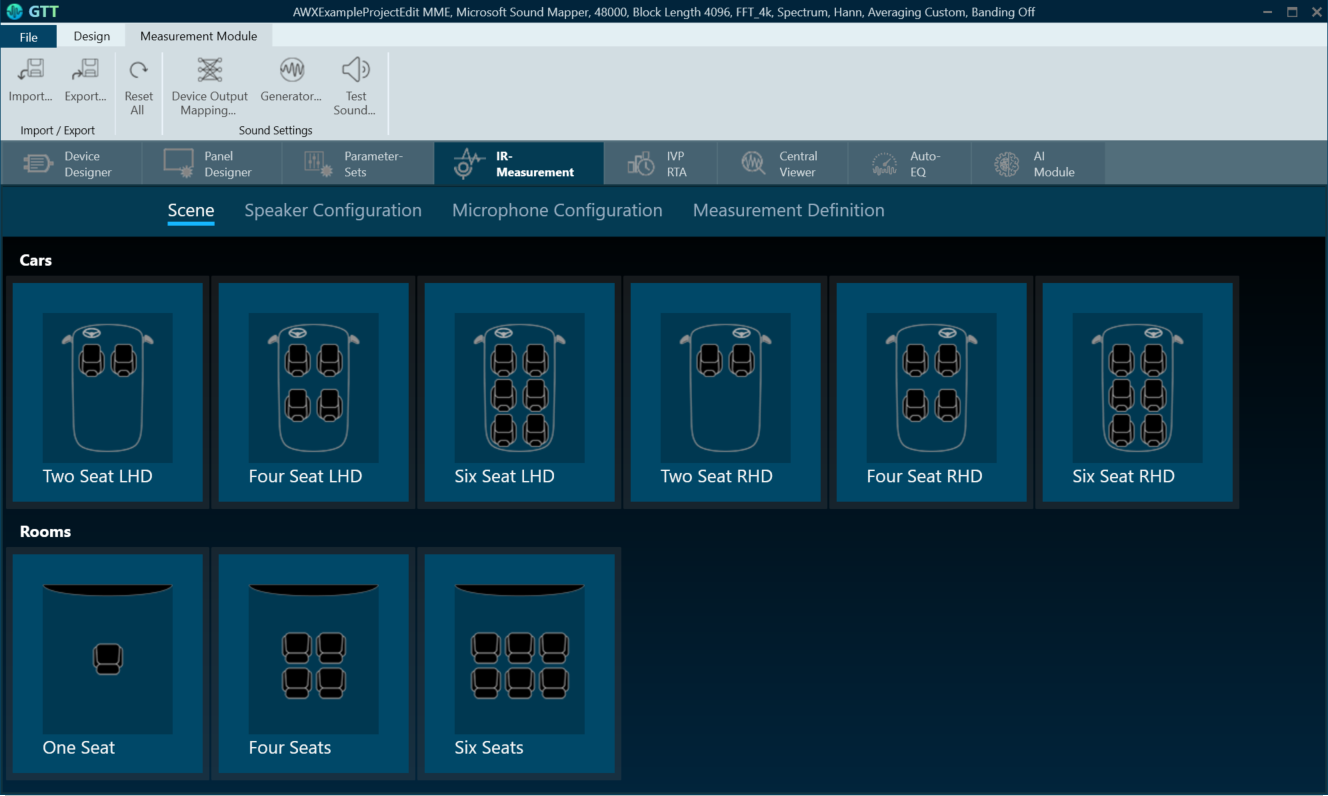
For more information, refer to GTT Measurement Module 2.0 User Guide.
MM-RTA
The MM-RTA defines the Measurement Module for multi-channel Real-Time analyzers for audio signals.
It provides time and frequency domain analysis tools for measuring RMS/peak levels, frequencies, THD, delays, magnitude, and phase responses. In addition, a built-in signal generator provides sine tones, sweeps, pulses, and various noise signals. Analyzing recorded signals is possible with a file player.
To open the Measurement Module dashboard, double-click on MM-RTA.

For more information, refer to the Real Time Analyzer User Guide.
Sample Projects
The Sample Projects tab allows you to get access to the example project. This will help you to understand how various audio objects are configured in the Signal Flow Designer.
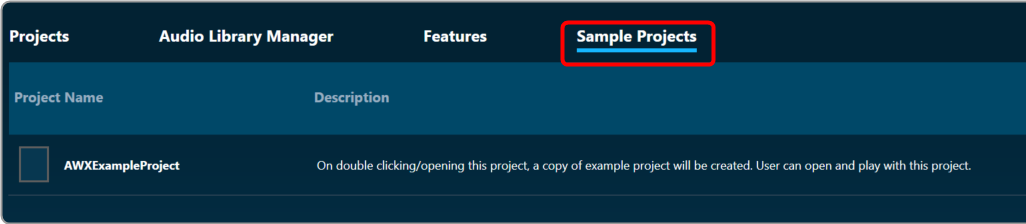
Double-click on the example project, this will create a copy of the example project. You can modify the newly created example project. Similarly, you can create any number of copies of an example project.
More Options
On the right side of the GTT home screen, you will find an ellipsis menu that contains additional options.
Additionally, there is the “Current Project” option, which allows you easy navigation to the existing project window. You must have a project open in order to use the ” Current Project” option; otherwise, the feature will be inactive.

- About Global Tuning Tool: Displays software version of Global Tuning Tool, release type, and license status.

- Thumbnail View: To display all items on the home page in thumbnails. The Thumbnail option is only available in Feature and Sample Projects tab.
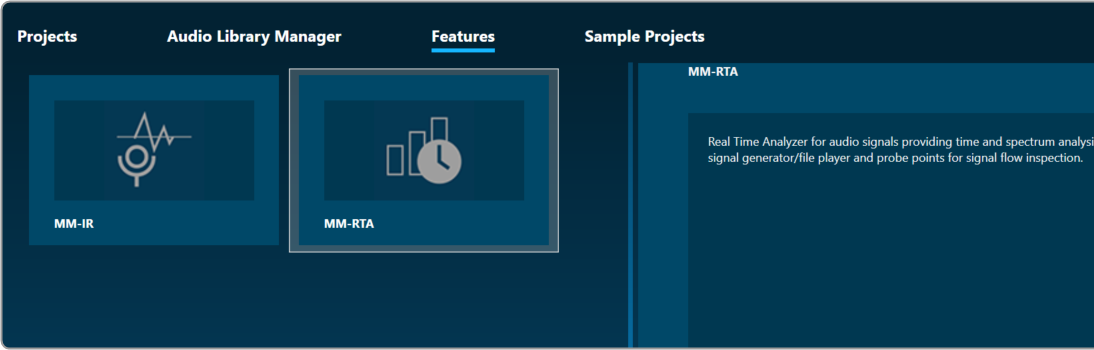
- List View: To display all items on the home page in the list.

- AudioworX Documentation: To open the AudioworX documentation page.
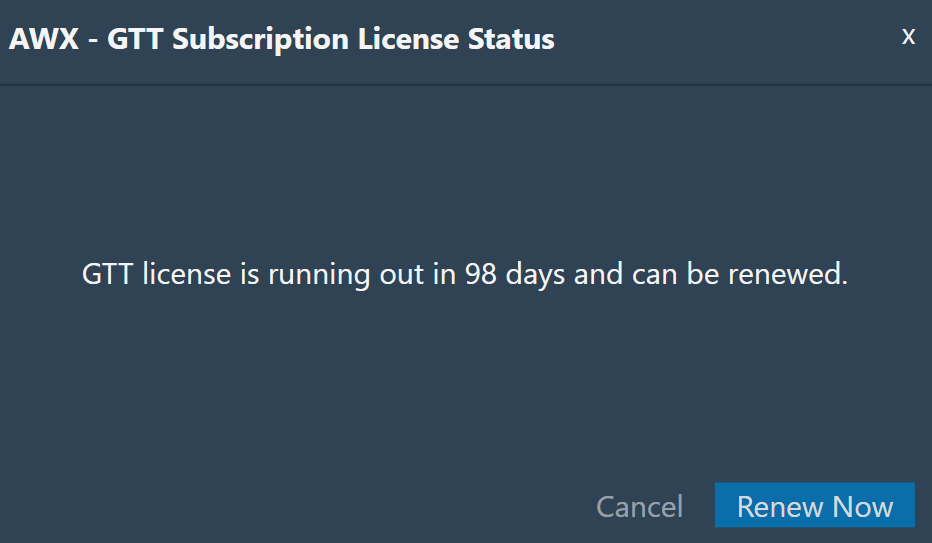
- Know your GTT license status: Displays GTT license status. Also, you can renew your GTT license.