
Table of Content

Parameter Set Overview
GTT allows you to tune the audio object memory by setting values using Parameters Set and measuring the audio experience.
The Parameter Sets show the tuning data of all the set of objects used in the signal flow design. These sets can be easily maintained, exported, and shared with others. Additionally, the Parameter Sets allow you to save the progress of the tuning of the audio objects at every milestone point. As a result, you can return to any level and start fine-tuning the device.
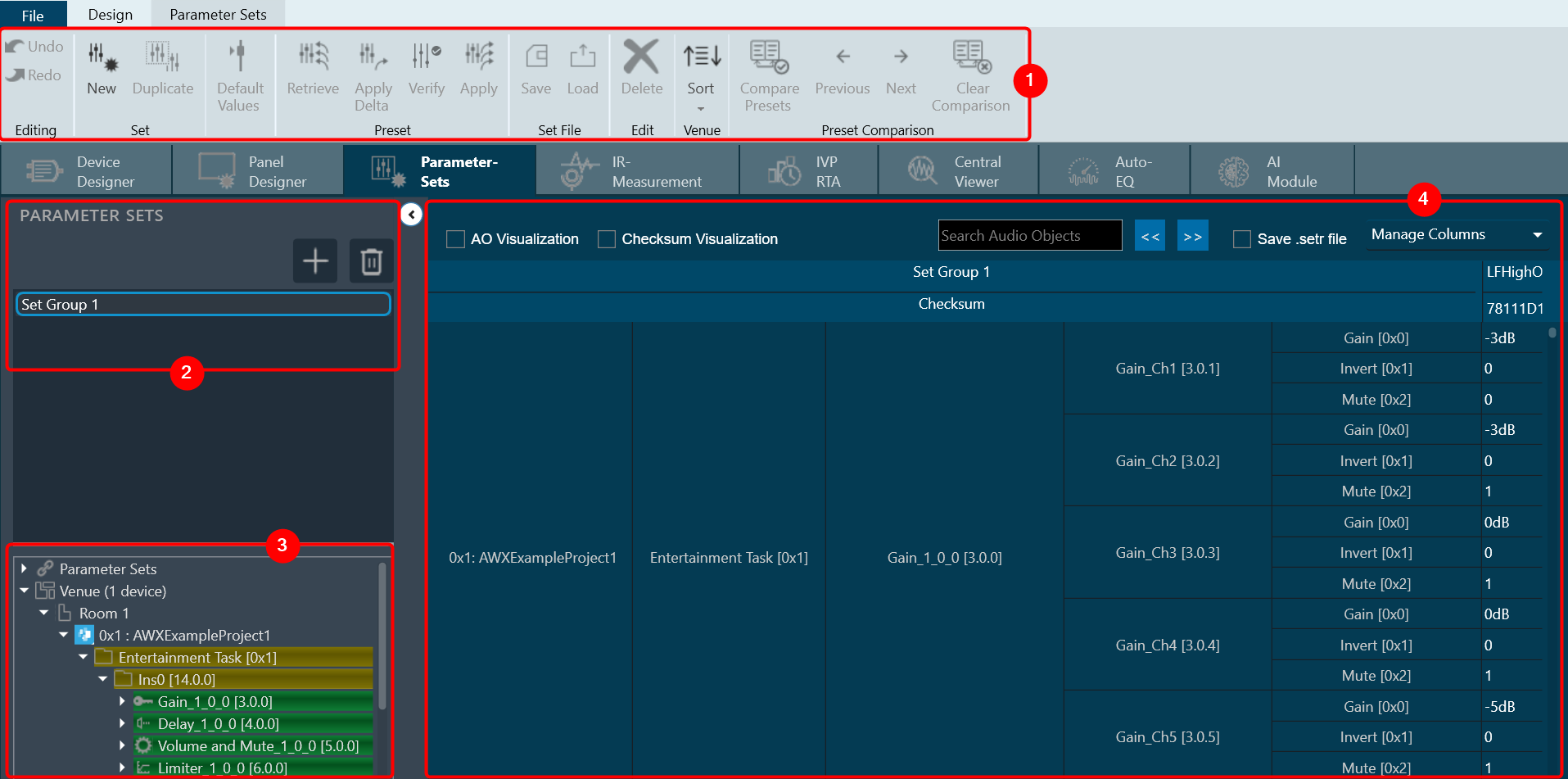
When you launch a project in GTT, the Device Designer screen appears, which includes the following elements:
- Parameter Set Ribbon: The ribbon is composed of six groups, each of which represents a subset of program functionality. In addition to these programs there are also additional contextual programs that automatically appear depending on what is currently selected.
- Parameter Sets view: This section displays the list of projects. In addition, you can add and delete a parameter set group.
- Venu Explorer: This section displays core objects. Core objects that are part of the Audio Core (virtual core) and operate at a higher level than audio objects.
- Tuning Panel: The workspace is used to add audio object/ xAF instance and program the device core.
Parameter Set Ribbon

| Set |
|
| Default Values | Use the “Default Values” option to reset all the parameters of the selected set to their default values. |
| Preset |
|
| Set File |
|
| Edit |
|
| Venue |
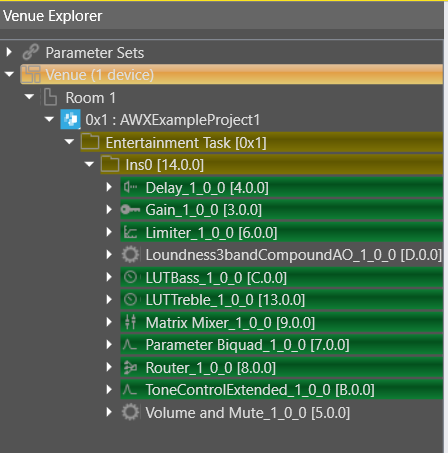
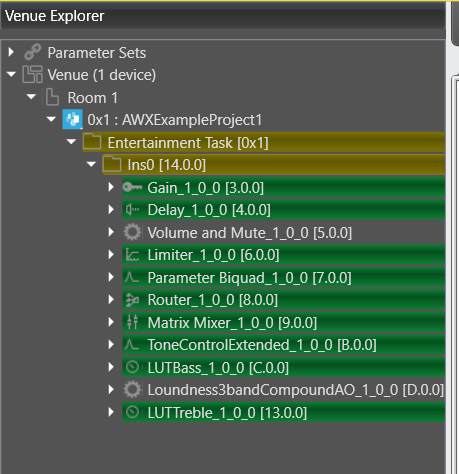
By default, parameter sets explorer show data in HiQNetId order. |
| Preset Controller | The Preset Controller is basically a group of parameter sets in a single view, with all of the functionalities such as creating .set files, storing sets, and recalling sets of parameter sets available. A “Slot” is a group of parameters set one level above. You can create multiple such slots and do any actions like create set files, store , recall etc. In addition to GTT functionalities, it is also possible to send Xtp commands to device. There are XTP commands to send slot map and Load the slot on to device. You need to export all .set files and manually flash on to the amp. For more details, refer Preset Controller. |
| Preset Comparison |
By default, Presets Comparison ribbon buttons will be disabled. For more details about Presets Comparison, refer to Preset Comparison. |
Parameter Sets View
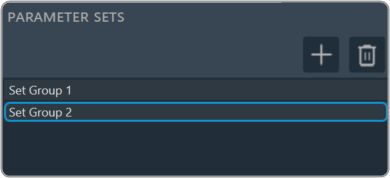
The Parameter Sets section allows you to perform the following actions:
- Add a new parameter set group.
- Provides options to remove the set group.
Venue Explorer
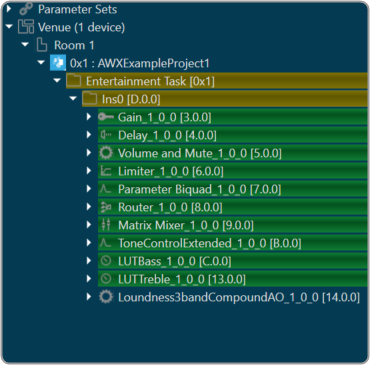
In venue explorer allows you to navigate and explore various parameter set groups and audio objects. Drag and drop the desired objects you wish to have presets configured in onto the workspace.
Tuning Panel
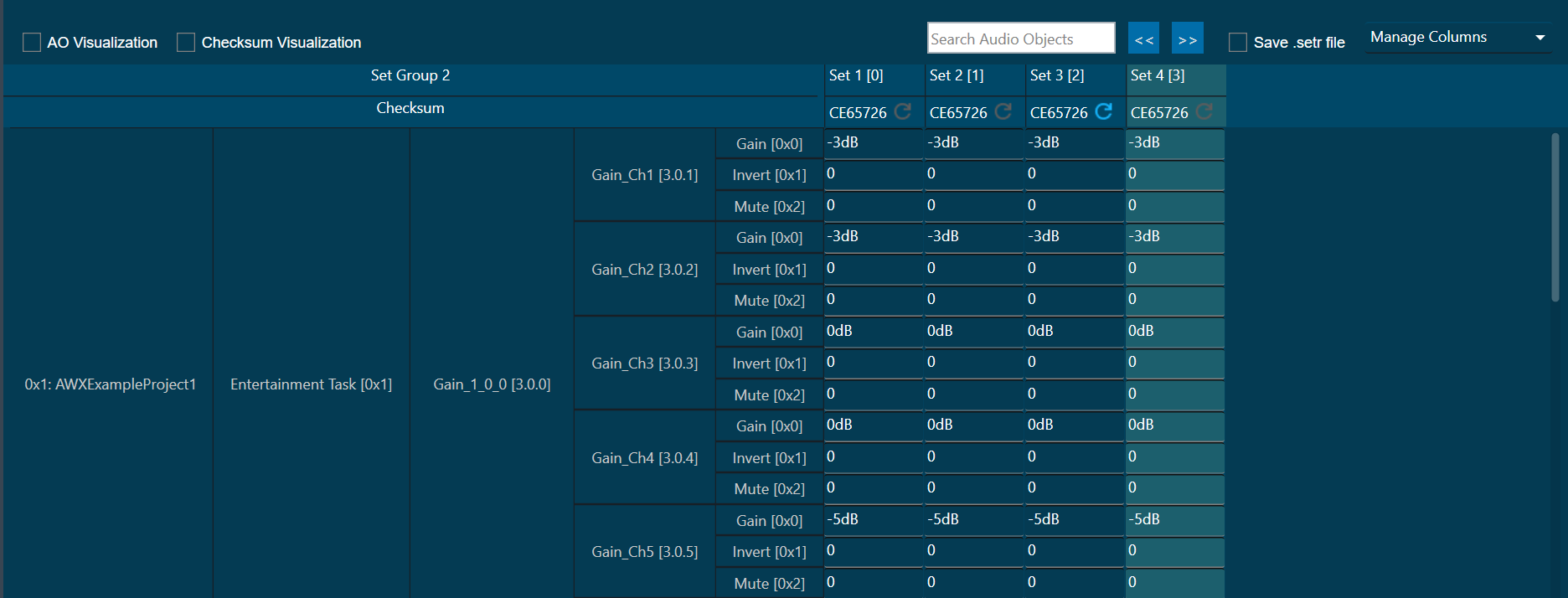
The tuning panel shows the tuning data of the audio objects used in the SFD. You can perform the following actions on the tuning panel.
- Modify the tuning data of the audio objects.
- Manage or filter the columns and set groups.
- Search the audio objects.
- Stores the tuning data in set files. These files are in Intel Hex format.
Save the modification or progress of tuning of audio objects.
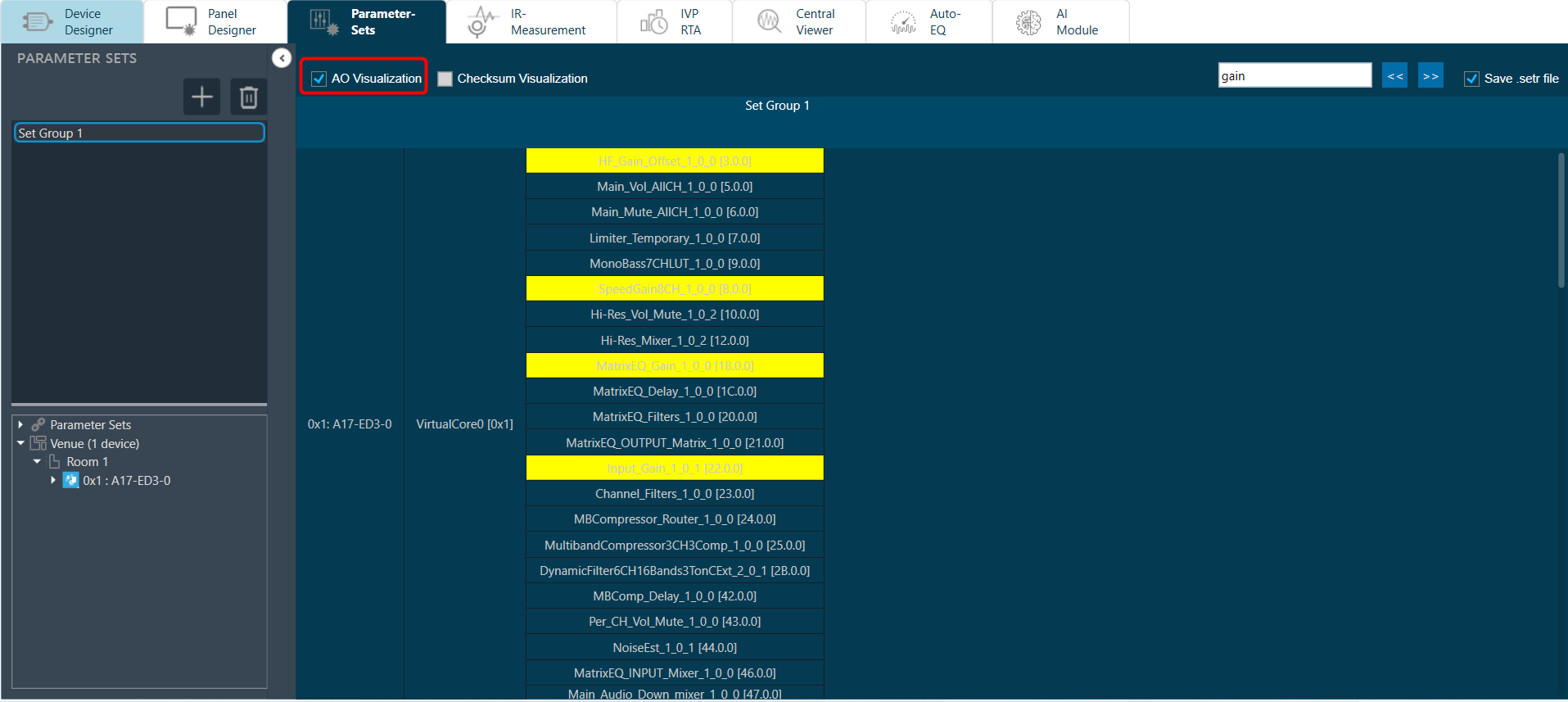
AO Visualization: To view audio objects added in parameter sets, the “AO Visualization” view can be used.

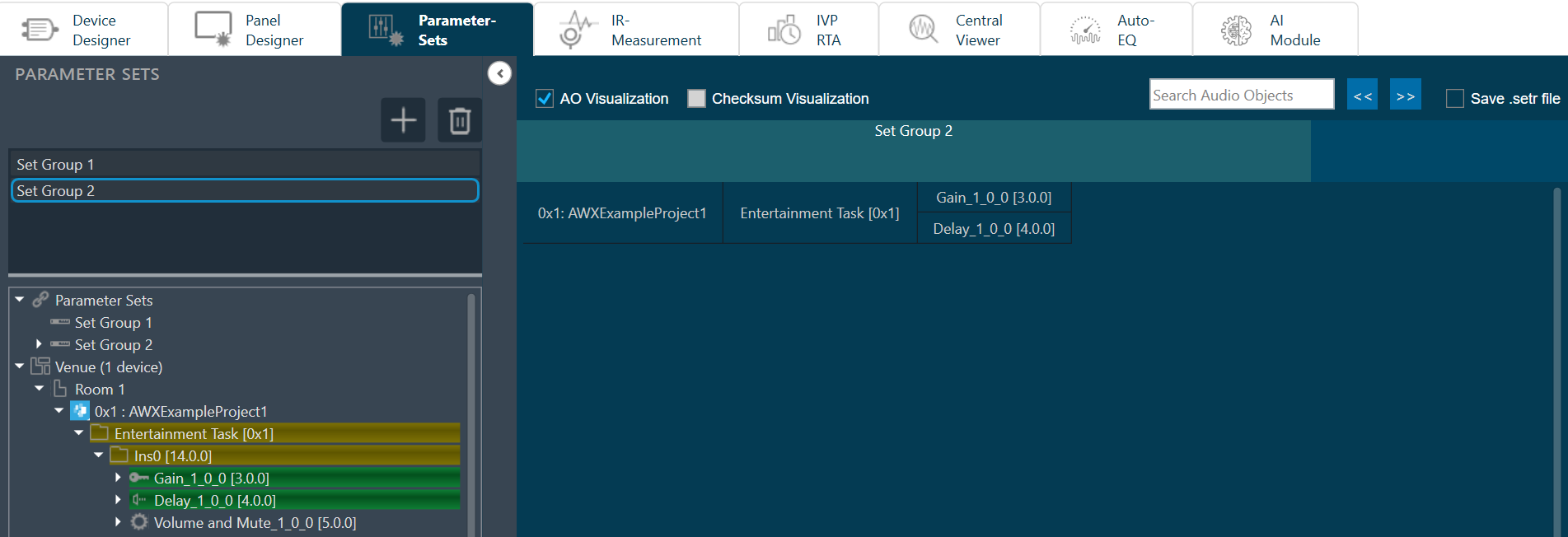
You can view the compact view of the device, cores, and audio objects by checking “AO Visualization” checkbox in the header. On unchecking this checkbox, the default view of parameter sets will be shown. This compact view is specific to each set group, so you can enable this for one set group and view the default view for another.
Operations such as adding new parameters by drag & drop, deleting parameters, and creating new sets are allowed in the AO Visualization view, but the view will be reset back to default.
AO Visualization view supports the search feature and you can search audio objects by name. The matching cells will be highlighted in yellow color.
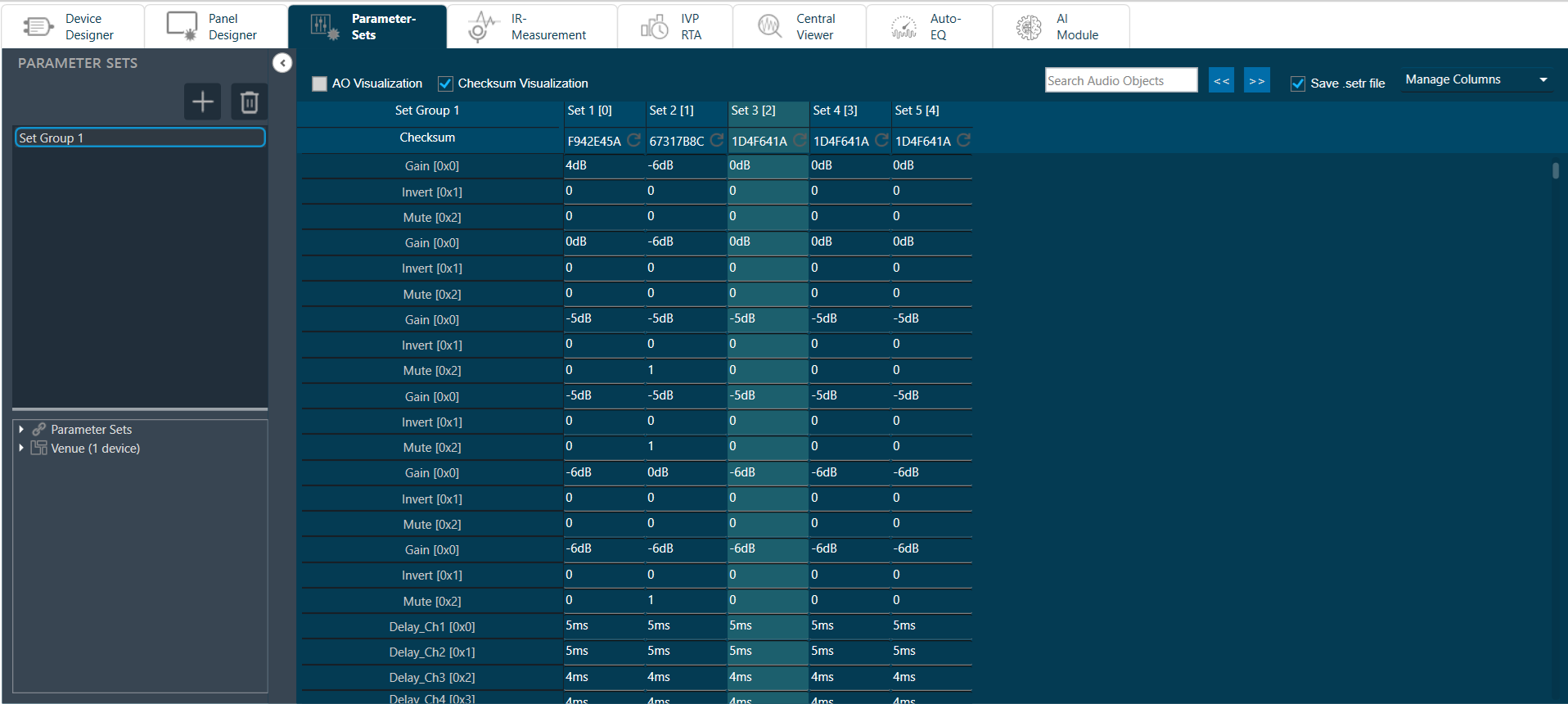
Checksum Visualization: Checksum visualization allows you to view more sets data by hiding left side columns.
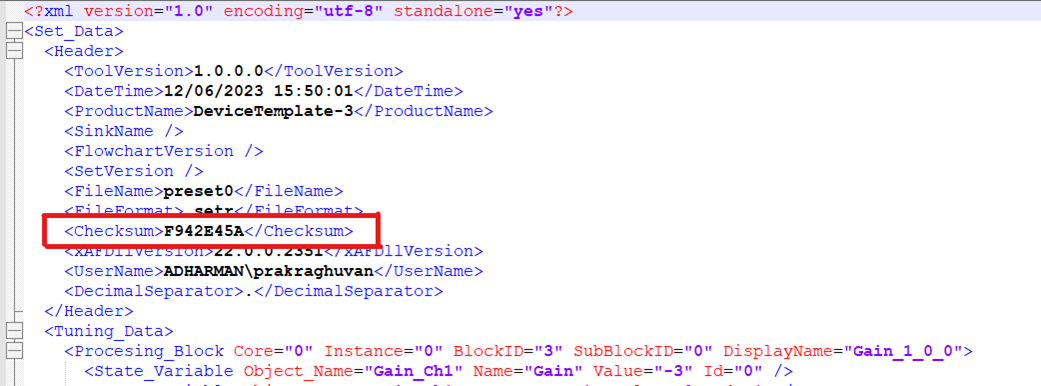
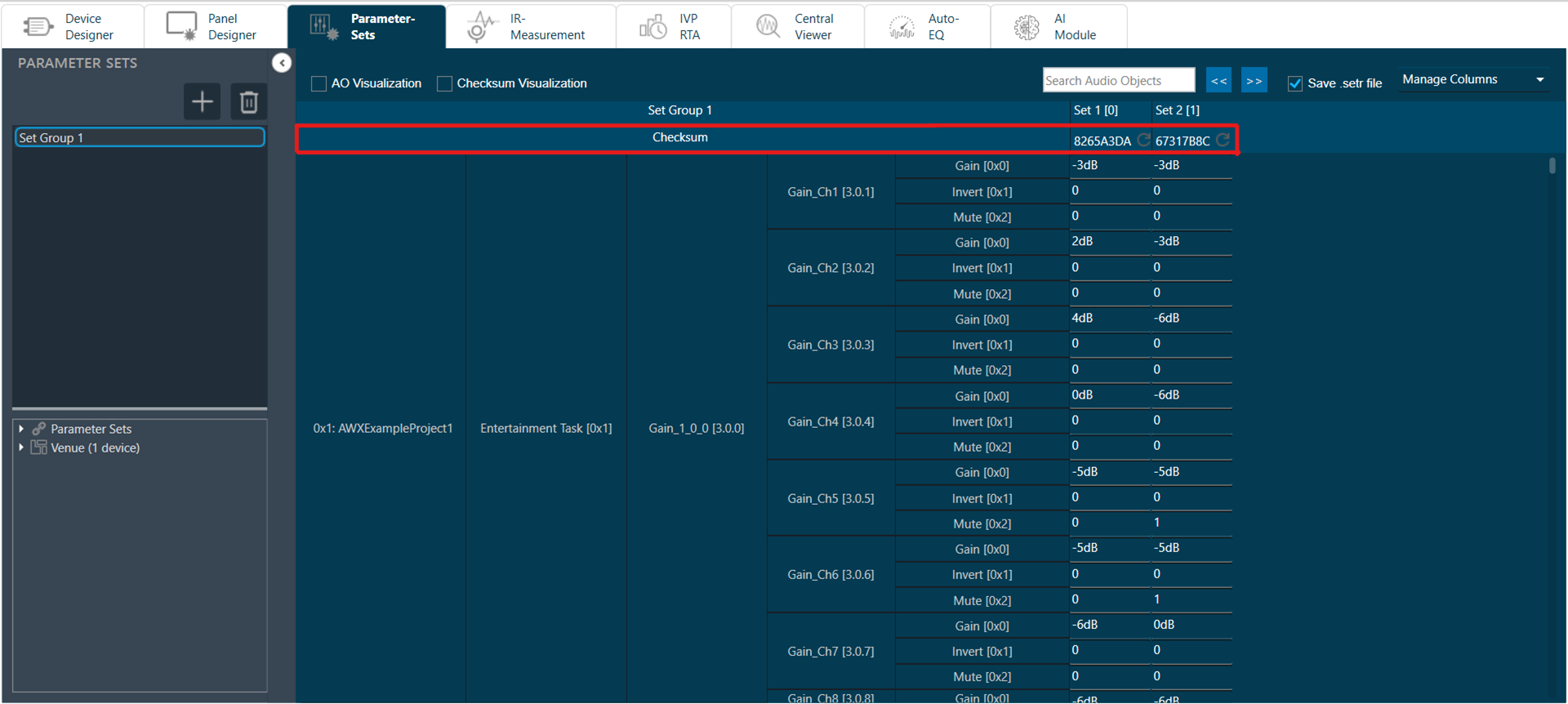
Parameter Sets Checksum: A checksum is an alphanumeric string that serves as a fingerprint for data. Later this data can be used for comparisons to detect errors in the data. checksum is significant because it helps to validate the data. This feature allows you to view the checksum of each set and export the checksum along with the set files.
You can use this set checksum to verify exported set files to validate whether set files data and parameter sets set data is same or not.
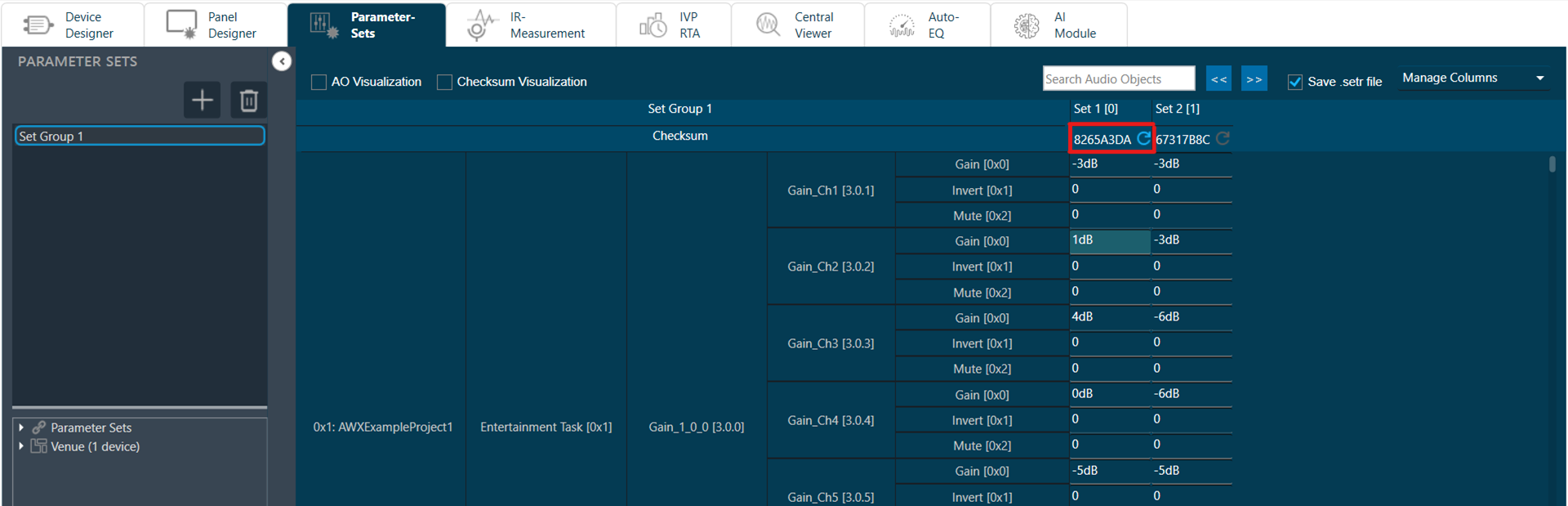
Refresh Checksum: Refresh checksum option get enabled when any changes are made in set data and user data. You can click on refresh icon to calculate latest checksum.
Export Checksum in Set file: GTT allows you to export set checksum in set and setr files.
Checksum will not be saved in .set and .setr files in below cases:
– While saving .set and .setr files in State Variable explorer.
– While exporting .set and .setr files from Export Tuning Data.